
How to Disable OneDrive Auto Sync (Windows & Mac): Quick Fix
OneDrives Auto Sync feature is great for making sure your files are always backed up and accessible across devices, but it’s not always the best thing. It can consume bandwidth, fill up storage, and even result in duplicate files.
In this guide, we’re going to walk you through how to disable OneDrive auto-sync on both Windows and macOS.
Key Takeaways:
1. How to Disable OneDrive Auto Sync on Windows
Method 1 – Pausing OneDrive Sync (Temporary)
If you just need to temporarily pause OneDrive, this is the fastest way to go.
- Click on the OneDrive icon down in the system tray
- Head on over to Settings
- Click on ‘Pause syncing’
- Choose a time frame – 2 hours, 8 hours or 24 hours
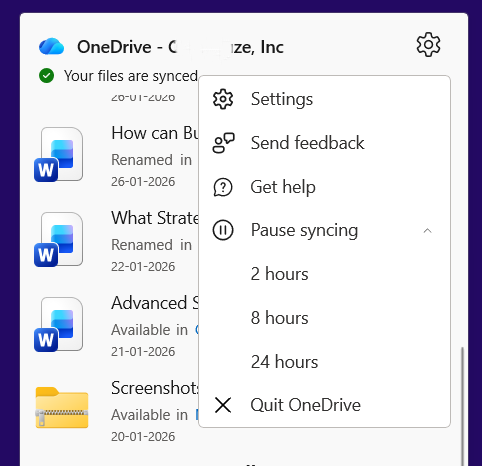

The syncing will automatically resume as soon as the time period you picked is up.
Method 2 – Stop OneDrive from Syncing Automatically (Permanent)
If you want to completely stop OneDrive auto-sync, this is the best way to do it.
- Click on the OneDrive icon → Settings
- Navigate to the Account tab
- Click on ‘Unlink this PC’
- Confirm that you want to do it
Method 3 – Disable OneDrive from Syncing Automatically When You Sign In
Want to keep OneDrive from booting up and syncing when you log in to windows? Here’s how
- Open OneDrive Settings
- Head to the Settings tab
- Toggle off ‘Start OneDrive when I sign in to Windows’
- Click OK
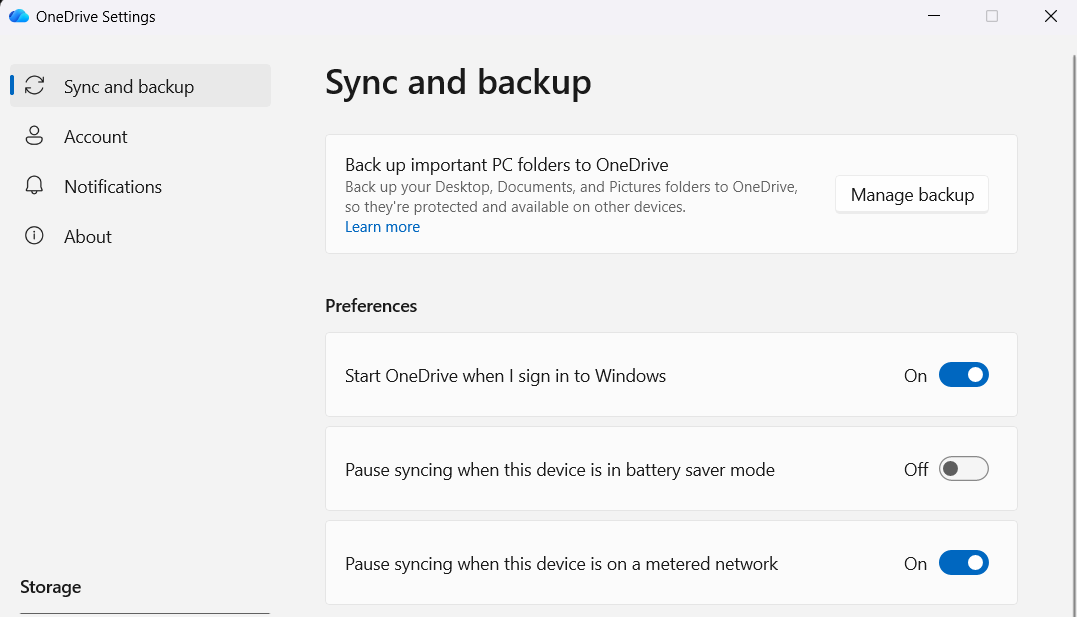

This prevents OneDrive from auto-syncing when you log in.
2. How to Disable OneDrive Auto Sync on macOS
- Click on that OneDrive icon up in the menu bar
- Select Settings
- Go to the Account tab
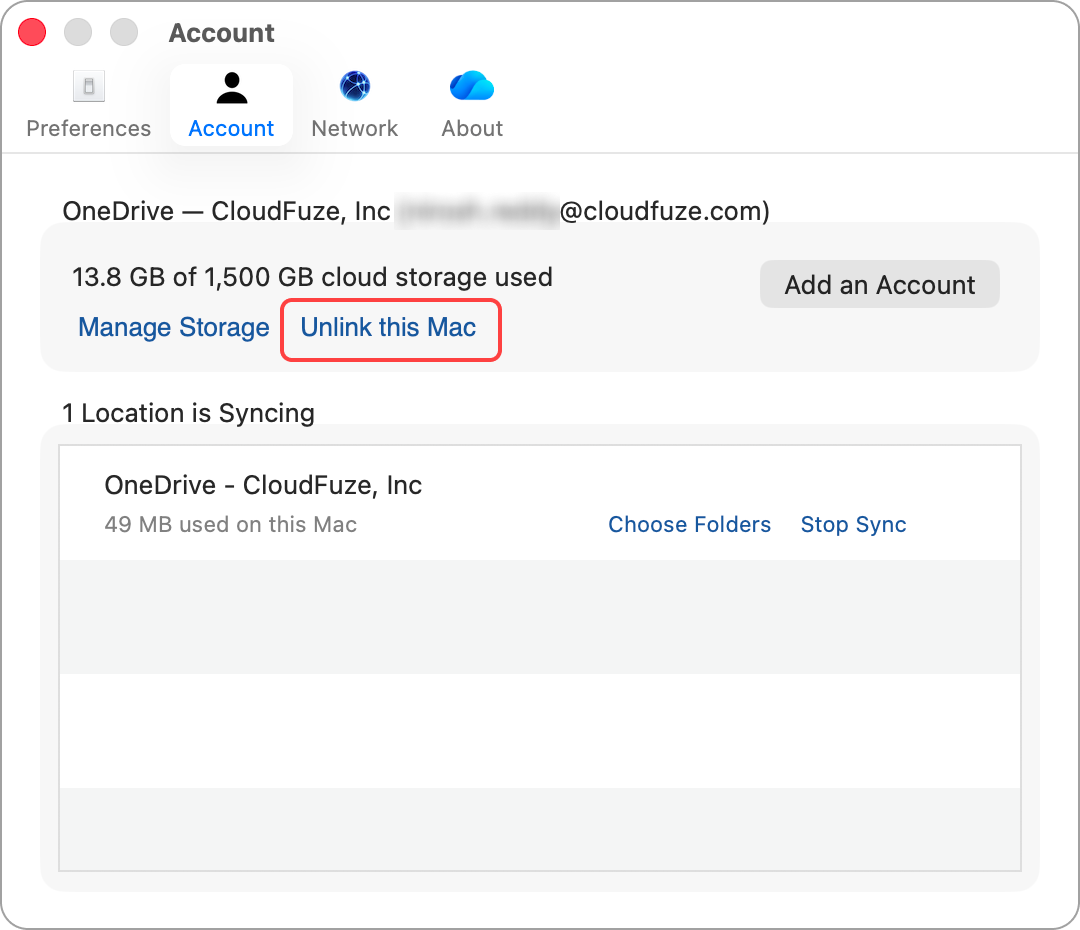
- Click on ‘Unlink this Mac’



OneDrive will no longer auto-sync and you can still access your files from OneDrive.
3. How to Disable Folder Auto Sync (Desktop, Documents, Pictures)
OneDrive auto-syncs key folders for you by default which might not always be what you want.
- Open OneDrive Settings
- Head to the Sync and backup tab
- Click on Manage backup
- Turn off auto-sync for either Desktop, Documents, or Pictures
- Save changes.
This is useful if you only want to selectively auto-sync some of your folders instead of full.
4. How to Disable OneDrive Auto Sync for Business or Enterprise
If you are a business user signed up for Microsoft 365, there are a few ways to turn off auto-sync for your team.
- Group Policy
- Microsoft Intune
- Conditional Access policies
These methods allow centralized control across all user devices.
Disabling auto sync at a policy level is always the preferred way when it comes to keeping things in order for compliance, security or migration.
What Happens When You Disable OneDrive Sync?
- Files that were already synced will stay on your device
- No new changes will be sent to OneDrive
- You can turn on sync whenever you want
- Online files may not be accessible offline
Learning how to disable OneDrive auto sync will give you way more control over storage, performance, and file management.
OneDrive Migration or SaaS App Management? CloudFuze Can Assist
Planning a OneDrive migration from Dropbox, Box, or SharePoint? CloudFuze Migrate securely migrates files, metadata, and permissions at scale.
Looking for visibility and management of SaaS and AI apps such as Microsoft 365, Google Workspace, and Gemini? CloudFuze Manage enables IT administrators to manage access, Shadow IT, licenses, and automate user provisioning and deprovisioning.
Begin with CloudFuze today.
Frequently Asked Questions
1. Can I turn OneDrive sync back on later?
Yes, just sign back in and re-enable sync.
2. Does disabling sync delete files?
No, your local files remain unless you manually delete them.
3. Is it safe to disable OneDrive auto sync?
Yes, as long as you’ve got backups or a different place to store your files.



Leave A Comment