
How to Control and Manage Sharing Permissions in OneDrive
Organizations that need to control and manage sharing permissions in OneDrive often struggle with oversharing, external data exposure, and permission sprawl that creates serious security risks.
With Copilot now surfacing content based on user access, keeping permissions clean is more critical than ever. CloudFuze Manage helps IT admins detect and control permission sprawl across OneDrive at scale. Explore the guide for more details.
Key Takeaways:
Types of Sharing Permissions in OneDrive
There are different options of sharing allowed in OneDrive:
- Direct Access: Gives access to anyone who receives this link, whether they receive it directly or receive it as a forward from others. Direct access also includes people outside of your organization.
- People in <Your Organization>: Gives access to the file for anyone in your organization who has the link, whether they receive it directly from you or receive a forward from someone else.
Here are different levels of permissions supported in OneDrive:
- Can Edit: Allows to view and make changes to a file or folder.
- Can View: Allows only to view the file or folder; a user with “can view” permissions cannot make changes to it.
- Can’t Download: Allows the recipient to view the file or folder only; recipients cannot save a local copy.
Challenges Of Managing Sharing Permissions in OneDrive
Challenges admins face when managing OneDrive sharing permissions:
- Inheritance breaks
- Revocation delays
- External sharing risks
- Identity mismatch errors
- Permission sprawl
How To Manage Sharing Permissions for Files in OneDrive?
Here are steps to control and manage sharing permissions for OneDrive files:
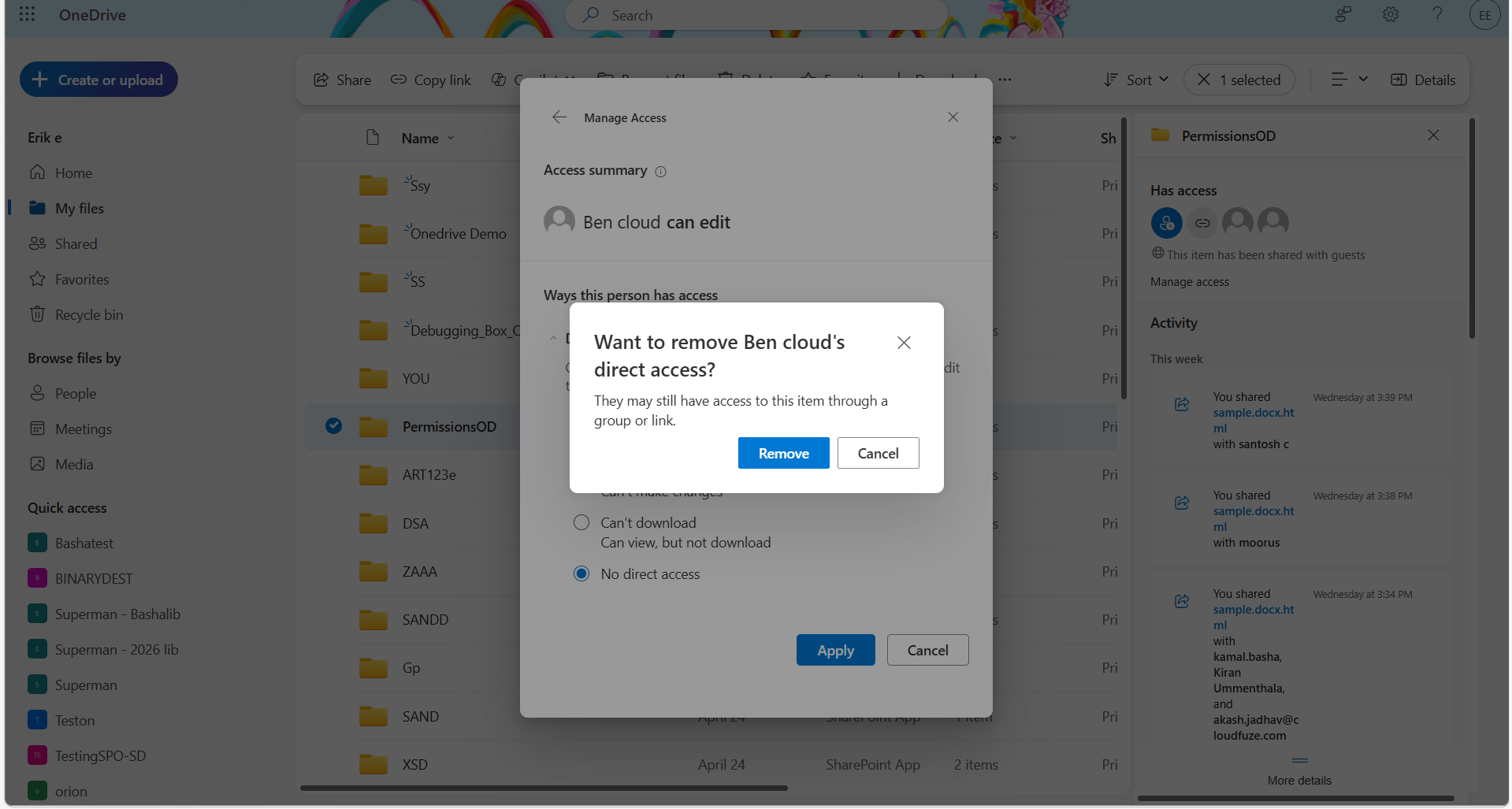
1. Visit OneDrive. Now tap on My files.
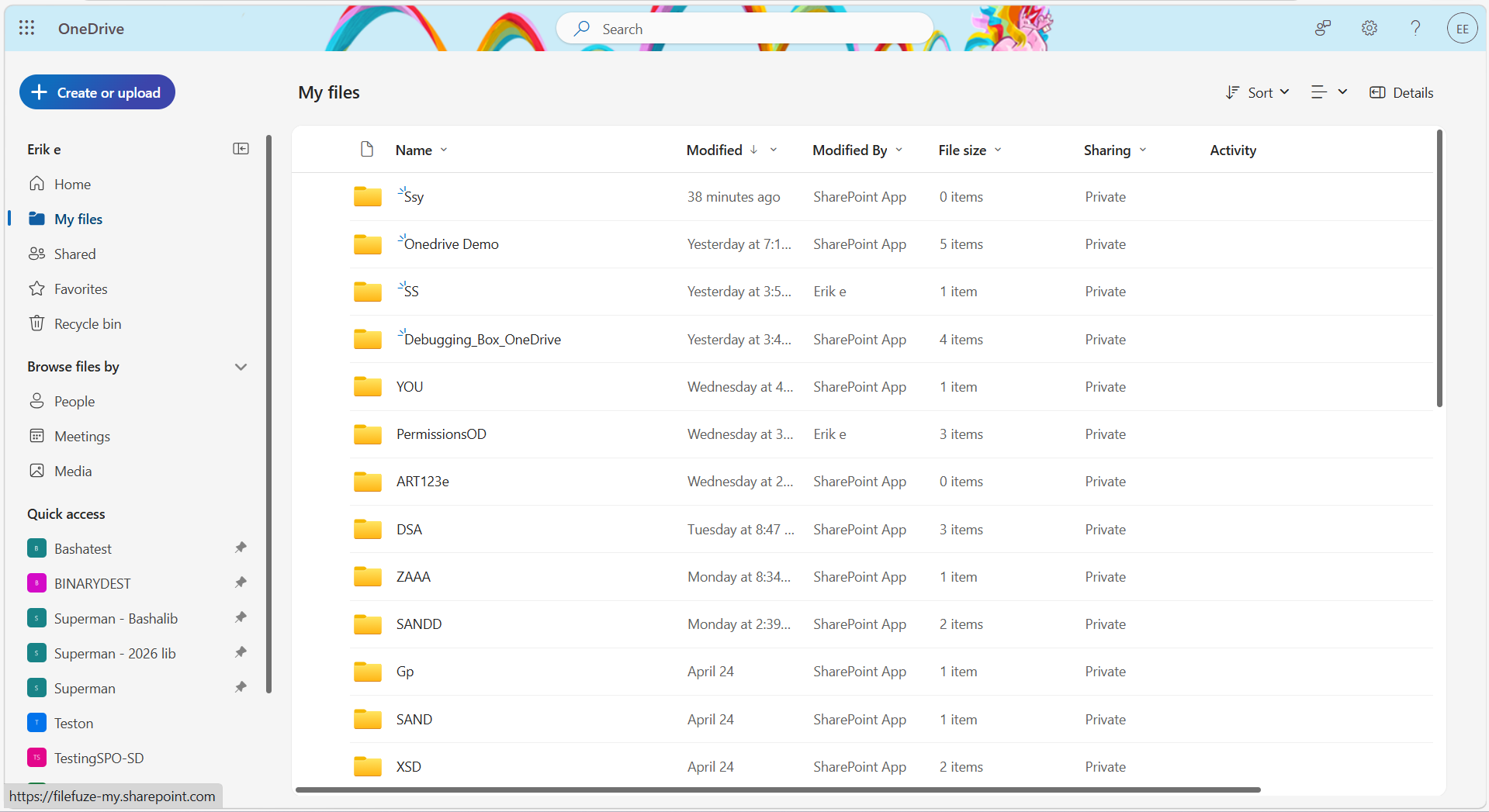
2. Now select the specific file or folder.
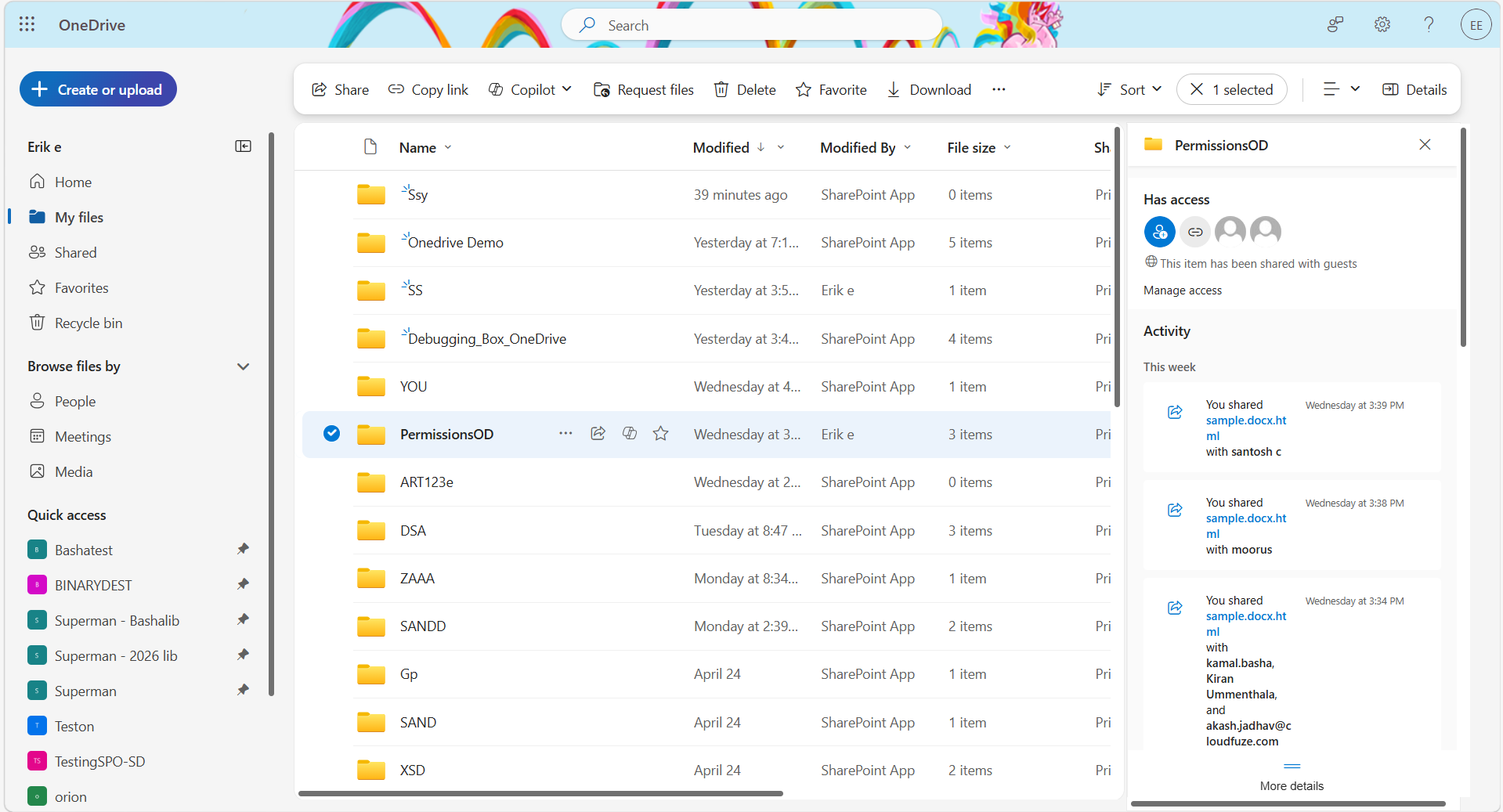
3. Then click “Manage access” to proceed to the next step. To change the permission settings, click on the particular user.
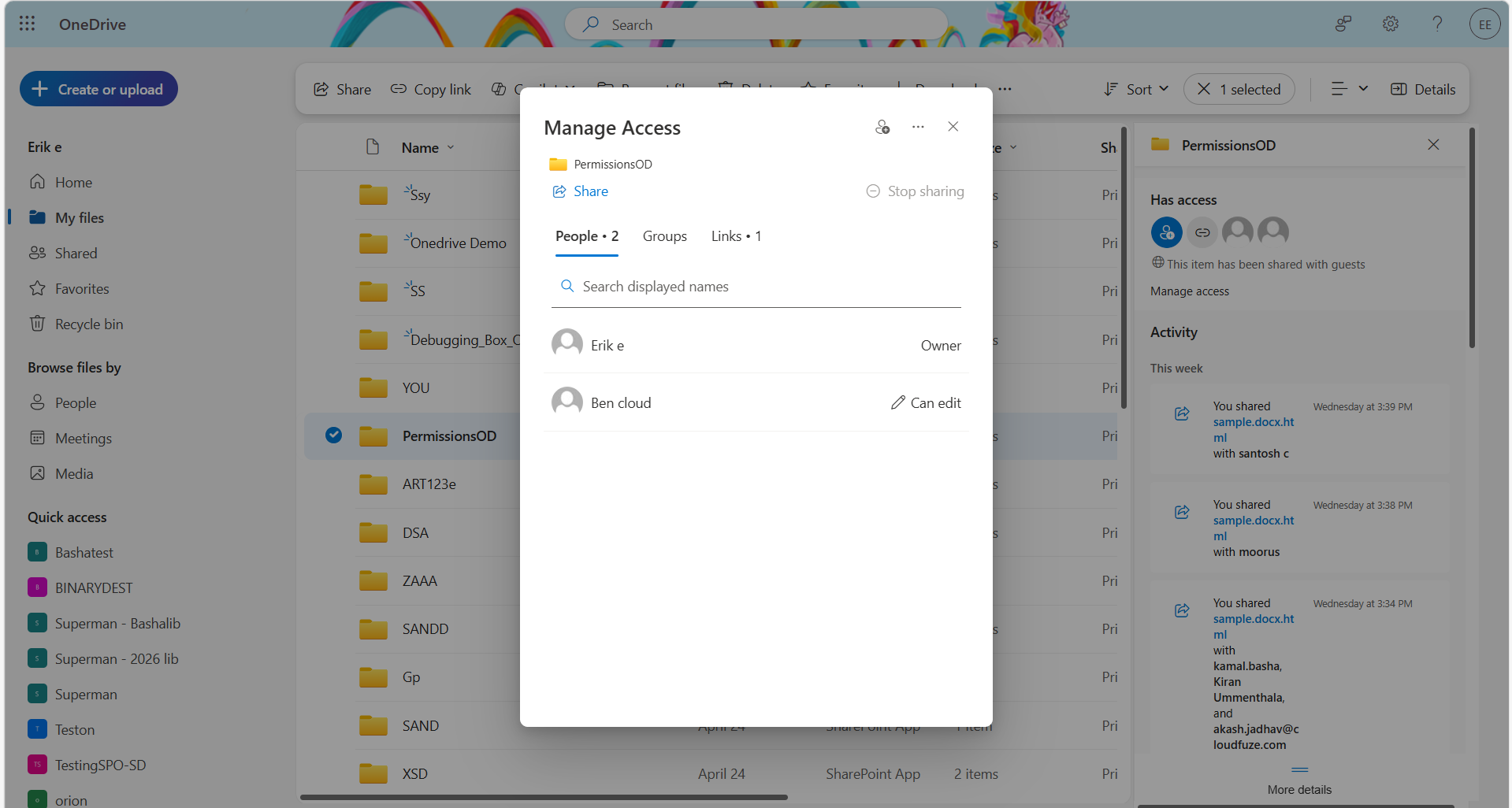
4. Here, we modify access permissions for the user, Ben. Here, we choose “No direct access” from “Can edit” to Ben.
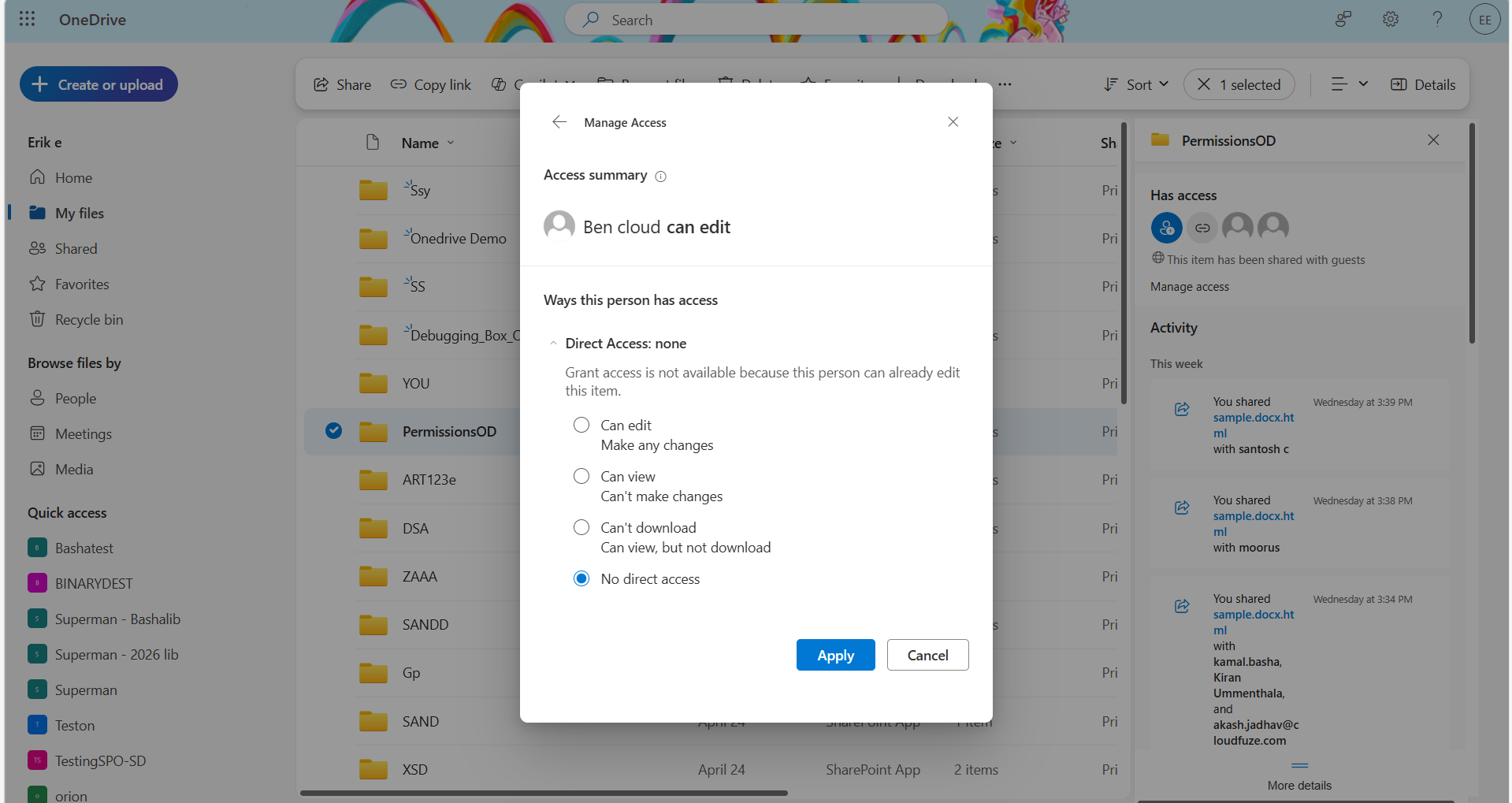
5. Once you click on Apply, you get a dialog box asking for changes of confirmation. Once you click on Remove, Ben’s direct access will get removed.
Why to Manage Proper OneDrive Sharing Permissions?
Setting proper permissions has always been an important part when using any storage platform. Managing OneDrive sharing permissions is now not only about basic file security. It is now the essential foundation for Copilot to operate safely.
When you deploy Copilot, it doesn’t end with just providing a search result. It displays content based on users’ access. So, cleaning up OneDrive sharing permissions is necessary for safely deploying AI.
Eliminate Permission Sprawl with CloudFuze Manage
To fully detect and control permission sprawl, enterprises can use our SaaS and AI governance platform, CloudFuze Manage. Here are key points on how our platform helps you with effective permission management:
- Unified IT dashboard to see the level and type of access permissions applied across your cloud and AI agent workspace.
- Detects risky file sharing and over-permissioned user access
- Allows IT managers to implement stale-permission cleanup policies
- Centralized permission governance through effortless policy enforcement
Ensure Secure OneDrive Sharing with the Right Permissions
Secure OneDrive sharing starts with assigning the right permissions and through regular reviewing. If you’re moving data into Microsoft 365, CloudFuze Migrate helps you transfer to OneDrive with necessary permissions intact.
Ready to secure OneDrive sharing with the right permissions? Contact us to avail your free demo now!
Frequently Asked Questions
1. How do I change sharing permissions in OneDrive?
Initially, login to your OneDrive account. Click on the specific file or folder where you want to change sharing permissions. With the “Manage Access” option in OneDrive, you can change sharing permissions in OneDrive.
2. How do I restrict sharing on OneDrive?
To restrict sharing on OneDrive, set the user’s access permissions to “No direct access”. Once the admin sets out to “No direct access” for a user, it prevents the user from accessing shared items directly through their own file list.
3. How to check OneDrive sharing permissions?
Select a file or folder and click Manage access to see who has view or edit permissions. You can also click the Shared tab in the sidebar and select Shared by you for a full overview. For a detailed list of all shared items, use the Run sharing report option in OneDrive settings.
About the Author: Bhavani Asok



