
Introduction
A Confluence to SharePoint migration moves your organization’s Confluence spaces, folders, pages, blog posts, attachments, users, and permissions into SharePoint Online.
IT leaders migrate Confluence to SharePoint to consolidate into Microsoft 365, cut Atlassian costs, and get their knowledge base ready for Microsoft 365 Copilot.
But the two platforms structure content differently. So, moving without a plan can break page hierarchies and access. This guide covers the challenges, tools, costs, and step-by-step processes to migrate with confidence.
Why are Enterprises Choosing Atlassian Confluence to SharePoint Migration?
Over the past few months, our account managers have received a steady stream of Atlassian Confluence to SharePoint migration requests from enterprise prospects, and some of the common reasons and use cases are consolidation and cost optimization.
Here are the key drivers we are seeing:
1. Fragmented Collaboration Environment
Many enterprises run Confluence for documentation, Microsoft Teams for conversations, and SharePoint and OneDrive for files. The more platforms employees switch between, the more scattered company knowledge becomes, and the harder it is for IT to secure and govern it.
2. Rising Platform Costs
Most large organizations already pay for SharePoint Online through their Microsoft 365 licenses. Paying for Confluence on top of that, plus marketplace app renewals (for self-managed deployments), servers, upgrades, and admin hours, adds to the cost that is hard to justify at renewal time.
3. Lack of Native Microsoft 365 Integration
Content in SharePoint works directly with Teams, Outlook, Office co-authoring, Microsoft Entra ID, and Microsoft Purview retention and sensitivity labels. Confluence content sits outside that ecosystem, so every policy and integration has to be managed twice.
4. AI readiness with Microsoft 365 Copilot
Enterprises standardizing on Copilot want their knowledge base natively inside Microsoft 365, where it is governed by the same permissions, retention, and sensitivity policies as the rest of their content, without maintaining a separate connector.
5. Confluence Data Center End of Life
Atlassian has announced that Atlassian Data Center products will reach end of life on March 28, 2029. New Data Center license sales ended for new customers on March 30, 2026.

Existing customers can renew only until March 30, 2028, and at end of life, all Data Center licenses expire and switch to read-only mode. For Microsoft 365-first enterprises, this deadline is the natural moment to consolidate into SharePoint.
6. Mergers and Acquisitions
When an acquired company runs on Confluence and the parent organization runs on Microsoft 365, moving the acquired team’s knowledge into SharePoint is a critical part of tenant integration.
Whatever the trigger, the outcome enterprises want is the same: one secure governed home for company knowledge inside Microsoft 365.
Pre-Migration Checklist for Enterprise IT Teams
Proper planning is what keeps a Confluence migration to SharePoint on time, and there are no two ways about it. Before the first batch starts make sure your IT team can check these boxes:
- Space inventory: List every space with its owner, page count, attachment volume, and last activity date.
- Stale content cleanup: Archive or exclude spaces nobody has touched in years. The less clutter you migrate, the cleaner your SharePoint environment and the more accurate Copilot’s answers.
- Site architecture decision: Finalize which spaces get grouped, which get their own sites, and which land on existing sites.
- Macro and app audit: Identify Jira macros, Marketplace apps, and diagrams that need conversion decisions.
- User and permission review: Clean up inactive accounts, prepare the user mapping CSV, and review access in sensitive spaces.
- Credentials and access: Generate the Confluence API token, decide whether to add the Atlassian Admin API key, and confirm the Microsoft 365 account your team will connect.
- Change communication: Tell teams when content will move, when edits should pause, and where to find pages afterward.
Does your plan account for every space that holds mission-critical documentation?
Is the timeline realistic for your page volume and your Atlassian renewal date?
Answering these questions early helps your IT team set the right expectations with leadership.
How to Migrate Confluence to SharePoint Online: Step-by-Step Guide
This step-by-step guide to Confluence-to-SharePoint migration covers the entire migration from connecting your clouds to reviewing the final migration report.
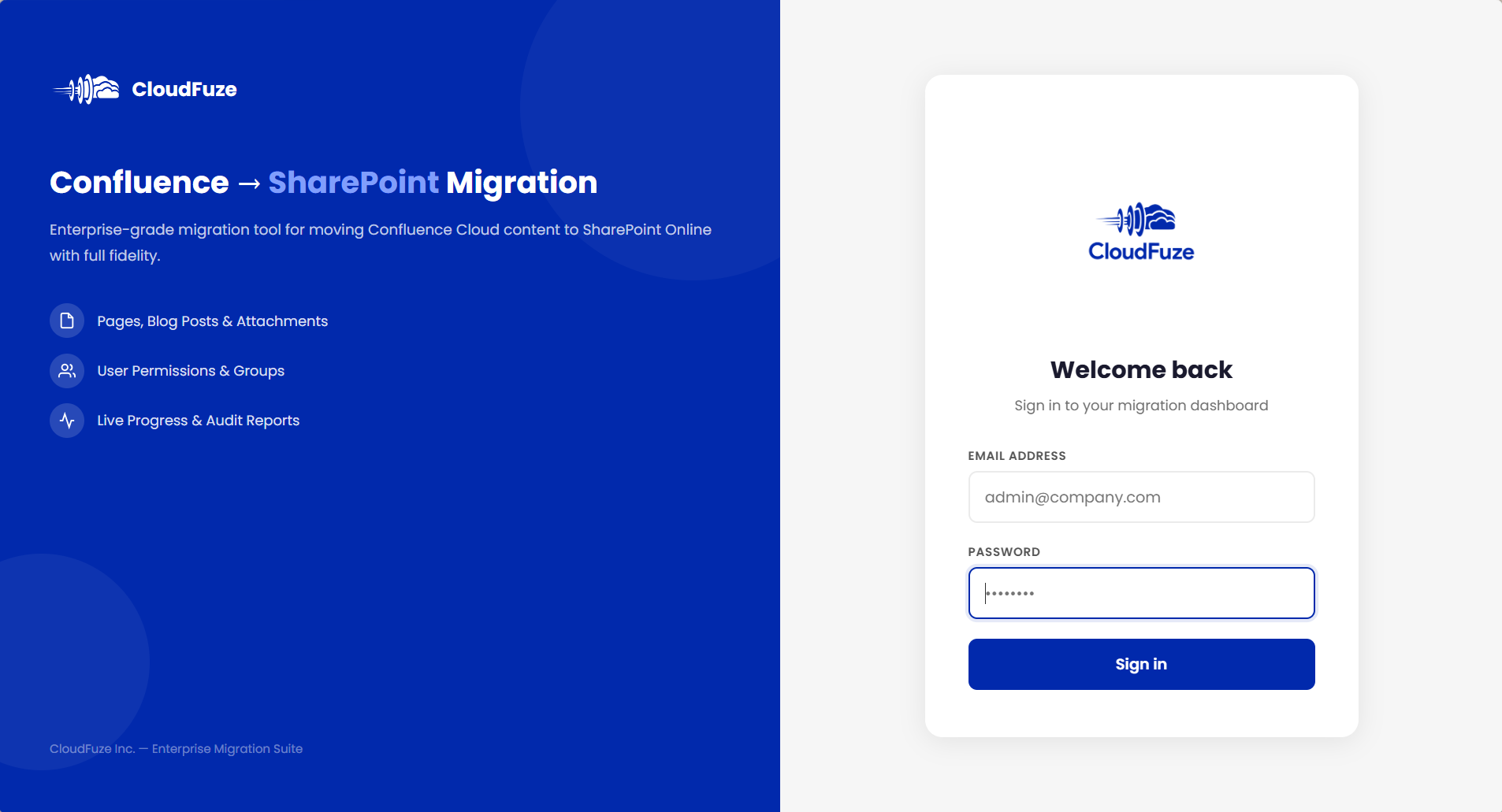
Step 1: Sign In to the Migration Dashboard
To start off sign in to your CloudFuze migration dashboard with your CloudFuze account.
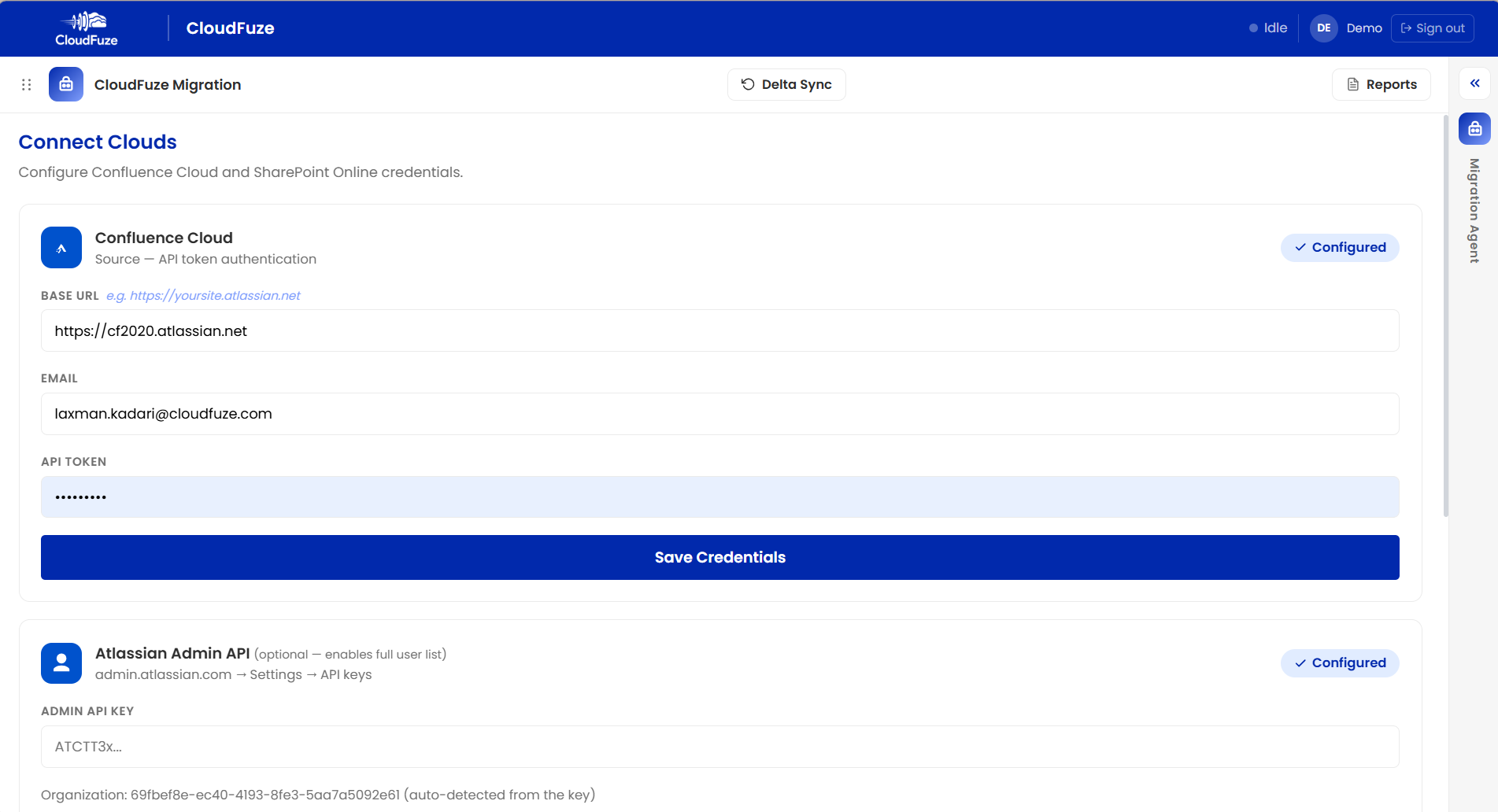
Step 2: Connect Confluence Cloud as the Source
Enter your Confluence Cloud base URL (for example, yoursite.adlassian.net), the admin email, and a Confluence API token created by your admin, then save the credentials.
Next, add the optional Atlassian Admin API key, generated from admin.atlassian.com under Settings and API Keys. It enables the full user list for later steps, and your organization is auto-detected from the key.
We recommend adding it for enterprise environments since it helps resolve users whose emails Confluence does not expose.
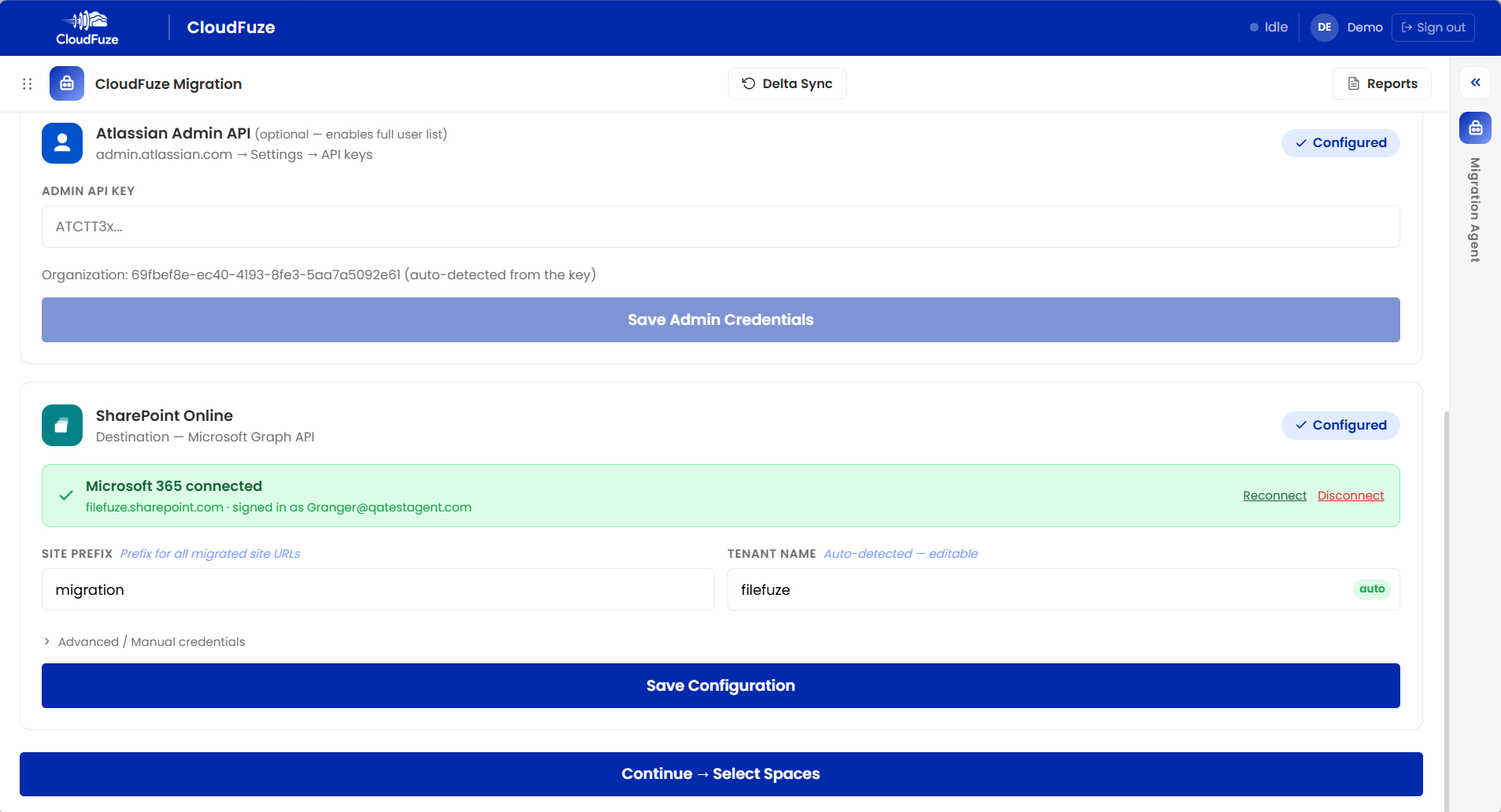
Step 3: Connect SharePoint Online as the Destination
Sign in with your Microsoft 365 account to connect your tenant. Once connected, the tenant name is auto-detected and editable.
Then enter a site prefix. It is applied to every new SharePoint site the tool creates, which keeps migrated site URLs consistent and easy to identify. Save the configuration and continue to space selection (7.png).
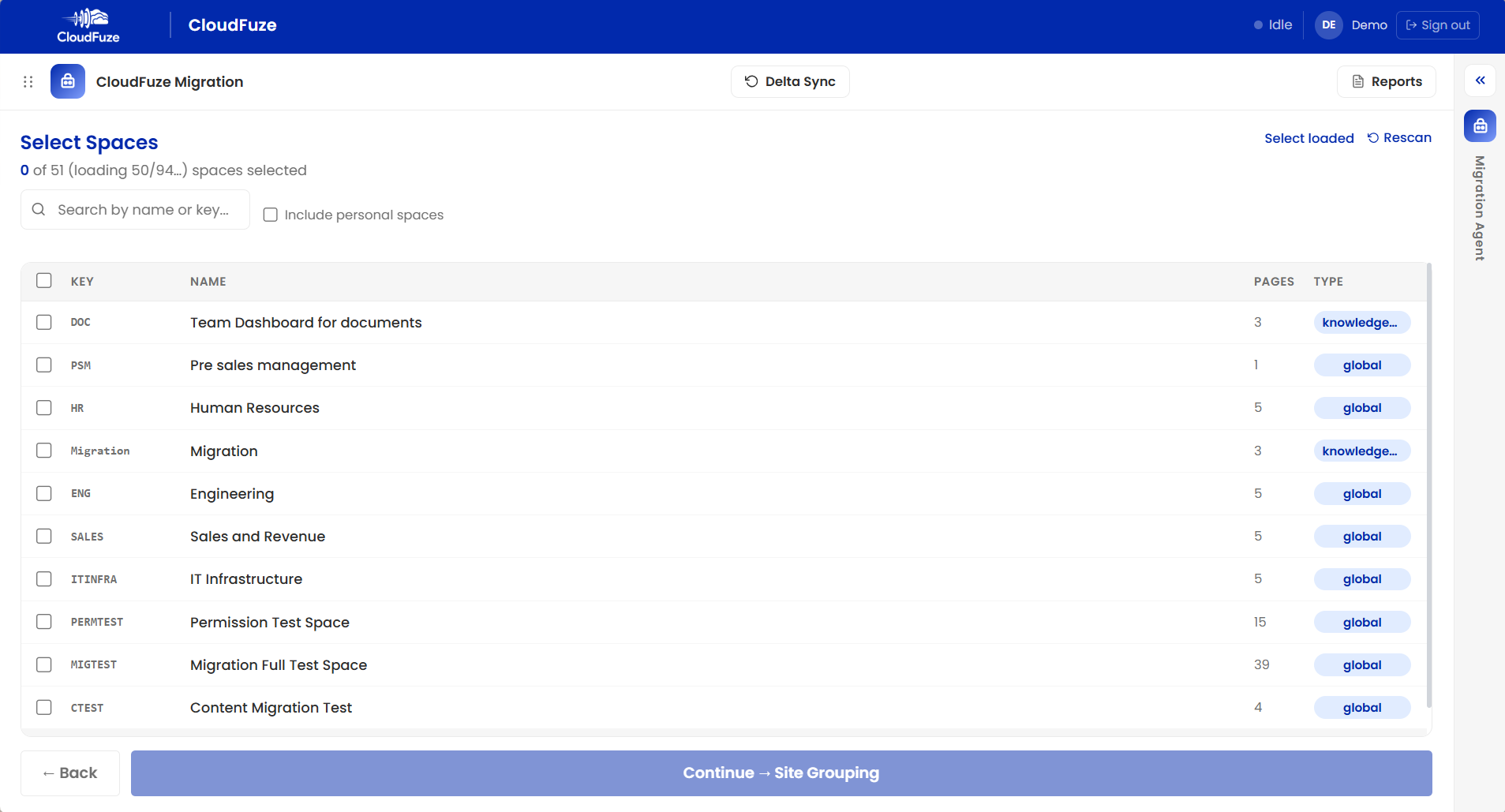
Step 4: Select your Confluence Spaces
Every Confluence space you have access to is listed with its key, name, page count, and type. Search by name or key, choose to include personal spaces if needed, and select one space or many for this run.
For large environments, it is best to start with a smaller batch of spaces, validate the results, and then scale up.
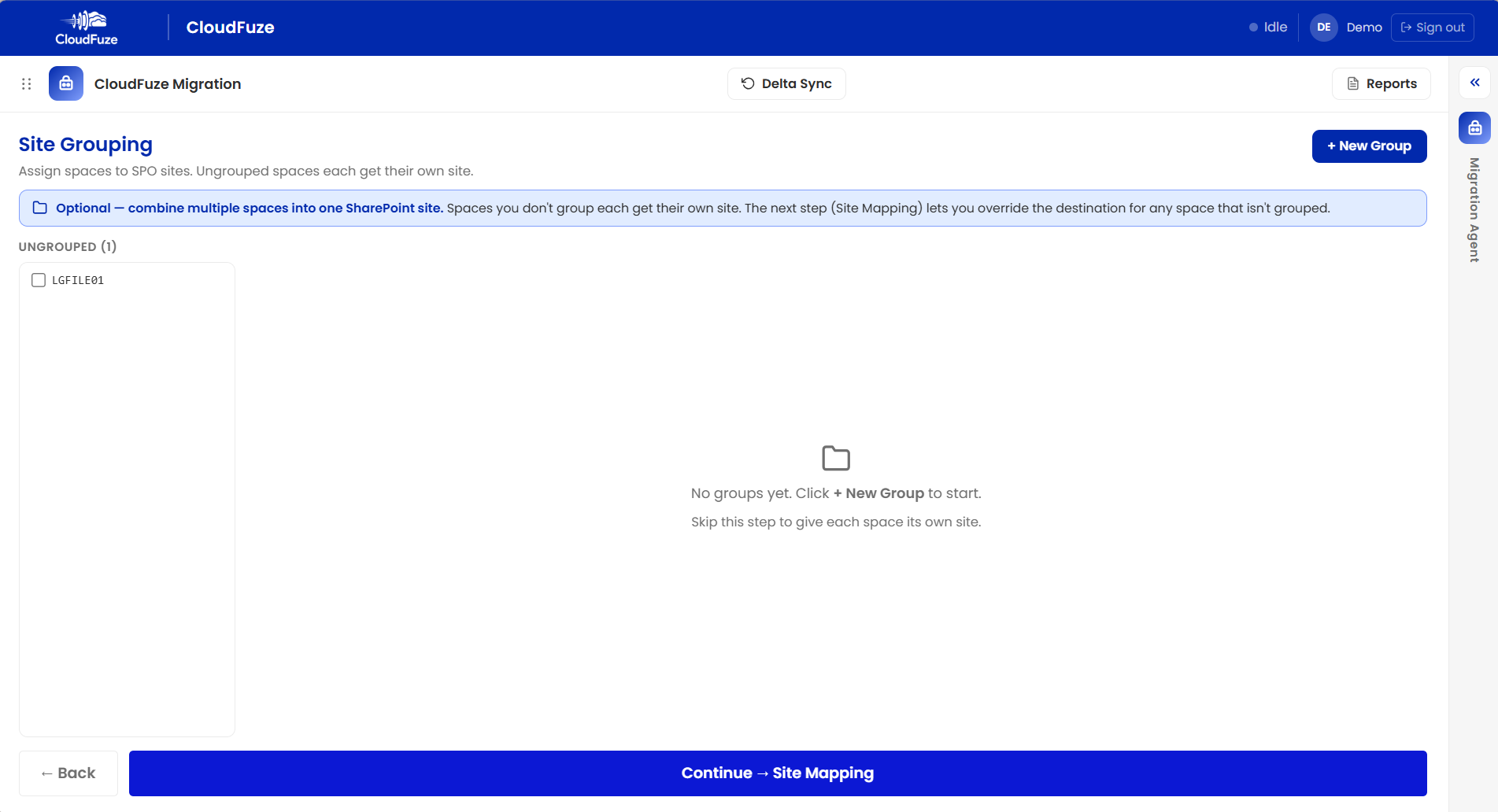
Step 5: Group Spaces into Sites (Optional)
Click New Group to combine multiple spaces into one shared SharePoint site. Spaces you leave ungrouped each get their own site. This step is fully optional so skip it if every space should land on its own site.
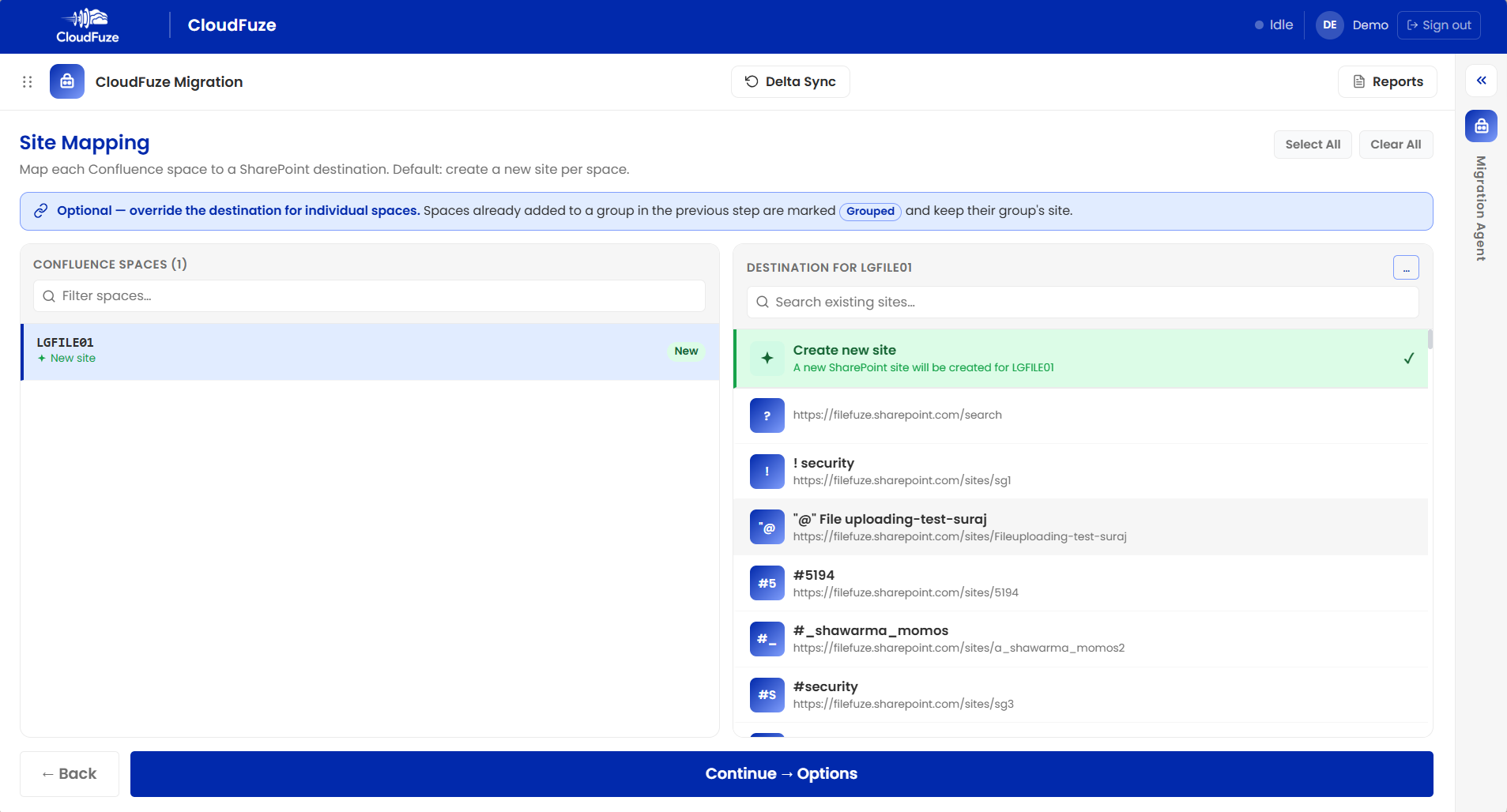
Step 6: Map Each Space to its Destination
By default, a new SharePoint site is created for each space. Your team can override this for any ungrouped space by searching for and selecting an existing site. Spaces grouped in the previous step are marked as grouped and keep their group’s site.
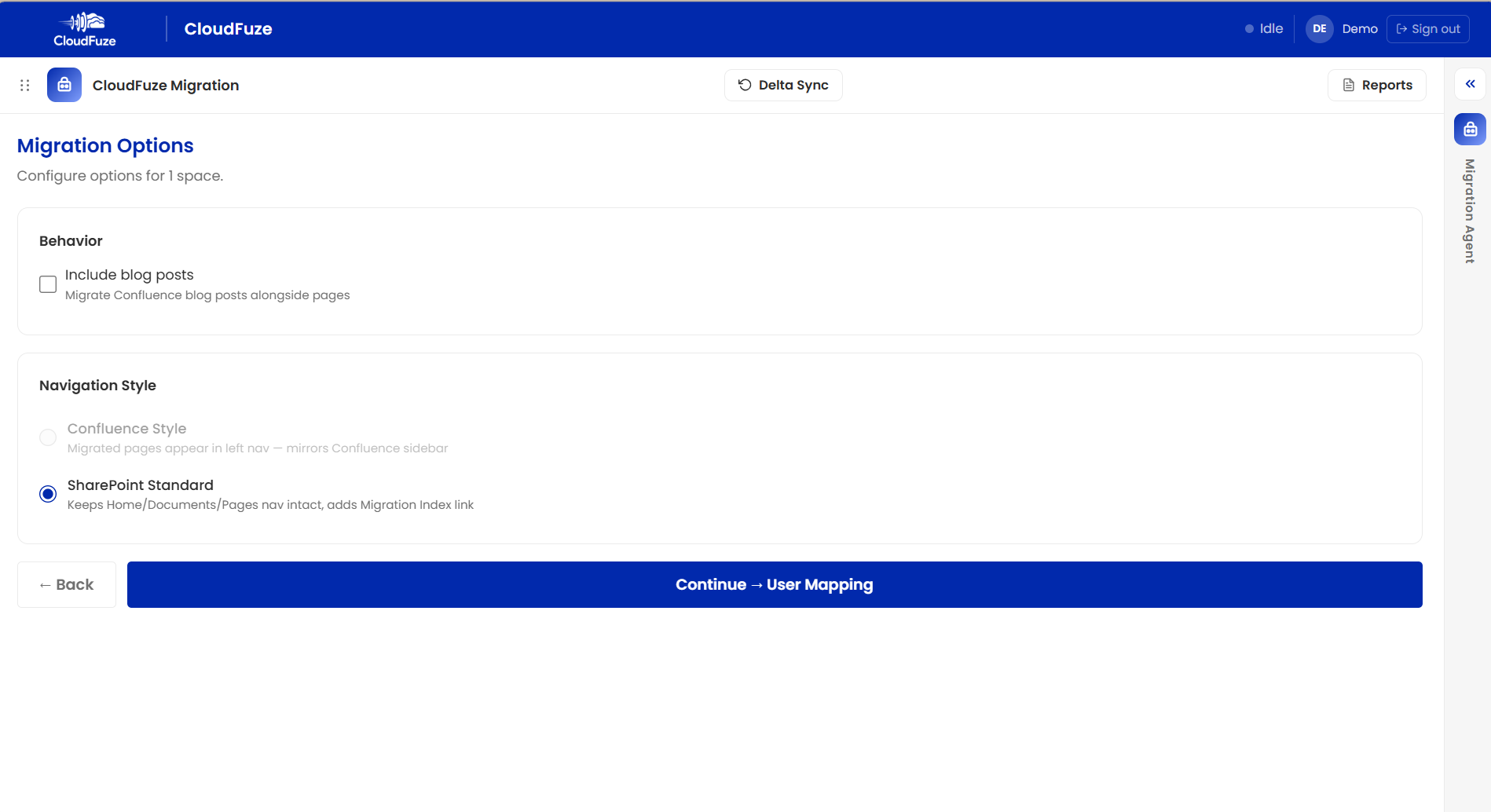
Step 7: Configure Migration Options
Choose whether to include blog posts alongside pages then pick a navigation style:
- Confluence style: migrated pages appear in the left navigation, mirroring the Confluence sidebar.
- SharePoint standard: the site’s home, documents, and pages navigation stays intact with an added migration index link.
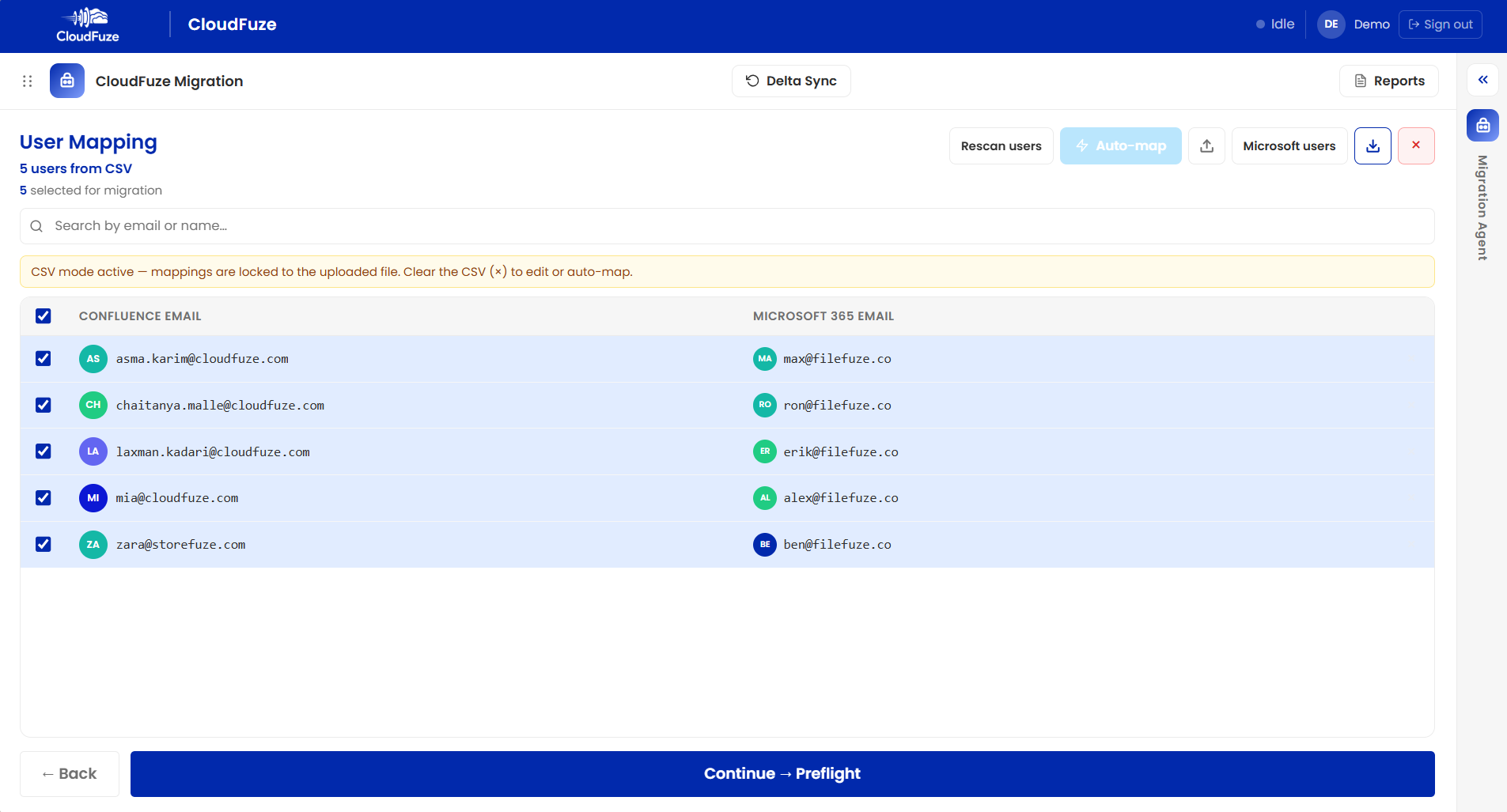
Step 8: Map Your Users
Map each Confluence user to their Microsoft 365 identity by uploading a CSV or using AutoMap. This is what carries permissions and authorship over correctly once content lands in SharePoint.
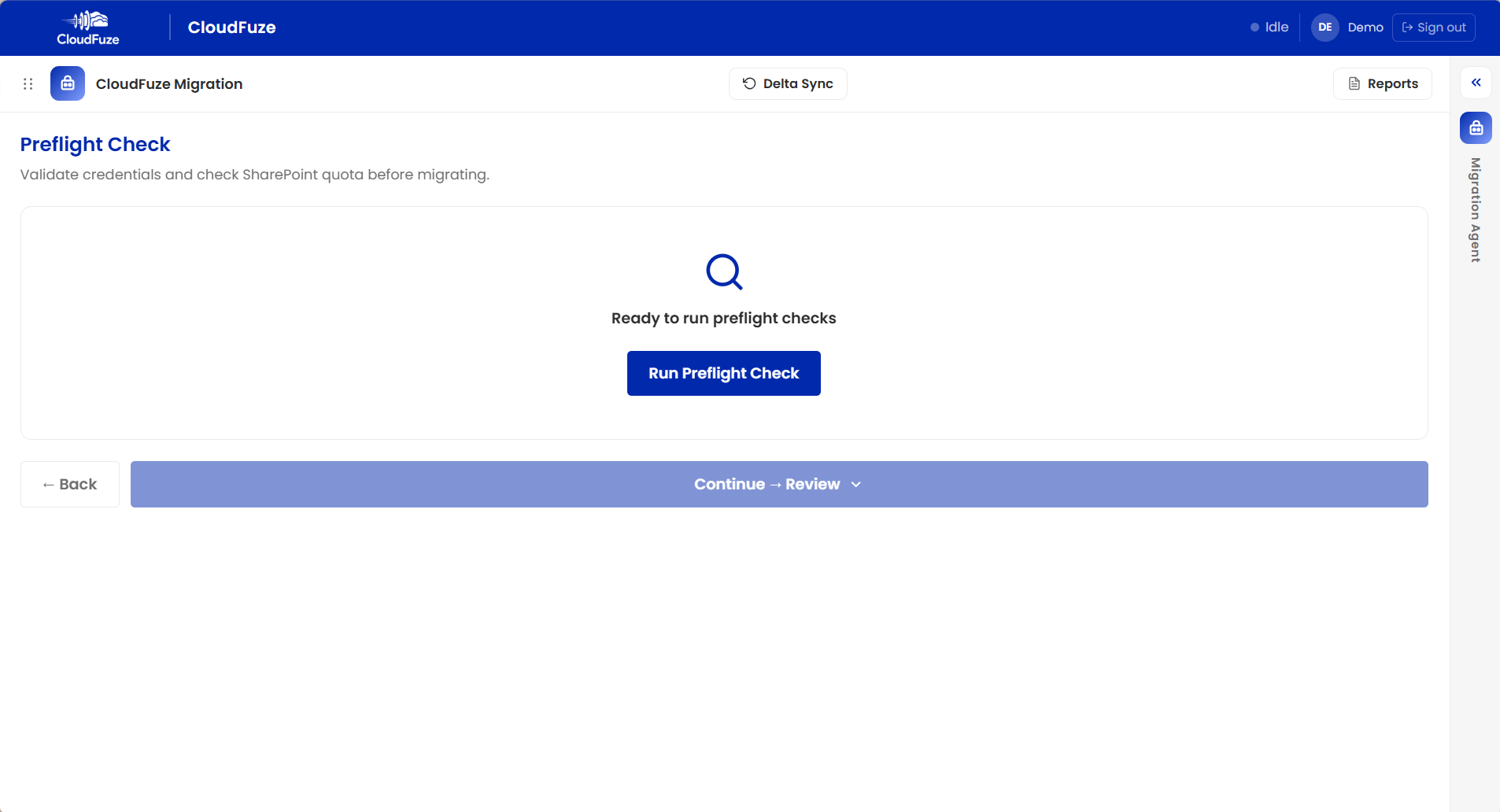
Step 9: Run the Preflight Check
Before anything moves, run the preflight check. It validates your credentials and checks SharePoint quota, so problems surface in seconds rather than hours into a live run.
Step 10: Review the Preflight Results
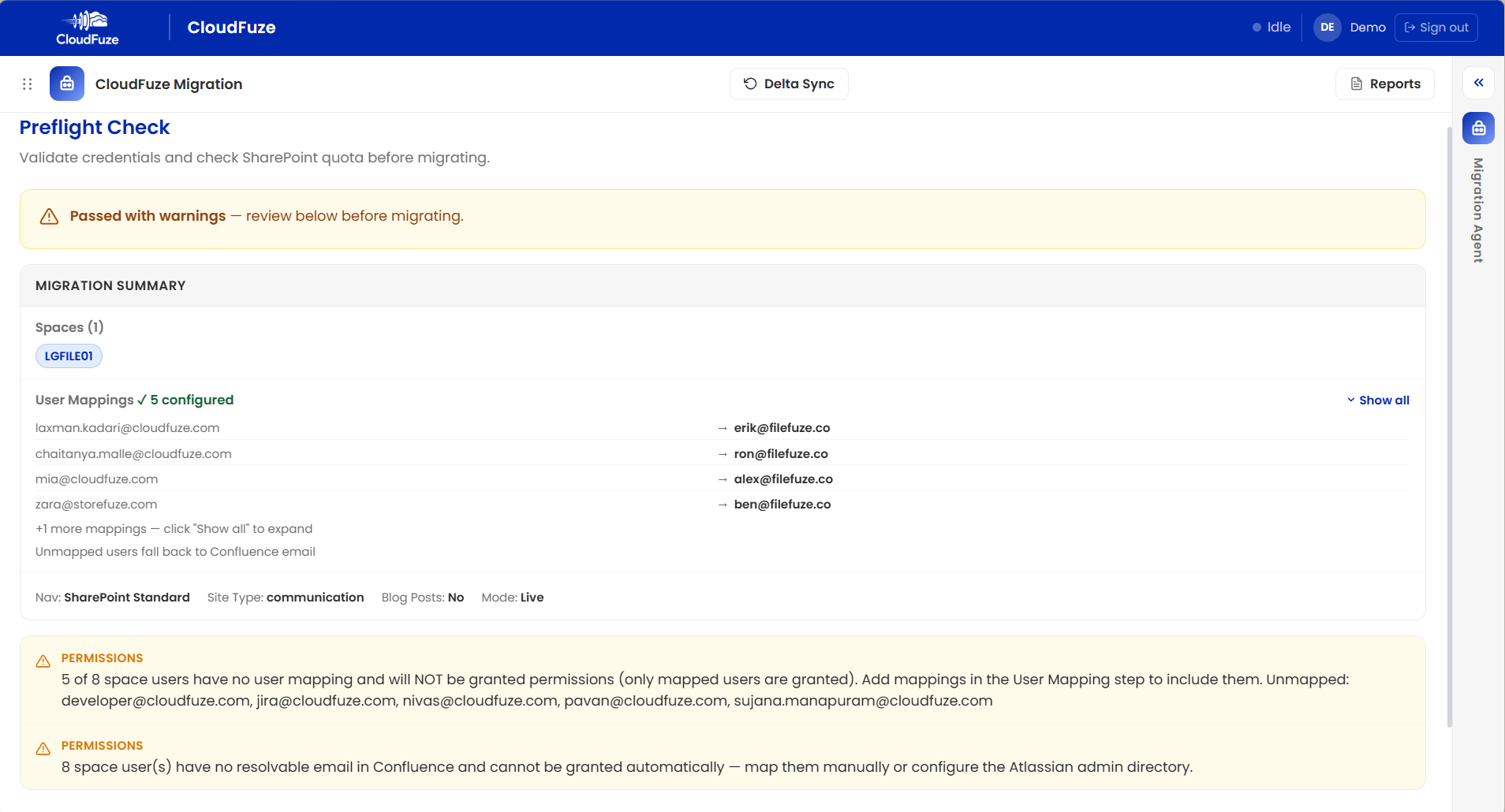
The preflight check returns a full migration summary covering spaces, user mappings, navigation style, site type, blog post selection, and mode. It also calls out anything that needs attention.
For example, it flags space users who have no user mapping and will not be granted permissions, as well as users with no resolvable email in Confluence. Your IT team can fix these by adding mappings in the user mapping step or configuring the Atlassian admin API before migrating.
Step 11: Review and Launch
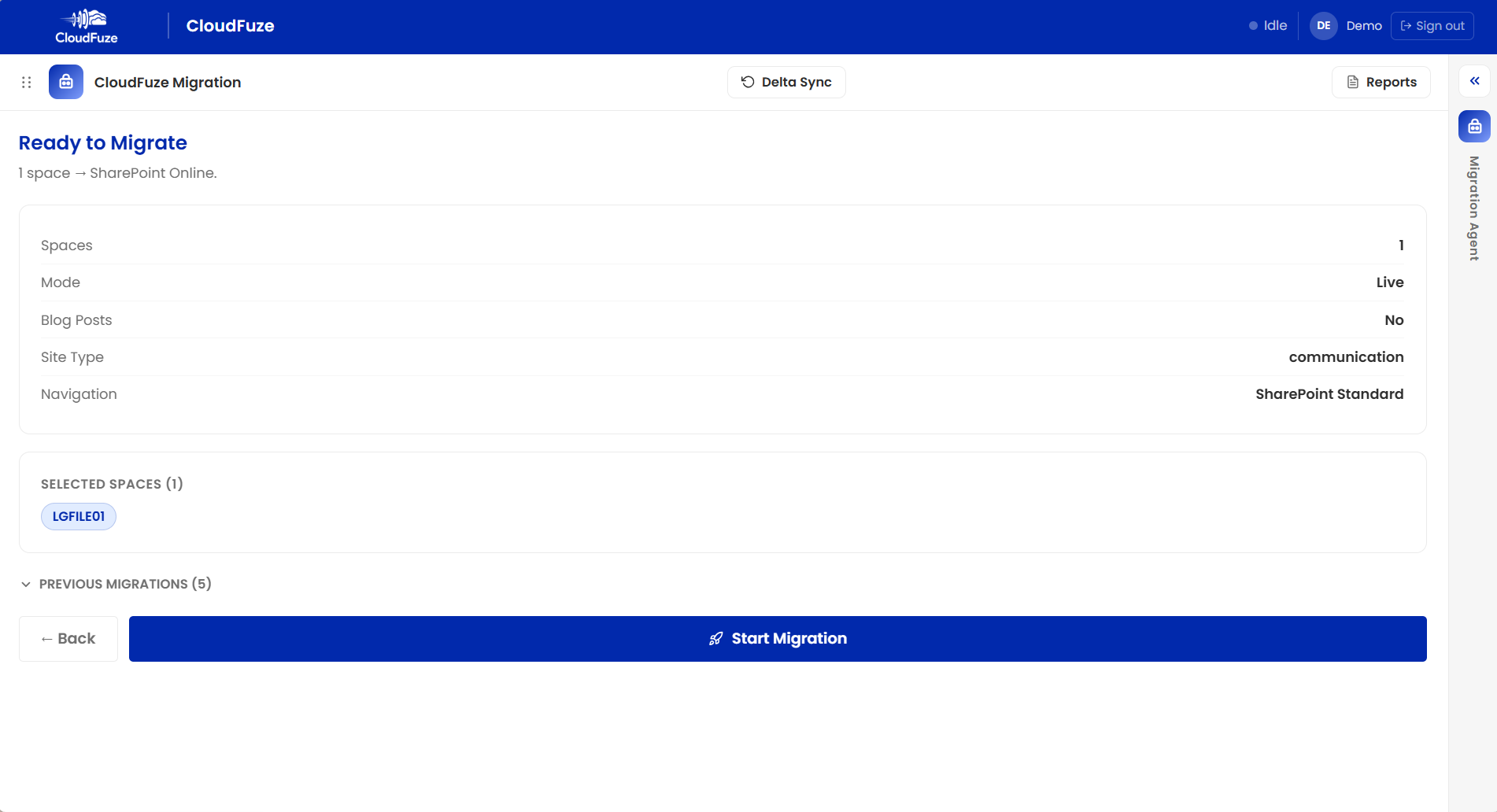
A final summary screen shows the number of spaces, mode, blog post selection, site type, and navigation style, along with your previous migrations for context. Once everything looks right, click Start Migration.
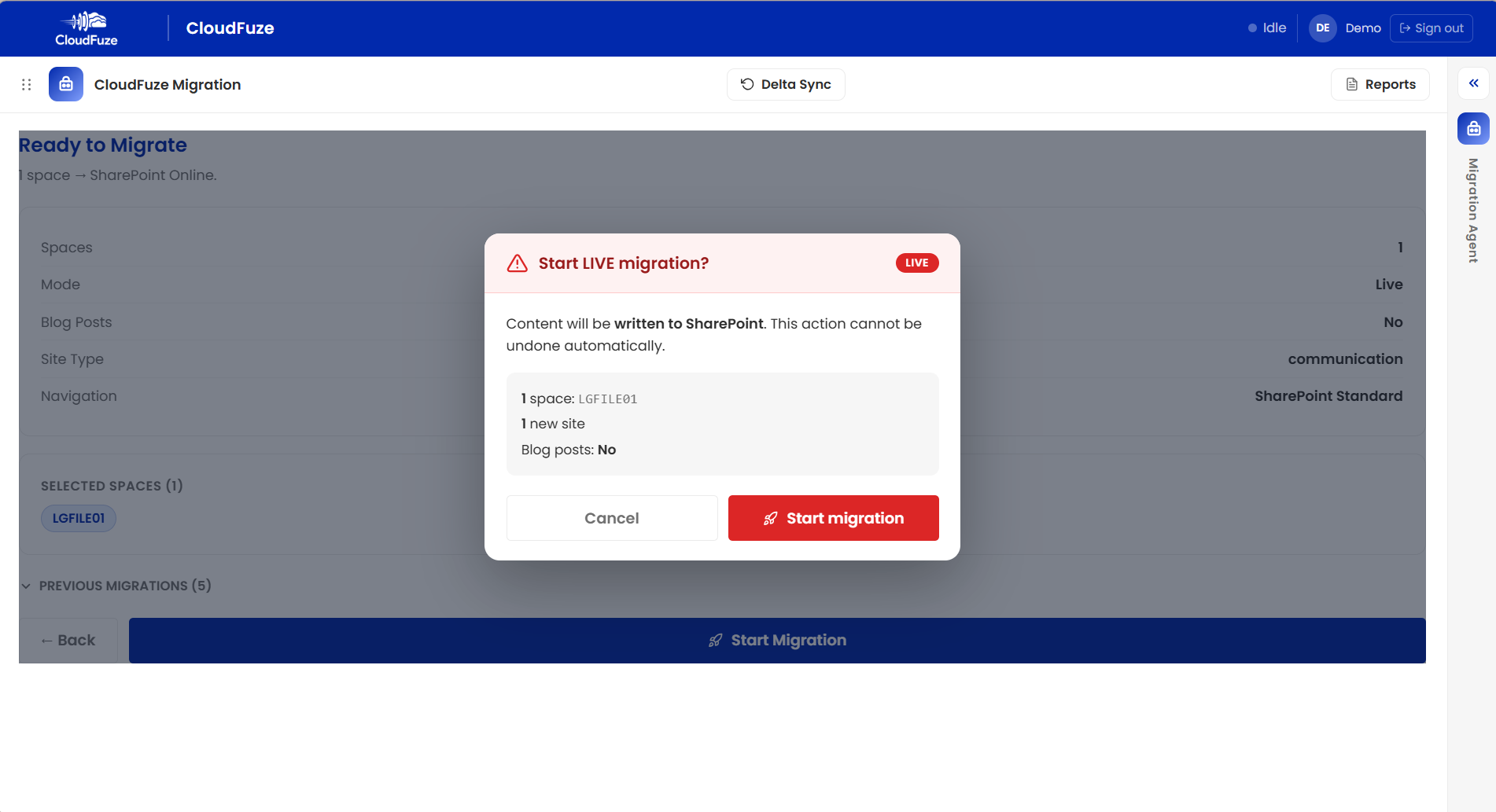
Step 12: Confirm the Live Migration
A live migration writes real content to SharePoint and cannot be undone automatically. A confirmation screen spells out exactly what will be created: spaces, new sites, and blog post selection, before anything happens.
Step 13: Review the Migration Report
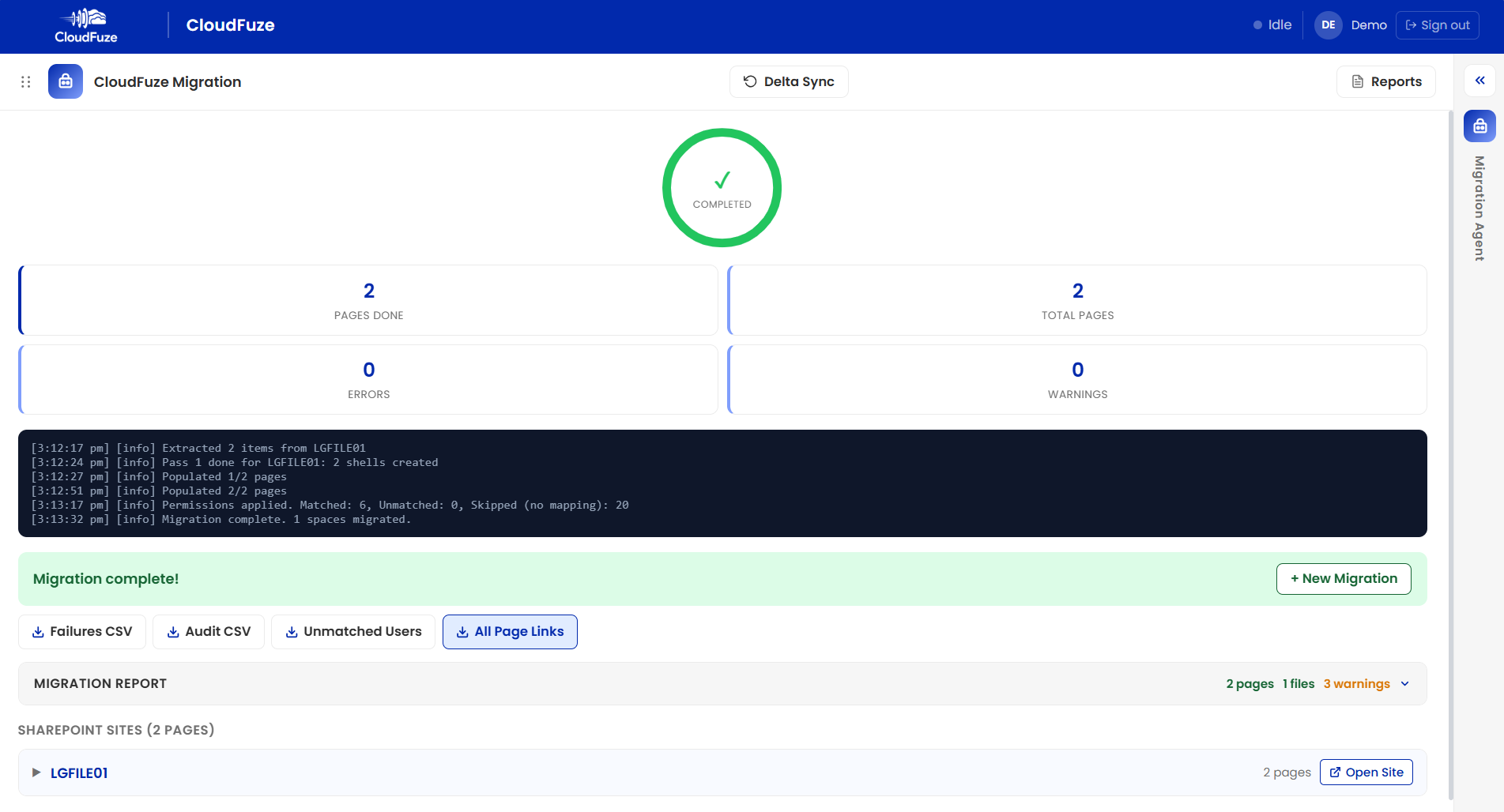
Once the migration finishes, the dashboard shows pages done, total pages, errors, and warnings, along with a live run log that records extraction, page creation, and permissions applied.
From here, your team can download the failures CSV, audit CSV, unmatched users list, and all page links, review the migration report by site, and open the new SharePoint site directly. If teams kept editing in Confluence during the migration, use Delta Sync to bring those changes over.
How Does Confluence Content Map to SharePoint Online?
Before your IT team builds the migration plan, it is important to understand where each piece of Confluence content will land in SharePoint. This mapping drives every decision that follows, from site architecture to permissions.
| Confluence | SharePoint Online |
|---|---|
| Space | SharePoint site (a new site or an existing one) |
| Multiple related spaces | A single consolidated SharePoint site |
| Folders | Folders within the site |
| Pages and child pages | SharePoint site pages, with hierarchy preserved |
| Blog posts | Migrated alongside pages (optional) |
| Attachments | Files in the target site |
| Confluence sidebar navigation | Left navigation (Confluence style) or SharePoint navigation with the migration index link (SharePoint Standard) |
| Atlassian users | Microsoft 365 users |
| Space permissions and groups | SharePoint permissions for mapped users |
What Data Can You Migrate from Confluence to SharePoint Online?
Here is what CloudFuze carries over when you migrate Confluence to SharePoint Online:
| Item | Migrated |
|---|---|
| Spaces (including personal spaces, optional) | Yes |
| Folders | Yes |
| Pages with parent-child hierarchy | Yes |
| Blog posts | Yes (optional) |
| Files and attachments | Yes |
| Users | Yes (CSV upload or auto-map) |
| Permissions and groups | Yes, for mapped users |
| Authorship | Yes |
| Page versions | Yes |
| Timestamps | Yes |
| Embedded and internal page links | Yes |
| External shares and shared links | Yes |
| Page comments and inline comments | Yes |
| Labels | Yes |
| Macros | Yes |
What Are the Common Challenges in Confluence to SharePoint Migration?
Migrating Confluence to SharePoint is a structural transformation of your knowledge base, and that is where most of the risk lies. Here are the challenges we see enterprise IT teams face most often, along with how to solve each one.
1. Preserving the Page Hierarchy
Confluence teams build deep page trees over the years: a parent page for a product, child pages for each release, and grandchild pages for every feature. Employees navigate by that structure, so losing it is the fastest way to make a migrated knowledge base feel broken.
The challenge is that a basic export flattens these pages into a single list. One practical way for IT teams to migrate Confluence pages to SharePoint without this loss is to use a migration tool that reads the full space, folder, and page structure at the source and rebuilds it in the target site.
CloudFuze migrates Confluence content along this exact space, folder, and page hierarchy.
2. Deciding How Spaces Map to SharePoint Sites
Mapping every Confluence space to its own SharePoint site seems like the simplest approach, but in large enterprises, it creates site sprawl that your IT team then has to secure, govern, and eventually clean up.
It is best to decide the site architecture before migration starts. Which spaces belong together? Which ones should land on sites your team has already built? CloudFuze supports both models.
Your IT team can group multiple spaces into one site, let each space get its own new site, or point individual spaces at existing SharePoint sites.
3. Mapping Atlassian Users to Microsoft 365
Confluence users live in Atlassian accounts and SharePoint users live in Microsoft 365. Email addresses often differ between the two, especially after a merger, a domain change, or years of contractor accounts piling up.
And user mapping decides who gets access. In CloudFuze, only mapped users are granted permissions in SharePoint, and unmapped users fall back to their Confluence email. It is crucial to finalize user mapping before the first space moves.
CloudFuze supports CSV upload for precise control and an auto map for straightforward environments. Adding the optional Atlassian Admin API key unlocks the full user list, which helps resolve users whose emails Confluence does not expose.
4. Carrying Over Permissions Without Oversharing
Confluence controls access through space permissions, groups, and page-level restrictions. SharePoint uses site, library, and page permissions. If the translation goes wrong, confidential pages, HR policies, financial plans, and security runbooks can become visible to the wrong people.
With Copilot in the picture, the stakes are higher. The broader the access, the more content Copilot can surface to users who should never see it.
CloudFuze migrates user permissions and groups for mapped users and its preflight check flags users who will not be granted access before the migration runs.
5. Handling Macros and Dynamic Content
Macros are what makes Confluence pages dynamic: Jira issue lists, tables of contents, expand sections, status labels, page includes, and marketplace apps. Most of these have no one-to-one equivalent in SharePoint.
So, macros need a plan of their own. We recommend that your IT team inventory macro usage across spaces during pre-migration analysis and decide which ones to convert, which ones to keep as static content, and which ones to retire. Verify how CloudFuze handles each macro type.
6. Keeping Navigation Familiar to Users
Even when every page arrives, unfamiliar navigation can slow adoption. Employees who have used Confluence for years expect to find pages the way they always have.
CloudFuze gives your IT team two navigation styles. Confluence style places migrated pages in the left navigation, mirroring the Confluence sidebar.
SharePoint Standard keeps the site’s Home, Documents, and Pages navigation intact and adds a migration index link to the migrated content.
7. Migrating at Enterprise Scale Without Disrupting Teams
Large knowledge bases mean thousands of pages, heavy attachments, and teams that keep editing content while the migration runs. Moving it all in a single go raises the risk of storage surprises, long cutover windows, and missed edits.
A low-impact strategy we suggest to our enterprise customers is to migrate in batches of spaces. CloudFuze lets your team select one space or many for each run, checks SharePoint quota during the preflight check, and includes a delta sync option to bring over content changes made after the initial migration.
8. Validating the Migration
Once the content lands, your IT team needs proof that every space, page, and permission arrived where it should. Validating manually across hundreds of spaces is slow and error-prone.
CloudFuze shows pages done, errors, and warnings for every run, along with a live run log. Your team can download a failures CSV, an audit CSV, an unmatched users list, and all page links, then open the new SharePoint site directly from the report.
Best Confluence to SharePoint Migration Tools: A Comparison
The right Confluence to SharePoint migration tool depends on your page volume, how much structure and access you need to preserve, and how much admin time your team can spare. First off, it helps to know that Microsoft does not offer a native route.
The official SharePoint migration tool, SPMT, supports SharePoint Server, file shares, and certain cloud sources, and Microsoft does not provide a native tool for migrating Confluence spaces directly to SharePoint.
That leaves IT leaders with four broad options when comparing Confluence to SharePoint migration tools:
| Approach | Best For | Trade-Offs |
|---|---|---|
| Manual export and upload | A handful of small spaces | HTML, PDF, or Word exports lose page hierarchy, permissions, and navigation. Heavy admin effort is required |
| Open-source scripts (e.g., GitHub) | Teams with in-house developers | No vendor support; your team owns testing, error handling, and permission mapping |
| General SharePoint migration tools | SharePoint, file share, and tenant-to-tenant moves | Conference is not a supported source in many genetic migration tools |
| Dedicated Confluence migration tools and managed providers | Enterprises with large, complex knowledge bases | Licensing cost, offset by preserved structure, permissions, and less admin time |
When comparing migration software for Confluence to SharePoint transfer, here are the critical parameters to review:
- Hierarchy preservation: Does the tool rebuild the full space, folder, and page tree in SharePoint?
- Site mapping flexibility: Can it consolidate multiple spaces into one site and migrate it to existing sites?
- User and permission mapping: Does it support both CSV and automatic mapping, and does it carry over groups?
- Navigation and macro handling: How are page navigation, Jira macros, and diagrams treated in the target?
- Pre-migration validation: Does it check credentials, storage quota, and unmapped users before anything moves?
- Incremental changes: Can it run delta migrations to capture edits made after the first pass?
- Reporting: Does it provide failure audit and unmatched user reports for every run?
- Security and support: Does it use secure API-based connections, hold recognized certifications, and offer a migration team to handhold the project?
For U.S. enterprises evaluating service providers, the strongest choice is one that pairs an automated platform with hands-on migration management and post-migration governance.
CloudFuze, with its cloud migration tool, CloudFuze Migrate, has helped a lot of U.S.-based enterprises migrate securely and successfully with full GDPR, SOC 2 Type 2, and ISO 27001 compliance.
How to Automate the Confluence to SharePoint Migration Process
CloudFuze automates the most time-consuming work involved when you migrate data from Confluence to SharePoint, from space discovery to post-migration reporting. For Confluence to SharePoint Online, it gives your IT team:
- API-based source and target connections: Confluence Cloud connects through API token authentication using your site’s base URL and admin email. SharePoint Online connects as the destination through the Microsoft Graph API with a Microsoft 365 sign-in.
- Automatic space discovery: Every Confluence space your account can access is listed with its page count and type, with an option to include personal spaces.
- Flexible site grouping and mapping: Group multiple spaces into one site, create a new site per space, or point spaces at existing SharePoint sites.
- Consistent site URLs: A site prefix is applied to every new SharePoint site the tool creates and the tenant name is auto-detected.
- Optional blog migration: Include or skip Confluence blog posts based on your scope of work.
- Choice of navigation style: Confluence style or SharePoint standard navigation for migrated pages.
- User mapping: CSV upload or auto-map so permissions and authorship carry over correctly.
- Pre-flight check: Validates credentials and SharePoint quota and flags mapping gaps before the migration starts.
- Delta sync: Brings over changes made in Confluence after the initial migration.
- Detailed reports: Live run logs, plus failures, CSV, audit CSV, unmatched users, and all page links/downloads.
- Enterprise-grade security: CloudFuze Migrate is GDPR, SOC 2 Type 2, and ISO 27001 compliant.
- Migration plus governance: Pair CloudFuze Migrate with CloudFuze Manage to keep SharePoint sites, permissions, and Copilot access governed after the move.
Cost Estimates for Migrating from Confluence to SharePoint
The cost of migrating from Confluence to SharePoint depends on the scope of work more than on any flat rate. Here are the factors that shape the estimate:
- Number of spaces and pages: The larger the knowledge base, the more transfer time, validation, and project management are involved.
- Attachment volume: Heavy attachments increase the data size moving into SharePoint.
- Macro and app complexity: Spaces built on Jira macros and marketplace apps need more analysis and conversion decisions.
- User count and identity complexity: Mergers, domain changes, and contractor accounts add mapping effort.
- Site architecture changes: Consolidating spaces or migrating into existing intranet sites requires more planning.
- Timeline pressure: Tight deadlines (such as Atlassian renewal date), may call for more parallel batches.
A “free” migration also has a cost. Manual exports and in-house scripts shift the expense to admin hours, broken pages, and rework after go-live. CloudFuze offers transparent pricing with no hidden costs, and our team can share a detailed estimate after a pre-migration assessment of your environment.
Plan Your Confluence to SharePoint Migration with CloudFuze
Migrating Confluence to SharePoint Online depends on a few critical decisions:
- How spaces map to sites
- How users and permissions translate
- How navigation and macros are handled
- How results are validated
Get those right, and your teams get one secure, Copilot-ready home for company knowledge inside Microsoft 365.
Frequently Asked Questions
1. What is a Confluence to SharePoint migration?
A Confluence to SharePoint migration is the process of moving Confluence spaces, folders, pages, blog posts, attachments, users, and permissions into SharePoint Online. Organizations do it to consolidate collaboration onto Microsoft 365, reduce costs, and prepare content for Microsoft 365 Copilot.
2. How to migrate Confluence to SharePoint?
With CloudFuze:
- Connect Confluence Cloud and SharePoint Online.
- Select your spaces.
- Group and map them to SharePoint sites.
- Configure blog post and navigation options.
- Map your users.
- Run a preflight check and start the migration.
- Once it finishes, validate the results with the migration report and downloadable CSVs.
3. Is Confluence to SharePoint migration free?
It can be if your team exports Confluence pages to HTML, PDF, or Word and uploads them to SharePoint manually. But this approach loses page hierarchy, permissions, and navigation, and it becomes impractical beyond a few small spaces.
4. Are there Confluence to SharePoint migration GitHub scripts?
Yes, community-built scripts on GitHub use the Confluence and Microsoft APIs to move content. They suit teams with in-house developers but come without vendor support, so your team owns testing, error handling, and permission mapping.
5. Can I migrate Confluence to SharePoint using Microsoft’s native tools?
No. Microsoft’s SharePoint migration tool supports SharePoint Server, file shares, and certain cloud sources and Microsoft does not provide a native tool for Confluence. Enterprises use a third-party Confluence to SharePoint migration tool, such as CloudFuze, for this path.
6. What are the best tools for migrating content from Confluence to SharePoint?
The best tools preserve page hierarchy, support flexible site mapping, map users and permissions, validate the environment before migrating, support delta migration, and provide detailed reports.
CloudFuze covers each of these for enterprise Confluence Cloud to SharePoint Online migrations.
7. How can I automate the Confluence to SharePoint migration process?
A dedicated migration platform automates space discovery, site mapping, user mapping, pre-flight validation, content transfer, and reporting. CloudFuze automates each of these steps, so your IT team avoids manual exports and uploads.
8. Who are the top service providers for Confluence to SharePoint migration in the U.S.?
Look for providers with an automated migration platform, recognized security certifications, a migration team that handholds the project, and post-migration governance.
CloudFuze has helped many U.S. based enterprises migrate securely and is GDPR, SOC 2 Type 2, and ISO 27001 compliant.
9. How much does it cost to migrate from Confluence to SharePoint?
Costs depend on the number of spaces and pages, attachment volume, macro complexity, user count, and timeline. Our migration experts can share a detailed estimate after a pre-migration assessment.
10. Does the Atlassian Data Center end of life affect Confluence Cloud users?
No. The end of life applies to self-managed Data Center products. On March 28, 2029, support will end and all Atlassian Data Center instances will become read-only. Confluence Cloud customers are not affected by this timeline.
About the Author: Pankaj Rai


