
Introduction
Copilot Studio to Gemini Enterprise migration is the process of moving AI agents from Microsoft Copilot Studio into Google Gemini Enterprise with their instructions, topics, knowledge sources, tools, and agent flows intact.
With CloudFuze, IT teams can migrate Copilot Studio agents without rebuilding them. Run a dry run before anything is written and verify that every agent answers correctly in Gemini Enterprise.
In this guide, we cover what can be migrated, the step-by-step process, and best practices for a smooth AI agent migration.
Is it Possible to Migrate AI Agents from One Platform to Another?
Yes, it is possible to migrate AI agents from one platform to another. But it takes translation, because no two agent platforms store an agent the same way.
Here is how Copilot Studio and Gemini Enterprise compare:
- Where agents live: Copilot Studio stores agents in Dataverse, the Power Platform database inside your Microsoft tenant. Gemini Enterprise stores them in Discovery Engine inside your own Google Cloud project.
- How conversation logic works: Copilot Studio represents topics as a visual flow graph. Gemini Enterprise runs logic as instruction text, executed by a model.
- How tools are called: Copilot Studio uses connectors and actions for live API calls. Gemini Enterprise calls tools through a deployed agent in your Google Cloud project.
- How sharing works: Copilot Studio supports owner- and user-level sharing. Gemini Enterprise only supports organization-wide sharing through its API, so narrower sharing has to be applied manually.
For a deeper look at how the two platforms compare on features, pricing, and use case, read our Gemini Enterprise vs. Copilot Studio comparison.
Therefore, the goal of any AI agent migration is behavior. The migrated agent should answer the same questions, call the same tools, and produce the same results for your users. Wherever the translation loses precision, your IT team should know about it before go-live.
What Does a Copilot Studio Export Give You?
Many IT teams start by looking for a Copilot Studio export option. Microsoft lets you export and import agents using solutions to move them across multiple environments, such as from a development environment to a test or production environment. The export produces a solution.zip file that you then import into the target environment.
That works well when the agent stays inside the Power Platform. But a solution package is built for Power Platform environments, so Gemini Enterprise cannot import it as is.
Your team would still need to read every topic, knowledge source, connector, and flow and then rebuild each one on the Google side.
The bigger the agent library, the longer that manual rebuild takes. A tenant with dozens of agents and hundreds of topics can easily turn into a month-long project that pulls your developers away from other priorities.
What Can Be Migrated from Copilot Studio to Gemini Enterprise?
CloudFuze migrates Copilot Studio agents with the goal of high behavioral accuracy, so that each agent behaves like the original once it gets migrated to Gemini Enterprise. Here is what moves:
| Copilot Studio Component | How it Lands in Gemini Enterprise |
|---|---|
| Instructions (system prompts) | Carried over word for word from the source agent |
| Topics and conversation flows | Compiled into Gemini’s instruction-based equivalent with behavior preserved |
| Knowledge sources (uploaded files, SharePoint, Confluence, and structured data tables) | Rebuilt in the closest equivalent way and attached to the agent |
| Tools and integrations (e.g., Jira, HubSpot, Teams) | Rebuilt as callable tools through the deployed agent |
| Agent flows (Power Automate flows called by the agent) | Translated into Google Cloud Application Integration and wired in as callable tools |
| Ownership and sharing | Read and reported, with organization-wide access applied automatically |
| Publish state | Read and carried over (live or draft) |
How to Migrate Copilot Studio agents to Gemini Enterprise with CloudFuze
CloudFuze’s AI migration platform walks your IT team through the process in clear phases. Nothing is migrated to Gemini Enterprise until you run the live migration, so your team can review everything first.
Step 1: Connect Copilot Studio and Gemini Enterprise
To start off, your Microsoft admin connects the Copilot Studio tenant as the source, and your Google admin connects Gemini Enterprise as the destination.
Once both are connected, CloudFuze reads your Dataverse environments and shows a summary of the environments, agents, and topics it discovered.
A few security details worth knowing:
- Read-only on the Microsoft side: Dataverse is read with an app-only token, so no user is impersonated.
- Your project, your control: Gemini is written to by CloudFuze’s service account, either granted directly on your Google Cloud project or delegated by your admin.
- No stored credentials: No credential value is stored in the app. Secrets live in Google Secret Manager.
Environments without Dataverse access are flagged up front since they cannot be read and therefore cannot be migrated.
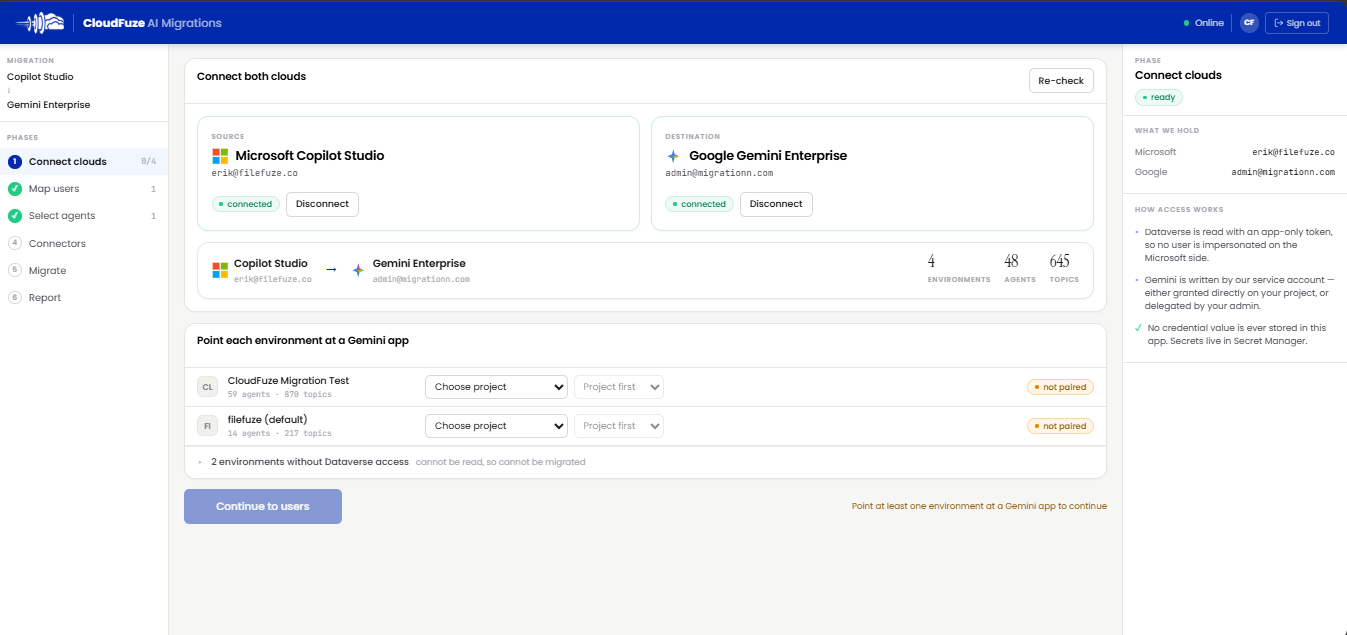
Step 2: Point Each Copilot Studio Environment with a Gemini App
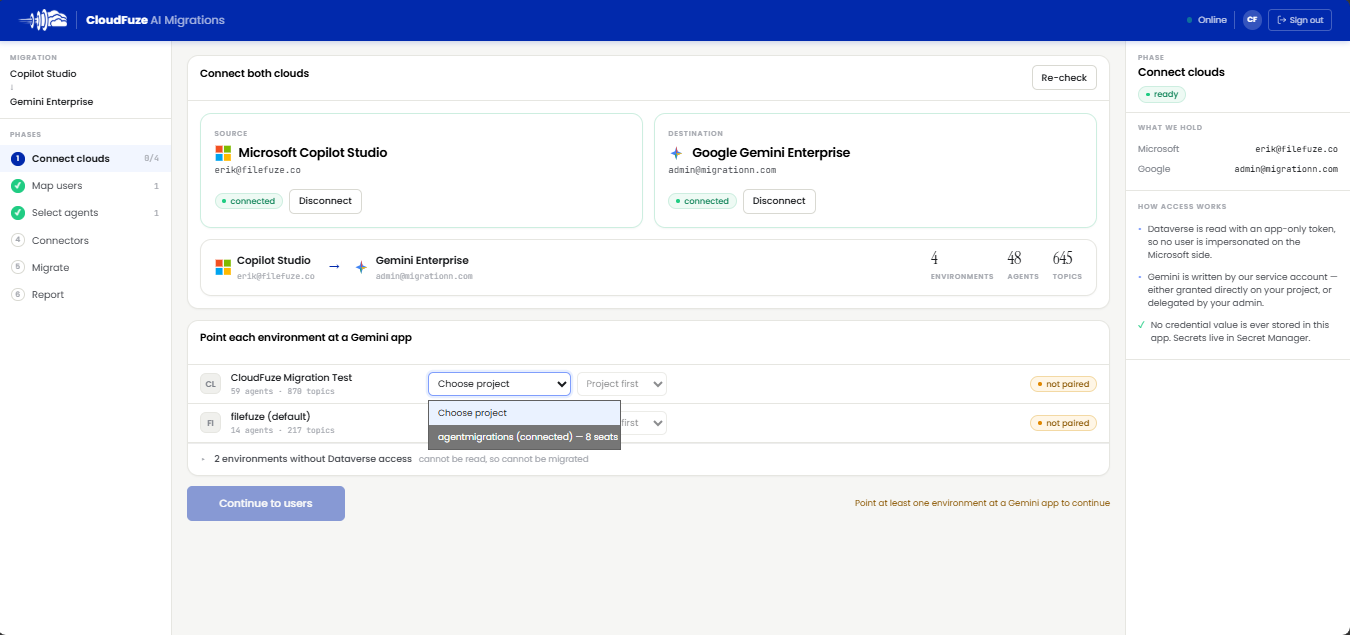
Next, pair each Copilot Studio environment with a destination. First, choose the Google Cloud project for the environment. The drop-down shows which projects are connected and how many seats they have.
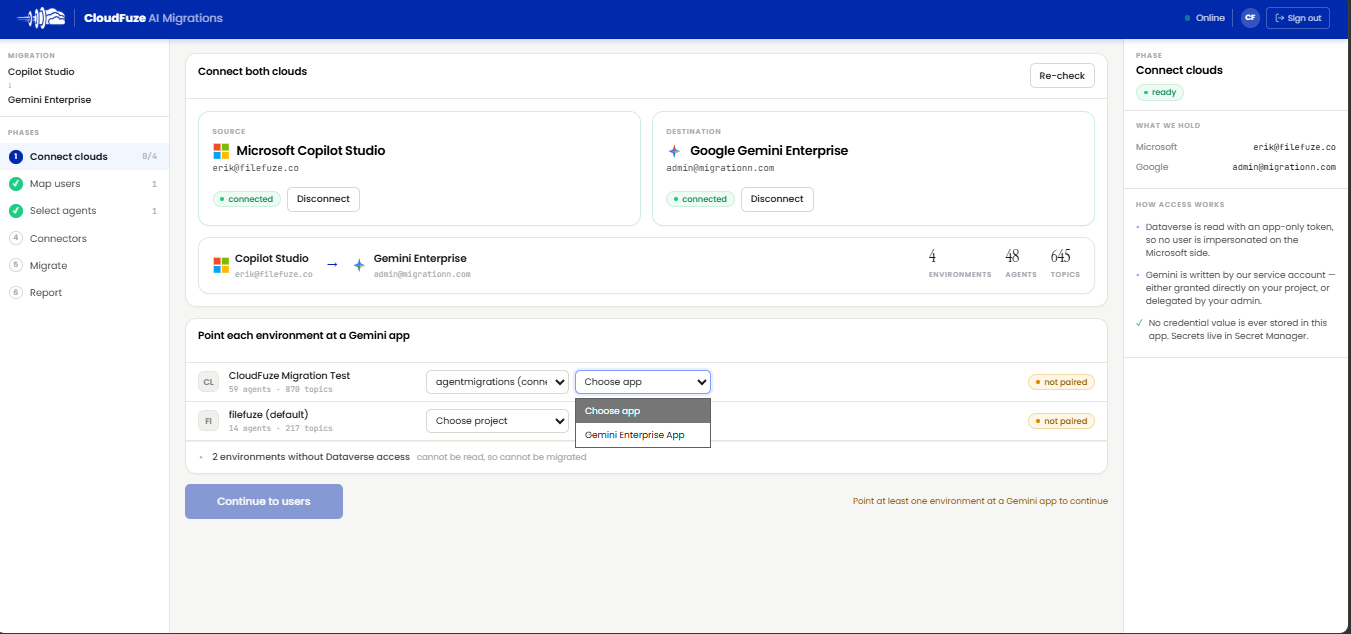
Then, choose the Gemini Enterprise app within that project where the agent should land. At least one environment needs to be paired before you can move to user mapping.
Step 3: Map Users
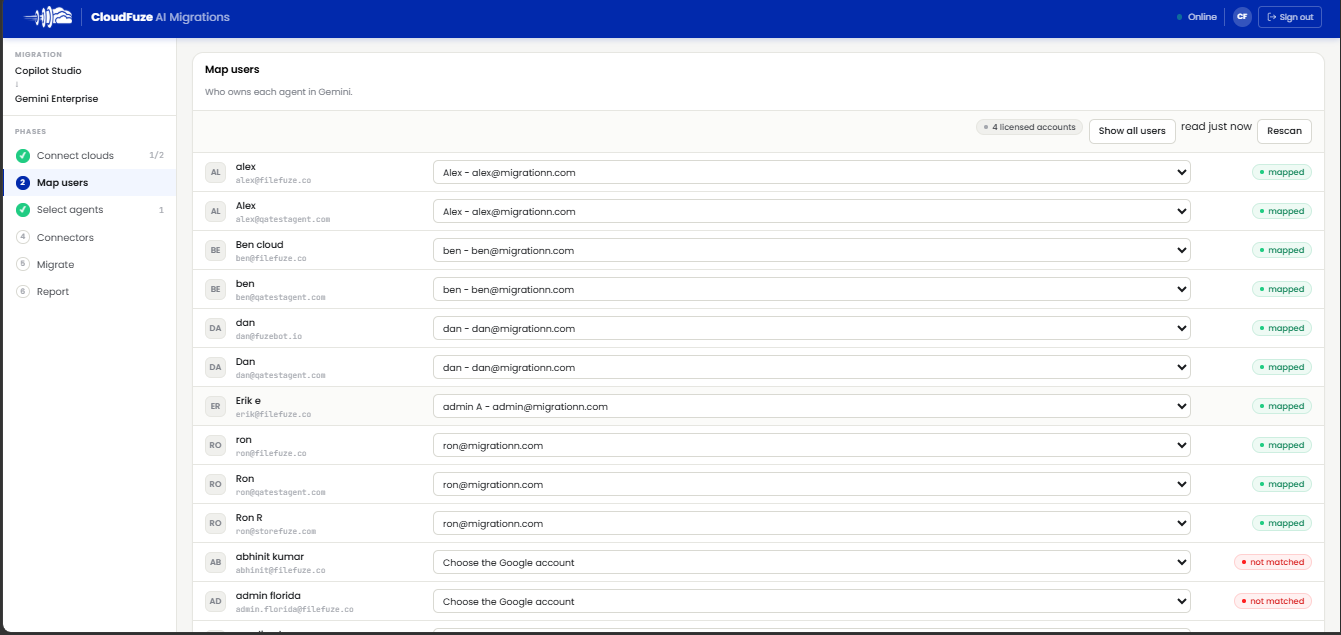
Every migrated agent needs an owner in Gemini Enterprise. On this screen, map each Copilot Studio user to their licensed Google account. Users who match are marked as mapped, and anyone without a match is flagged as not matched so your team can assign the right account.
If you add new Google accounts during the project, use Rescan to pull in the latest list.
Step 4: Select the Agents to Migrate
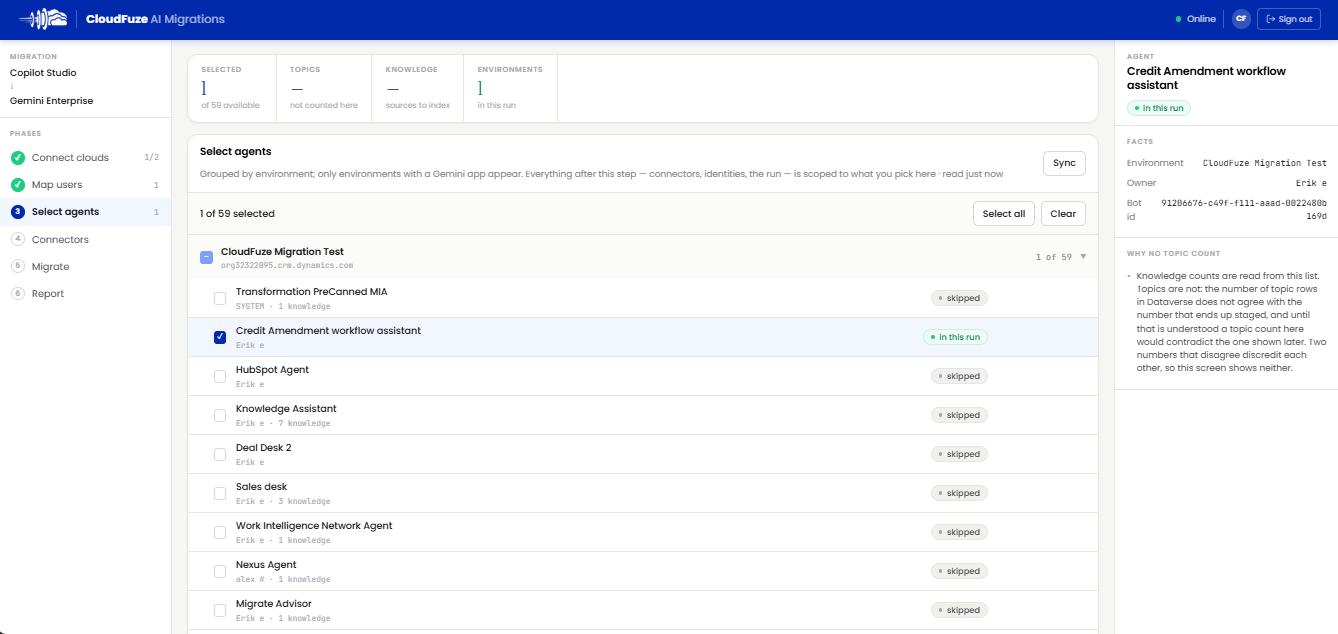
Upon mapping users, select the agents to include in this run. Agents are grouped by environment and only environments paired with the Gemini app appear here. Each agent shows its owner and the number of knowledge sources attached.
It is best to start with one or two agents for your first run. Everything after this step (connectors, identities, and the run itself) is scoped to what you pick here, so a small first batch keeps the review manageable.
Step 5: Connect Credentials and Make Connector Decisions
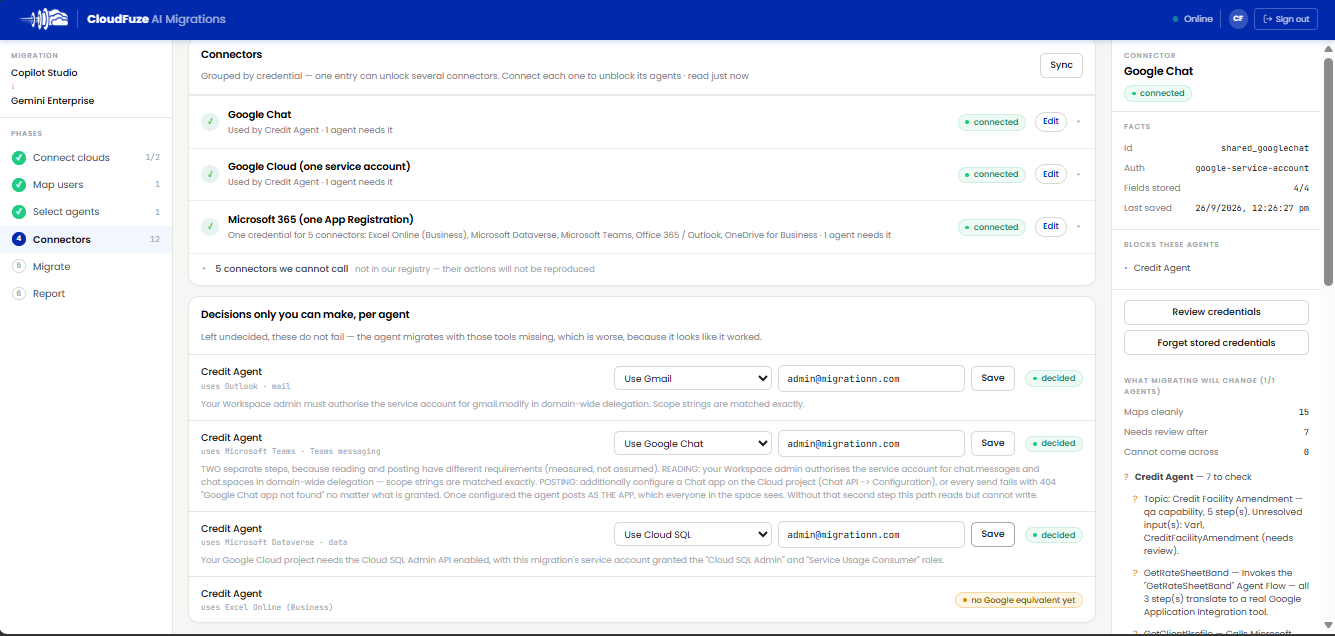
This is the step most teams underestimate. Connectors are grouped by credentials, so a single entry can unlock several connectors. For example, one Microsoft 365 app registration covers Excel Online Business, Microsoft Dataverse, Microsoft Teams, Office 365 Outlook, and OneDrive for Business.
Then come the decisions only your team can make, agent by agent:
- Outlook Mail: Switch to Gmail. Your Google Workspace admin needs to authorize the service account for the Gmail. Modify scope in domain-wide delegation.
- Microsoft Teams messaging: Switch to Google Chat. Reading and posting have separate requirements. Reading needs chat. Messages and chat.Spaces scopes in domain-wide delegation and posting needs a chat app configured on the cloud project.
- Microsoft Dataverse data: Either keep Dataverse and rebuild the action as a direct API call, or copy the table into Cloud SQL for Postgres SQL. The Cloud SQL option needs the Cloud SQL admin API enabled and the right roles granted to the service account.
- Excel Online: flagged as having no Google equivalent yet.
It is crucial to settle every decision here. When left undecided, the agent still migrates but with those tools missing, which is worse because it looks like it worked. Connectors that are not in CloudFuze’s registry are also flagged, so you know their actions will not be reproduced.
The side panel shows what migrating will change for each agent: how many components map cleanly, how many need review after migration, and how many cannot come across.
Step 6: Perform a Dry Run
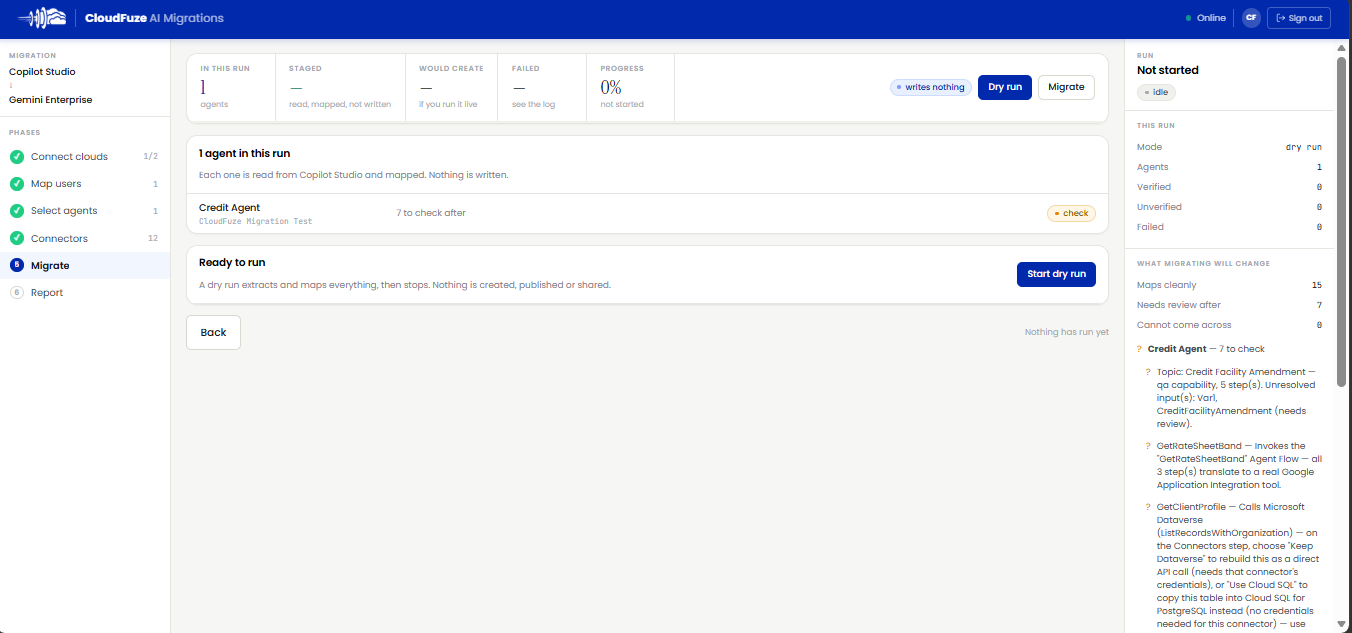
Before starting the actual migration, we recommend performing a dry run. It extracts and maps every selected agent and then stops. Nothing is created, published, or shared in Gemini Enterprise.
The dry run shows how many agents are staged and what would be created if you run it live. Use it to review every item flagged for checking.
For example, a dry run might show that an agent’s GetRateSheetBand action invokes an agent flow whose three steps all translate to a real Google application integration tool, while another action that calls Dataverse needs your connector decision first.
Step 7: Run the Live Migration
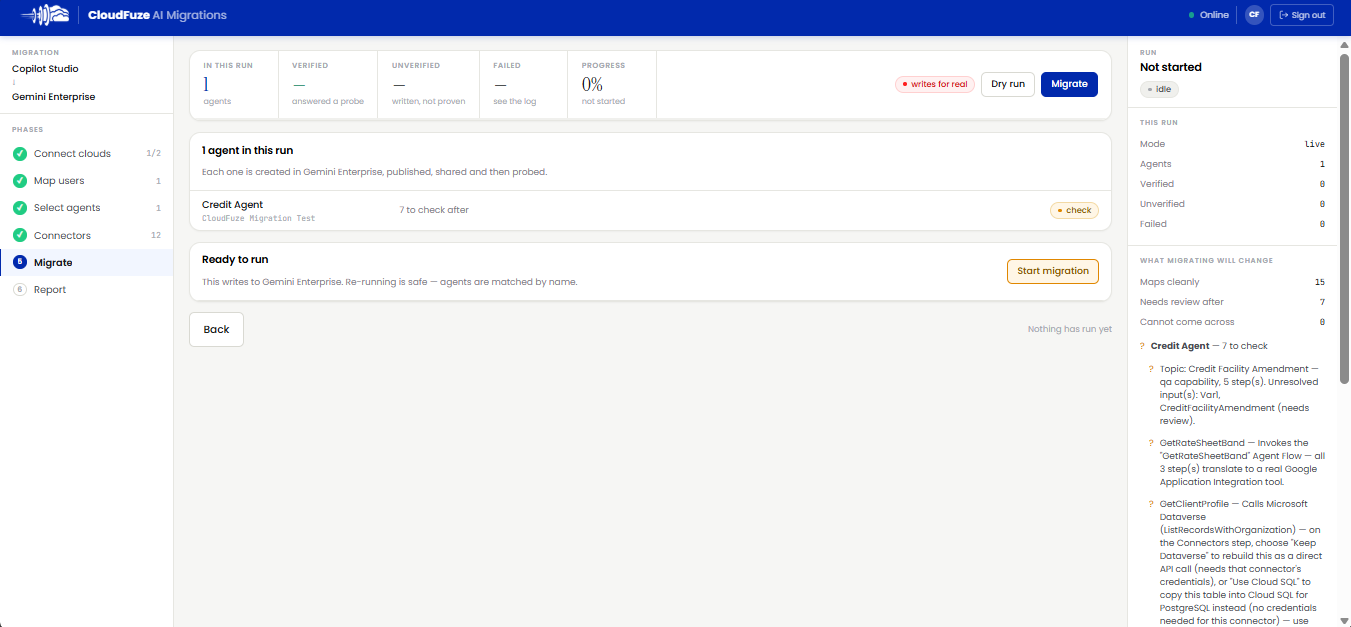
Once the dry run looks right, start the live migration. Each agent is created in Gemini Enterprise, shared, and then probed with a test question. The run tracks every agent as verified, answered a probe, unverified, written but not proven, or failed.
Rerunning is safe since agents are matched by name. If your team fixes a connector decision after the first run, you can run it again without creating duplicates.
Note: Making an agent available to your whole organization requires a Google admin to click Publish once per agent due to a Google platform limit. Verify how this aligns with the publish status shown on the Migrate screen.
Step 8: Verify Agent Responses and Review the Report
Lastly, compare how each agent behaves on both platforms. Every migrated agent is asked a real question, and its answer and calls are inspected. An agent that deploys but cannot answer properly is reported as failed.
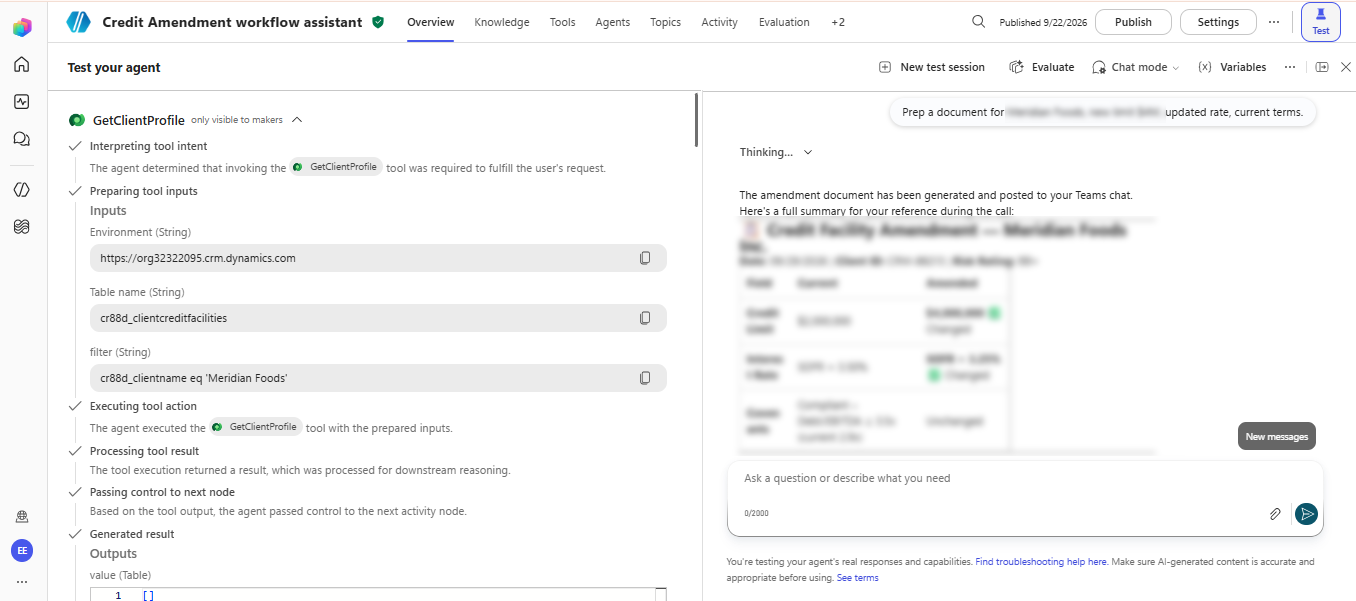
To put things into perspective, here is a test we ran on a sample credit amendment agent. In Copilot Studio, we asked it to prepare an amendment document for a client with a new credit limit, an updated rate, and current terms. The agent looked up the client profile, generated the document, and posted it to Teams.
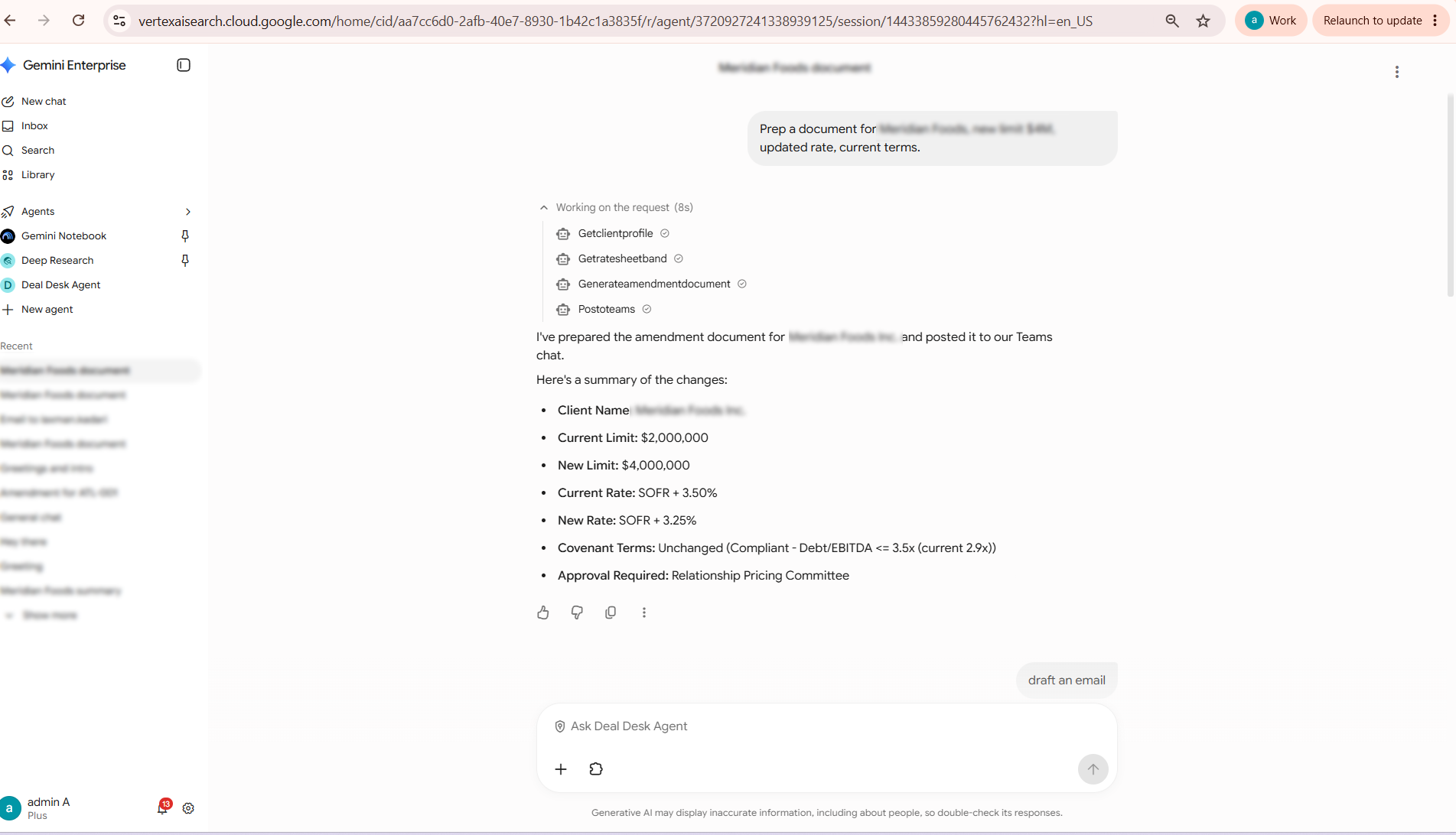
After migration, the same prompt in Gemini Enterprise triggered the client profile lookup, the rate sheet lookup, the document generation, and the Teams post. The response returned the same results: the credit limit moving from $2 million to $4 million, the rate moving from SOFR + 3.50% to SOFR + 3.25%, and covenant terms unchanged.
The final migration report breaks down every agent: what mapped fully, what needs review, and what was lost.
Want to see your own agents answer side by side in Copilot Studio and Gemini Enterprise?
Book a live demo and our AI migration team will walk you through a dry run on one of your agents.
Book a Copilot Studio to Gemini Enterprise migration demo.
Best Practices for Migrating Copilot Studio Agents to Gemini Enterprise
The quality of the migration depends heavily on the planning that goes into it. Here are the practices we recommend to every IT team:
- Clean up your agent inventory first: Copilot Studio tenants tend to collect test agents and abandoned drafts. Retire the ones nobody uses, so you only migrate what matters.
- Use the assessment as your scope of work: Prioritize agents that map cleanly for the first batch and plan time for the ones flagged for review.
- Decide every connector swap before the live run: Outlook to Gmail and Teams to Google Chat both need admin configuration in Google Workspace. Get those approvals in place early.
- Plan for restricted knowledge: If certain SharePoint folders were limited to specific teams, prepare a checklist to reapply those restrictions in Gemini after migration.
- Check your Microsoft prebuilt agents: Identify any that will arrive as empty shells and assign someone to author them.
- Always run a dry run first: It costs nothing, writes nothing, and surfaces surprises before they reach your users.
- Test with real prompts: Ask migrated agents the same questions your employees ask every day and compare the answers with the source.
There are no two ways about it. The connector decisions in step 5 are where most agent migrations succeed or fail. A missing tool will not throw an error. It will simply leave your users with an agent that cannot finish the job.
Why Choose CloudFuze for Copilot Studio to Gemini Enterprise Migration?
CloudFuze has spent years helping enterprises move between Microsoft 365 and Google Workspace. Our AI migration platform brings that same structured approach to AI agents.
- Read-only discovery: Your Copilot Studio tenant is read with an app-only token, and nothing is written to Google until you approve the live run.
- Your own Google Cloud project: Agents are created in your Gemini Enterprise environment, and never in a CloudFuze-hosted one.
- No stored credentials: Secrets live in Google Secret Manager.
- Honest assessment up front: Every agent is categorized as mapping cleanly, needing review, or unable to come across, with reasons.
- Agent flows rebuilt as working tools: Power Automate flows called by an agent are translated into Google Cloud Application Integration and wired in as callable tools.
- Verified results: Every agent is probed with a real question after migration.
- Scales with you: The process works the same for one agent, one department, or your entire tenant.
And if you are moving mail, files, and chats along with your agents, CloudFuze’s Microsoft 365 to Google Workspace migration products can handle the rest of the move.
Move your Copilot Studio Agents to Gemini Enterprise with CloudFuze
Copilot Studio to Gemini Enterprise migration comes down to three things: knowing what will migrate, making the right connector decisions, and verifying that each agent still works. Connect, pair, map, select, decide, dry run, migrate, and verify. Follow those steps and your agents keep doing their jobs on day one in Gemini Enterprise.
Planning to Migrate Copilot Studio Agents to Gemini Enterprise?
Get a free consultation with our AI migration experts and walk away with an agent-by-agent assessment and a migration plan built around your timeline. Book a free consultation.
Frequently Asked Questions
1. How do I move a Copilot Studio agent to another environment?
You use solutions to export the agent from one environment and import it into another, which downloads a .zip file of the solution for importing into the target environment. This works for moves between Power Platform environments.
To move agents to Gemini Enterprise you need a migration tool such as CloudFuze that translates the agent into Gemini’s format.
2. How do I export a Copilot Studio agent?
Add the agent to a solution and export that solution as a package. If you add components such as topics or flows to your agent in Copilot Studio, you must also add them to the agent in your unmanaged solution before you export.
Keep in mind that the exported package can only be imported into another Power Platform.
3. How do I migrate Copilot Studio agents to Gemini Enterprise?
Connect both platforms, pair each Copilot Studio environment with the Gemini app, map users, select agents, settle connector decisions, run a dry run, and then run the live migration.
CloudFuze verifies each migrated agent with a real question and gives you a report for every agent.
4. How do I migrate Copilot Studio agents without rebuilding them?
CloudFuze reads each agent directly from Dataverse and recreates it in Gemini Enterprise, including instructions, topics, knowledge sources, tools, and agent flows.
Your team only steps in for decisions that need human judgment, such as connector swaps and restricted folder access.
5. Can Power Automate flows be migrated to Gemini Enterprise?
Yes. When the flow is called by one of the agent’s actions, CloudFuze translates it into a Google Cloud application integration and wires it into the migrated agent as a callable tool. Standalone flows that are not tied to an agent are planned for a later phase.
About the Author: Pankaj Rai



