
How to Import Events to Google Calendar
To import calendar events to Google Calendar, click on Settings –> Import & Export. Select file from your computer. Then select the file you exported. Choose the calendar to add the imported events to. Then, click on Import.
When you import events to Google Calendar, you can face errors such as processed zero events, processed x of y events, “Google Calendar is temporarily unavailable” and “the connection to the server was reset”. Read the article on how to import events to Google Calendar.
Key Takeaways:
What Are the Steps to Import Events into Google Calendar?
Follow the steps below to import events into Google Calendar:
Step 1: Open Google Calendar & Click on Import & Export
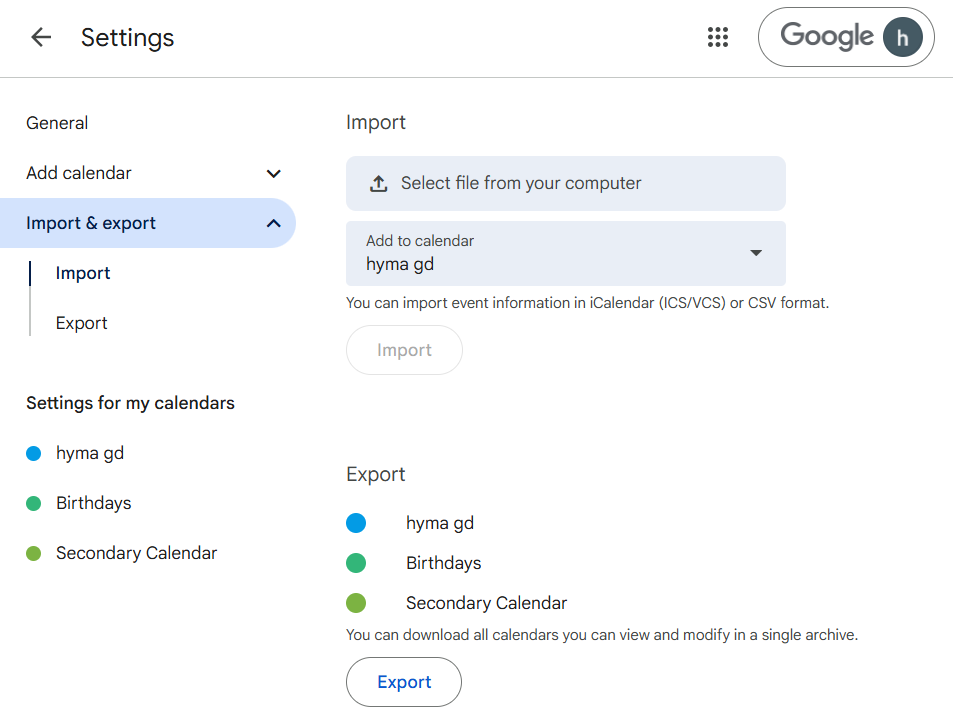
Open Google Calendar. Now, tap on Settings. Then, click on Import & export.
Step 2: Click on Import
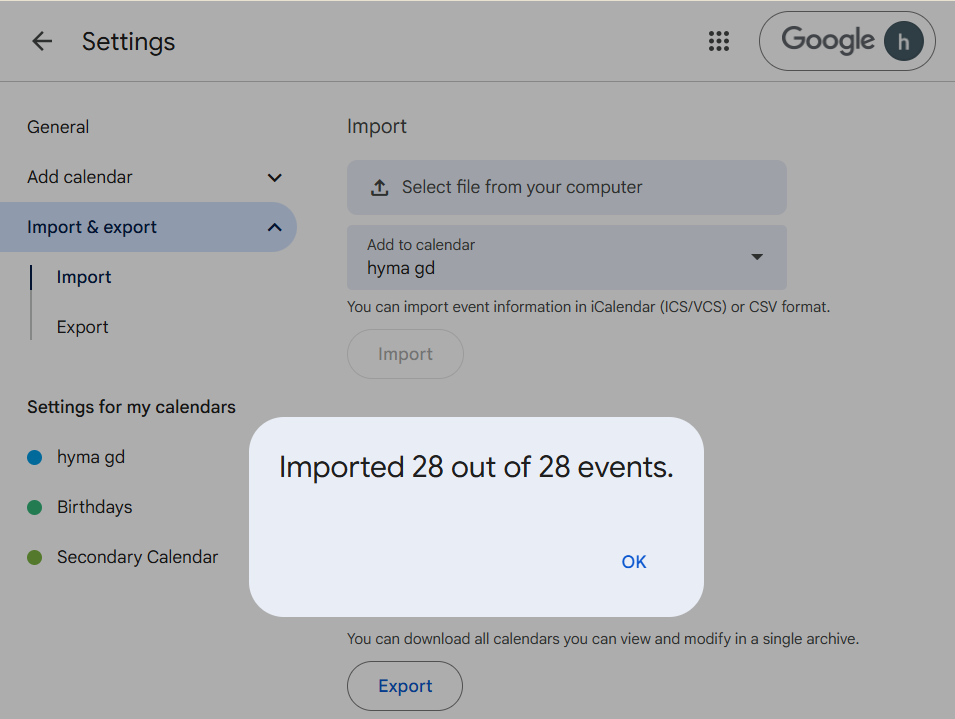
By default, events are imported into your primary calendar. Then click on Import. Now all events will be imported.
Step 3: Check the Import Events
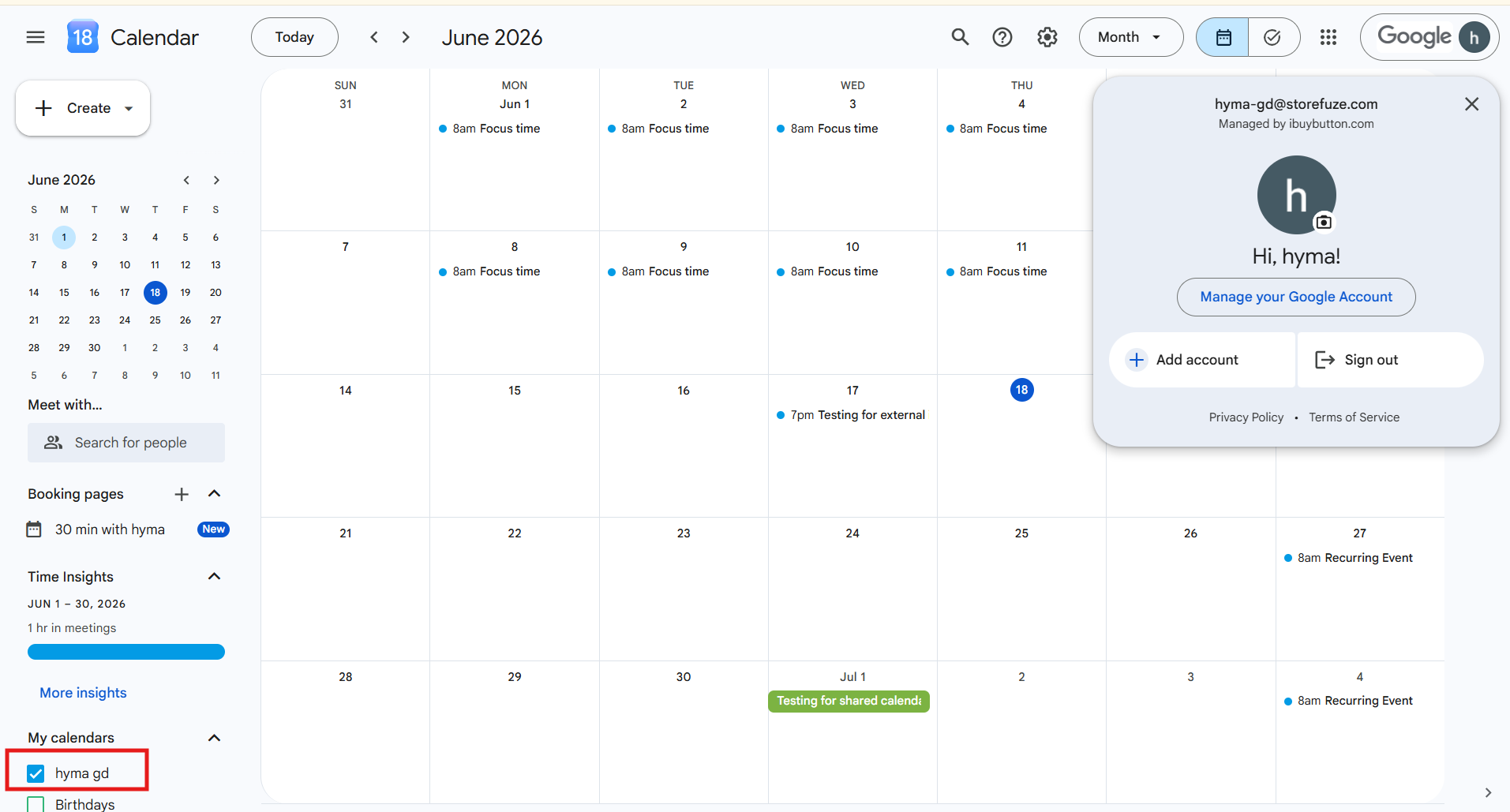
Here, we have imported calendar events from blue1@migrationn.com to hyma-gd@storefuze.com.
What Common Errors Occur When Importing Events into Google Calendar?
One can get the “Processed zero events” error when the Import button is tapped more than once. As the file starts to import correctly after the first click, the error message pops up on the second click as there are no new events to process. To fix the “Processed zero events” error, check your calendar to make sure all events are available.
The “Processed x of y events” error happens when Google Calendar can’t read a few events in your file. Try exporting the file again and re-import it into Google Calendar. If this doesn’t fix your problem, look for the formatting in CSV file or ICAL file.
“Google Calendar is temporarily unavailable” error occurs when file size is too large. Google Calendar works with files that are 1MB or smaller. If your files are larger than that, export a shorter date range from the original application. You can also separate the file into smaller files.
“The connection to the server was reset” error occurs when your file isn’t formatted correctly. To fix this, check the formatting of your CSV file or ICAL file.
What Are Best Practices for Managing Imported Events In Google Calendar?
Google Calendar doesn’t work with files that use a semicolon ( ; ) or colon ( : ) to separate fields. Ensure that all fields are separated by commas to avoid formatting errors. Check your file for the correct field headers. CSV and ICAL files should be correctly formatted to import.
Google Calendar only works with files that are 1MB or smaller. If your file is too big, export a shorter date range from the original application. You can also separate the file into smaller files if you are manually editing CSV/ICAL code.
Final Thoughts
Users can get a clear overview of how to import events to Google Calendar through the steps in this blog post. Follow our blog page to stay updated on technical insights.
Frequently Asked Questions
1. How to delete imported events in Google Calendar?
Open Google Calendar and find the imported event. Now click on it and select the trash/delete icon. To delete all imported events at once, go to Settings → Import & Export. Then you can delete the imported event.
2. How to import calendar events from Outlook to Google Calendar?
In Outlook, click on File → Open & Export → Import/Export → Export to a file → Outlook Data File (.pst) or iCalendar (.ics). Then in Google Calendar, go to Settings → Import & Export → Import and upload the .ics file.
3. Is there a way to bulk add events to Google Calendar?
Yes, you can prepare a CSV file with event details (Subject, Start Date, End Date, etc.) and import it via Settings → Import & Export. Alternatively, use Google Calendar API to add bulk events.
4. How do I add events to Google Calendar?
Click the “+” button or click directly on a date in Google Calendar → fill in event name, date, time, and details → click Save. You can tap on “More options” to add guests, location, reminders, and recurrence.
5. How to import a CSV file of events into Google Calendar efficiently?
Format your CSV with headers like Subject, Start Date, Start Time, End Date, End Time, Description → Google Calendar Settings → Import & Export → Import → upload the CSV.
About the Author: Bhavani Asok


