
Post-Cutover Pitfalls When Moving from Egnyte to Google Drive
Moving from Egnyte to Google Drive is more than just a file transfer. It is a shift from a file server architecture to a cloud native environment. Post cutover challenges like misplaced folders, broken embedded links, MS Office formatting issues, and AI data exposure risks can disrupt business workflows.
CloudFuze Migrate helps organizations address these pitfalls and ensure a smooth, accurate transition to Google Drive. Read the blog post for more insights!
Key Takeaways:
1. Critical Folders Placed into Incorrect Locations
After cutover, users may find that some critical folders are in incorrect locations in Google Drive. This can happen due to differences in folder hierarchy, path limitations, or mapping mismatches during migration.
As users start accessing the system, these misplaced folders become more noticeable and can lead to confusion or access issues. During migration, CloudFuze Migrate preserves Egnyte’s original folder hierarchy and structure. It performs accurate folder mapping, ensuring each folder gets moved to its intended destination in Google Drive.
With this, our tool also handles path limitations and structural differences effectively during the transfer. Hence, critical folders remain in their correct locations after cutover, avoiding misplacement and user confusion.
2. Formatting Issues with MS Office Files
After cutover, users may notice formatting differences when opening Microsoft Office files (Word, Excel, PowerPoint) in Google Drive. This occurs because Google Workspace and Microsoft Office handle formatting differently.
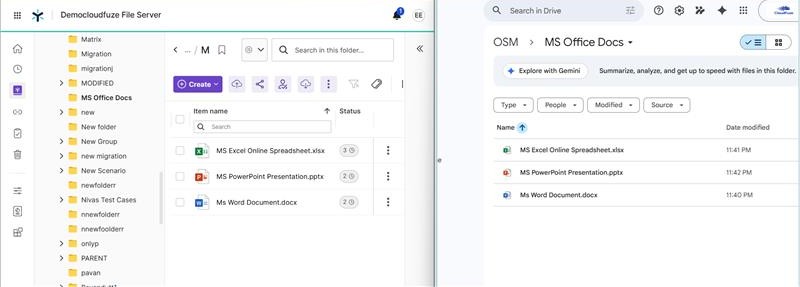
As users begin working on migrated files, changes in fonts, spacing, alignment, or layout may become visible, impacting document consistency. CloudFuze Migrate helps you eliminate these issues by migrating files in their native format without unnecessary conversion while preserving original formatting.
The below screenshot shows MS Office files migrated from Egnyte to Google Drive using CloudFuze Migrate:
3. Broken Embedded Links
After cutover, embedded links within files may no longer work as expected in Google Drive. This happens because Egnyte-specific URL structures are not supported in the Google Drive environment. As a result, users may encounter broken links when accessing documents, especially files with heavy internal referencing, which can disrupt workflows.
CloudFuze helps prevent this by automatically updating and remapping hyperlinks during migration, ensuring links continue to work correctly after cutover.
4. User Interface Workflow Differences
Users may have to learn how to use Google Drive after moving from Egnyte’s interface. Google Drive has a different user interface that may take some time to get used to for teams.
The way files are organized and shared in Google Drive varies from how they are in Egnyte. Users will need training and help to make the switch go smoothly. To avoid a decline in productivity after cutover, businesses have to support user training for all intended teams.
5. AI Exposure from Inherited Data Chaos
When you migrate messy Egnyte data to Google Drive, you face issues like oversharing and exposure of sensitive files to unintended people. After cutover, Gemini’s contextual AI can unintentionally surface or summarize this sensitive information in responses to user prompts.
This risk gets amplified if you do not address legacy permissions and data to sprawl upfront. Using CloudFuze Migrate for structured migration and CloudFuze Manage for post-migration cleanup, permissions control, and governance helps you eliminate unintended AI driven data exposure.
Post-Cutover Checklist for Egnyte to Google Drive Migration
Post-cutover checklist after your Egnyte to Google Drive migration:
- Set all Egnyte accounts to read-only or disabled to prevent users from accidentally adding new data to Egnyte environment.
- Remotely uninstall Egnyte desktop app and deploy Google Drive for desktop to ensure a smooth transition.
- Train your teams with file structures, useful features, uses of Shared Drives, etc. for smoother workflow.
- Use CloudFuze Manage to audit sharing and enforce governance in Google Workspace to ensure secure Gemini access.
How to Handle Long Folder Paths in Google Drive from Egnyte?
Issues when moving long folder path files from Egnyte to Google Drive include folder path constraints, truncations, and nested folder limitations. With CloudFuze Migrate, you can address folder path limits when transferring from Egnyte to Google Drive.
How To Perform a Cutover from Egnyte to Google Drive Effectively?
Businesses can perform a final cutover during off-peak hours when moving from Egnyte to Google Drive. Business proceedings do not happen during off-peak hours. Businesses planning cutovers can schedule them on weekends.
Businesses can plan a final cutover after completing all their delta migrations. This helps you ensure that there is no data left behind.
Check Out Egnyte to Google Shared Drives Migration Tool’s Working:
Transfer Data from Egnyte to Google Drive Successfully with CloudFuze
Moving from Egnyte to Google Drive is just one part of your journey; the other is to ensure proper post-migration integration and onboarding. Eliminate post-migration challenges and ensure a smooth transition with CloudFuze Migrate.
Contact us and book a free and no-obligation demo of our tool today!
Frequently Asked Questions
1. What should be done post-migration from Egnyte to Google Drive to ensure data integrity?
Have a complete data validation post-migration by checking migration reports. Verify the migration accuracy by checking data and metadata transferred from Egnyte to Google Drive. Ensure to choose a migration vendor who can help you through post-migration support.
2. What are the risks of data loss when migrating from Egnyte to Google Drive?
Risks of data loss when migrating from Egnyte to Google Drive:
- Missing file/folder structures
- Broken hyperlinks
- Loss of permissions
3. Common error codes during Egnyte to Google Drive cutover
Common error codes during Egnyte to Google Drive cutover include HTTP 403 (permission denied), 404 (file not found), and 429 (rate limiting due to API limits). In addition, migration-specific issues such as job size exceeded errors (e.g., 629/631) may occur when handling large datasets. Google Drive limitations, such as the 400,000 item limit per Shared Drive, can also lead to migration failures or errors during cutover.
About the Author: Bhavani Asok



