
Move Orphan Files, Inactive Users for IT Firms With 500+ Users
If you are an IT firm planning to migrate high-volume users (500+), have a proper strategy to handle both orphaned files and inactive users. With the best strategies and practices, eliminate errors during your enterprise-level transition.
In this blog post, we have discussed how IT firms can effectively move orphan files and inactive users.
Key Takeaways:
What Are Orphan Files and Inactive Users in IT Firms?
Orphaned files refer to files in a system without an active owner or user account. An orphan file does not have a valid reference but resides in your storage platform. Inactive users refer to accounts that users have not logged into or made any activity for a defined period.
How Can IT Firms With 500+ Users Identify and Move Orphan Files Effectively?
IT firms with more than 500 users can identify and move orphan files effectively using advanced migration tools such as CloudFuze Migrate. Here are screenshots of transferring orphan files from Box to SharePoint.
Image 1: Orphaned files in Box environment.
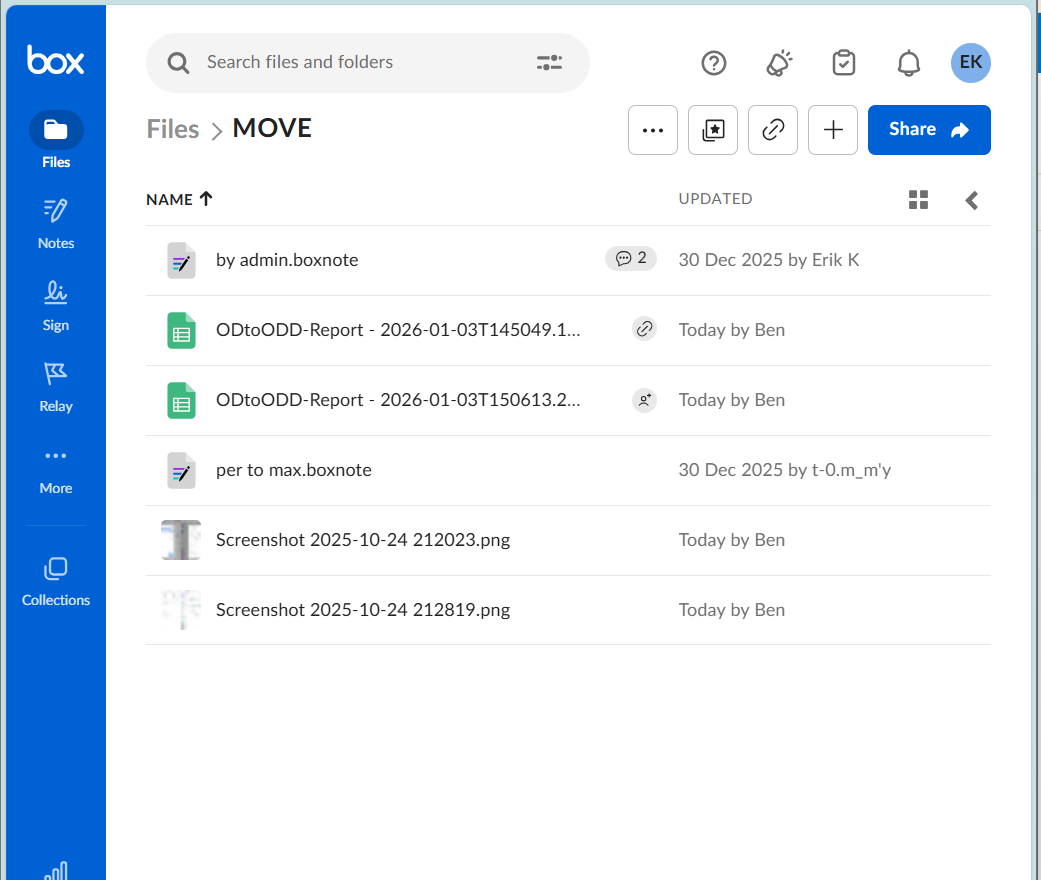
Image 2: Here, CLOWN is the SharePoint site chosen for transferring unmapped orphans. Since there is no mapping, Box files get transferred to the SharePoint application’s Documents folder in CLOWN site using CloudFuze Migrate.
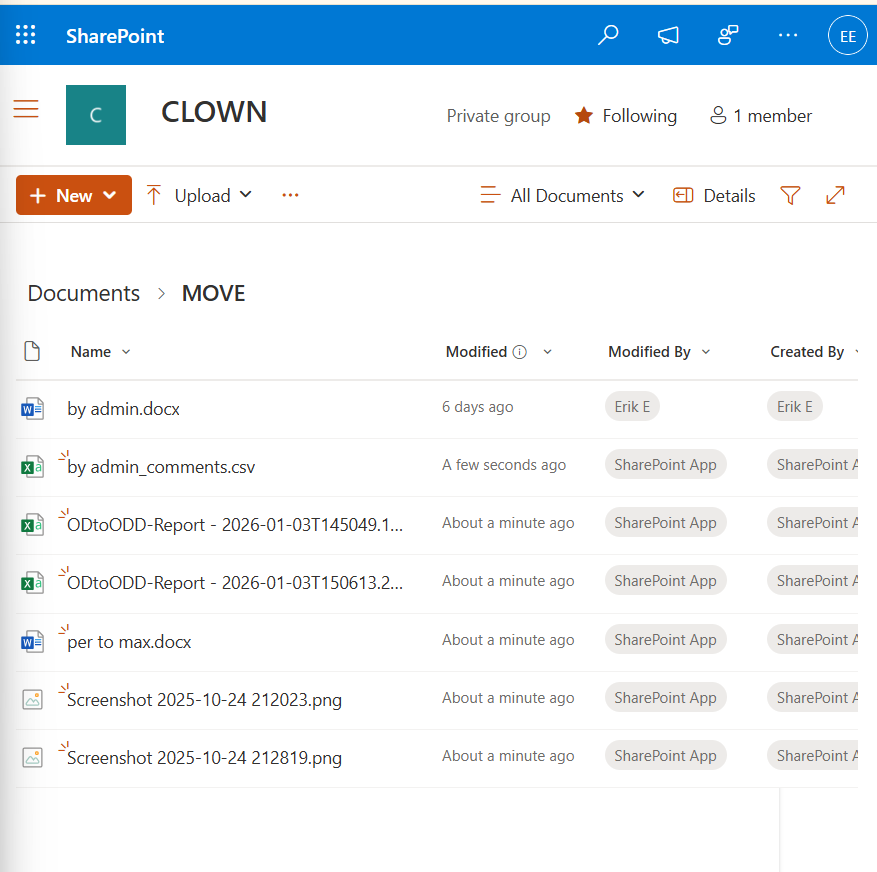
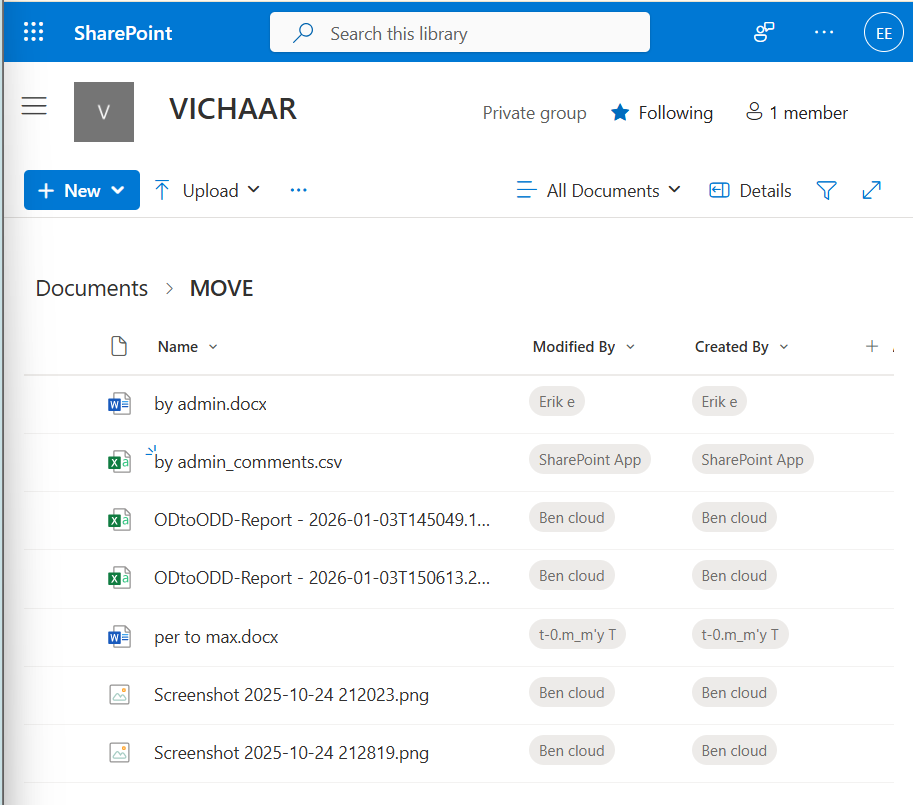
Image 3: Here, VICHAAR is the SharePoint site chosen for transferring mapped orphans. When you map the orphaned user, the user gets created in SharePoint. Then our tool assigns the orphaned files to that mapped user.
Process for Handling Inactive Users in IT Firms with Over 500 Users
CloudFuze Migrate handles both active and inactive users while ensuring:
- Message preservation
- File-feature retention
- File integrity
With CloudFuze, businesses with 500+ users can securely migrate data from deactivated or inactive accounts without reactivating them.
Migrating Inactive Users from Teams to Google Chat Using CloudFuze Migrate
Image 1: Unlicensed users are inactive users in Teams. The below image shows admin console in Teams with inactive users.
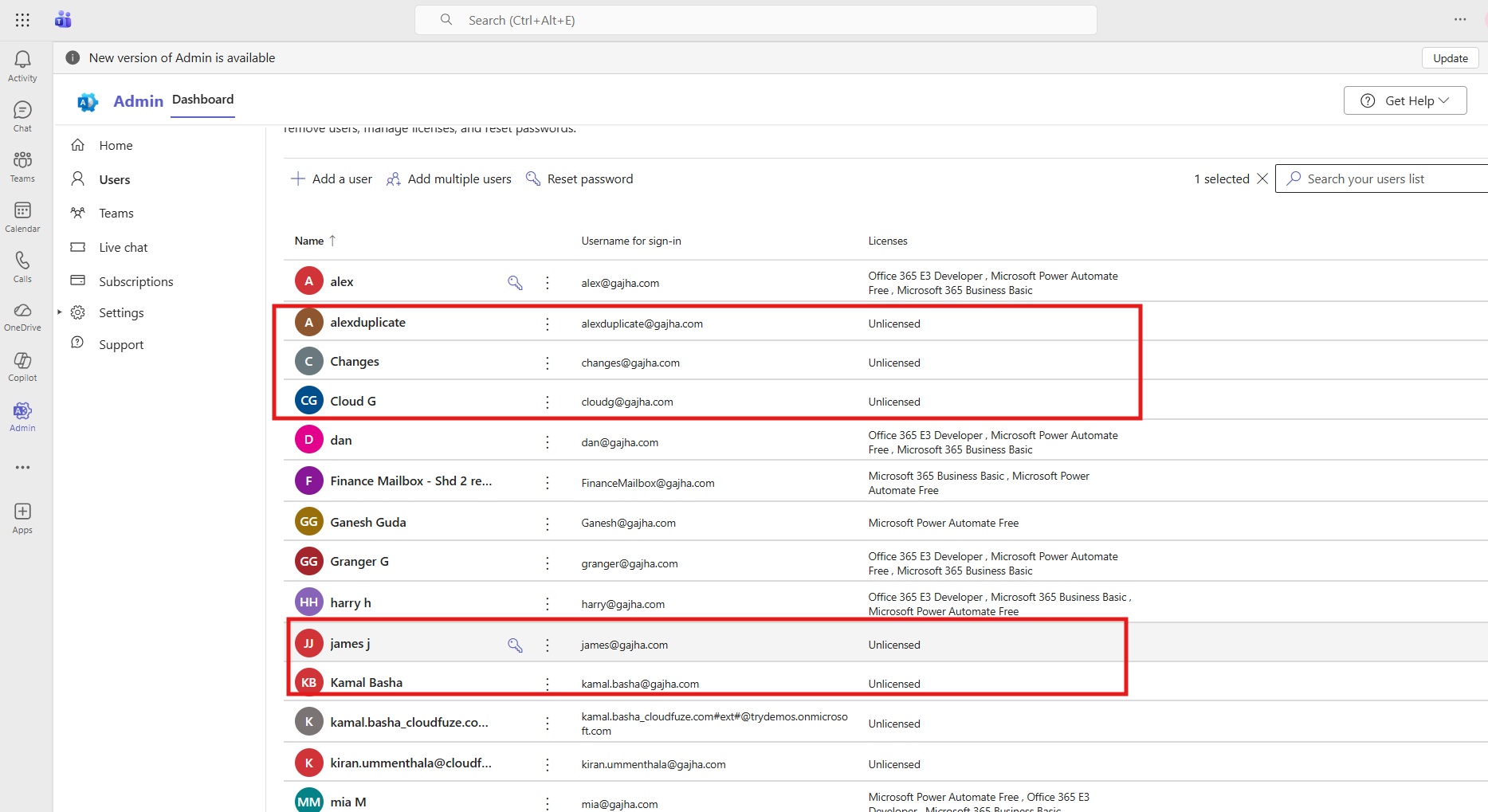
Image 2: Here we choose a particular inactive user from the user metabases.
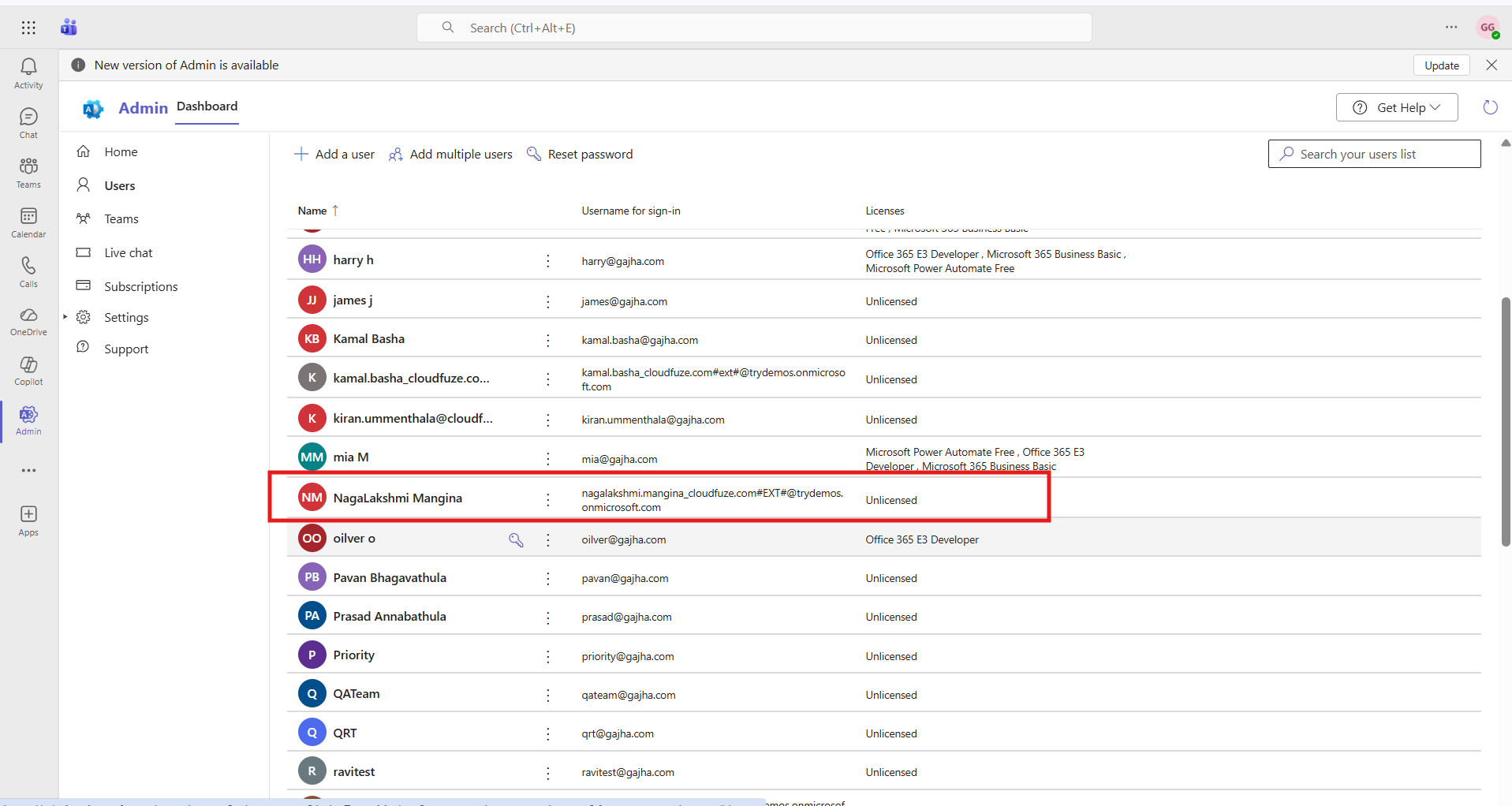
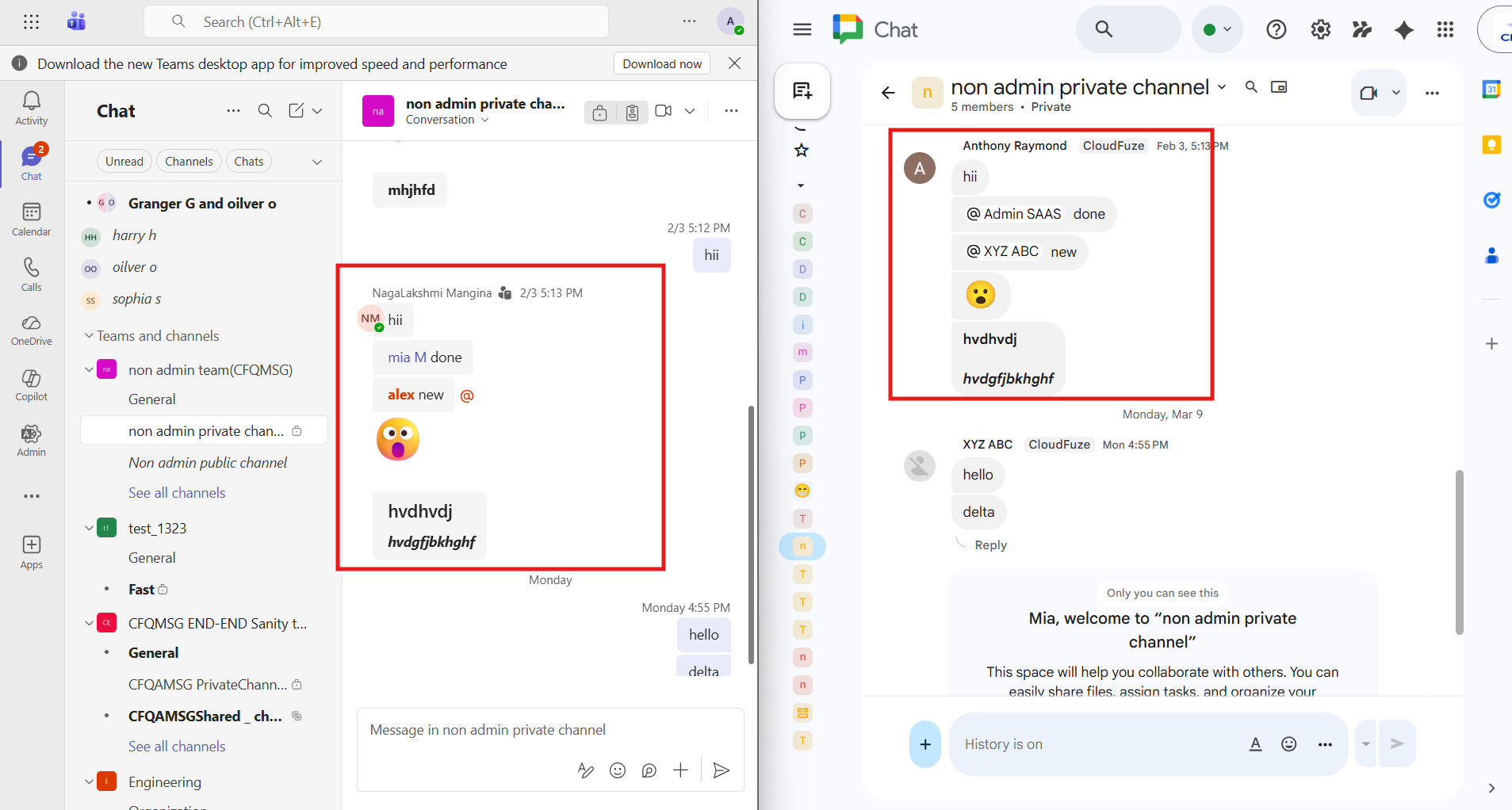
Image 3: Shows successful migration of the chosen inactive user from Teams to Google Chat using CloudFuze Migrate. Note that Nagalakshmi Mangina is mapped to Anthony Raymond in Google Chat.
Handle Orphan Files, Inactive Users Seamlessly During Migration with CloudFuze Migrate
CloudFuze Migrate helps you transfer your necessary data and metadata smoothly, handling orphaned files and inactive users during migration. With us, transfer terabytes or petabytes of data with zero downtime and complete replication.
Contact us for a free and no-obligation demo of our tool!
Frequently Asked Questions
1. Steps to clean up orphaned teams and Groups in M365
Steps to clean up orphaned teams and Groups in M365:
- Find orphaned groups/teams in the Admin Center.
- Review the activity levels.
- Now remove orphaned groups/teams using PowerShell or Admin Center.
- Implement retention/expiration policies to eliminate further orphaning.
2. How to prevent orphaned files during Egnyte to M365 migration?
Handling orphaned files during the Egnyte-to-M365 migration is necessary before proceeding with your one-time migration. Businesses can prevent orphaned files during Egnyte migration through proper user mapping. Perform pilot migration to identify orphan files. Assign ownership of orphaned files in Egnyte to the necessary users before migration.
3. How do I prevent orphan files when migrating data to cloud storage?
You can prevent orphaned files and file duplicates when migrating data to cloud storage through a pre-migration analysis in your source cloud. Conduct a thorough assessment of files to move from your source platform. Then remove orphan files along with other unnecessary data.
About the Author: Bhavani Asok



