

Having a proper strategy is a must when it comes to streamlining your organization’s plan of transferring emails from Gmail to Gmail. The strategy must address all the areas of the migration to avoid loopholes which, otherwise, can become roadblocks.
It is equally important to choose the right Gmail migration solution to be able to replicate the source Gmail environment in the destination. At CloudFuze, we offer industry-leading Gmail to Gmail migration functionalities that can enable your organization to perform the switch comprehensively and securely.
Benefits of Gmail to Gmail Migration
Switching from one Gmail account to another is beneficial for any business if done in a planned manner. Some benefits that businesses can leverage by migrating from one Gmail account to another include:
- Migrate all emails, attachments, and folders without data loss
- Preserve email metadata, including timestamps, labels, and read/unread status
- Retain contacts linked to the original account
- Maintain calendar events and attachments during the transfer
- Consolidate multiple inboxes for easier management
- Improve security by retiring old or unused accounts safely
- Enable seamless AI adoption by centralizing data for more accurate insights and automation.
- Enhance productivity with faster search across a single consolidated mailbox
Challenges of Transferring Emails from Gmail to Gmail
Migrating emails from Gmail to Gmail at a large-scale while preserving all the email properties becomes a challenging feat for businesses small and large. Without a proper migration tool that eliminates manual intervention, it becomes challenging to:
- Migrate email attachments
- Migrate sent items
- Migrate junk and draft emails
- Preserve deleted emails and read/unread status
- Migrate calendar events
- Preserve calendar event timestamps
- Migrate calendar event attachments
With our Gmail to Gmail migration tool, your organization can steer clear of the challenges in migrating all the important properties of emails. Our managed migration service further ensures that your IT team does not have to do the heavy lifting associated with planning and performing the migration.
Planning Gmail to Gmail Migration
A successful Gmail to Gmail migration process requires planning. For CIOs, CTOs, and IT leaders, strategic planning ensures that the process has zero downtime, data integrity is maintained, and the process is smooth.
1. Pre-Migration Analysis to Transfer Gmail to Another Gmail
A thorough analysis of your source Gmail environment involves assessing:
- The total number of Gmail users and shared mailboxes (e.g. 500+ employees, 50+ shared mailboxes).
- Email volume per user, including millions of emails and attachments.
- Calendar events and contacts associated with each account.
- High‑priority users.
- Inactive or oversized accounts that should be cleaned before migration.
This pre-assessment helps you understand your Gmail account and the challenges you may face during the process.
2. Defining the Scope of Work
Preparing a clear and detailed scope of work is essential for a successful Gmail‑to‑Gmail migration. This step defines exactly what will be migrated, who will be included, and how the migration will proceed. A well‑planned scope helps IT teams eliminate risks, reduce migration time, and ensure a smooth user experience.
A strong scope of work should include:
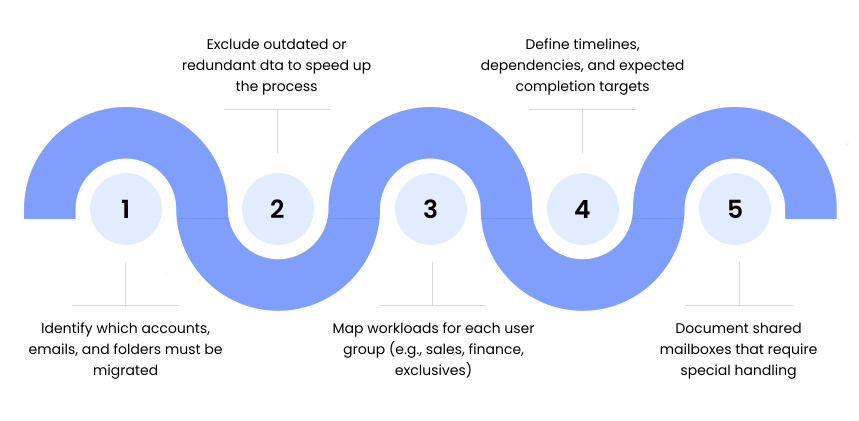
Most importantly, even if you have 10+ petabytes of data or 250-500+ users, you can still move your data without downtime.
With proper scoping, we at CloudFuze ensure that Gmail migration to Gmail for large enterprises with 10+ petabytes of data can be easily executed without downtime or disruption to business operations with 100% accuracy.
3. How to Pick the Best Gmail to Gmail Migration Tool
When it comes to selecting the right tool for your Gmail to Gmail migration process, it is very important to ensure:
- It preserves all emails, attachments, labels, and metadata without data loss.
- It ensures zero downtime so users can continue working during migration.
- It offers strong security features such as OAuth authentication, encryption, and no data storage.
- It can scale to support hundreds of users and large mail volumes (TBs/PBs).
- It accurately migrates calendars and contacts.
- It provides accurate user mapping with auto‑mapping and bulk CSV options.
- It includes real‑time dashboards and error logs for IT monitoring.
- It has a proven track record in large enterprise migrations.
At CloudFuze, we have migrated more than 1 million emails across hundreds of Gmail accounts while preserving timestamps, read/unread status, and calendar information. Our tool is used by IT leaders in large global organizations.
- Migrates 500+ users and 10 PB+ data with all emails, metadata, and timestamps intact.
- Zero downtime, zero data loss guaranteed.
- Auto-mapping and CSV bulk mapping for 100% accurate user mappings.
- Real-time dashboards and error logs to have complete visibility of migration.
- Delta migration support for migrating only new or changed data.
- Fully managed migration services assist businesses in executing complex migrations from start to finish easily.
Preparing for the Migration
To migrate from Gmail to Gmail successfully and efficiently, there are certain prerequisites that need to be fulfilled. These are as follows:
1. User Mapping
- The user mapping process ensures that the source and destination Gmail IDs are correctly paired to ensure accurate migration of the user’s data.
- CSV mapping can be done for accurate results, while auto-mapping will ensure faster migration.
- Our CloudFuze Migrate tool allows auto-mapping of the users based on their email aliases.
2. Admin Login Credentials
- The Gmail admin login credentials of the source as well as the destination domains will be required to migrate the user’s data.
- These will be required to authenticate the source as well as the destination within the CloudFuze Migration WebApp.
- Our email migration tool uses OAuth authentication, so there will be no requirement to store the password at any stage of the migration process.
3. Gmail Data Backup
It is recommended that you take a backup of all your Gmail data before the start of the migration process. This ensures that your critical emails, attachments, and calendar events are safe, in case any issues occur during the migration process.
Feature Highlights of the CloudFuze’s Gmail‑to‑Gmail Migration Tool
| Features | Gmail to Gmail |
|---|---|
| Inbox | Yes |
| Sent items | Yes |
| Draft emails | Yes |
| Deleted emails | Yes |
| Timestamps | Yes |
| Maintains Starred / Important status | Yes |
| Preserve unread / read status | Yes |
| Mail attachments | Yes |
| Calendar events (Normal events / Recurring events) | Yes |
| Calendar event time stamps | Yes |
| Calendar event attachments | Yes |
| Email Filters / Rules | Yes |
Steps to Migrate Emails from Gmail to Gmail
There are several structured steps to follow for copying emails from Gmail to Gmail using our email migration tool. Check them below:
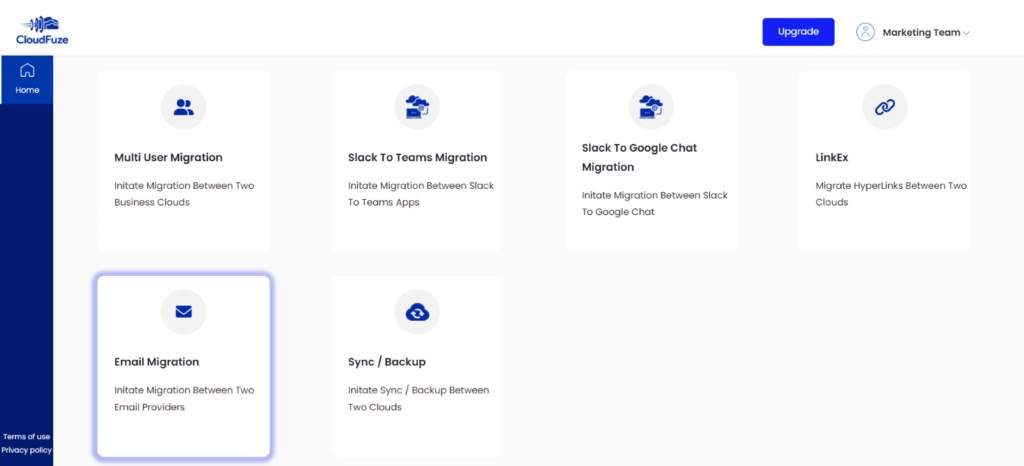
Step 1: Log Into the CloudFuze Webapp
The first step is to log into our webapp. Create an account (if you don’t have) and request for the email migration feature.
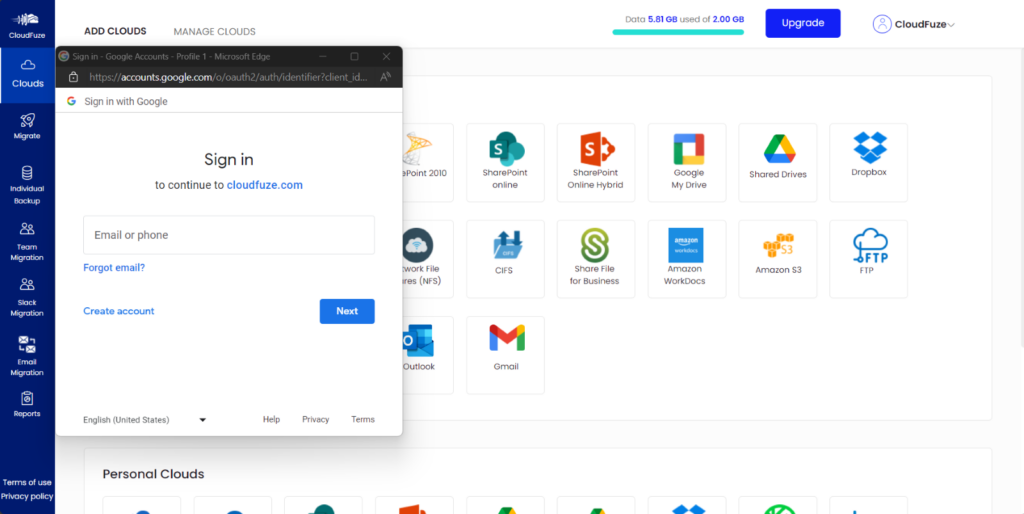
Step 2: Add the Source Gmail Cloud
Locate the Gmail cloud in the Businesses Clouds section of the webapp and add the cloud.
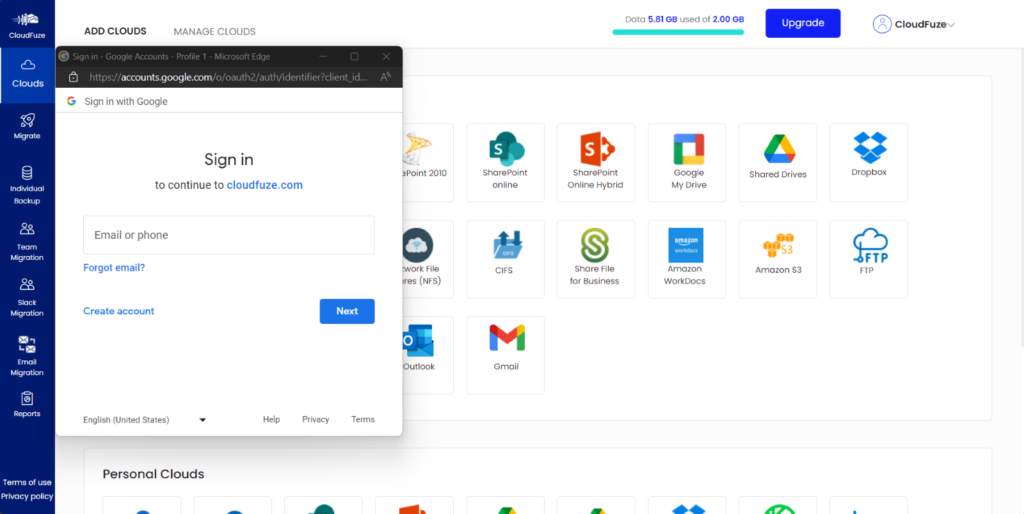
Step 3: Add the Destination Gmail Cloud
Similarly, add the destination Gmail cloud with proper login credentials.
Step 4: Ensure Both Clouds are Properly Added
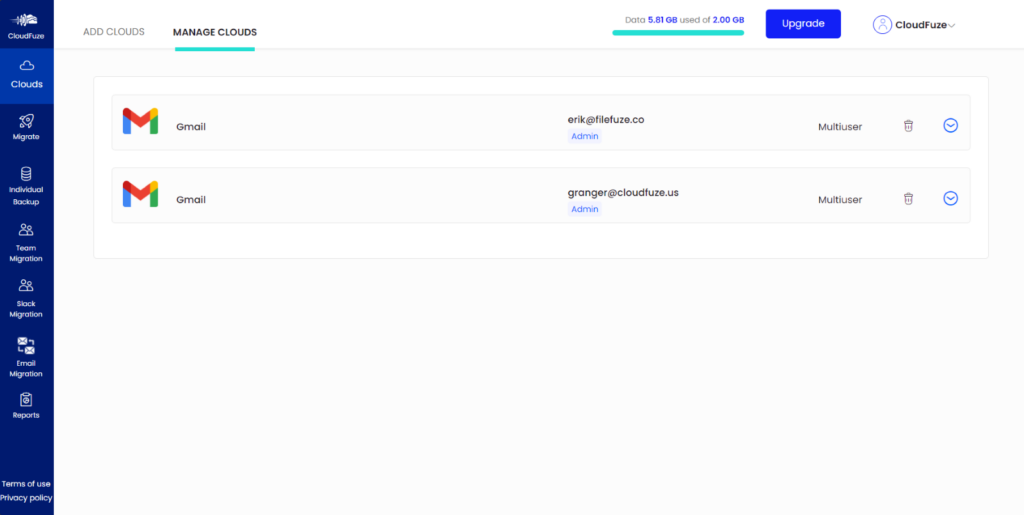
Switch to the Manage Clouds tab and check if both clouds are added. If one or both clouds are missing, it is an indication that the missing cloud did not authenticate. Repeat the process to add the cloud properly.
Step 5: Configure the Source and Destination Clouds
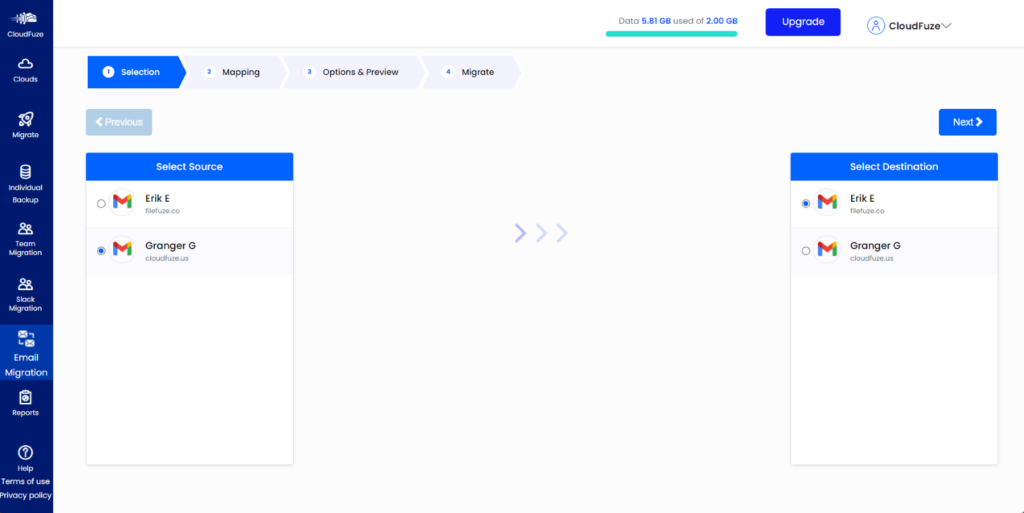
Visit the Email Migration section and choose the source and destination Gmail clouds.
Step 6: Create User Account Mappings
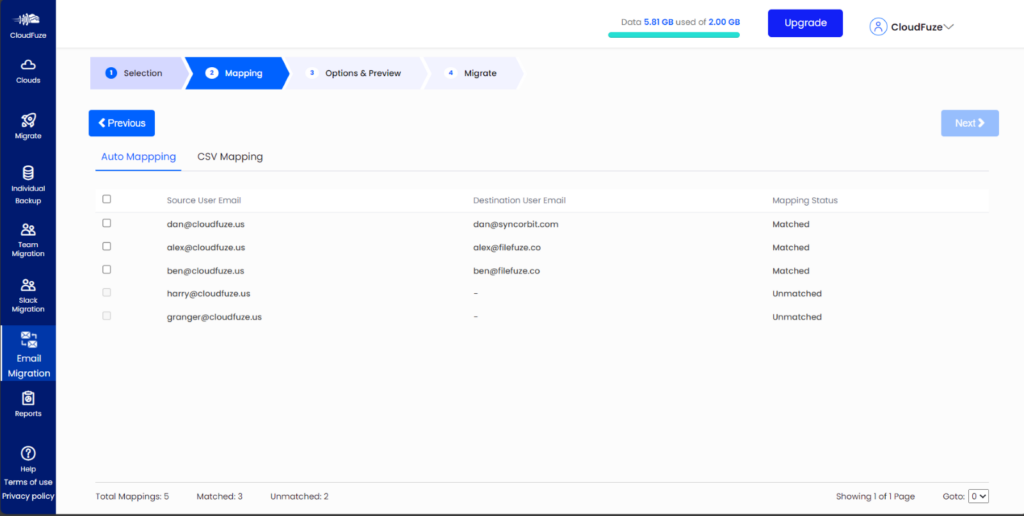
Next, map the user accounts from the source Gmail to the destination Gmail account. You can use the auto-mapping option to automatically map the source and destination Gmail users based on their email aliases.
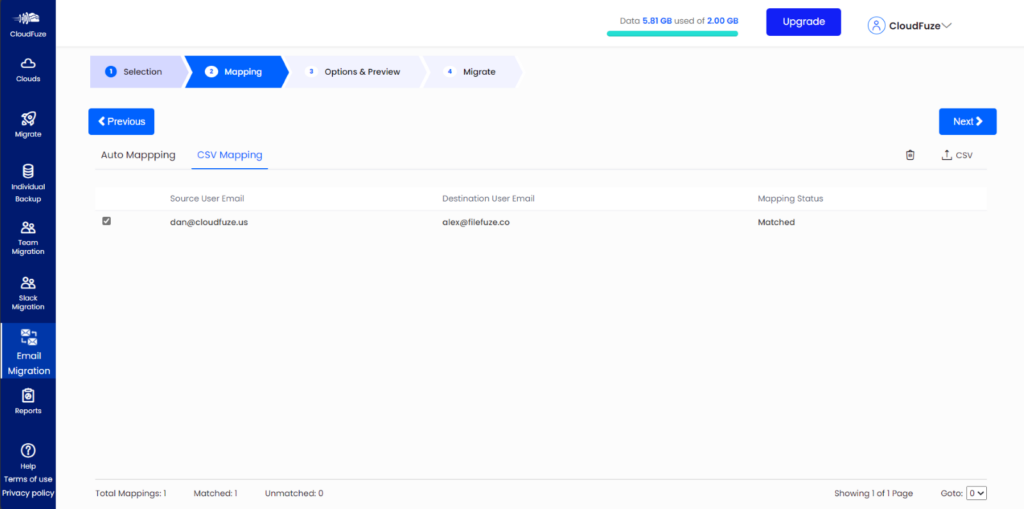
Or you can choose the CSV mapping to custom map the user accounts. Add the CSV mapping by clicking the upload option on the CSV Mapping tab. The webapp will then fetch the mapping from the file.
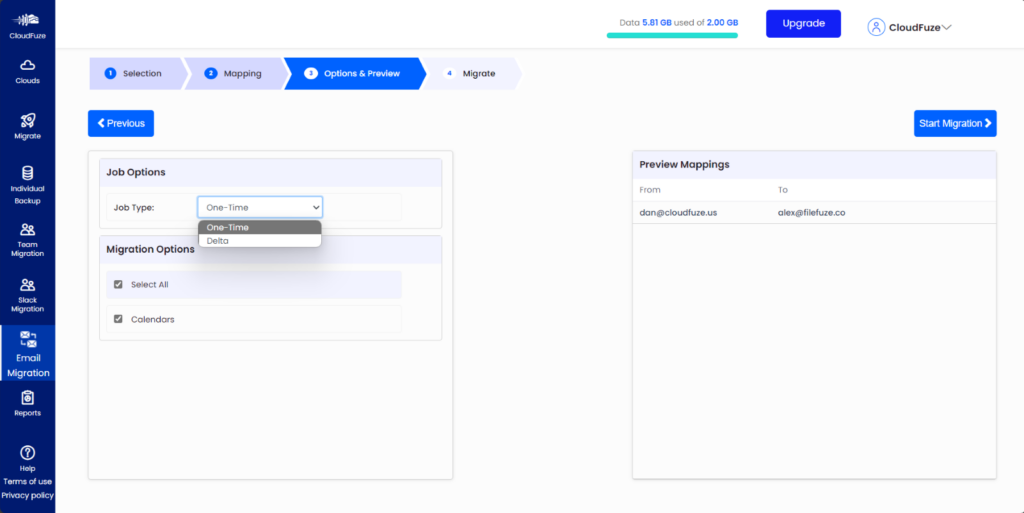
Step 7: Preview the Migration Parameters
Configure the important migration parameters, such as the job type, and migration options. Once done, click on Start Migration to initiate the process of transferring emails from Gmail to Gmail.
Step 8: Monitor the Migration
Upon starting the migration, you will be automatically redirected to the Reports page. Check the status of the migration regularly to keep track of the progress.
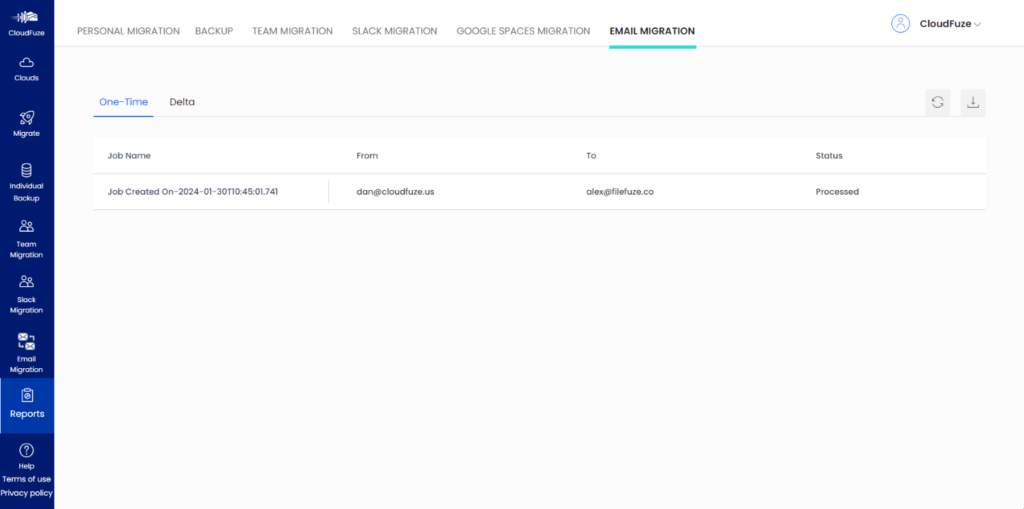
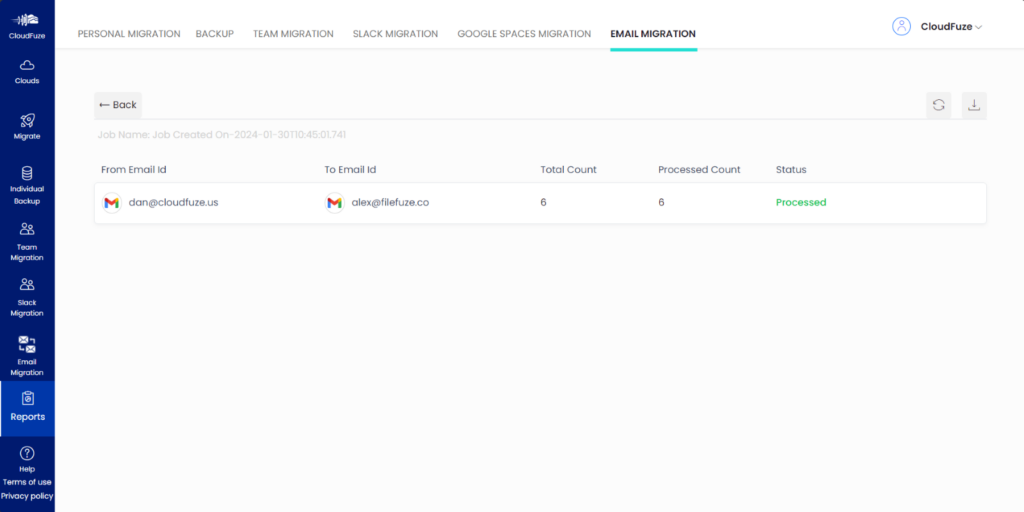
You can also check the migration progress at the job level by clicking on the project level status.
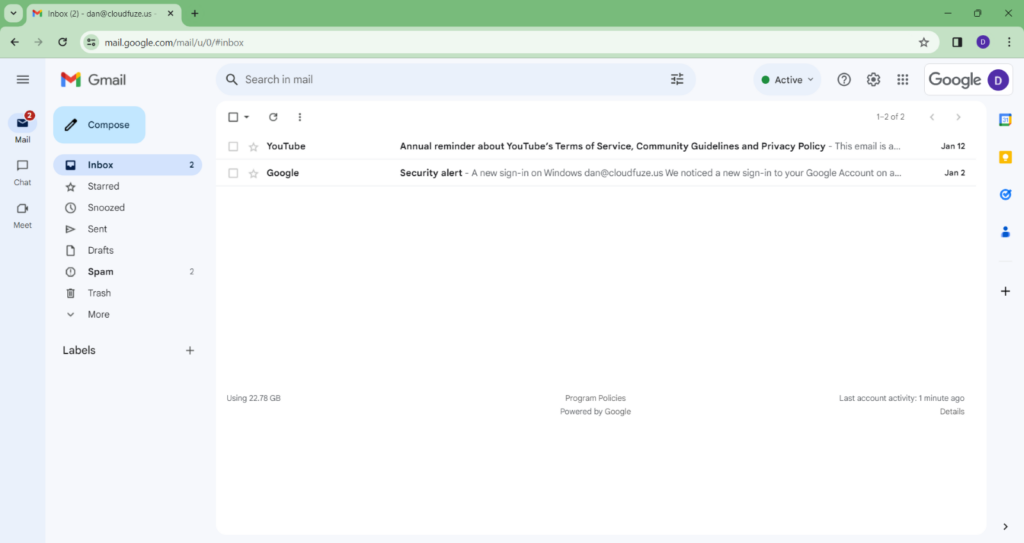
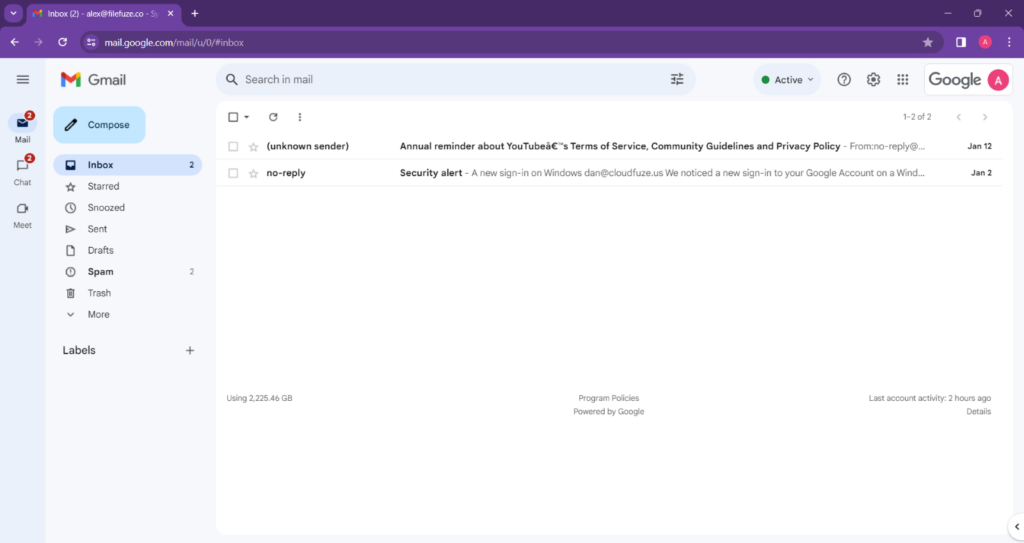
As part of validating the migration, make sure to check how user accounts and their mailboxes have been migrated to the destination by comparing with the source Gmail environment.
Source Gmail environment:
Destination Gmail environment:
Post-Migration Steps for Gmail to Gmail Transfer
After the one-time process of transferring emails from one Gmail account to another is complete, it is necessary to perform some additional steps to ensure data integrity and ease of use for users.
1. Delta Migration
Delta migration ensures that any new emails or changes received during the initial (one‑time) migration are transferred to the destination Gmail account. This is especially useful for enterprises where hundreds of users continue receiving emails throughout the migration window. It prevents data gaps and ensures no emails are missed during the transition.
With CloudFuze, IT teams can perform automatic incremental data transfers that allow organizations to move millions of emails and attachments to the new Gmail account with full data integrity.
2. Post-Migration Validations
After the transfer process, validation is necessary to ensure that the Gmail to Gmail transfer has taken place correctly.
You should review detailed migration reports for each batch to:
- Confirm the number of mailboxes migrated
- Verify email attachments, calendar events, and metadata
- Check for any conflicts or warnings
For organizations that have 500+ users and petabytes of data, the reports provided by CloudFuze can offer assurance for accuracy.
3. Post-Migration Integration
After the transfer process, integration of other applications, calendars, and contacts to the new Gmail account is necessary. Necessary applications need to be installed from the Google Workspace Marketplace to ensure that all applications are working correctly.
Start Your Gmail to Gmail Transfer Today!
For CIOs, CTOs, and IT managers, our tool ensures secure, accurate, and zero-downtime Gmail-to-Gmail migration.
With CloudFuze’s enterprise-grade Gmail-to-Gmail migration solution, organizations can migrate millions of emails, attachments, and calendars while preserving metadata and maintaining business continuity.
The world’s largest enterprises rely on CloudFuze for high-volume, secure email migrations.
Contact us to share your Gmail migration requirements or to plan your enterprise migration roadmap.
Frequently Asked Questions
1. How do I transfer Gmail emails to another account without losing data?
You can transfer Gmail emails to another Gmail account with 100% accuracy using our Gmail-to-Gmail migration tool, CloudFuze Migrate. Our tool preserves all email metadata, attachments, and timestamps with zero data loss and zero downtime.
2. Can I migrate multiple Gmail accounts at once?
Yes. Enterprise-grade tools allow IT teams to migrate hundreds of Gmail accounts simultaneously, handling millions of emails and petabytes of data efficiently. CloudFuze supports auto-mapping and CSV mapping for large-scale migrations.
3. What common issues might arise when transferring emails between Gmail accounts?
Common issues include missing attachments, misaligned timestamps, incomplete calendar events, or skipped shared mailboxes. Using a managed Gmail migration solution like CloudFuze eliminates these risks and ensures full replication of the source environment.
4. How do I validate emails after migrating Gmail to Gmail?
Post-migration validation involves checking migration reports for each batch, confirming mailboxes, email attachments, calendar events, and contacts. Performing a delta migration also ensures that any new emails received during migration are included.
About the Author: Aayushi Raj



