
Manage and Delete Email Accounts in Microsoft Outlook
Users can enjoy the maximum benefits from Microsoft Outlook when they have a good understanding of the platform. Properly managing and deleting email accounts in Outlook helps you maintain a clutter-free workspace.
In this blog post, we have covered step-by-step ways for users to manage emails effectively, along with deleting email accounts.
Key Takeaways:
How to Manage Email Accounts in Microsoft Outlook?
Users can manage their Outlook email accounts through the following steps:
1. Add the Necessary Email Accounts
To add email accounts in Outlook, check out the following steps:
- Open Outlook on your desktop. Now, click on the ⚙️ Settings icon in the top-right corner.

- After clicking on the Settings icon, you can now see the Add Account button.
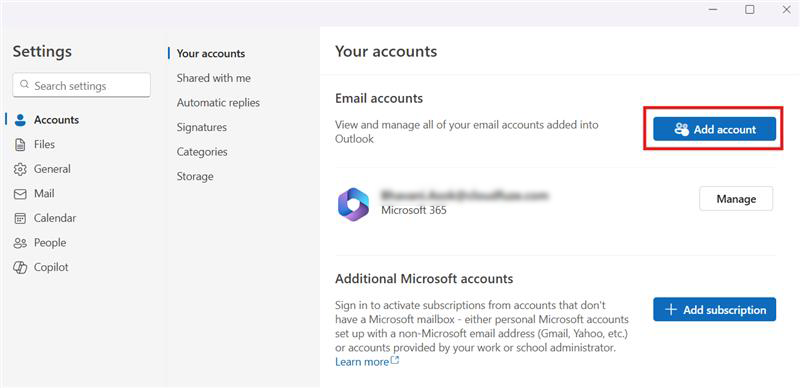
- Click on the Add Account button. A dialog box will appear as shown below.
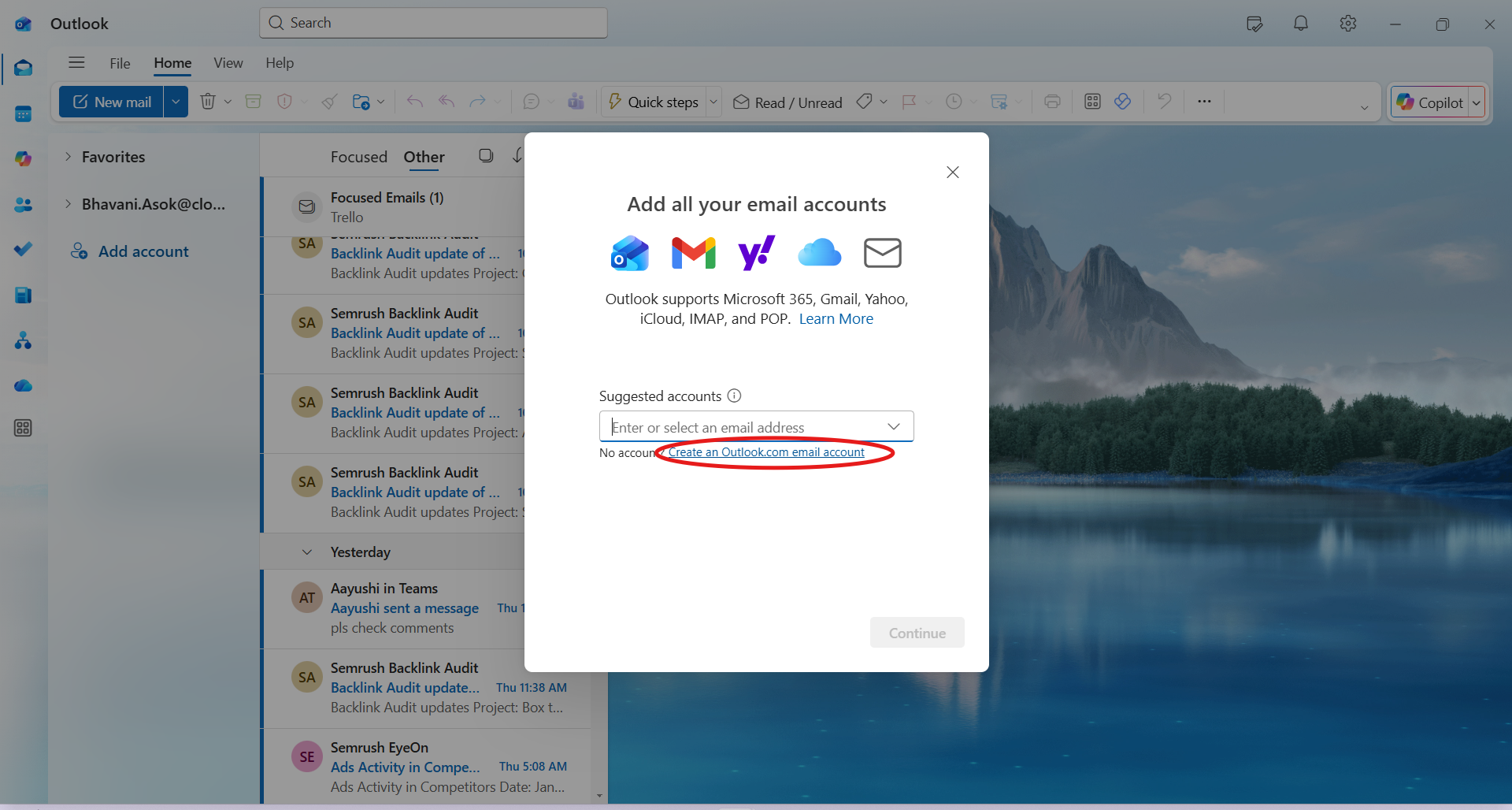
- Now enter the email address of the user you want to add. Then, click on Next button.
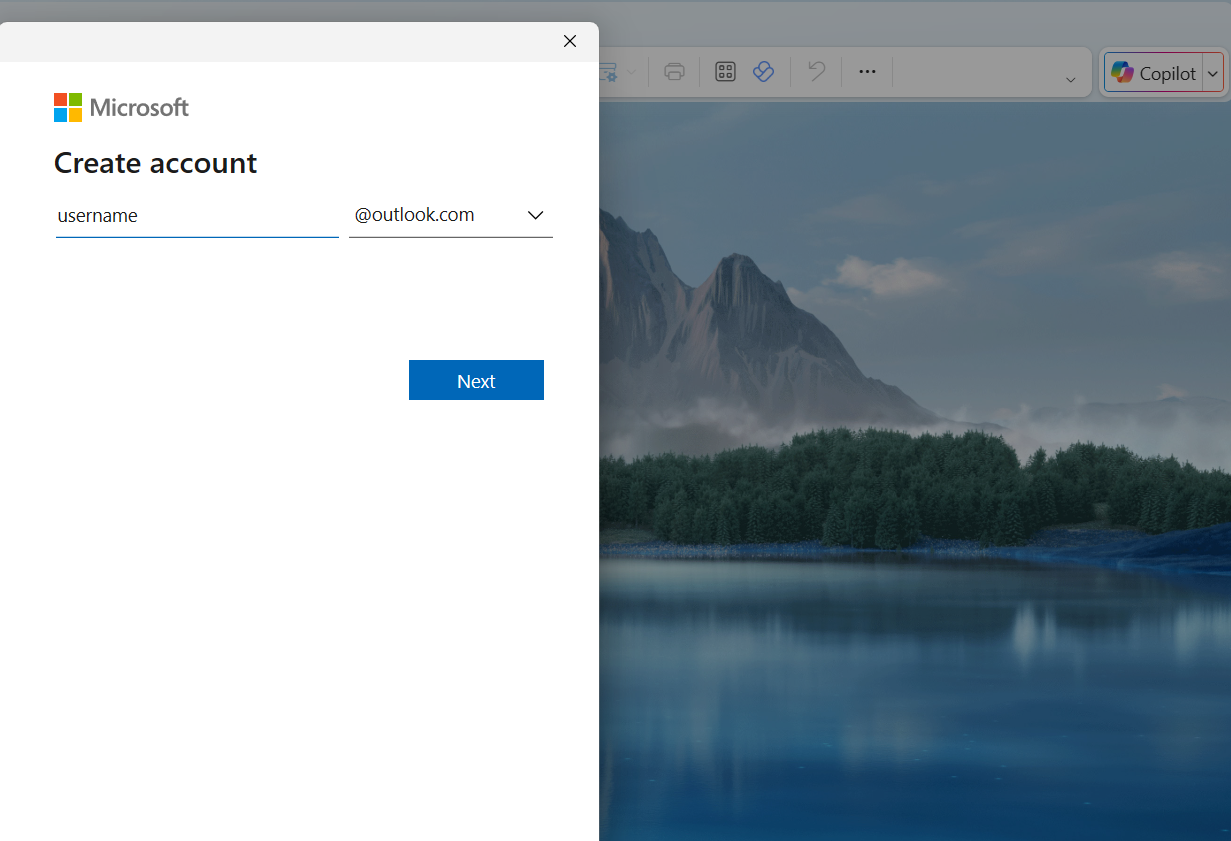
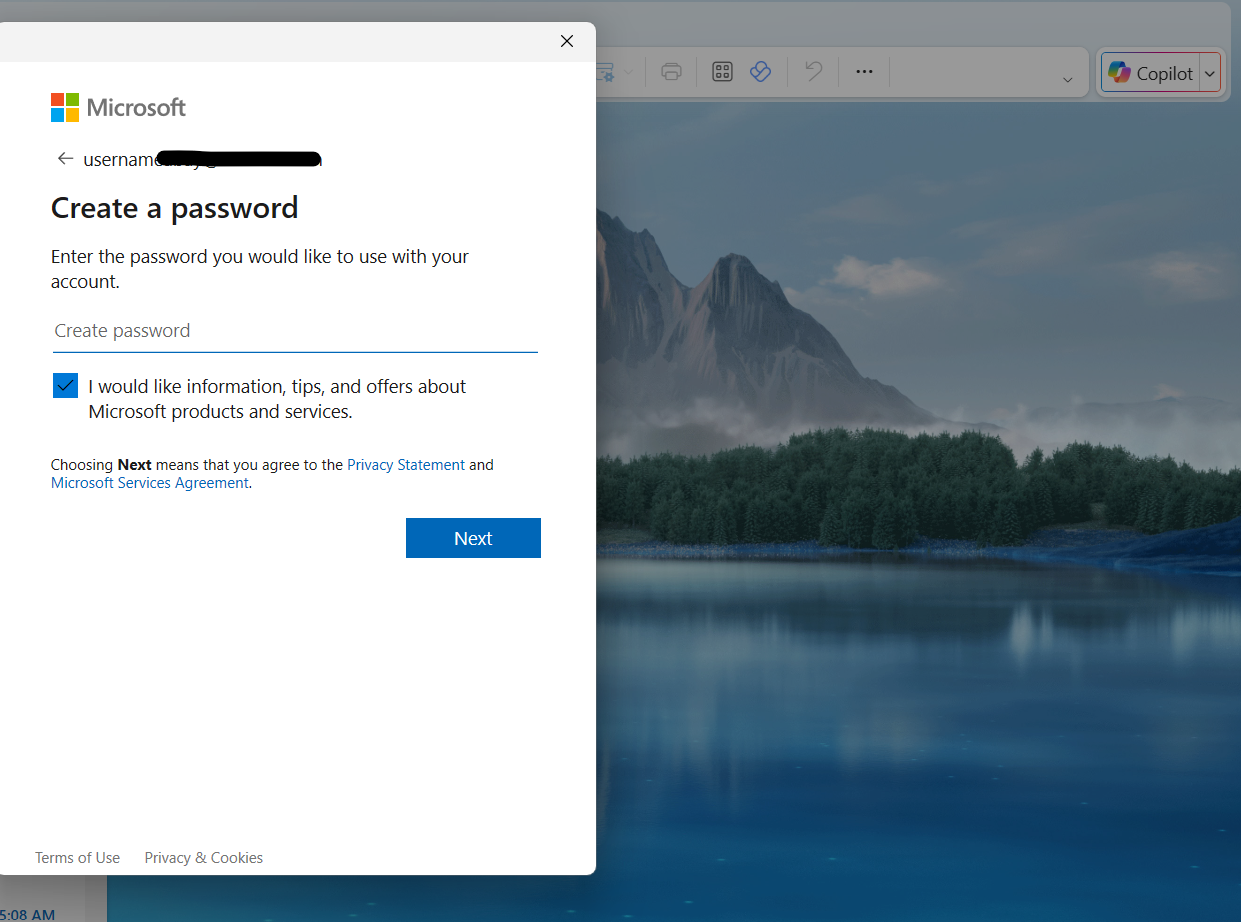
- Once you click on Next button, now you can proceed to setting up your credentials. Then you can finish up your account creation.


2. Managing Outlook Email Accounts
Once you create your Outlook email account, you can now manage it through the following steps:
- In the left side of your email profile, click on the dotted lines next to your email address. Now click on the Manage Account button.
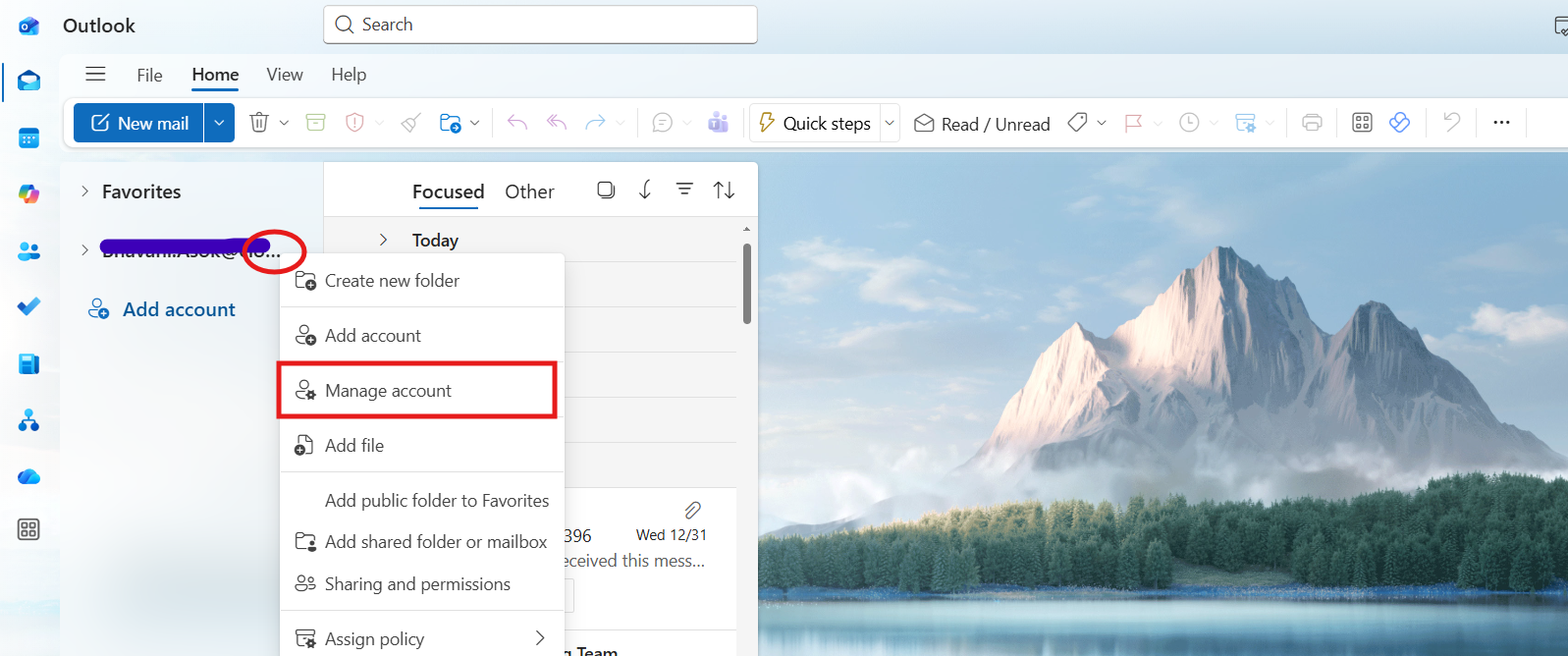
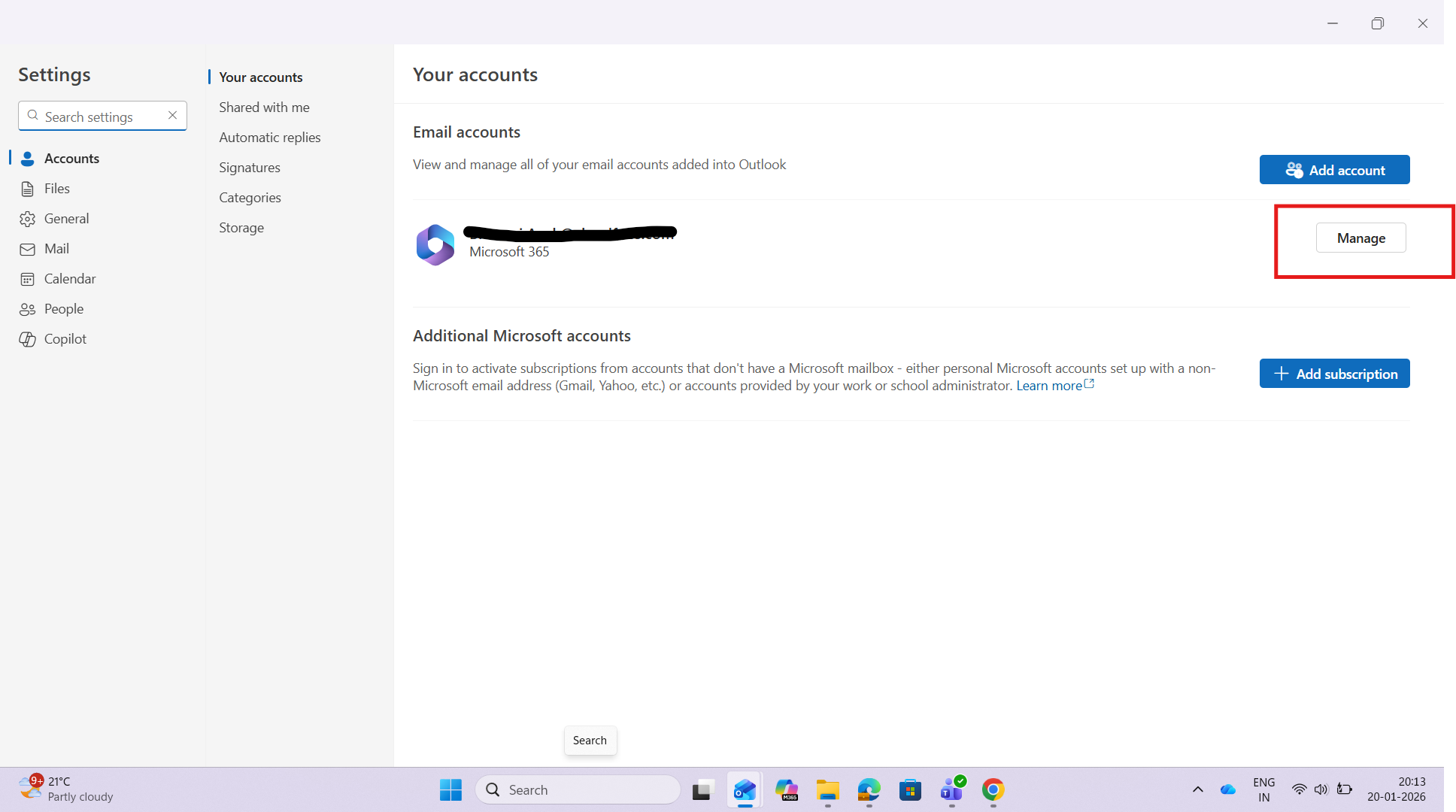
- A new page opens with your email accounts. Now, click on the Manage button.
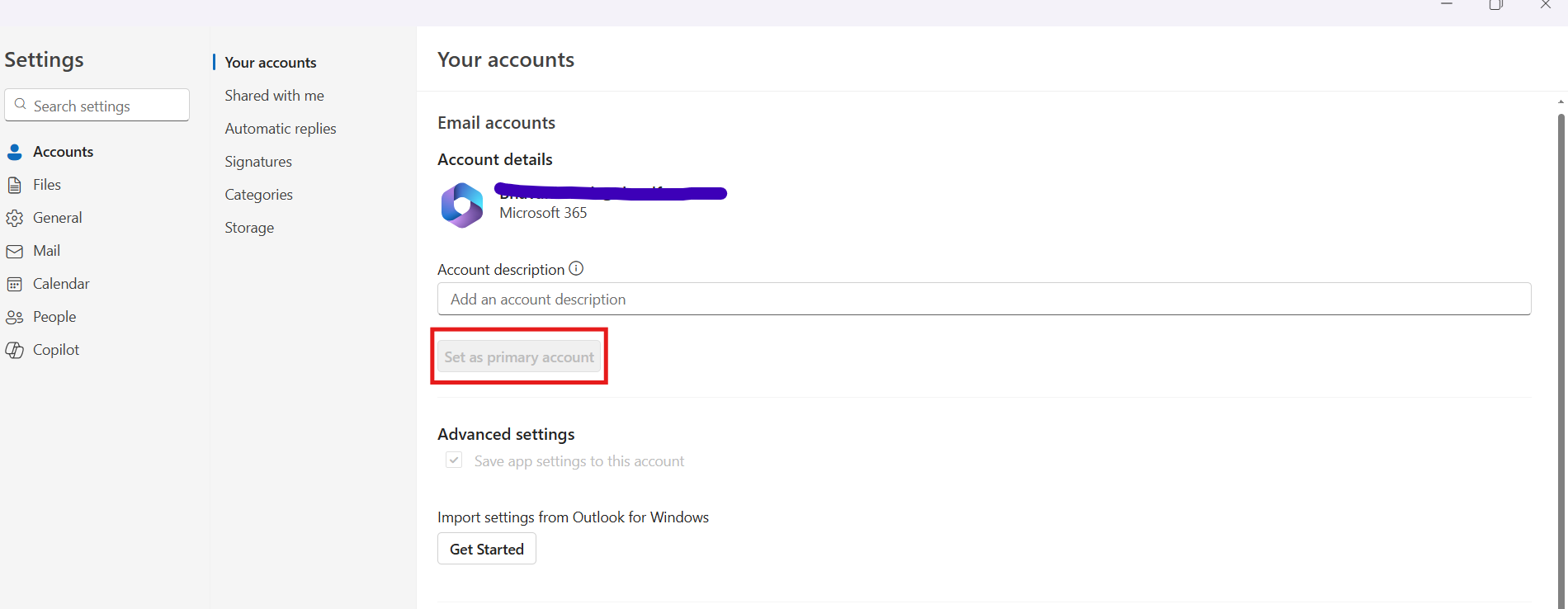
- Once you click on Manage, now you can set the account as a primary account.
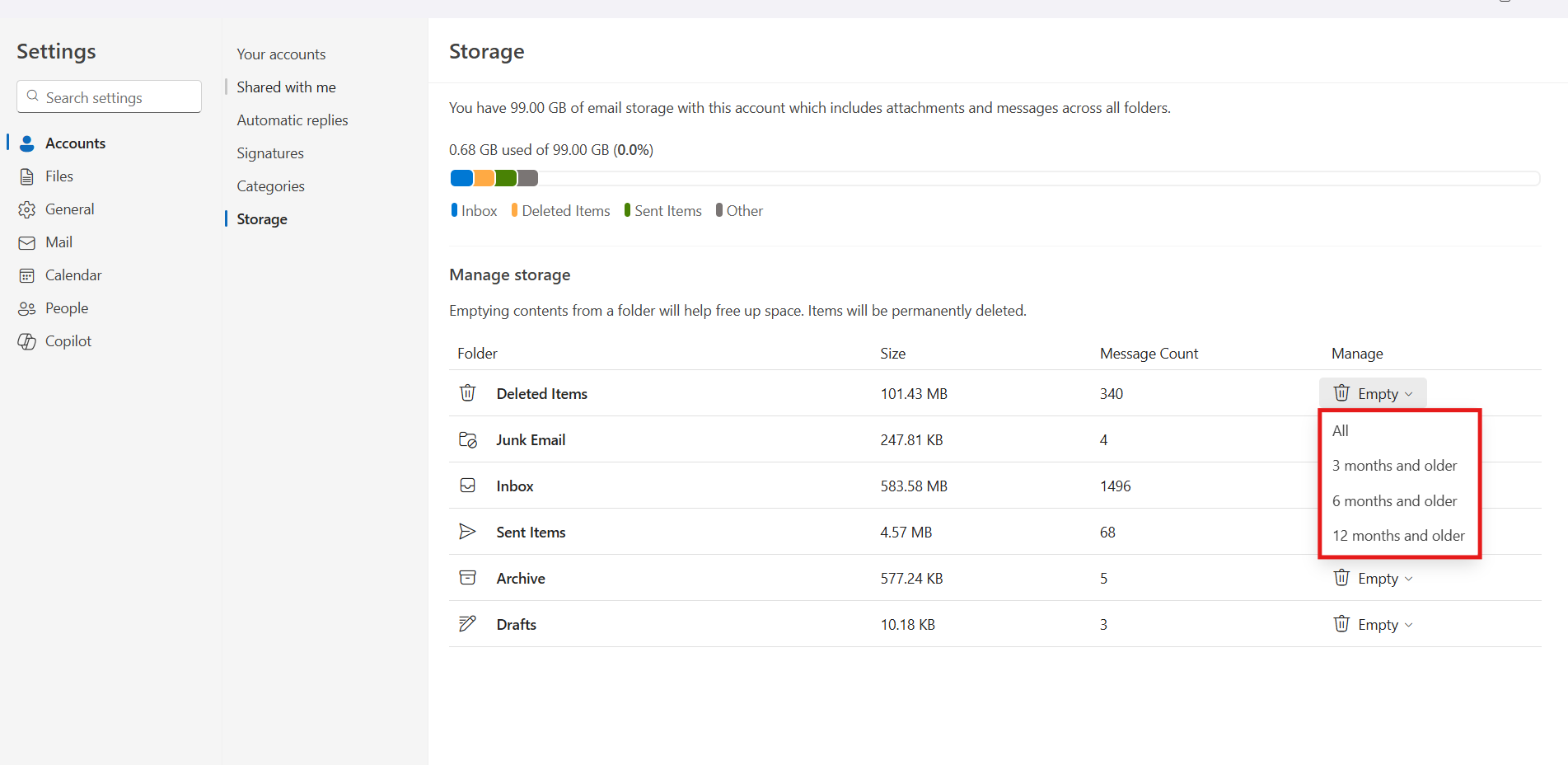
- To manage storage of your email account, click on Storage.
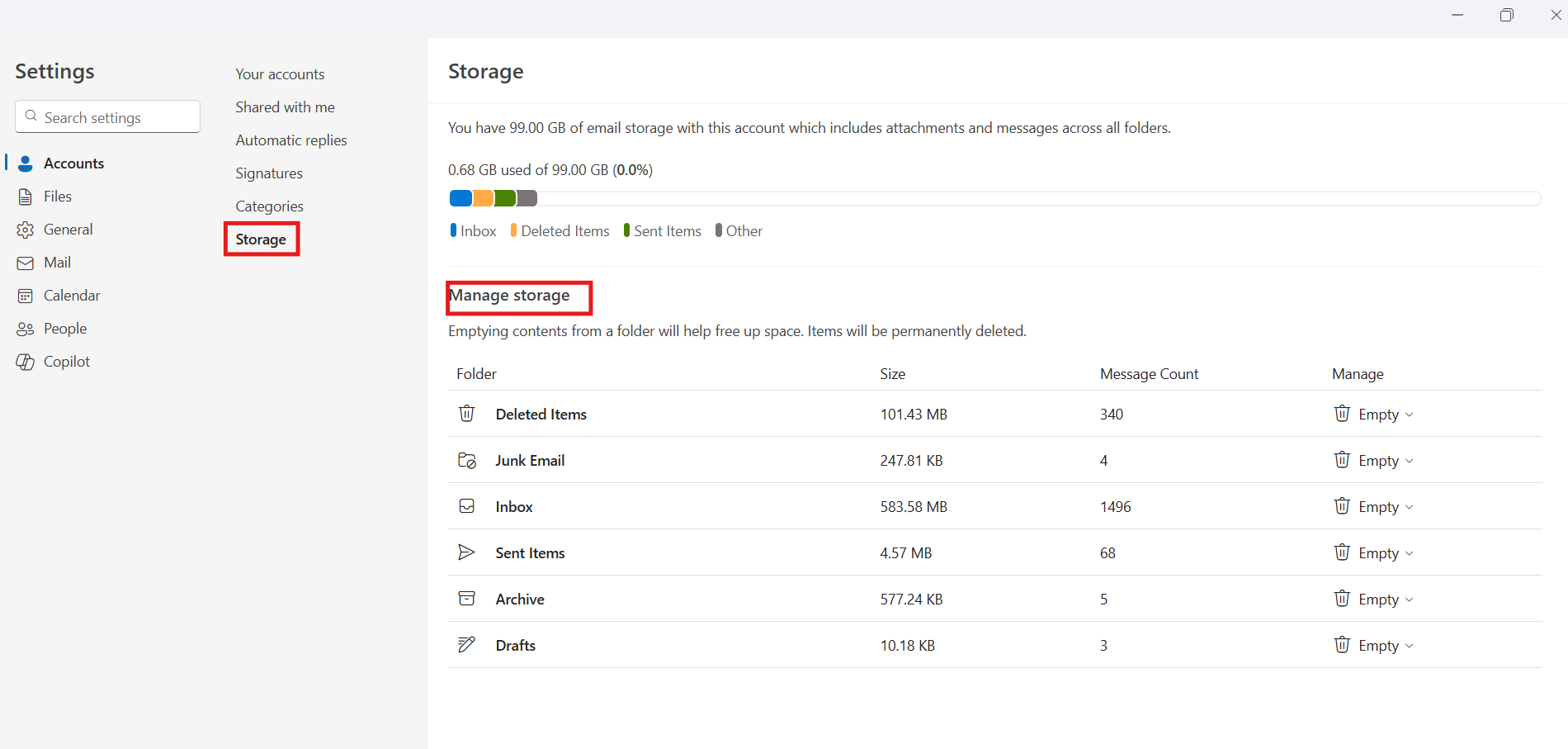
- Users can manage storage by selecting the required options under Manage.
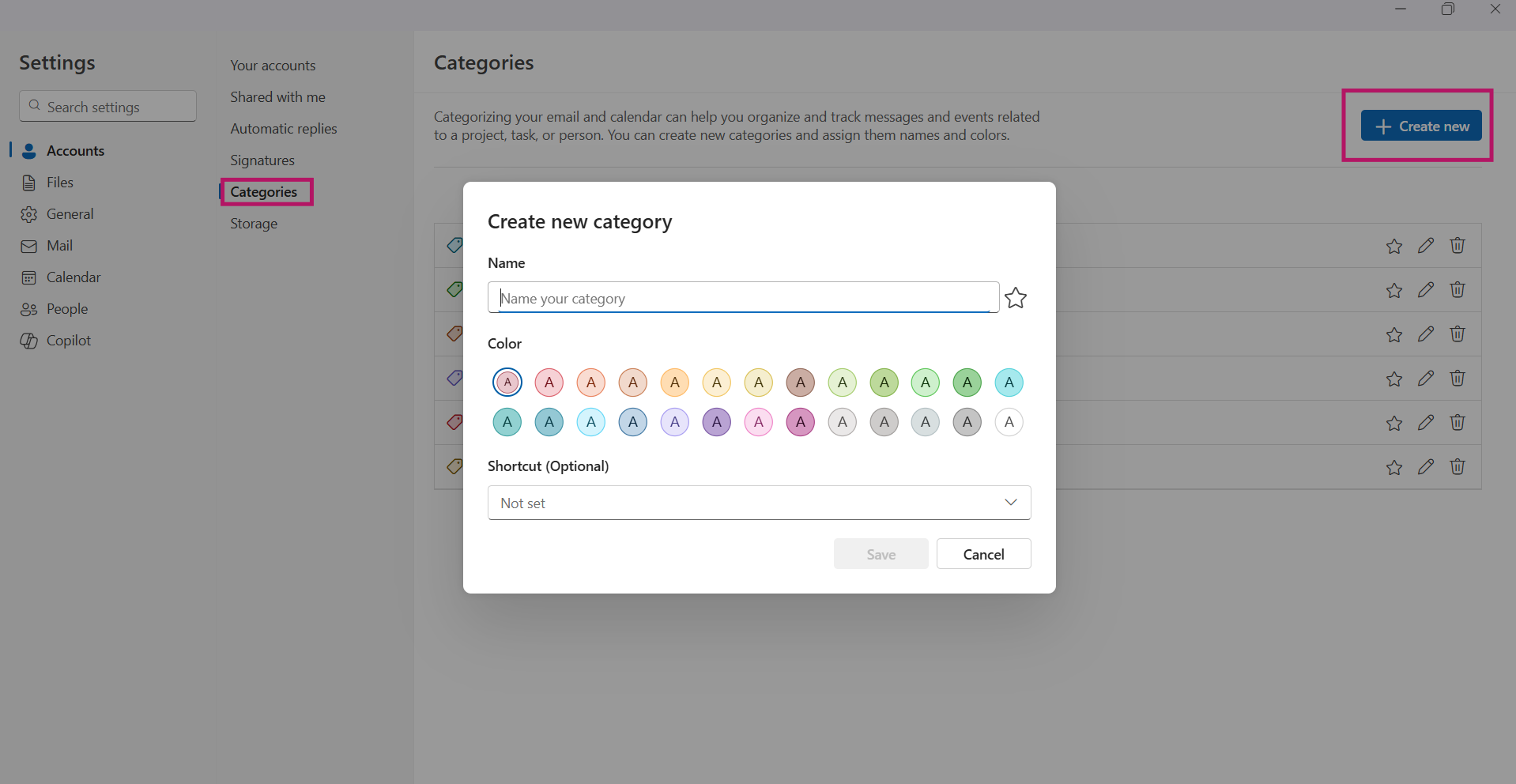
- For easily managing your mail and calendars, create new categories by clicking over Categories –> Create New –>Save.


3. Deleting Outlook Email Accounts
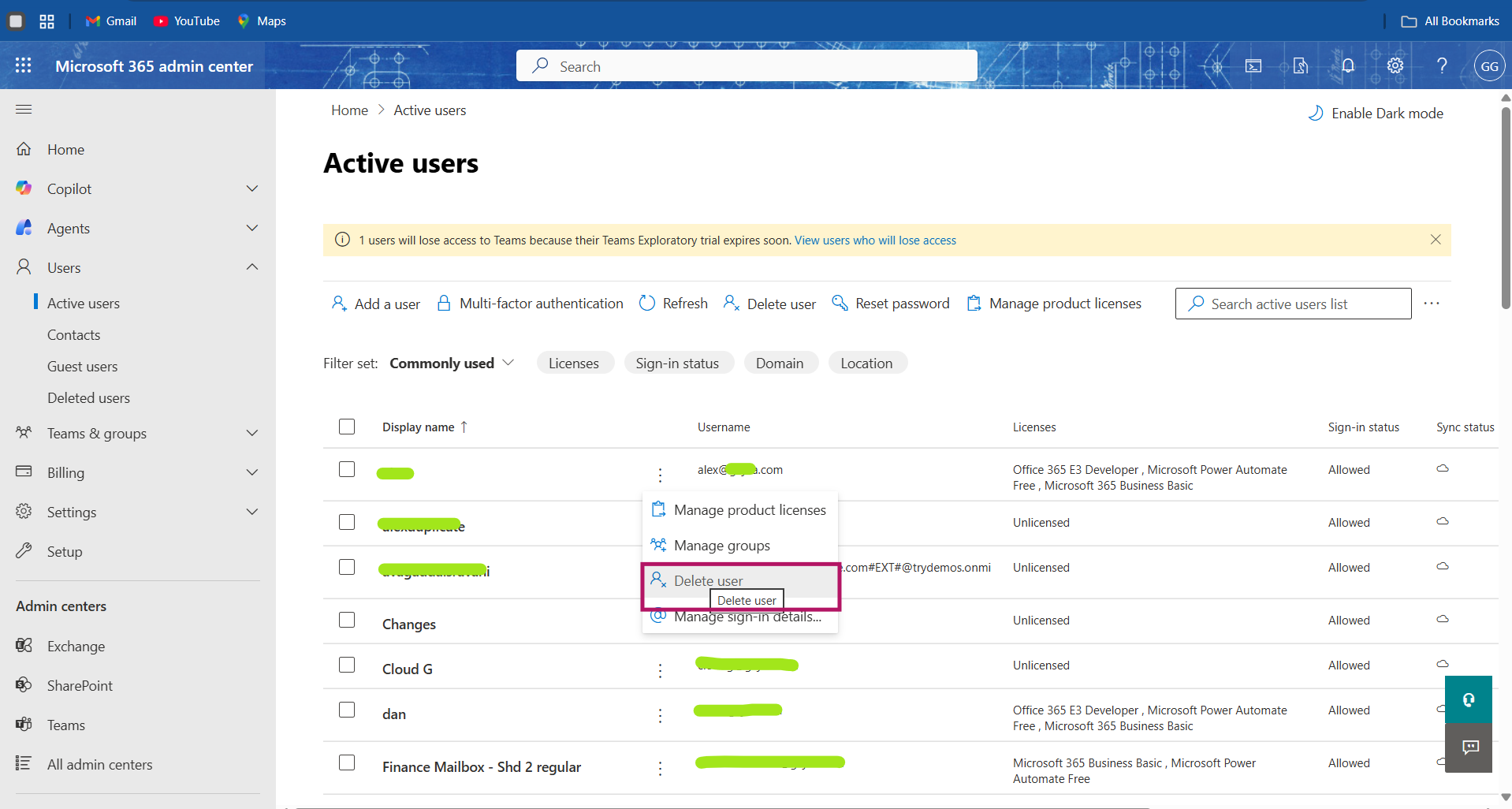
Administrators can perform the complete deletion of an Outlook email account by removing the user.
- Go to Microsoft 365 Admin Center –>Users –>Active Users.
- Select the account user you want to delete the account.
- Click on Delete user.

Why to Manage and Delete Outlook Email Accounts?
It is necessary to manage and delete Outlook email accounts if necessary for:
- Preventing the licenses and applications subscribed under the account
- Ensuring the data in it is not prone to unnecessary access
- Securing the documents and files in it.
What Are the Best Practices for Managing Multiple Email Accounts in Microsoft Outlook?
Best practices for managing multiple Outlook email accounts include:
- Have your Outlook accounts opened in nearby tabs in the same window. In this way, you can avoid missing out on any important mails by accessing all your accounts.
- Unsubscribe to unnecessary subscriptions in all your accounts.
- Regularly check every account periodically and organize emails to proper categories and folders.
- Use spam filters for managing multiple accounts.
Manage Your Email Migrations Securely with CloudFuze Migrate
If you are a business planning to perform a transition from Outlook to Gmail or Gmail to Outlook, it is necessary to select a trusted vendor. Transfer your emails securely along with necessary metadata with CloudFuze Migrate!
Overview of Our Migration Tool
Frequently Asked Questions
1. Can I transfer emails when deleting an account on major platforms?
Yes, users can transfer emails when deleting an account on major platforms by secure migration. Reliable tools such as CloudFuze Migrate help you transfer your high-volume emails from Outlook to Gmail along with necessary metadata accurately.
2. Is it possible to temporarily disable an email account instead of deleting it?
It is possible to temporarily disable an email account instead of deleting it through:
- Blocking sign-in options for the user
- Removing the email address temporarily from company records
3. How to back up all emails before deleting an account from top providers?
Users can back up the message folders locally with Auto Archive. Users can also export the items to a .pst file. In this way, you can restore them later by importing them. For more information, check out the official Microsoft page here.
4. How to recover a deleted email account from popular providers?
You can recover a deleted Outlook email account by navigating to Microsoft 365 Admin Center and proceed to restore user option. Once the user is restored, you can get access to your Outlook account.



Leave A Comment