
How to Send a Private Message in Yammer
If you are an Office 365 subscriber, you might have already heard about Yammer. Yammer is an intra-office networking tool that works more or like a social networking website within a company. A lot of companies don’t use Yammer as much as they use Microsoft. Given the pandemic and an increasing culture of remote work throughout the world, Yammer must be given a try to see what it has to offer. In this article, you will learn how to send a private message to Yammer.
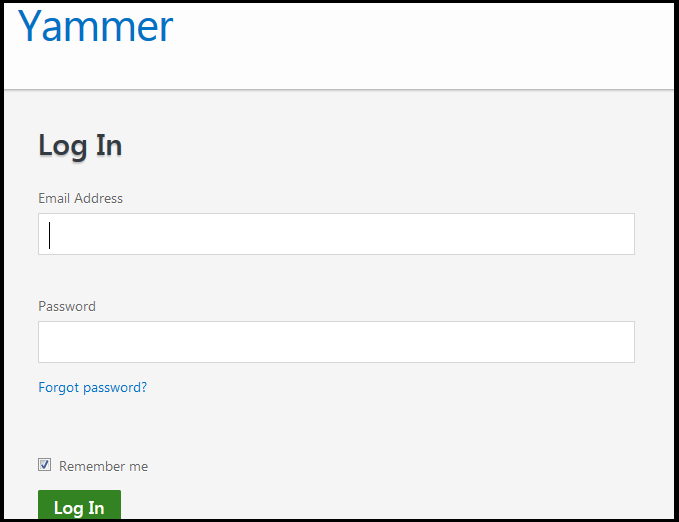
Step 1: Log in to Yammer
If you are an Office 365 subscriber, you will get Yammer as part of the Office 365 bundle. Login to your Office.com account and access Yammer’s account from there or simply go to Yammer.com and enter your Office 365 login credentials.
Step 2: Click on the + Icon
Locate the + Icon on the top right corner of the page and click on it.

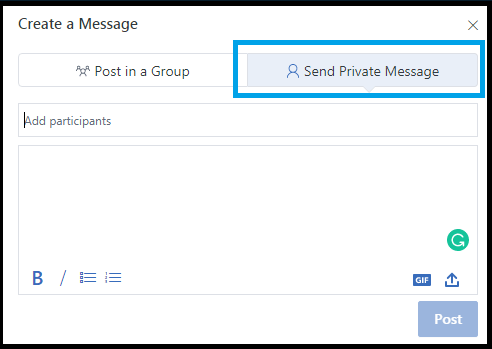
Step 3: Select Send Private Message Option
You can post to a group or send a message to a particular person or persons within your organization. Select the Send Private Message option.
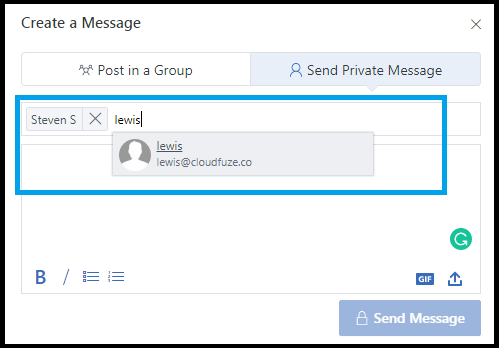
Step 4: Add Message Recipients
Enter the names of your team members to whom you want to send a private message. Select them as shown in the image.
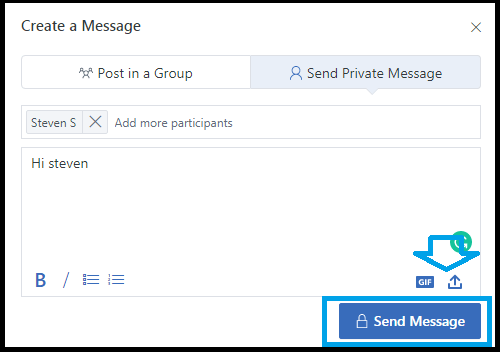
Step 5: Enter Your Message and Click on the Send Button
Enter your message. You can style the message using the available formatting options. Additionally, you can attach an image or file.
We hope you found this article on Yammer helpful.
About the Author: Arun Jyothi



