
1. Introduction
Box to Google Drive Migration is the process of moving files, folders, permissions, hyperlinks, file versions, in-line comments, and shared links from Box into Google Drive (Google Workspace), usually handled with a dedicated migration tool instead of manual downloads and uploads.
Organizations and their IT teams choose to migrate from Box to Google Drive (and Google Workspace collectively) to consolidate storage costs, simplify user administration, or to adopt Google’s Gemini-powered AI tools across the organization.
Performing this type of migration manually is not feasible as it often leads to broken permissions and hyperlinks, missing file versions, and other problems that can cause user disruption and can be costly and time-consuming to fix post-migration. Large enterprises, SMBs and MSPs often rely on proven tools like CloudFuze Migrate to get it done securely.
This guide covers why businesses move from Box to Google Drive, what to prepare before you start, and the exact steps to migrate without data loss.
2. Box vs Google Drive
Box and Google Drive both offer file storage, collaboration, and AI tools, but they are built for different priorities. Box is a standalone cloud platform while Google Drive is part of Google Workspace’s broad and deeply integrated cloud ecosystem that included other tools like Gmail, Meet, Office documents, Gemini, and more.
Here’s a Box vs. Google Drive comparison:
| Aspect | Box | Google Drive (Google Workspace) |
|---|---|---|
| Storage model | Unlimited storage on most Business plans | Typically 2TB to 5TB pooled storage per user, depending on the plan |
| Core focus | Dedicated content/file storage and collaboration platform | Storage built into a full productivity suite with native integration across various apps |
| AI capabilities | Box AI available on Business, Business Plus, and Enterprise tiers, with features varying by plan | Gemini is included in most Google Workspace plans, with limited access on the entry-level plan |
| Third-party integrations | App marketplace with 1,500+ apps and integrations | Google Workspace has more than 5,000 apps and integrations |
| Compliance | Strong for regulated industries with certifications like HIPAA, FINRA, FedRAMP, ISO 27001, and more | Solid compliance coverage with certifications like HIPAA, FedRAMP High, ISO 27001, ISO 27017, ISO 27018, AICPA SOC 2, and more |
| Typical Cost Posture | Premium pricing for per user basis | Usually less expensive for comparable or higher pooled storage |
The practical difference comes down to what your organization already runs on. Box tends to suit companies that have diverse third-party integration requirements and strict compliance needs. Google Drive, along with the Google Workspace suite, suits companies that are already running on the Google Workspace ecosystem, including Gmail, Google Meet, and more.
3. Why are Many Businesses Migrating to Google Drive from Box?
Google Workspace has become a consolidation destination for many businesses for reasons and use cases such as cost consolidation, streamlining administration, and increasingly, AI strategy.
Google Workspace often delivers comparable or larger pooled storage for users at a lower price point than standard cloud platforms like Box, Dropbox, etc. And for organizations using multiple standalone services, consolidating into a single plan simplifies both cost and IT administration.
But above all, Gemini adoption is the fastest growing use case for businesses to consolidate into Google Workspace. According to Google’s Q1 2026 earnings report, Gemini Enterprise saw a 40% growth quarter-over-quarter in paid monthly active users.
4. Key Areas to Focus on When Migrating from Box to Google Drive
When planning to copy files from Box to Google Drive, there are a few decisions to make that will shape how smooth the project goes.
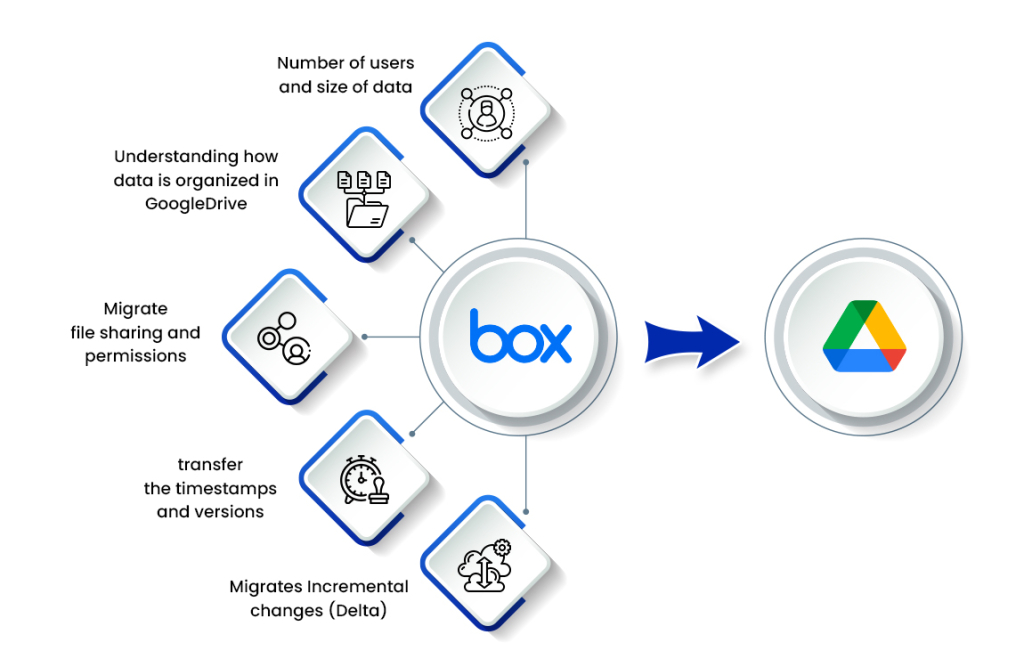
- Data volume and user count: Both directly affect migration cost and timeline. Therefore, it is important to scope the migration optimally.
- Metadata and context complexity: Rich metadata and context, including permissions, timestamps, hyperlinks, version history, external shares, shared links, and in-line comments all need to be preserved
- User mapping and batching: Accuracy of the migration largely depends on how well users are mapped. Equally important is to create user batches and migrate them in sequences.
- API throttling and downtime risks: Migrating large data sizes raises API throttling and downtime risks. Approaches such as batch-wise user migration helps lower risks.
5. CloudFuze vs. Competitor Migration Features Comparison
Compared to other tools in the market, CloudFuze thoroughly handholds IT teams to move Box files to Google Drive to ensure a complete migration success.
There are more benefits from CloudFuze that help businesses transfer from Box to Google Drive with a strategic approach that ensures all business goals are met with the migration project.
| Features | CloudFuze | Competitors |
|---|---|---|
| One-time migration | Yes | Yes |
| Delta migration | Yes | Yes |
| Root folder Permissions migration | Yes | Yes |
| Root file Permissions migration | Yes | Yes |
| Sub-folder permissions migration | Yes | No |
| External Shares migration | Yes | No |
| Shared Links migration | Yes | No |
| Version history migration | Yes | No |
| Selective versions migration | Yes | No |
| Metadata migration | Yes | Yes |
| In-line comment migration | yes | No |
| Long-file name conversion | Yes | Yes |
| Special characters conversion | Yes | Yes |
| Long folder path | Yes | No |
| Special character replacement | Yes | No |
| Suppressing Email Notification | yes | No |
| Comparison Delta | Yes | No |
| Box Notes migration | Yes | No |
| Pre-migration data sprawl clean-up for Gemini readiness | Yes | No |
CloudFuze, a Google Migration Partner, has worked with many of the world’s largest corporations, universities, and non-profit organizations and helped them migrate Box files to Google Drive swiftly and securely.
6. How CloudFuze Migrates Permissions from Box to Google Drive
The permissions transfer takes place as and when IT teams migrate content from Box to Google Drive. The following table shows how CloudFuze converts Box Permissions and migrates them to Google Drive.
| Box permissions | Google Drive permissions after migration |
|---|---|
| Co-Owner | Edit |
| Editor | Edit |
| Viewer uploader | Edit |
| previewer uploader | View |
| Viewer | View |
| Previewer | View |
| Uploader | View |
7. Planning Your Box to Google Drive Migration
Before migrating any file or folder, planning properly helps avoid unforeseen roadblocks. During the planning stage, it is important to define scope, set a realistic timeline, and get the right people looped in.
a) Define Scope and Timeline
Perform a pre-migration analysis of your organization’s Box cloud environment to understand what needs to migrate. Use the findings and insights to plan the migration scope. Accordingly, coordinate with your migration vendor to plan a migration roadmap and timeline.
b) Prepare a Communication Plan
It is important to communicate about the platform transition to the stakeholders as well as end users. Establishing proper migration communication should be part of your organization’s broader change management plan.
c) Plan for Gemini AI Adoption
If migrating to Google Drive and consolidating into Google Workspace also means Gemini adoption for your organization, it is important to align the migration accordingly. Perform a pre-migration cleanup of data and permission sprawl so that the data that gets migrated to Google Drive is clean and optimal for secure Gemini deployment.
8. Preparing for the Migration
After the plan has been laid out, it is important to focus on preparing for the migration. A proper preparation covers the technical groundwork: mapping users, running a test migration, preparing admin login details, and priming data for Gemini deployment.
a) Map Users
User mapping connects each user in your organization’s Box environment to its matching Google Workspace account. With CloudFuze, you get the option to auto map users as well as map them manually with the CSV method. The CSV method is better if you want more flexibility and are aiming for custom mapping paths.
b) Perform a Test Migration
Another important preparation step is to perform a pilot migration to test how the migration tool and its instances work in real world scenarios. Create a small batch of pilot users whose accounts reflect real-world usage scenarios, such as permission complexity, external sharing, and more. This way, you can stimulate the actual migration in the test run.
c) Be Ready with Admin Login Details
You will need a Box admin account to authorize CloudFuze and grant access to the source content, and a Google Workspace Super Admin account to authorize the destination. Be ready with the login details of both clouds before starting the migration to ensure the kick-off stage does not face any hiccups.
d) Clean Up Data for Gemini Adoption
If Gemini adoption is part of the broader plan, use this phase to clean up data and permission sprawl in your company’s Box environment so that they land clean and AI deployment-ready in Google Drive.
Having clean data and permissions as the foundation helps ensure secure Gemini deployment. When the data foundation is clean, Gemini does not inherit the sprawl, which, otherwise, can lead to security and compliance violations.
Read more about it in our AI readiness migration article.
9. Steps to Migrate from Box to Google Drive
Below are all the steps that your IT team can follow to transfer data from Box to Google Drive using the CloudFuze migration webapp. However, in real-case scenarios, our migration team will handhold IT teams throughout the migration process to ensure nothing is missed.
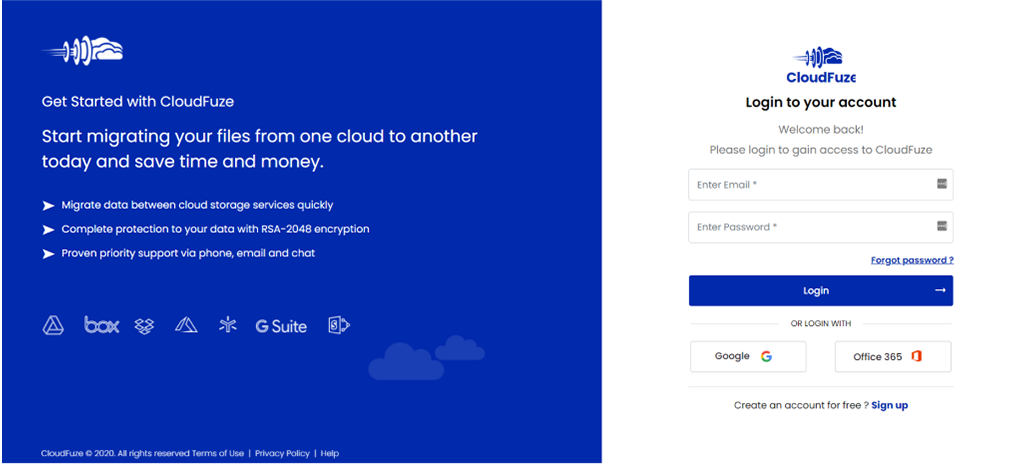
Step 1: Sign in to the CloudFuze Account
Our migration team will set you up for a trial to test the platform’s capabilities to transfer Box to Google Drive. If you have more files to copy from Box to Google Drive, we recommend reaching out to our migration team for a custom enterprise trial.
Step 2: Add Your Box Account to CloudFuze
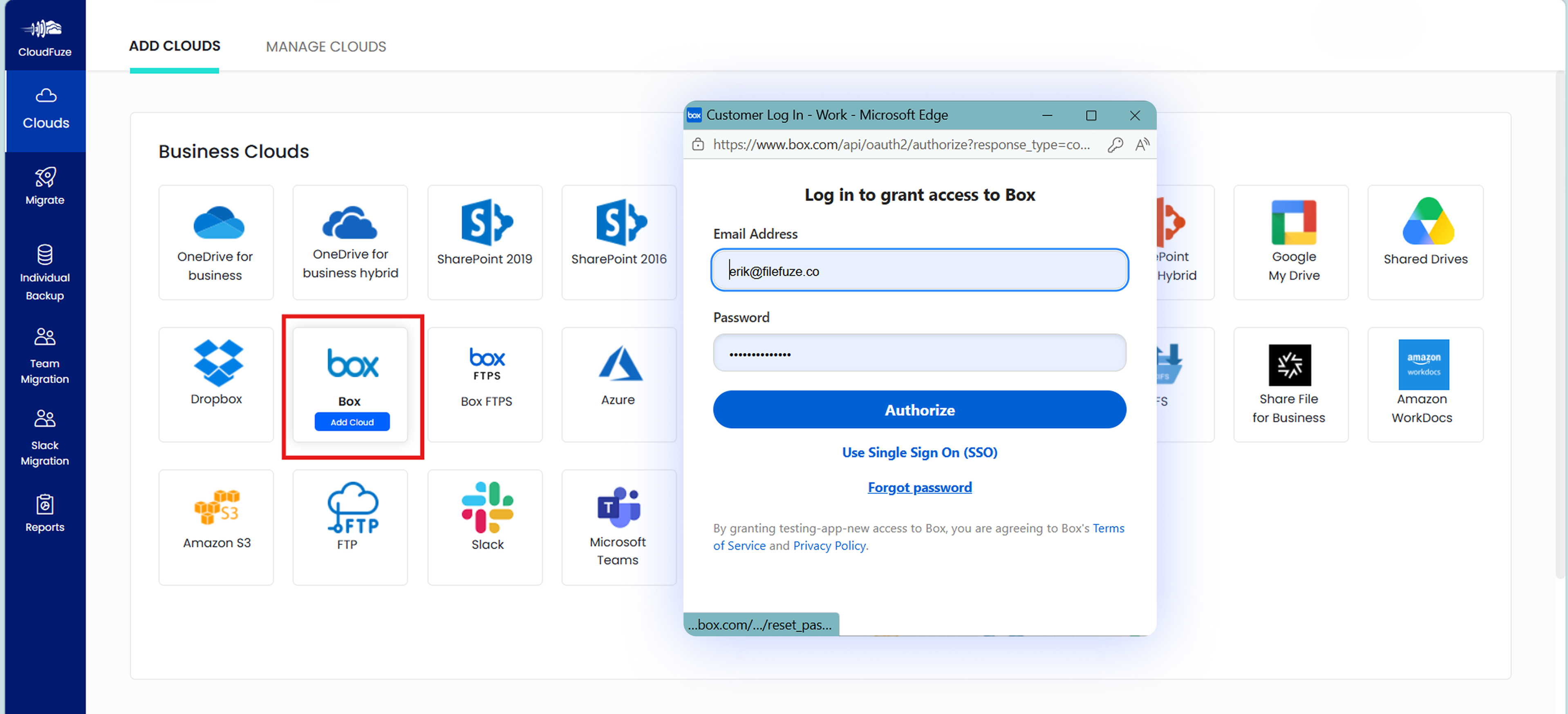
Locate the Box logo under the list of business clouds and click on it. Since it is a business migration, don’t add clouds listed under the personal category.
Enter your Box admin login credentials in the popup and click on the Authorize button.
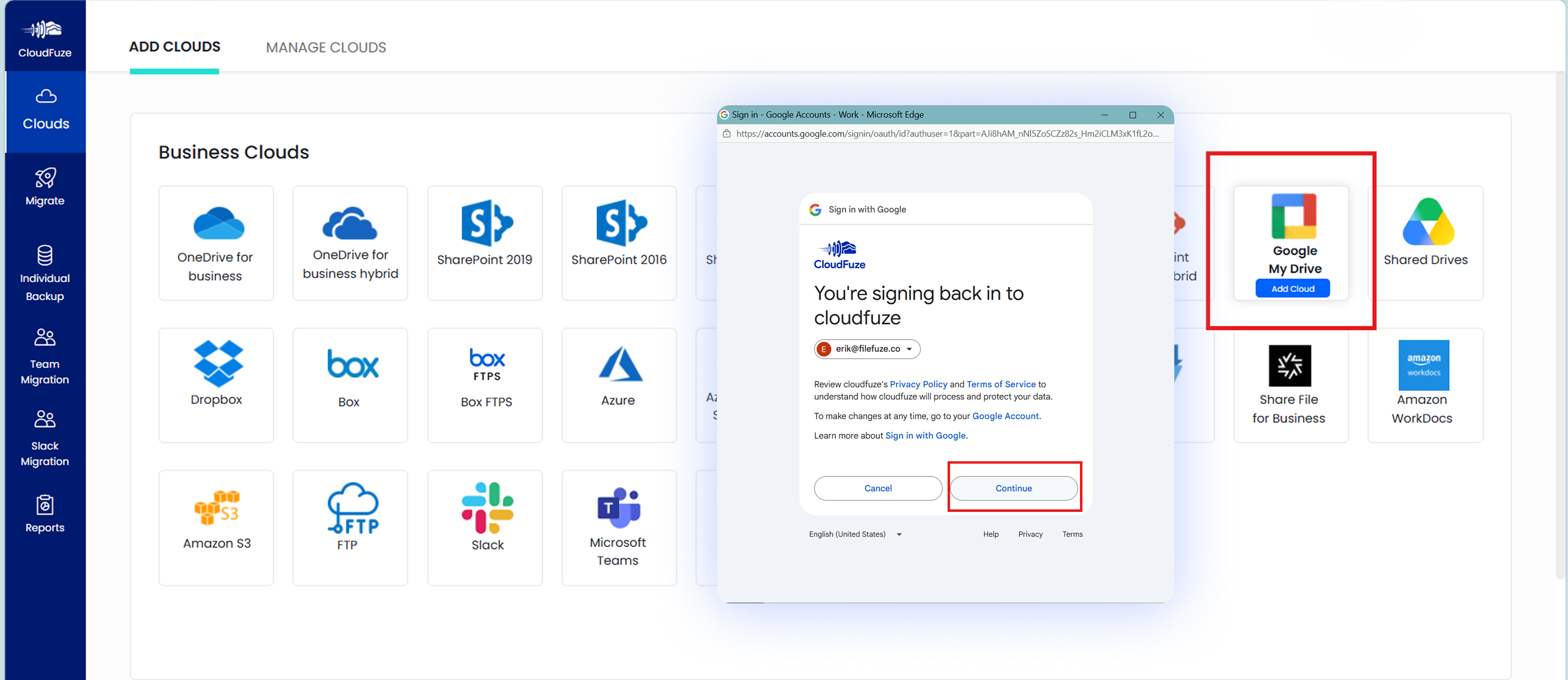
Step 3: Now, Add and Authorize the Google Drive Account
Click on the Google Drive logo in the Business Clouds list, enter the Google Drive admin login credential, and complete the authorization process.
Step 4: Verify Whether Clouds Were Added Successfully
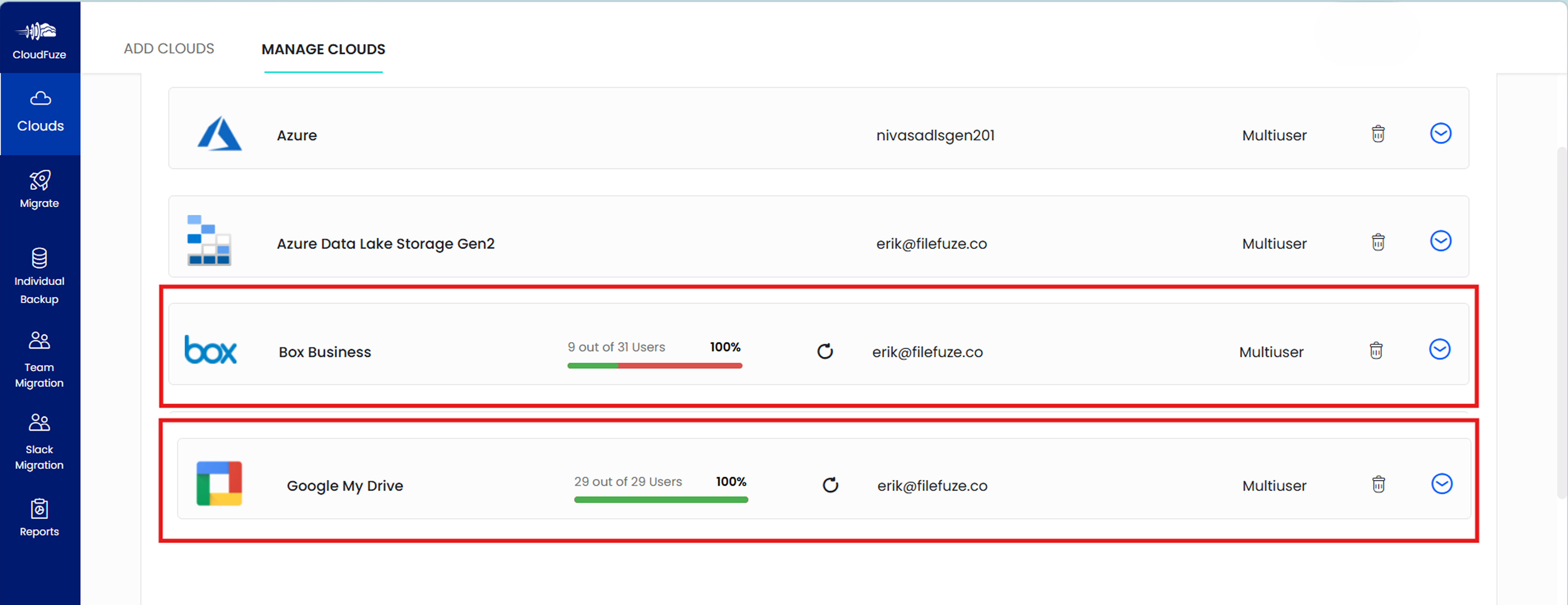
Head to the Clouds section in the left navigation menu. Upon successfully adding Box and Google Drive, you should be able to see both accounts under the Manage Clouds tab.
Step 5: Click on Team Migration
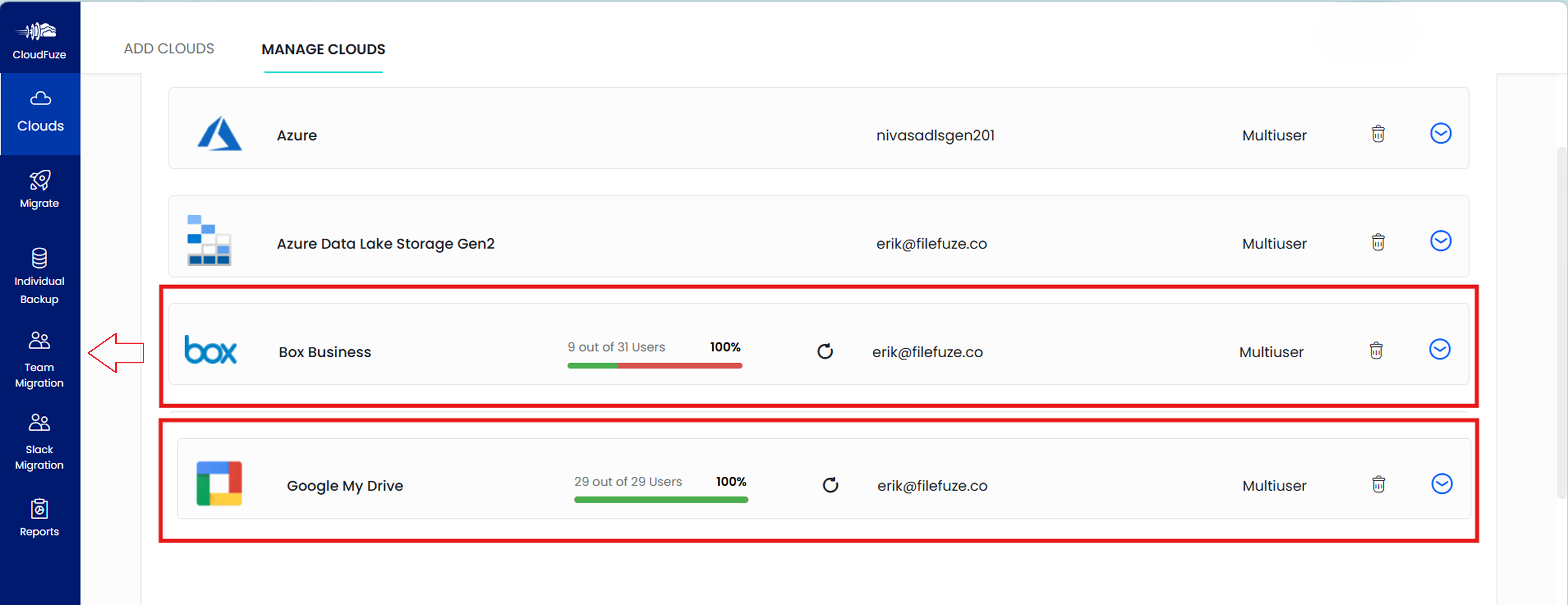
Click on the Team Migration icon to initiate the first step to copy Box data to Google Drive. Please note that you still need to configure a few options before the file transfer begins.
Step 6: Choose The Source and Destination Cloud Accounts
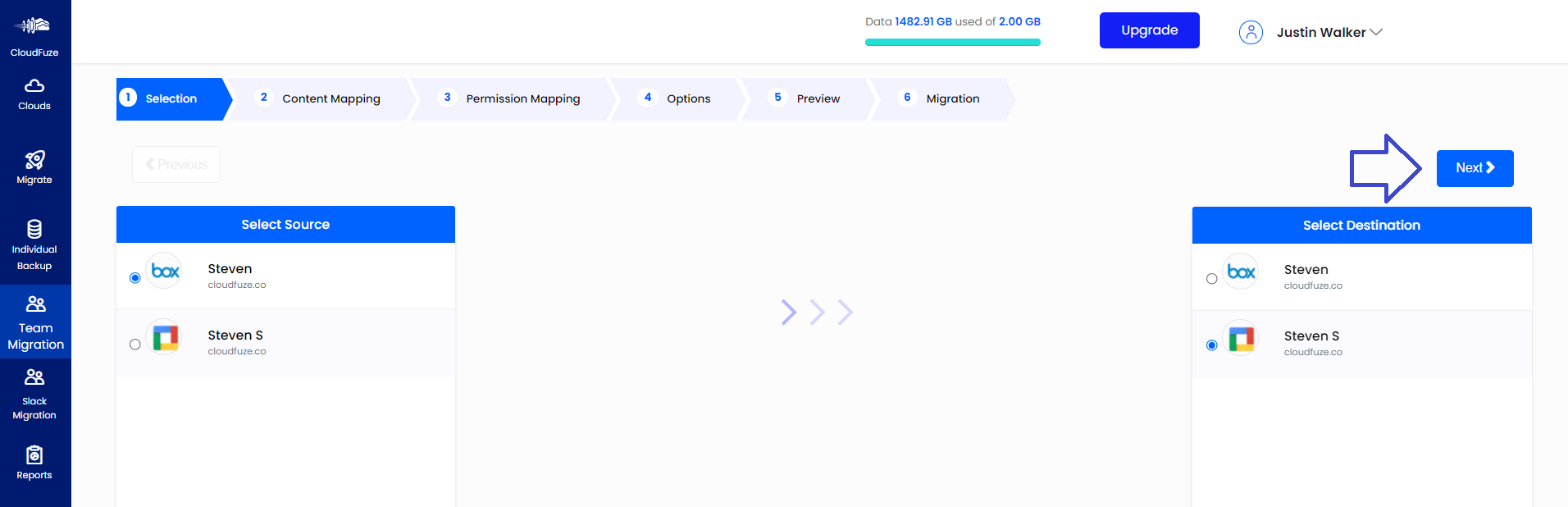
Choose Box as the source and Google Drive as the destination cloud to transfer Box files to Google Drive.
Step 7: Choose Mapping Options
CloudFuze has a powerful mapping tool called Auto-Map that automatically maps Box and Google Drive users based on the email alias. The function can map a high volume of users to transfer from Box to Google Drive.
In cases where Auto-Map can’t be used, the manual or CSV method comes into the picture.
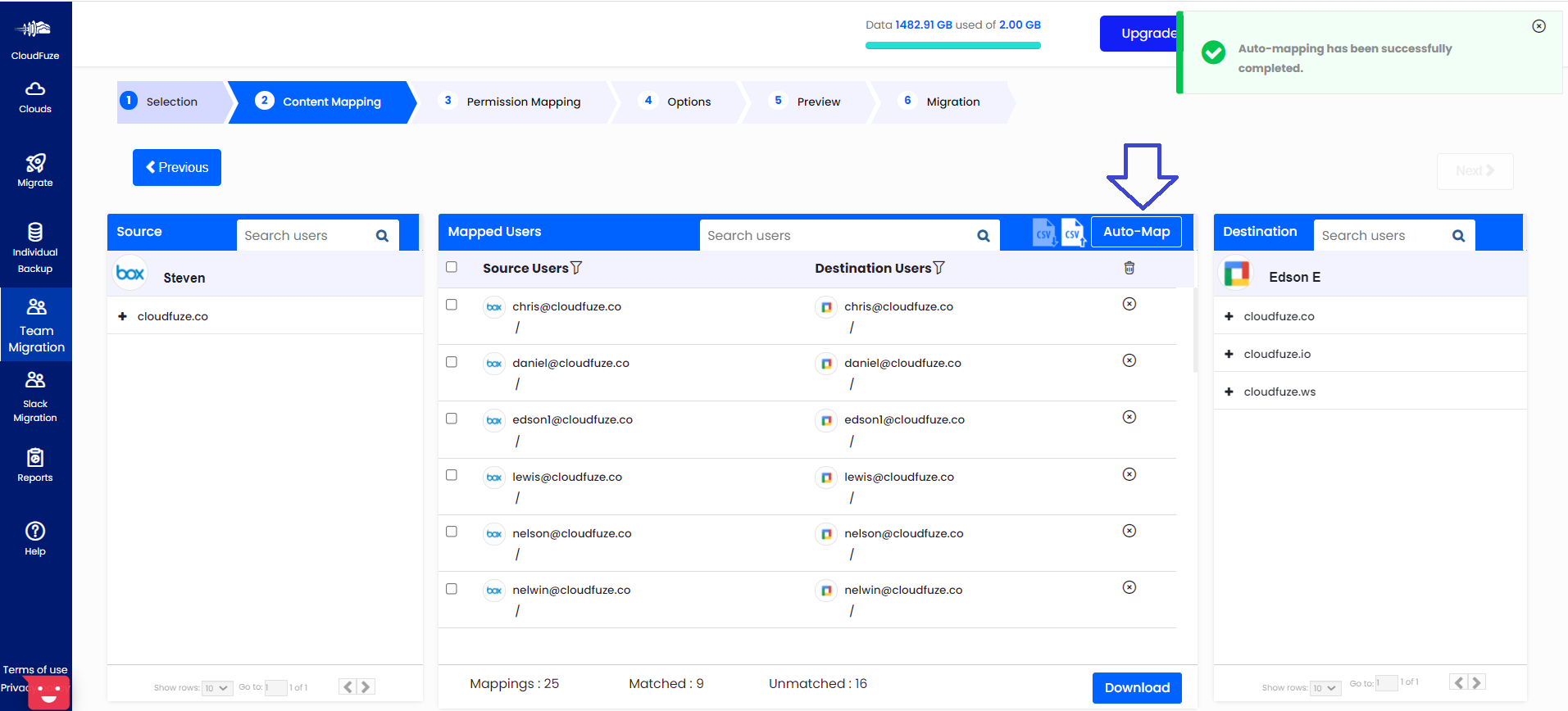
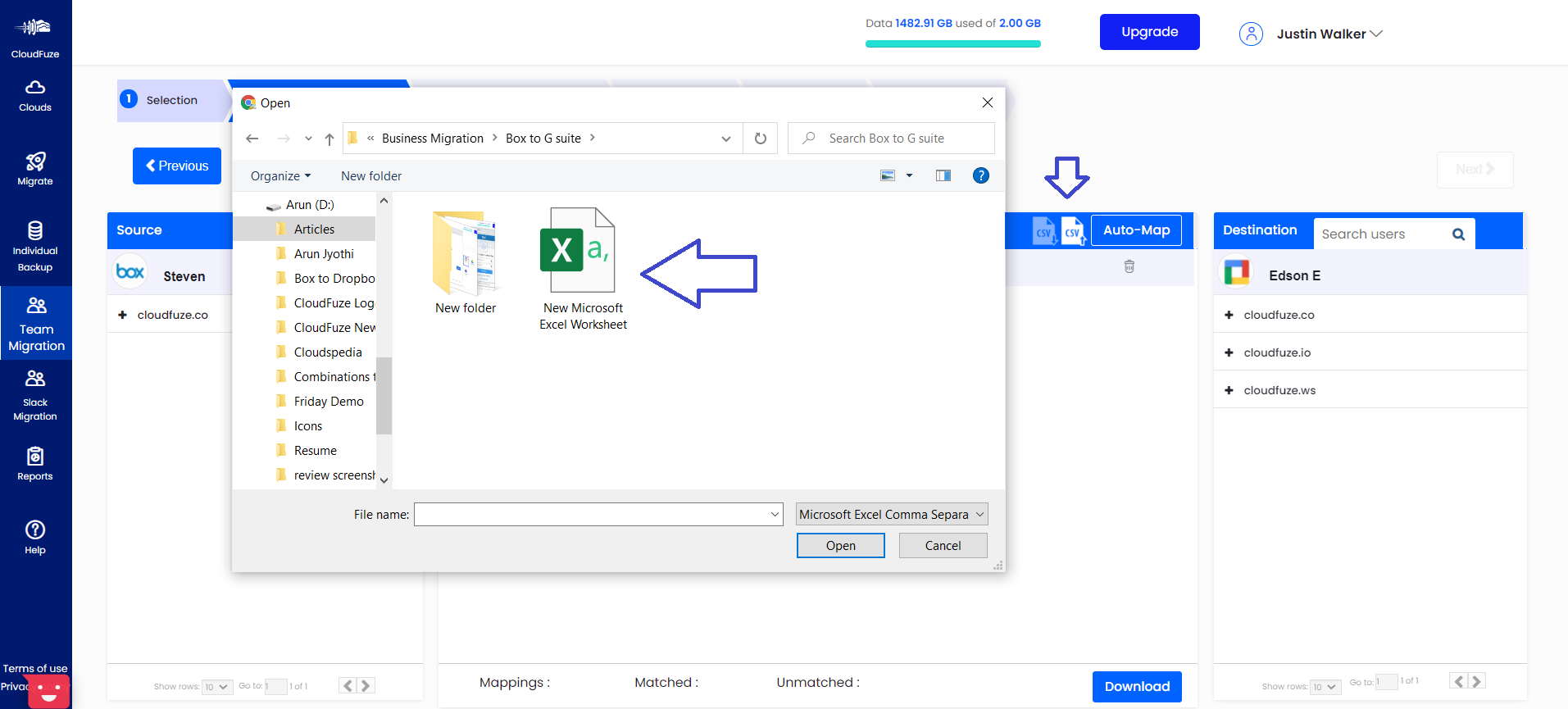
Step 8: Upload the CSV file
Upload the CSV file to the CloudFuze webapp and allow it to be validated. If the CSV file format is correct, CloudFuze returns a success message and prepares your selected users for the migration.
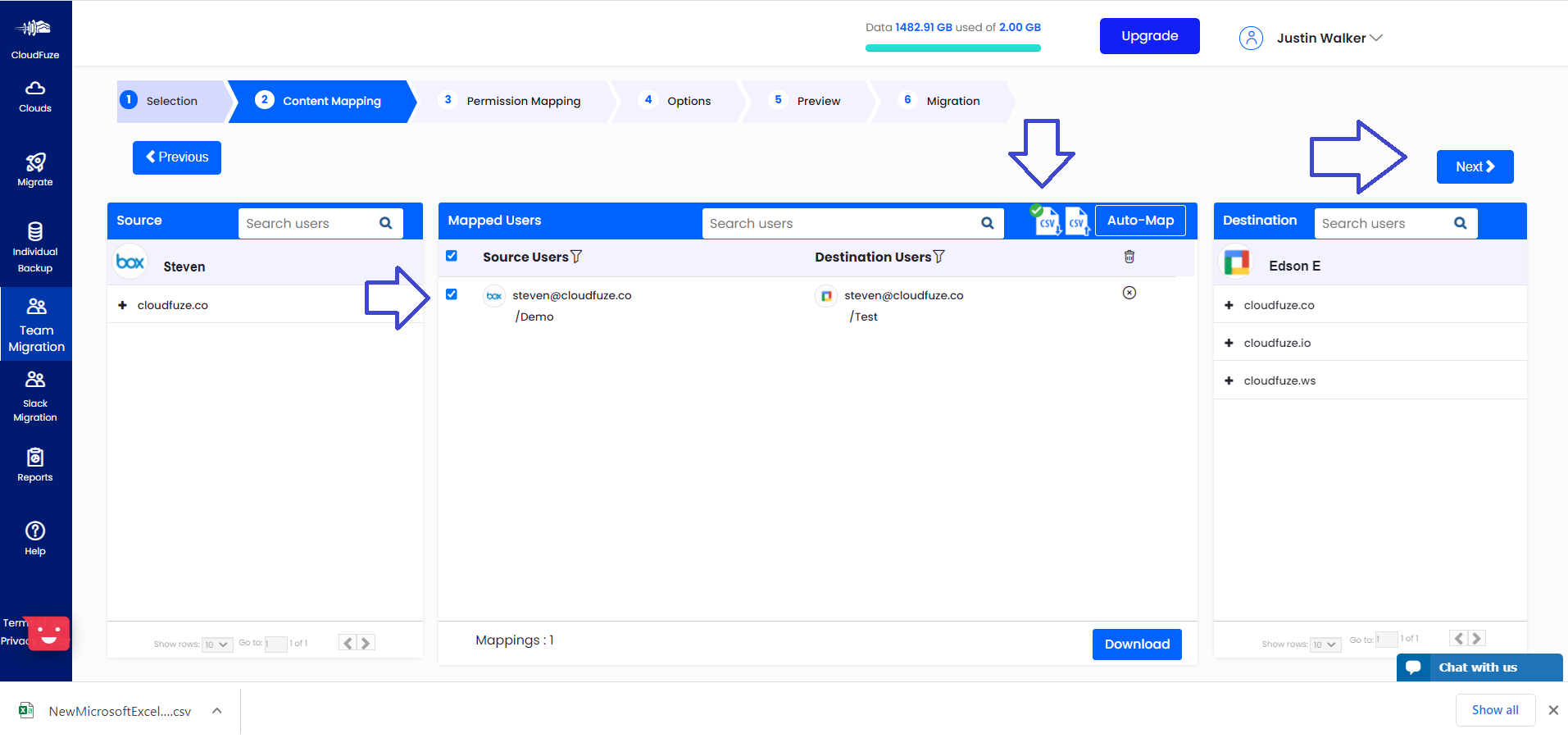
Step 9: Check the CSV Validation
Download the CSV file and check whether CloudFuze validated them successfully. If validated, click on the Next button to start the migration.
Wait and check for the CloudFuze webapp to pull data from the CSV file and validate. Upon successful completion, click on the Next button to proceed to the next step of Box to Google Drive file transfer.
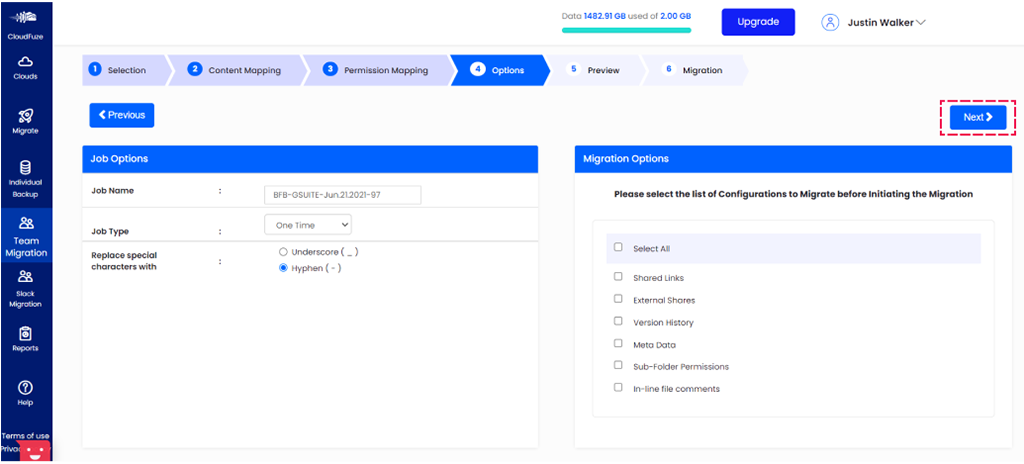
Step 10: Choose Migration Options
Name your migration project and specify other preferences based on your migration needs. Click on the Next button once you select the migration options.
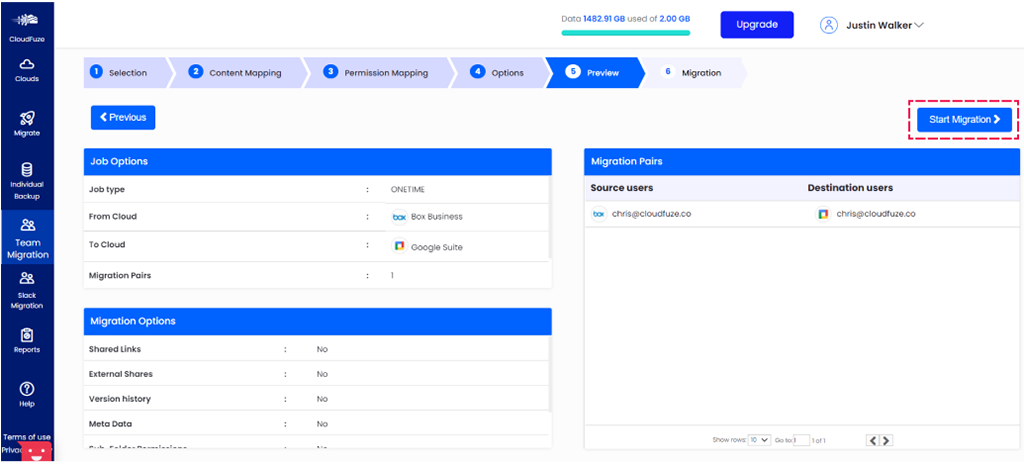
Step 11: Preview and Start the Migration
Check if all parameters are set correctly and click on the Start Migration button. This step will initiate the actual Box to Google Drive migration.
Step 12: Check the Migration Status
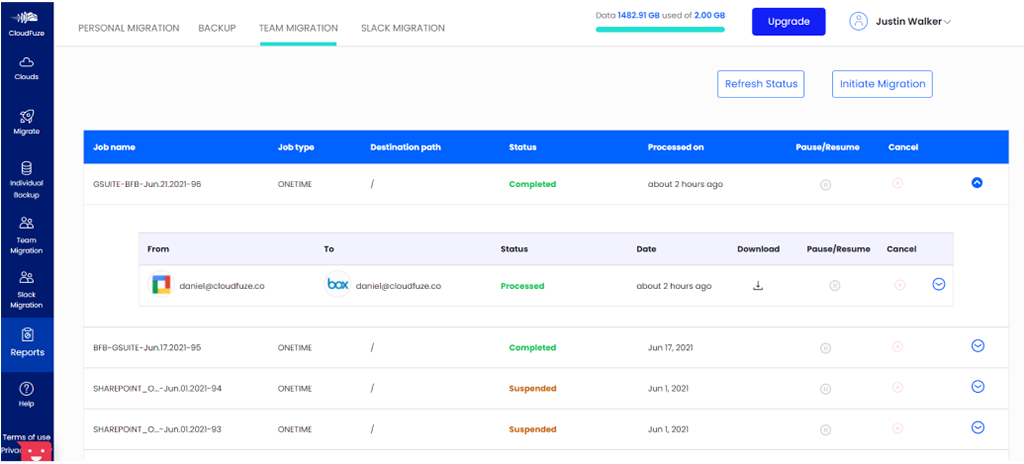
CloudFuze displays the ‘In-Progress’ status for users and data sets that are currently in the migration process. The ‘Completed’ status indicated that all the processes to move Box data to Google Drive are completed.
Step 13: Download the Migration Report
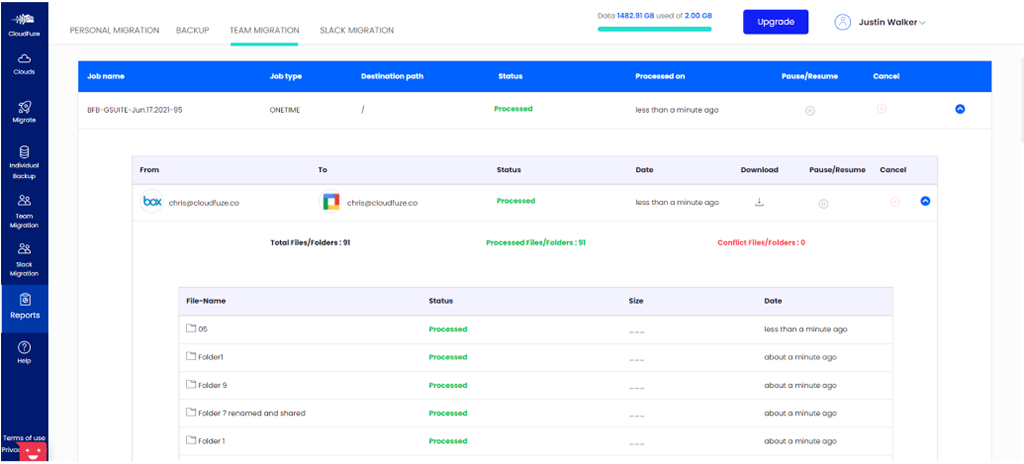
Click on the Download button seen in the migration status row to access the migration report that contains the information of all the files and folders moved. You or your team can use it for auditing the transferred content.
10. Post-Migration Steps
After the migration has been completed, there are a few important post-migration steps to take. Here are the essentials to focus on:
a) Validate with Migration Reports
The first and the most important post-migration step is to validate the completed user batches by checking the migration reports. Check for key parameters, such as:
- The total number of users migrated
- Total data size migrated
- Total number of files and folders migrated
- Any conflict status
b) Decommission Box
If your organization has plans to leave the Box environment altogether, decommissioning them after migration completion and validation is the right option. At CloudFuze, our professional services team can help you decommission your source cloud environments after migration completion.
c) Ensure Continuous Governance After Deploying Gemini
After clean data is migrated to your organization’s Google Drive and Google Workspace environment and Gemini is deployed, it is important to continuously monitor and govern Gemini usage.
CloudFuze Manage is built to do this. It enables the IT team to continuously govern usage of Gemini and other AI tools and agents to identify shadow AI activity, flag stale agents, score risks across connected agents, enforce policies on risky agent connections, and more.
11. Box to Google Drive Migration FAQ
1. How to transfer files from Box to Google Drive in bulk with permissions?
With CloudFuze, IT teams can avoid the manual approach and transfer bulk files and folders while retaining root as well as inner-level sharing permissions accurately.
2. How to move files from Box to Google Drive along with Box Notes?
Since Box Notes are exclusive to the Box cloud, IT teams must use a migration tool like CloudFuze to transfer them in the format that Google Drive supports. CloudFuze migrates Box Notes files to Google Drive in the .docx format while preserving permissions, timestamps, in-line comments, text features, and more.
3. How to transfer Box data to Google Drive without downtime?
Setting up a proper migration infrastructure is the first step to lowering the risk of downtime. Another crucial step is to perform the migration in phases by segregating users and data into several batches. This approach helps lower the risk of API throttling, which ultimately minimizes downtime risks.
4. What is the best approach to copy Box to Google Drive in a cost-effective way?
Using a migration tool with a SaaS model, such as CloudFuze, helps businesses and their IT teams plan and migrate Box to Google Drive in a cost-effective way. The benefits of SaaS migration tools, such as tailored pricing and readily available migration infrastructure, help businesses optimize their spending on migration projects.
5. How do you switch to Google Drive from Box with complete accuracy?
IT teams can rely on a precision-focused migration tool like CloudFuze to ensure a comprehensive replication of their Box cloud environment in Google Drive.
6. How Long Does it Take to Copy Box Files to Google Drive?
The time it takes to copy Box files to Google Drive varies based on several factors such as data size, number of users, number of files and folders, folder structure complexity, etc. The larger the data in the source cloud, the more time it takes to migrate to the destination cloud. However, using a dedicated migration tool like CloudFuze can accelerate the migration process by efficiently handling massive volumes of data.
7. Is there a difference between migrating to Google Drive and Google Workspace?
No. Google Drive is a storage layer inside Google Workspace. Whether you are calling it a transfer to G Suite or a migration to Google Workspace, we’re transferring data into the same storage and permission system.
8. Can CloudFuze migrate Box data to Google Drive for universities and non-profits and not just enterprises?
Yes. CloudFuze has supported and continues to support migration from Box to Google Drive for not just large enterprises but also for universities and non-profit organizations.
9. Should I plan for Gemini adoption before or after migrating from Box?
You should plan for Gemini adoption before migrating from Box to Google Drive. In the pre-migration stage, clean up data and permissions in your Box environment to be able to migrate clean data to Google Drive, which makes a solid foundation for secure Gemini adoption.
This way, Gemini will not inherit the permission sprawl problem, which otherwise can lead to inadvertent exposure of sensitive information in the generated outputs and lead to security and compliance violations.
10. What happens after Box to Google Drive migration is complete?
After the migration completion, it’s important to focus on post-migration steps, such as validating the migrated user batches through migration reports, decommissioning the source cloud (Box), governing Gemini after deployment, and more.
About the Author: Pankaj Rai


