

Introduction
A Google Drive to OneDrive for Business migration involves transferring files and folders of users while retaining important metadata and context, such as sharing permissions, timestamps, file versions, embedded links, external shares, and shared links. For many businesses, it is part of the process of migrating from Google Workspace to Microsoft 365.
When done manually, the process can be slow and error prone. Purpose-built tools like CloudFuze Migrate helps streamline the entire migration process while ensuring enterprise-grade security and performance.
This guide helps you understand the entire migration process, right from pre-migration analysis till the migration completion and post-migration integration stage.
Watch how the migration works in practice:
What Gets Migrated
With CloudFuze, you can replicate your organization’s Google Drive structure by migrating all users, and files and folders while accurately preserving metadata in full context.
| Google Drive Item | OneDrive for Business Equivalent | Supported by CloudFuze | Notes |
|---|---|---|---|
| Files and folders | Files and folders | Yes | Full folder hierarchy preserved |
| Google Docs, Sheets, Slides | Word, Excel, PowerPoint | Yes | Automatic format conversion |
| Root folder permissions | Root folder permissions | Yes | Owner and collaborator access retained |
| Subfolder permissions | Subfolder permissions | Yes | Permissions preserved |
| Created and modified timestamps | Created and modified timestamps | Yes | Choose between created or modified timestamp |
| External shares | External shares | Yes | Fully preserved |
| Embedded and shared links | Embedded and shared links | Yes | Hyperlinks remapped to new file locations |
| Special characters and long paragraphs | Compliant file names | Yes | Automatically renamed to meet OneDrive rules |
| File paths over 400 characters | Trimmed paths | Yes | Trimmed to adhere to OneDrive restrictions |
Google Drive to OneDrive for Business Migration Planning and Preparation
Skipping the planning stage is the single biggest reason business migrations run into trouble. Before you start moving data, work through these steps:

1. Run a Pre-Migration Analysis for Scoping
Get a clear count of total users, total data volume, folder structure complexity, the number of externally shared files, embedded links, file versions, and timestamps. This tells you how to batch the migration, how long it will realistically take, and how much it will cost.
2. Choose the Right Migration Tool
Not every Google Drive to OneDrive migration tool handles enterprise requirements the same way. Look for OAuth-based authentication, delta migration support and metadata preservation when exploring migration tools.
It is best to choose migration tools from Microsoft partners (like CloudFuze) that have proven experience in handling large and complex Google Drive to OneDrive migrations.
3. Map Users Accurately and Batch Them
Auto mapping works when Google Workspace and Microsoft 365 user email addresses match exactly. If they don’t, CSV mapping gives you control over custom user pairings. Once mapped, split users into multiple batches, so you are not migrating your entire organization’s users in a single go.
4. Prepare Your OneDrive for Business Environment
Set up user accounts and provision them, and create folder structures in Microsoft 365 before starting the migration. Decide on how OneDrive for Business restrictions on special characters and file naming conventions are to be addressed.
5. Be Prepared with Admin Login Details
Migration tools like CloudFuze Migrate need Google Workspace admin login credentials on the source side and Microsoft 365 admin login credentials on the destination side to authorize each cloud. Have both ready before you schedule the migration window.
6. Communicate the Change Early
Communicate with employees in advance about the migration timeline and what changes for them after that transition. Individual users and teams that hear about a Google Drive to OneDrive for Business migration after migration completion and destination onboarding often require far more support than teams briefed ahead of the project.
Steps to Transfer Files From Google Drive to OneDrive for Business
Firstly, you need to create a CloudFuze account to access CloudFuze’s cloud file transfer web app. You can submit your migration requirement details or may choose one of CloudFuze’s competitive price plans to get started.
Alternatively, you may sign up for the free trial to test the service. If you are planning to migrate data from Google Drive to OneDrive for Business, we recommend getting in touch with us for a smooth and hassle-free managed migration.
Here are the steps to migrate Google Drive to OneDrive for Business with CloudFuze.
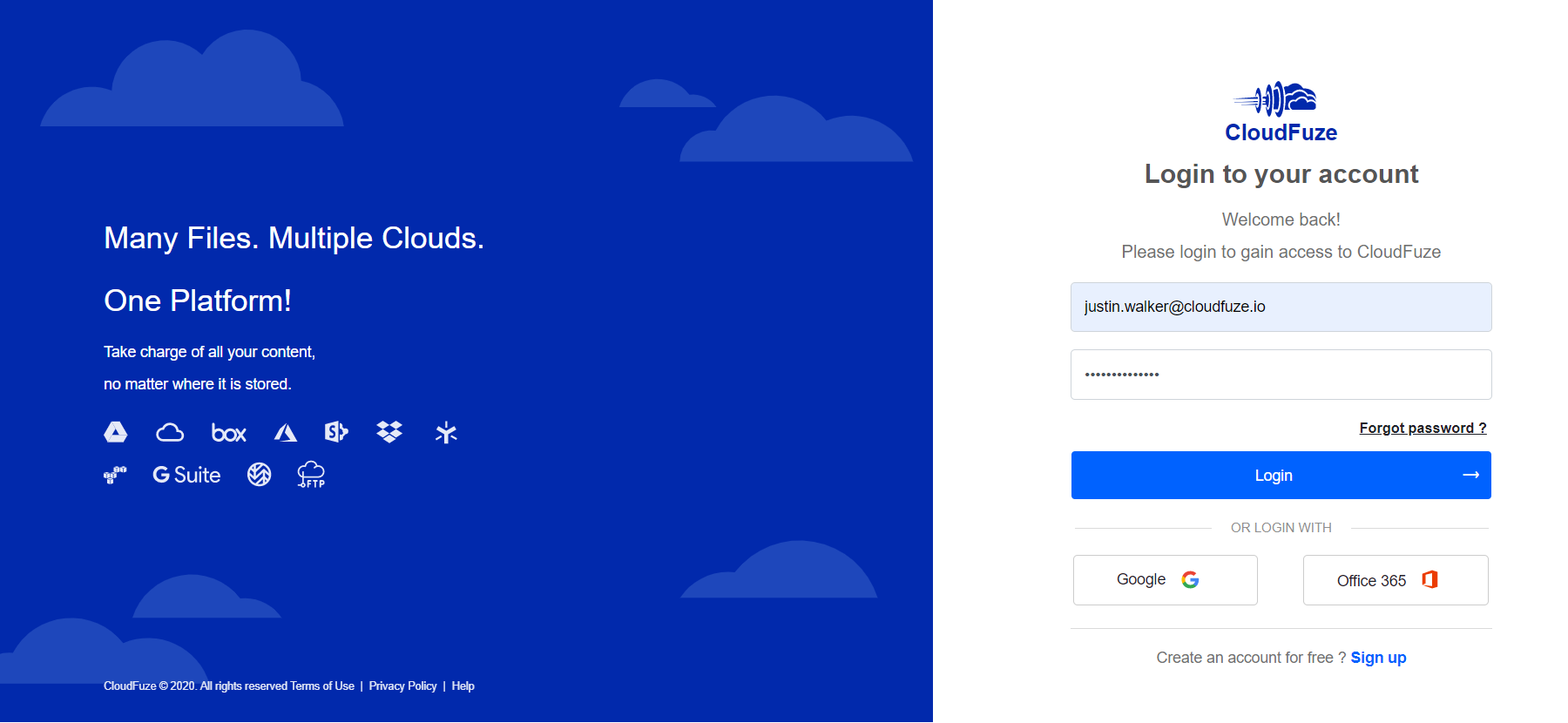
Step 1: Create a CloudFuze Account
Go to CloudFuze’s webapp and create an account. CloudFuze offers a free trial for users who wish to test and see how the app works.
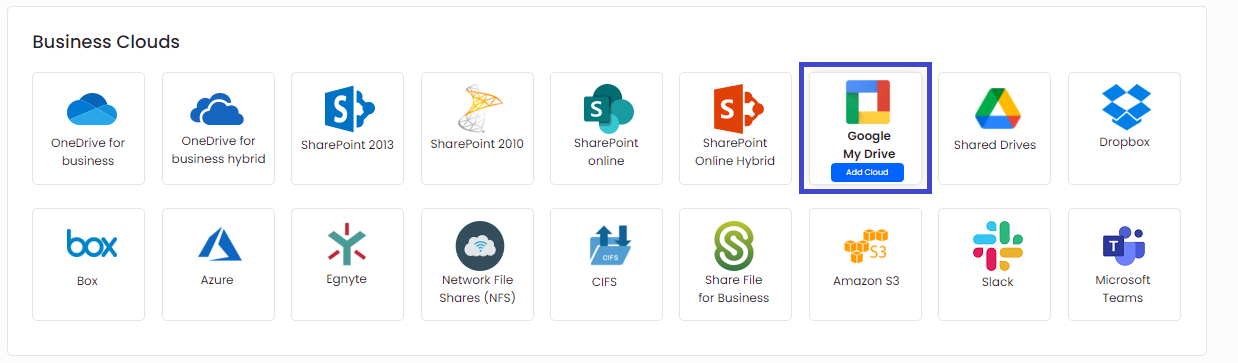
Step 2: Add the Google Drive Cloud
CloudFuze needs your clouds to be added to facilitate Google Drive to OneDrive for Business migration.
As a part of it, click on the Google Drive logo from the “Business Clouds” list.
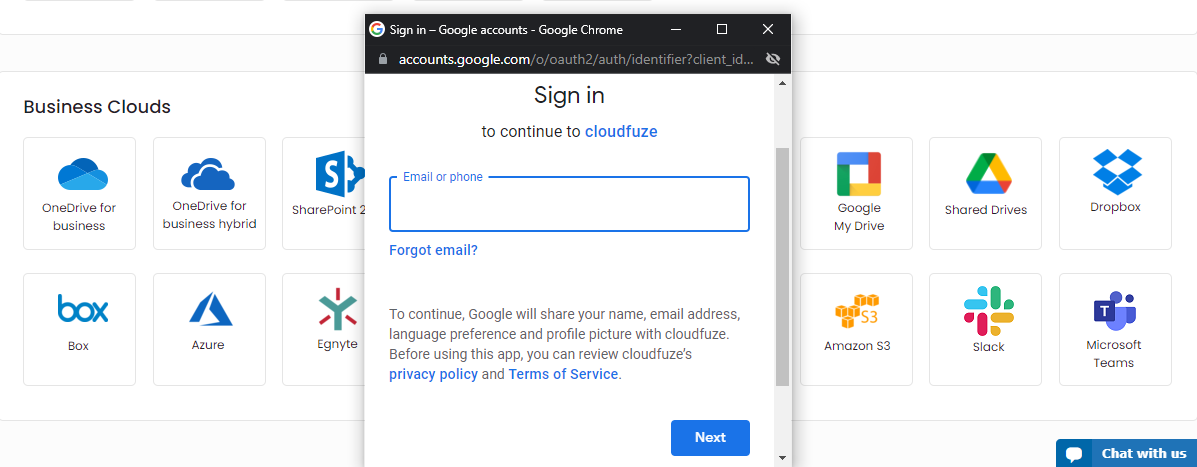
Step 3: Enter Google Workspace Admin Login Credentials
Now, enter Google Workspace admin login credentials and click on the “Next” button.
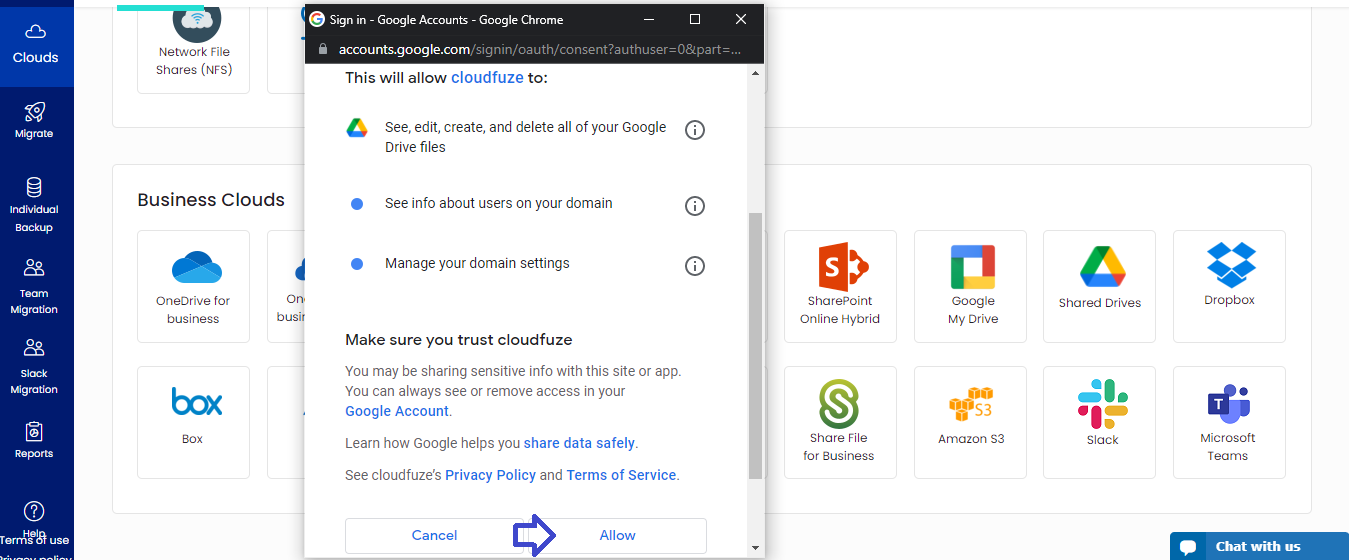
Step 4: Provide Account Access to CloudFuze
Click on the “Allow” button to complete the cloud addition process.
Note: CloudFuze Migrate can’t save your data or passwords as we use the OAuth 2.0 authentication protocol. Read more about CloudFuze’s security.
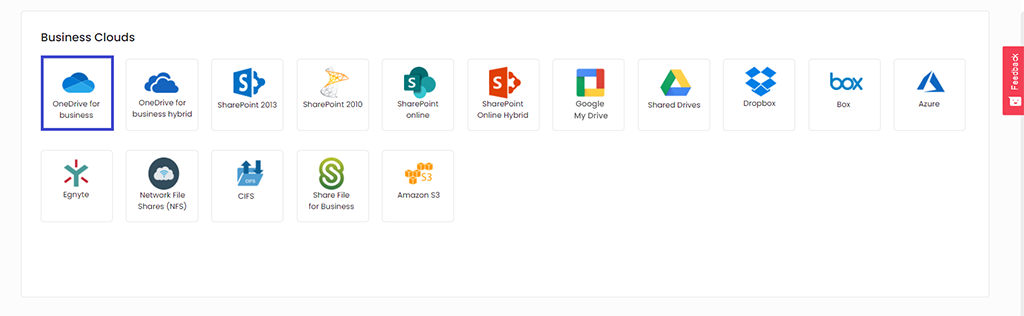
Step 5: Now, Add the OneDrive for Business Cloud
Click on the OneDrive for Business logo that you see in the “Business Clouds” list. A pop-up will then open where you need to enter OneDrive for Business account details.
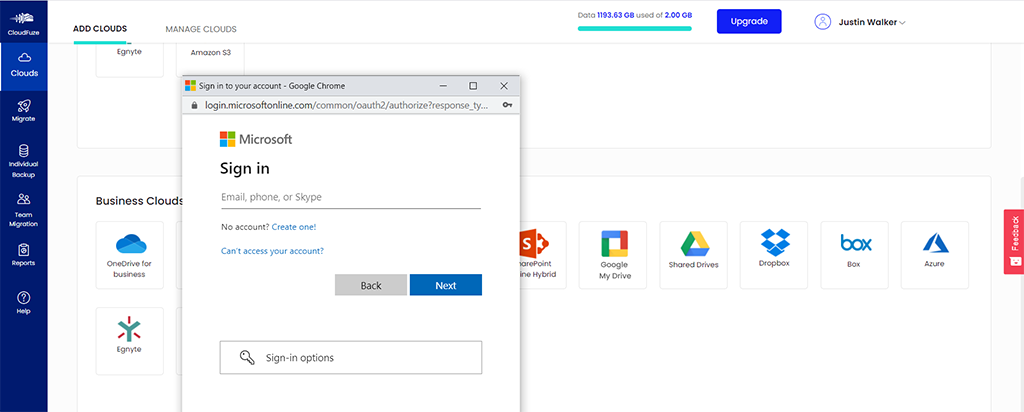
Step 6: Authorize OneDrive for Business Account
Enter Microsoft 365 admin login details and authorize the cloud.
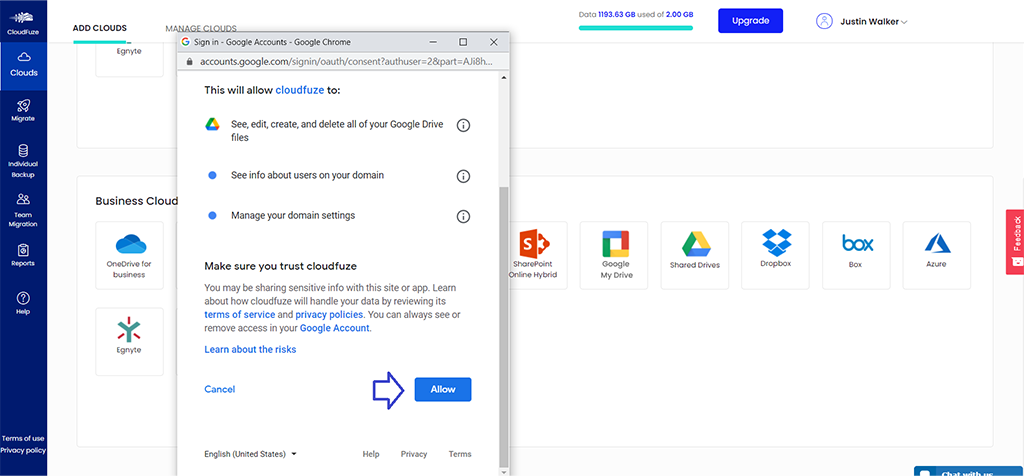
Step 7: Provide Access to CloudFuze
Click on the “Allow” button to give CloudFuze the required access. CloudFuze requires access to map users and data for migration.
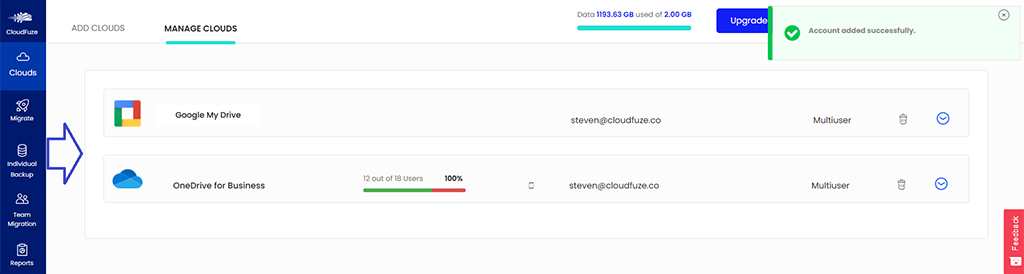
Step 8: Verify the Cloud Addition Process
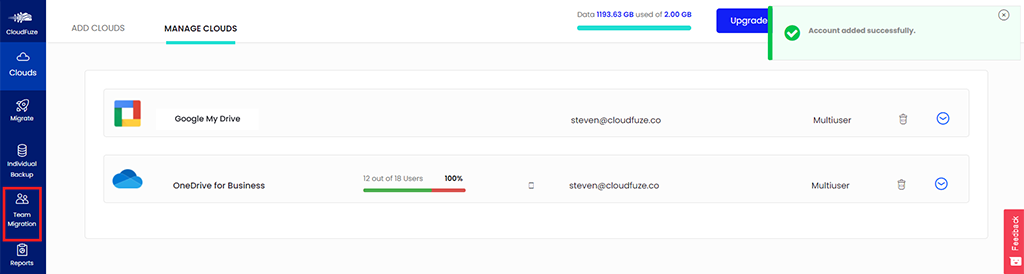
Click on the “Clouds” icon in the web app’s navigation menu and then go the “Manage Clouds” tab. You should be able to see both Google Drive and OneDrive for Business accounts added here.
Step 9: Start the Migration Process
Click on the “Teams Migration” icon in the menu. In the next few steps, you need to choose a few migration options.
Step 10: Configure the Source and Destination Clouds
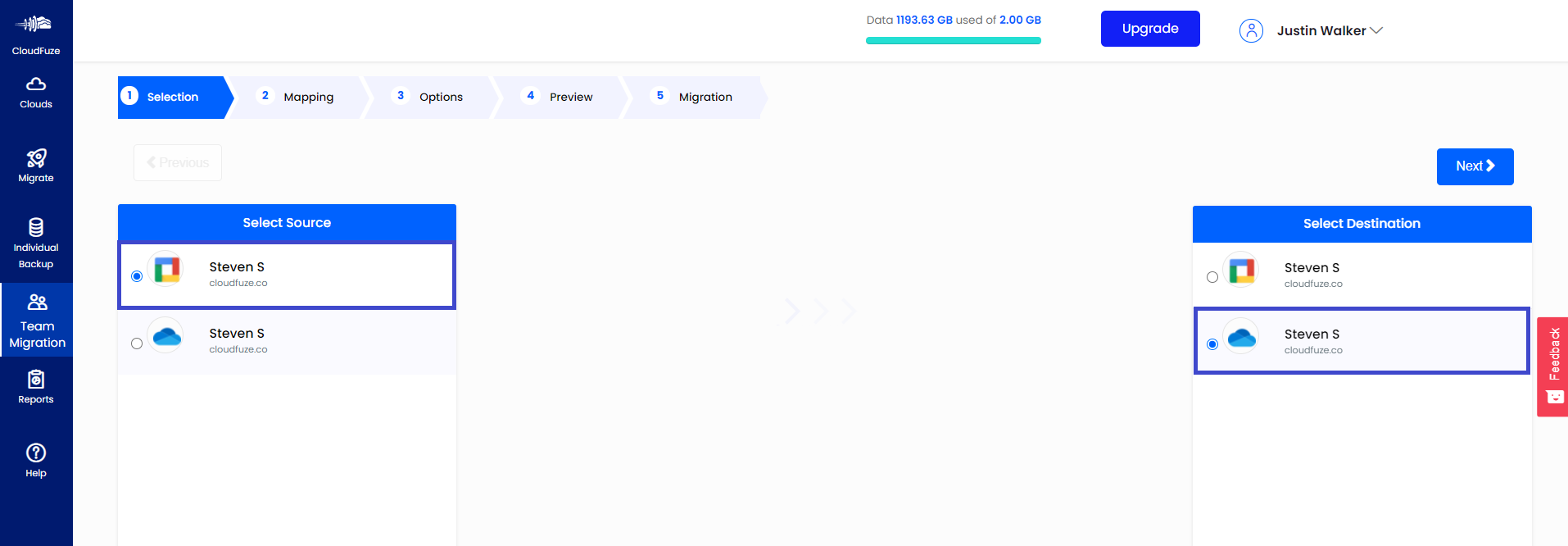
Choose Google Drive as the source and OneDrive for Business as the destination cloud to migrate Google Drive to OneDrive for Business and not the opposite way.
Step 11: Map the Users
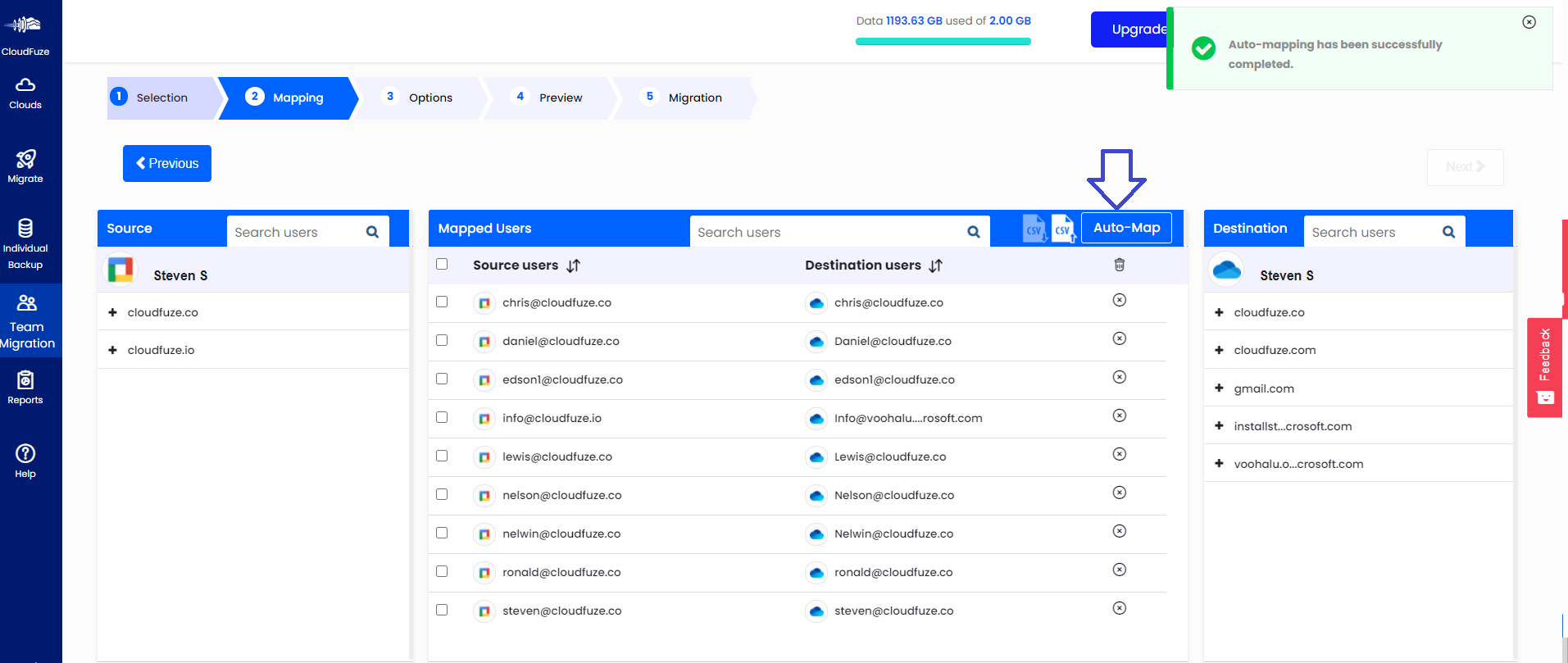
CloudFuze has a built-in auto-mapping feature that automatically matches source and destination users based on their email aliases.
Select the users that you want to migrate and click on the “Next” button. Alternatively, you can use the CSV method for custom mapping and to transfer files from Google Drive to OneDrive for Business.
Step 12: Select Users
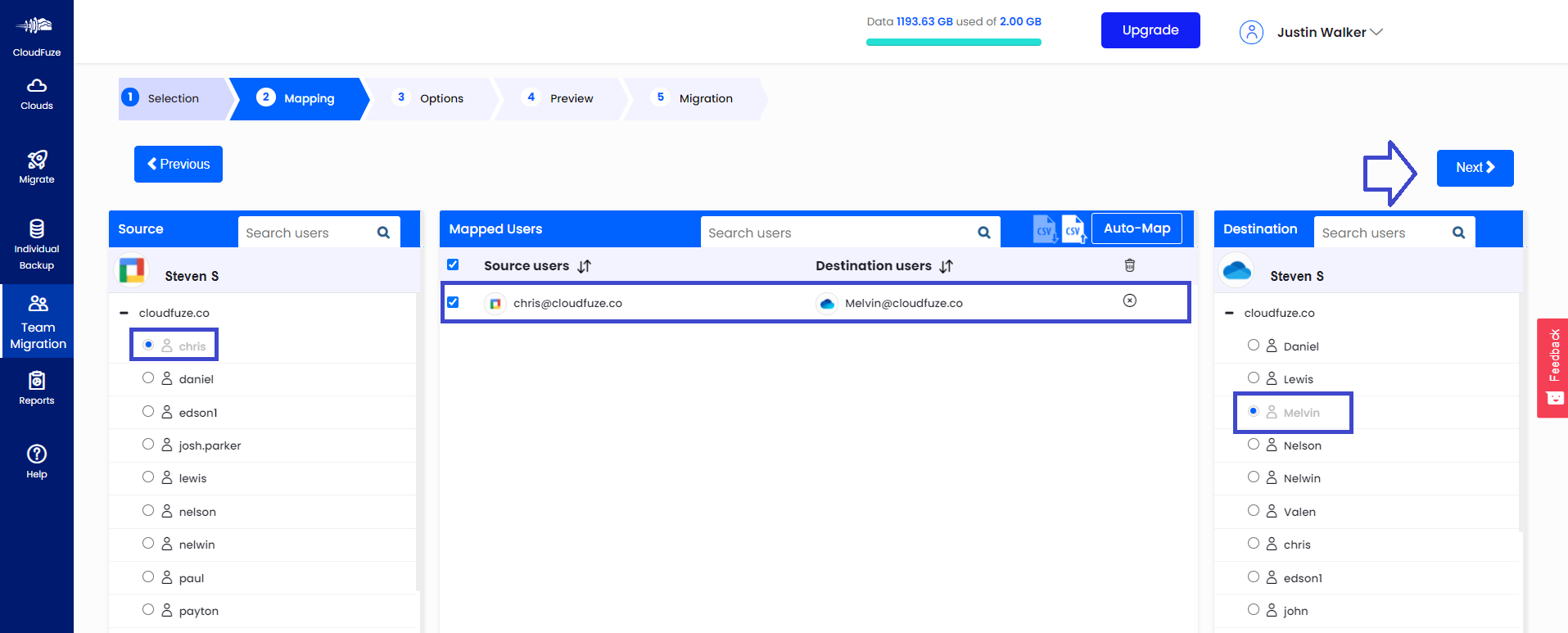
Now, select all the users that you want to migrate from Google Drive to OneDrive for Business.
For the demo purpose, we chose only one user for data migration.
Step 13: Choose Migration Job Name and Others
In this page, you can select a few options such as naming the migration job, migration type, additional email notifications, etc. Configure all of them and click on the “Next” button.
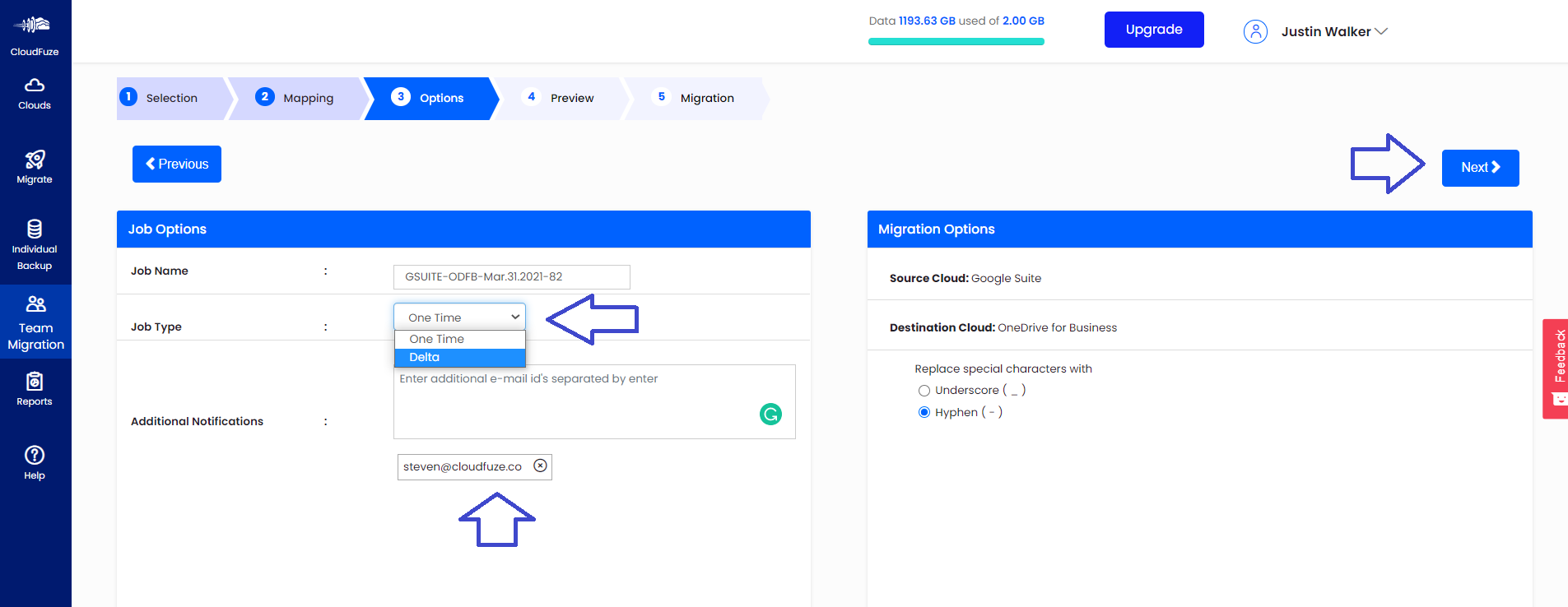
Step 14: Initiate the Migration
Preview the migration choices and then click on the “Start Migration” button.
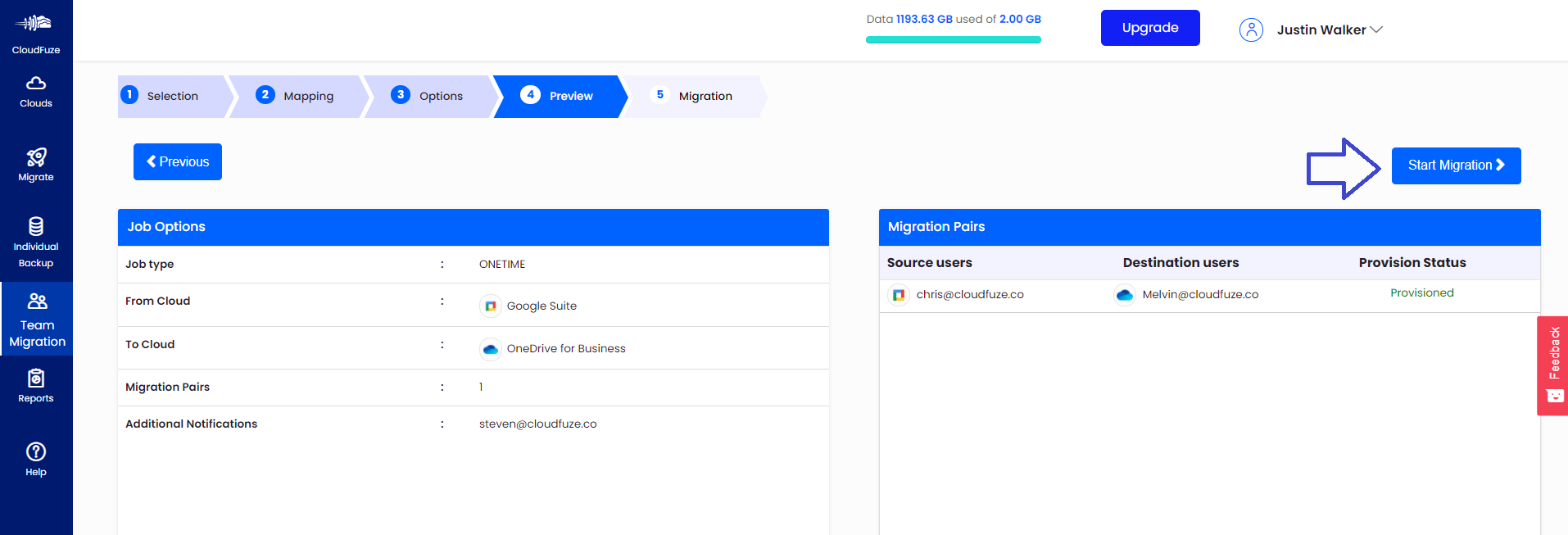
Step 15: File Transfer is in Progress
“In-Progress” status indicates that the file transfer process is currently going on. You can pause the migration or cancel it altogether if you want by clicking on the “Pause” or “Cancel” icons.
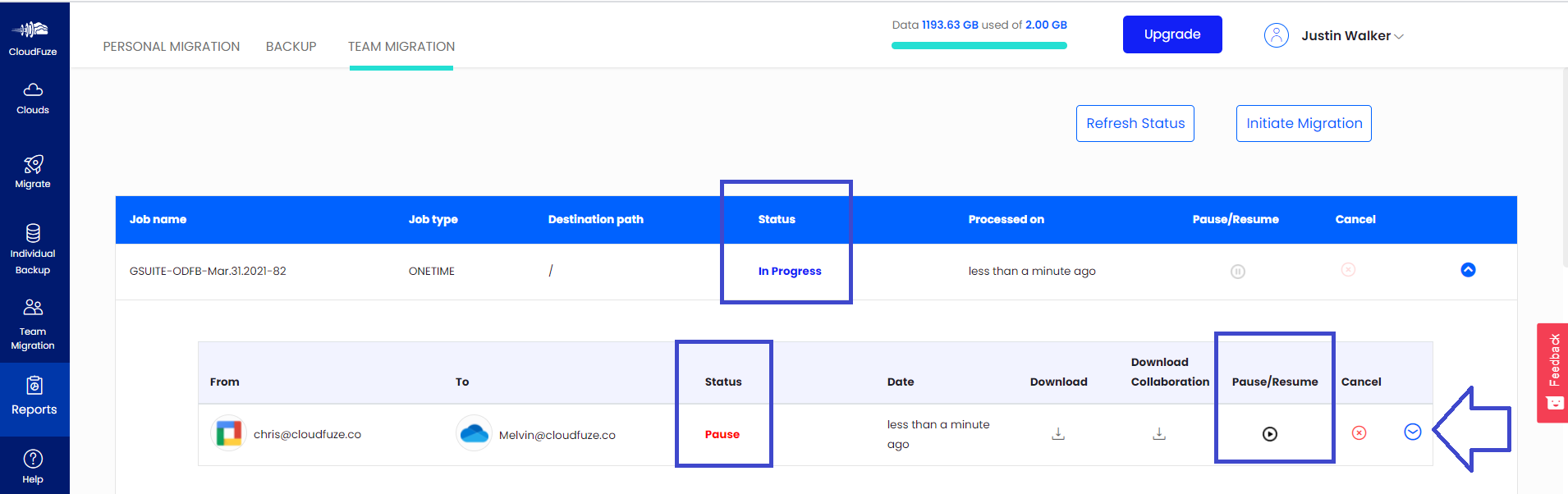
Step 16: Migration Has Been Completed
Once all the files are migrated, the status will be changed to “Completed” and “Processed.”
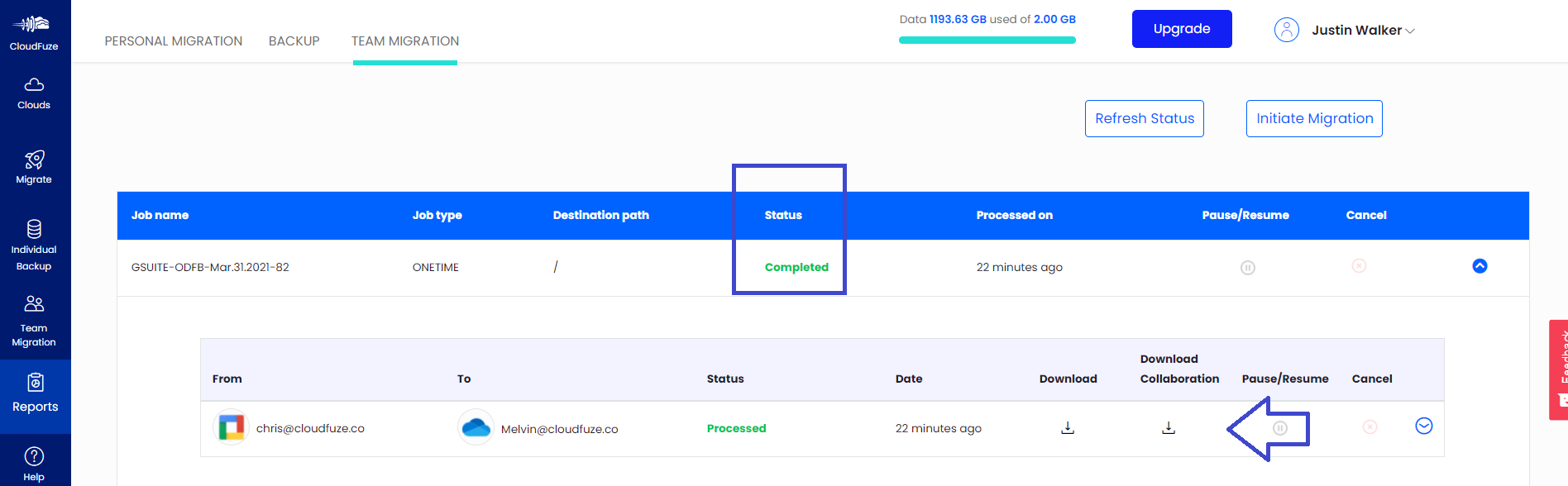
These steps will transfer files from Google Drive to OneDrive for Business.
Post-Migration Steps
Once the migration is completed, a few follow-up post-migration steps helps you ensure nothing slips through.
- Validate every migrated batch against the migration reports CloudFuze generates.
- Check that embedded and shared links resolved correctly to the new OneDrive for business locations.
- Give users a short walkthrough of OneDrive for Business, especially if this is their first time working outside Google Drive.
- Set up ongoing governance in Microsoft 365 with tools like CloudFuze Manage, so permission sprawl, external sharing, and AI sprawl stay under control.
Why Migrate from Google Drive to OneDrive for Business
Businesses move from Google Drive to OneDrive for Business for various use cases, usually tied to broader platform decisions rather than storage alone.

1. Standardizing/Consolidating on Microsoft 365
Companies that are simultaneously running Google Workspace and Microsoft 365 often plan to standardize on Microsoft 365 if they have more dependency on the Microsoft ecosystem.
2. Microsoft Copilot Adoption
Many companies find Copilot’s workflows more aligned with their AI adoption journey. And this can be one of the key triggers of Microsoft 365 consolidation.
3. Mergers and Acquisitions
When an acquiring company runs on Microsoft 365, the acquired company’s Google Drive, and the overall Google Workspace environment, typically needs to move over as part of the broader integration.
4. Security and Compliance Requirements
Organizations in regulated industries often prefer Microsoft’s compliance tooling, including Purview and SharePoint’s permissions model.
5. Cost Optimization
Running Google Workspace and Microsoft 365 licenses side by side gets expensive fast. Businesses that lean more heavily on Microsoft tools for daily collaboration tend to consolidate storage into OneDrive for Business to cut redundant costs.
Google Drive to OneDrive for Business Migration Challenges
Almost all companies face certain challenges when it comes to migrating data from Google Drive to OneDrive for Business.
- Firstly, the sheer size of company data itself can pose a major challenge.
- Secondly, the differences in the features/tools between Google Drive and OneDrive for Business can create complex technical challenges.
But at CloudFuze, we have got your company covered with our industry-leading tool and proven methodologies that have created migration success stories for prestigious organizations worldwide. Our team has the insights and expertise to make your organization’s Google Drive to OneDrive Business migration seamless and secure.
| Google Drive to OneDrive for Business migration challenges | CloudFuze’s solutions |
|---|---|
| Terabytes/petabytes of company data to migrate. | CloudFuze can migrate terabytes and petabytes of company data in batches to mitigate complexity. |
| Company data is highly sensitive to be migrated in a public/shared server. | CloudFuze uses OAuth 2.0 authentication and REST API calls – two of the most secure protocols. It can also be deployed in the customer’s own cloud, VM, or data center. |
| Migrating Google Docs, Sheets, Slides, etc created in Google Drive. | CloudFuze migrates all Google files as respective Microsoft files. |
| Unsupported characters and file/folder names in OneDrive for Business. | CloudFuze automatically renames unsupported characters and file/folder names to comply with OneDrive’s restrictions. |
| Exceeding 400 characters file path length in OneDrive for Business. | CloudFuze trims long file paths to 350 characters. |
| Migration throttling at source or destination cloud. | CloudFuze’s re-try mechanism will resume migration after complying with the waiting period specified at the source or destination cloud. |
| Certain files not migrated. | CloudFuze’s auto-try mechanism will re-initiate migration for any file that has gone into conflict. |
| Updating incremental changes made at the source cloud during migration. | CloudFuze offers delta migration as per the customer’s needs to sync the incremental changes. |
Why Use CloudFuze to Migrate Data From Google Drive to OneDrive for Business?
Enterprise cloud data is a lot different from consumer data. Typical cloud data of businesses consists not only of files but also of users. Therefore, along with files, businesses need to migrate users, folder structure, and even user/file permissions.
To successfully do this, a third-party Google Drive to OneDrive migration tool like CloudFuze Migrate plays a crucial role.
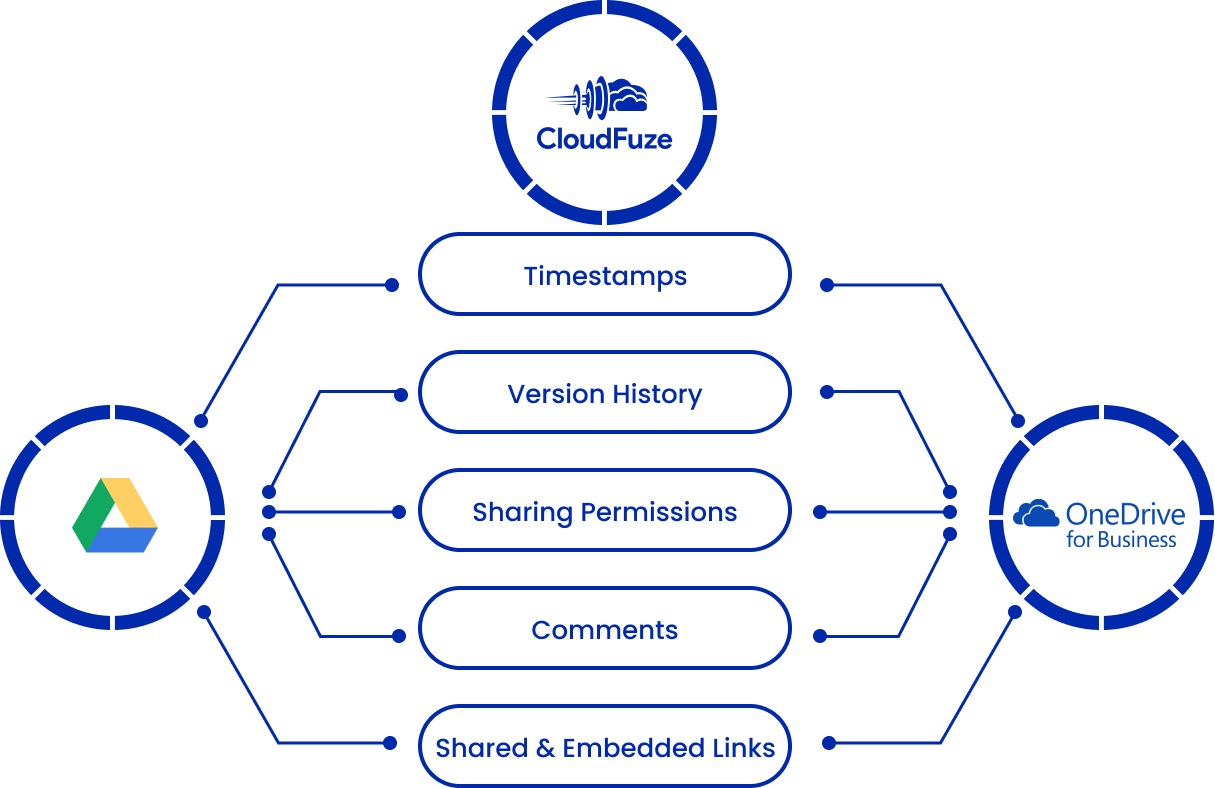
CloudFuze helps your business or organization migrate from Google Drive to OneDrive for Business while preserving all the important aspects of the data.
CloudFuze vs. Other Migration Tools
By providing tool functionalities that enable organizations to completely replicate their Google Drive environment in OneDrive for Business, CloudFuze stands out among other migration tools.
| Capabilities | CloudFuze | Other Migration Tools |
|---|---|---|
| File and folder migration | Yes | Yes |
| Permissions migration | Yes | Yes |
| Timestamps migration | Yes | Yes |
| Hyperlinks migration | Yes | No |
| All and selective file versions migration | Yes | No |
| External shares migration | Yes | No |
| Shared links migration | Yes | No |
| AI context migration | Yes | No |
Case Study: Migrating to OneDrive and SharePoint Online at Scale
Barrow County School System, a public school district in Winder, Georgia, serving over 1,800 employees, needed to move its entire Google Workspace environment to Microsoft 365, including transferring more than 1,200 staff and student accounts over 50 TB of data into OneDrive and SharePoint Online.
The complexity came from the district structure. Data was spread across multiple school groups, each with its own folder hierarchy and permissions, and the migration had to happen within a tight timeframe. Data security was non-negotiable given the sensitivity of student records.
CloudFuze handled the migration end-to-end, including:
- User and data migration
- Preservation of all metadata and properties
- Strict security protocols applied throughout
The result was:
- Smooth migration of all 1200 users
- All 50 TB of data transferred with metadata intact
- No downtime or disruption
Read the full case study here.
Migrate Google Drive to OneDrive for Business with CloudFuze
With CloudFuze as the migration partner, you can tap into years of proven expertise and methodologies that have helped medium and large enterprises migrate from Google Drive to OneDrive for business securely and successfully.
We’d be happy to give you a 30-minute migration assessment session for free, and without any obligation. Contact us today.
Frequently Asked Questions
1. Since OneDrive does not support Google files, how will they be transferred?
CloudFuze transfers Google files as respective Microsoft files to OneDrive for Business. For example, Google Sheets, Google Slides, and Google Docs will be transferred as Microsoft Excel, Microsoft PowerPoint, and Microsoft Word documents.
2. How are comments transferred from Google Drive to OneDrive for Business?
CloudFuze transfers comments from the source cloud (Google Drive) to the destination cloud (OneDrive for Business) via CSV files.
3. Which file timestamp to migrate: created time or modified time?
Depending on your company’s requirement, you can choose the creation timestamp or modification timestamp when migrating with CloudFuze.
4. Is it better to move or copy files from Google Drive to OneDrive for Business?
There are several benefits to copying files than moving them. With a copy-and-paste action, your company can migrate Google Drive to OneDrive for Business while resuming everyday operations. Also, copying files helps you cross-check partial or entire data after the migration is finished.
5. What to do if the API rate throttles during the migration?
The larger the data size, the higher the odds of the API transfer rate throttling. In most cases, it’s the cloud service provider that throttles the transfer rate due to high volume data transfer.
Therefore, it’s important to abide by the waiting time that the cloud service provider sets. CloudFuze’s re-try mechanism will reinitiate the migration after the waiting time is over.
6. Which permission to migrate to OneDrive: Root folder or sub-folder permissions?
With CloudFuze, you can migrate root folder as well as sub-folder permissions to OneDrive for Business. This essentially means that root folder files as well as sub folder files’ permissions will be migrated.
7. What is the safest way to migrate data from Google Drive to OneDrive for Business?
CloudFuze, by default, offers a highly safe Google Drive to OneDrive for Business migration. It uses REST API calls and, therefore doesn’t have access to the actual data of your company. Also, by using the OAuth 2.0 protocol, CloudFuze does not have access to your company’s user account credentials.
With CloudFuze, you also have the option to download the migration platform as a standalone program and run it in your company’s data center.
8. Will working at the source cloud during the migration not have any negative effect?
No. CloudFuze performs the entire data migration in the background to make it simple and hassle-free for your company to work on the source cloud while the migration is in progress. No data will be affected when working at the source cloud during CloudFuze’s migration.
9. What are some of the factors to consider before starting the migration?
The most important factor to consider is to do as much proactive work as you can prior to starting the migration. This is because getting everything right and initiating the migration will ensure hassle-free project completion rather than identifying loopholes during the migration and doing reactive work.
10. How to prepare company employees to work in the new cloud suite?
Prior to completely switching from Google Workspace to Microsoft 365 for Business (G Suite to Office 365), it’s best to provide employees with a basic level of training. Also, it’s important that all the employees log into their new Microsoft 365 accounts to activate their accounts.
About the Author: Pankaj Rai


