
How To Move Gmail Emails to A Folder (Labels) in Seconds
The trick to keep an organized inbox in Gmail is by moving your emails into their designated folders (label) effectively. You can achieve an organized inbox at Gmail by using labels and filters for your emails to manage efficiently.
Below are step-by-step ways for you to move your Gmail emails to a folder on your desktop, Android phone, and iPhone. Additionally, learn tips on how to manage groups of emails.
Key Takeaways:
Why Move Emails to Folders in Gmail?
Moving emails to folders, or labels in Gmail, provides several benefits:
- Improved organization
- Better email management
- Efficient workflow
- Enhanced productivity
By organizing Gmail inboxes effectively, you can turn an overwhelming inbox into a structured and easy-to-navigate workspace.
1) How To Move Gmail Emails to a Folder on Desktop
There are two ways to move emails in Gmail to a label on your desktop: manually or automatically using filters.
1. Move Emails Manually
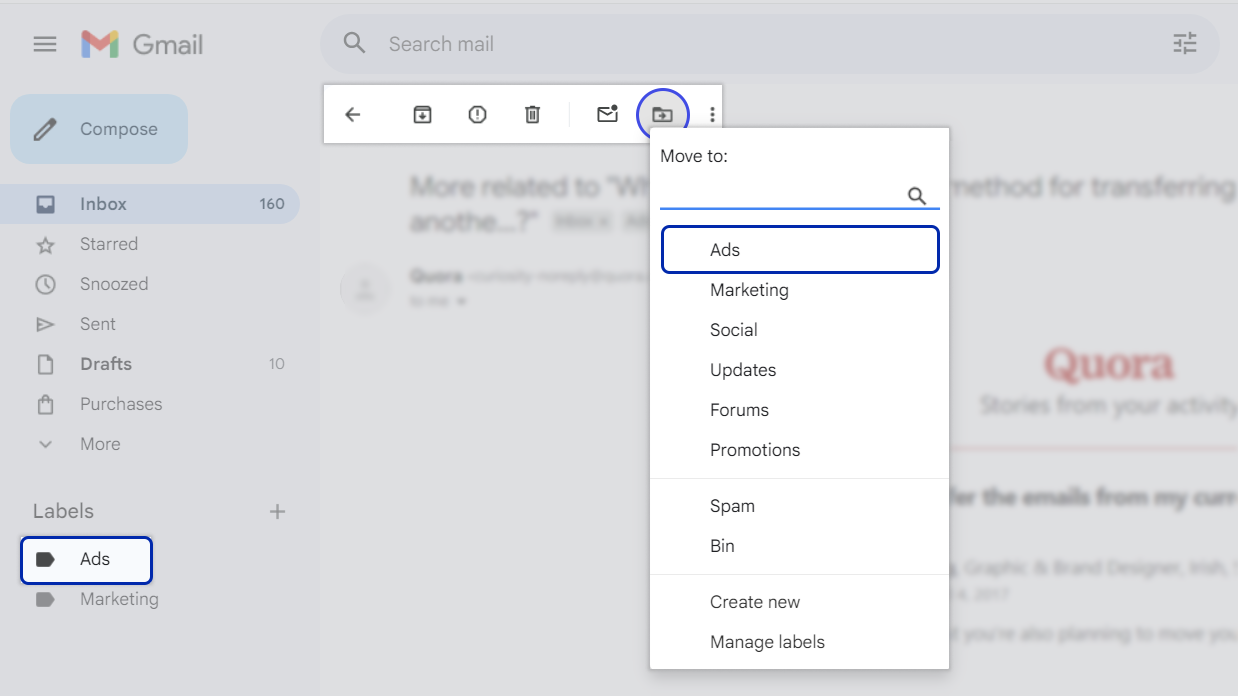
To move Gmail emails to a folder (label) manually, follow these steps:
- Open Gmail on your desktop.
- Select the email(s) you want to move.
- Click the Move To button on the top menu bar
- Select the existing folder (label) from the dropdown or create a new one if you need to.
2. Move Emails Automatically Using Filters
Filters are a powerful Gmail email management tool. You can create rules based on sender, subject, keywords, or recipients.
Here’s how you can automatically sort incoming emails using filters:
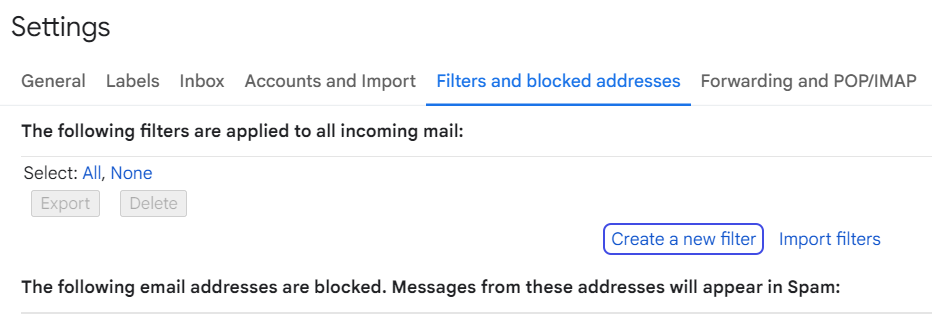
- Go to Gmail settings → Filters and Blocked Addresses → Create a new filter.

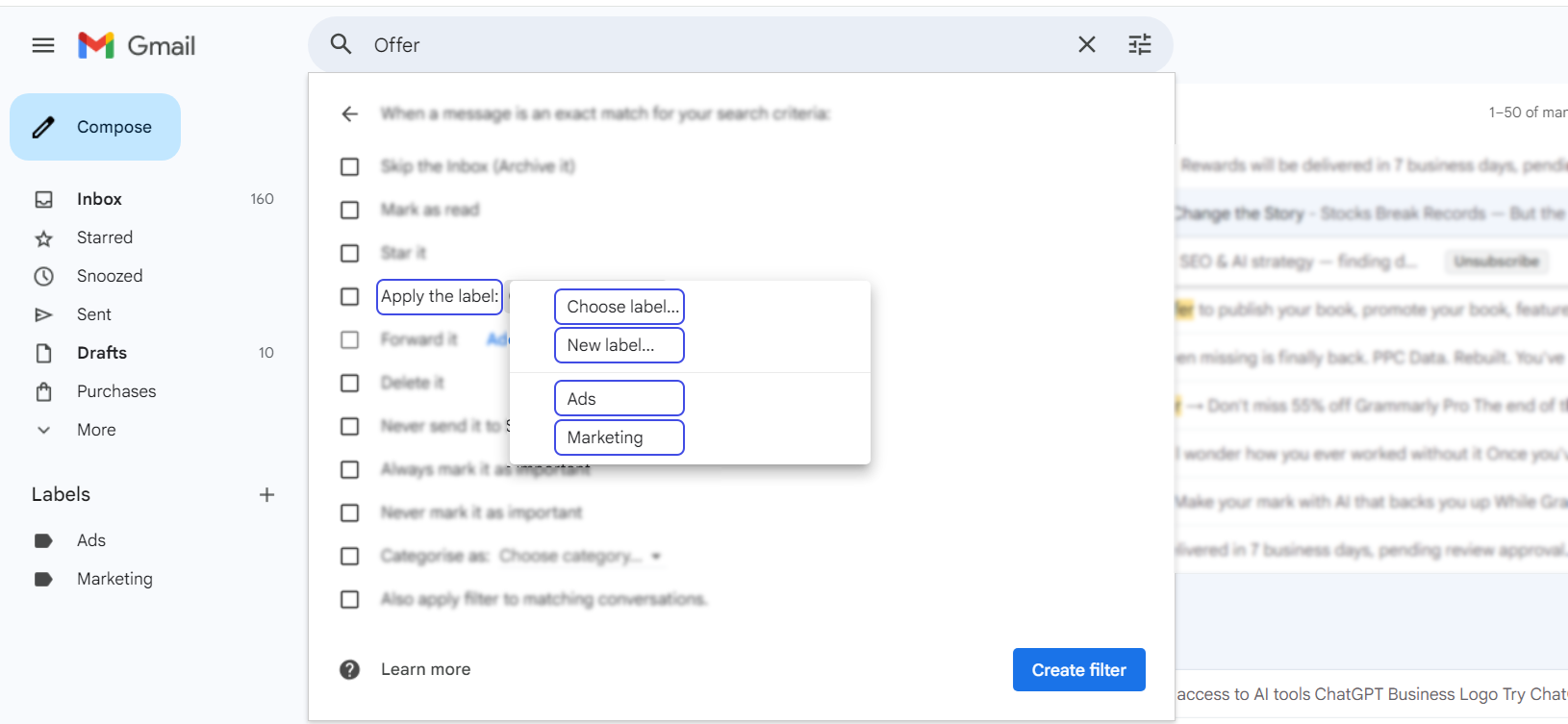
- Enter search criteria (e.g., sender, subject, keywords).
- Click “Create filter”.
- Check “Apply the label” and select your folder.

- Then click on “Create Filter”
With filters in place, Gmail will take care of sorting incoming emails for you, keeping your inbox tidy and free of clutter.
2) How To Move Gmail Emails to a Folder on Android
To move emails to folders on your Android, follow these steps:
- Open the Gmail app.
- Tap and hold the email you want to move.
- Tap the three-dot menu button, then “Move to“.
- Select the right folder (label) from the selection.
You can also create some new labels to categorize emails.
3) How to Move Emails to Folders in Gmail on iPhone
- Open the Gmail app on your iPhone.
- Tap the email you want to move.
- Tap the folder icon and then Move to.
- Select the appropriate label or create a new one.
This helps your emails to sort efficiently.
4) How To Bulk Move Multiple Emails to a Folder
If you need to sort out a lot of emails at one time, here’s how to bulk move them:
- Open Gmail and select multiple emails by checking the boxes next to them.
- Click the Label icon and then Choose folder.
- Click Apply.
- To remove them from the inbox, click Move to → [Label].

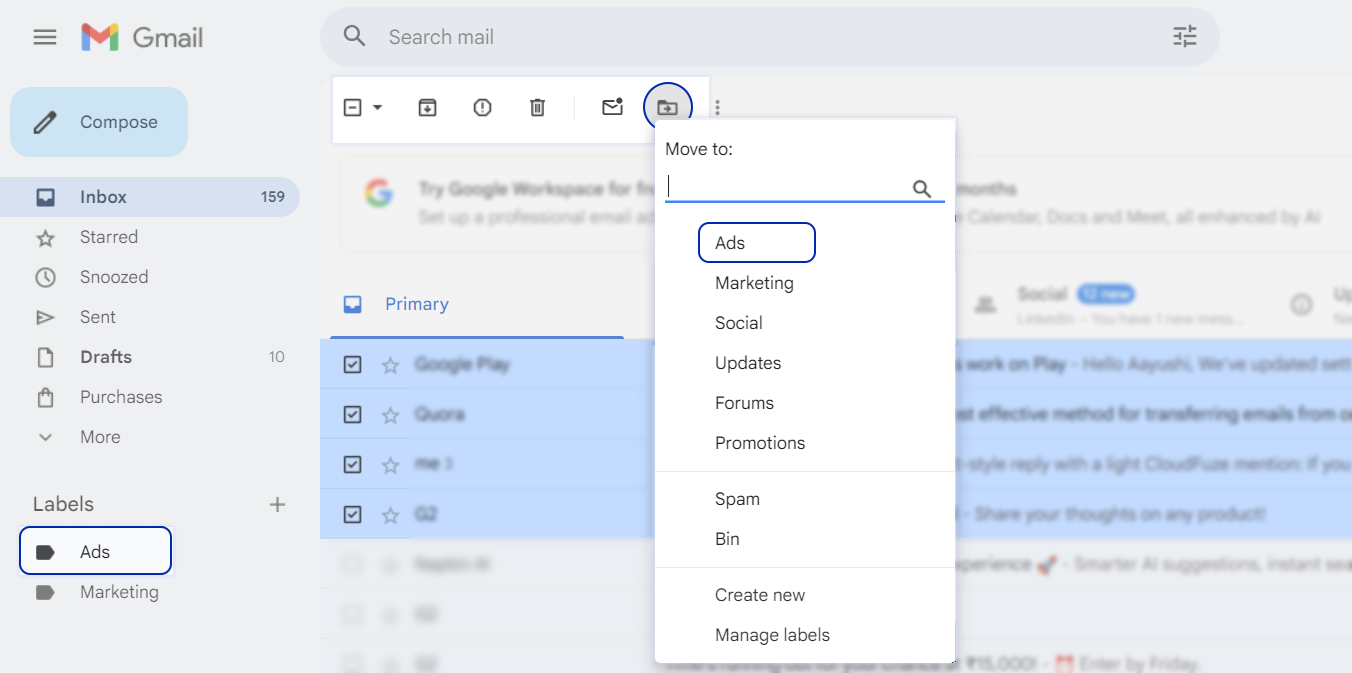
Moving bulk emails is the best when you’re trying to sort through a backlog of messages or categorize a bunch of emails at once.
Start Organizing Gmail Emails Smarter Today
Moving Gmail emails to a folder is important for any effective email management system. Gmail offers flexible options to organize your inbox, sort messages automatically, and manage emails with ease whether you’re working on a desktop, Android, or iPhone.
Begin using labels and filters today to help organize your workflow, reduce clutter in your inbox.
Planning Migration to Gmail?
We at CloudFuze help enterprises migrate from Outlook to Gmail or Gmail to Gmail with complete accuracy and zero disruption. Our enterprise-grade migration tool, CloudFuze Migrate, securely transfers emails, folders, labels, attachments, and metadata while preserving data integrity and business continuity.
Contact us today for a personalized demo and a free enterprise Gmail migration assessment.
Frequently Asked Questions
1. Can I automatically move Gmail emails to a folder?
Yes. You can create Gmail filters based on sender, subject, or keywords to automatically move incoming emails to a specific folder (label) and keep them out of your inbox.
2. Will moving emails to a folder remove them from the inbox?
Yes. When you move emails to a folder using the “Move to” option, they are removed from the inbox and stored under the selected label, while remaining searchable in Gmail.
About the Author: Aayushi Raj



