
Introduction
You can migrate Dropbox to Google Drive using three methods: a third-party migration tool like CloudFuze Migrate, a manual download and upload approach, or Google’s native data transfer options.
For business marketing, large volumes of users and terabytes to petabytes of data, using a dedicated migration tool is the most reliable option. It preserves permissions, timestamps, embedded links, version history, shared links, and more.
Manual migration works for very small transfers but does not preserve rich metadata and context. This guide walks through all three methods, what to prepare, what to watch out for, and how to execute the migration step by step.
You can also watch the migration video below to quickly understand the steps:
Planning Dropbox to Google Drive Migration
Planning is what separates a clean migration cutover from a chaotic one. It is important to focus on these migration planning areas.
A) Pre-Migration Analysis
Audit your Dropbox environment before migrating. Understand the total user count, data volume, folder depth, number of shared links, and any external collaborators who have access to Dropbox content.
This shapes scope, timeline, and the configuration decisions you will need to make in the migration tool. Pay particular attention to Dropbox Paper files and embedded links in documents.
B) Roadmap and Timeline
Build a migration roadmap that breaks the project into phases, including pre-migration setup, test migration, one-time migration, delta migration, and post-migration validation. Set realistic timelines based on your data volume and the 750 GB per user per day Google upload limit.
For larger organizations, a phased migration by department or business unit reduces risk compared to migrating everyone simultaneously.
C) Stakeholder and User Communication
Keep users informed about the migration timeline, what will change, and what will not. Users working from embedded Dropbox links in documents or spreadsheets need to know those links will be remapped. Also, IT managers should have a clear escalation path for post-migration issues.
Preparing for The Migration
Similar to having a proper plan, ensuring complete preparedness is key to making the entire migration journey a resounding success! Here are some mission-critical preparation steps you must take:
A) Choosing the Right Tool
Evaluate migration tools against your specific requirements: users, data volume, compliance needs, and during migration and post-migration support availability.
B) Creating User Mapping
User mapping defines which Dropbox account migrates to which Google Workspace account. CloudFuze offers two options:
Auto-mapping matches accounts automatically based on email addresses. It is fast and works well when Dropbox and Google Workspace accounts share the same email aliases.
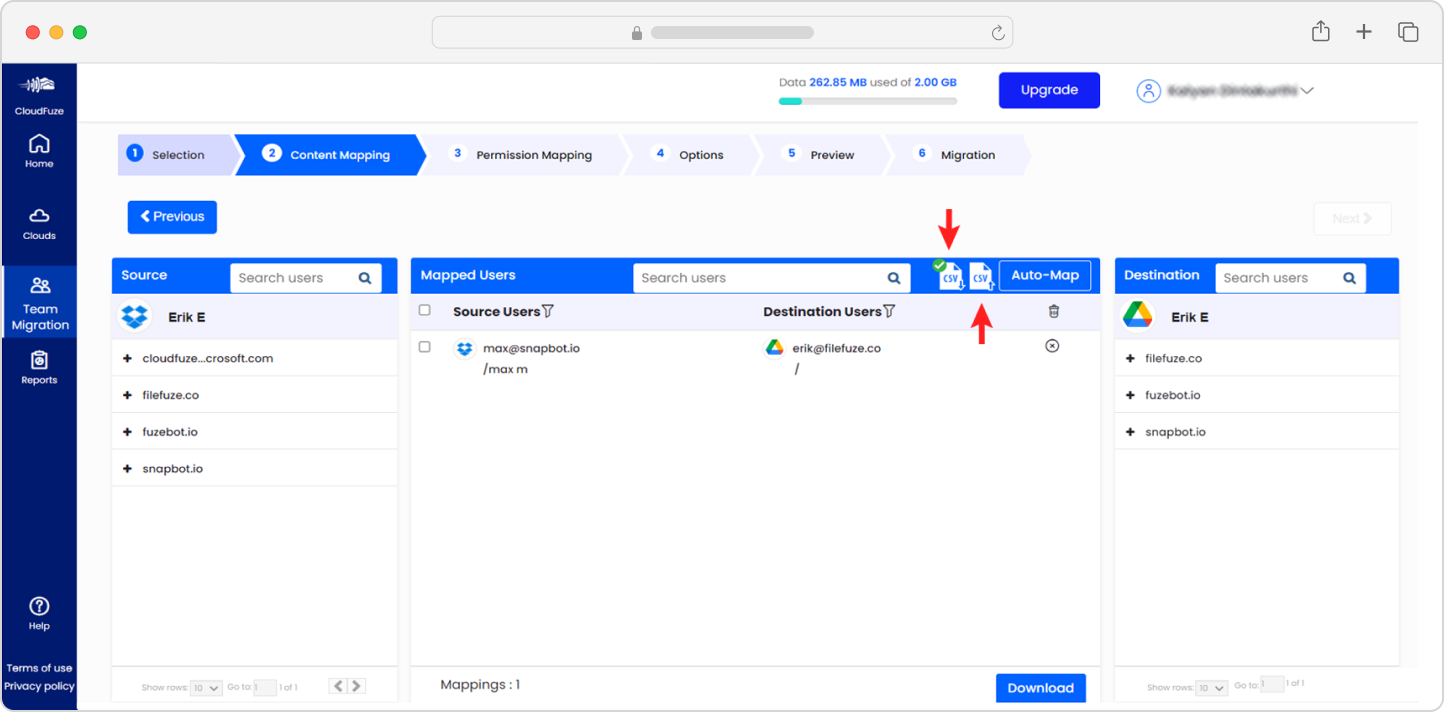
CSV mapping lets IT admins build custom migration pairings manually. This is useful when email addresses differ between source and destination clouds, when accounts are being consolidated, or when certain users need to be excluded from migration.
Prerequisites for Dropbox to Google Drive Migration
To transfer files from Dropbox to Google Drive, you need to have these credentials:
- Dropbox Business account admin login credentials
- Google Workspace admin login credentials
- CloudFuze account login credentials
Dropbox to Google Drive Migration Steps
Here are the simple steps to transfer files from Dropbox to Google Drive account using CloudFuze.
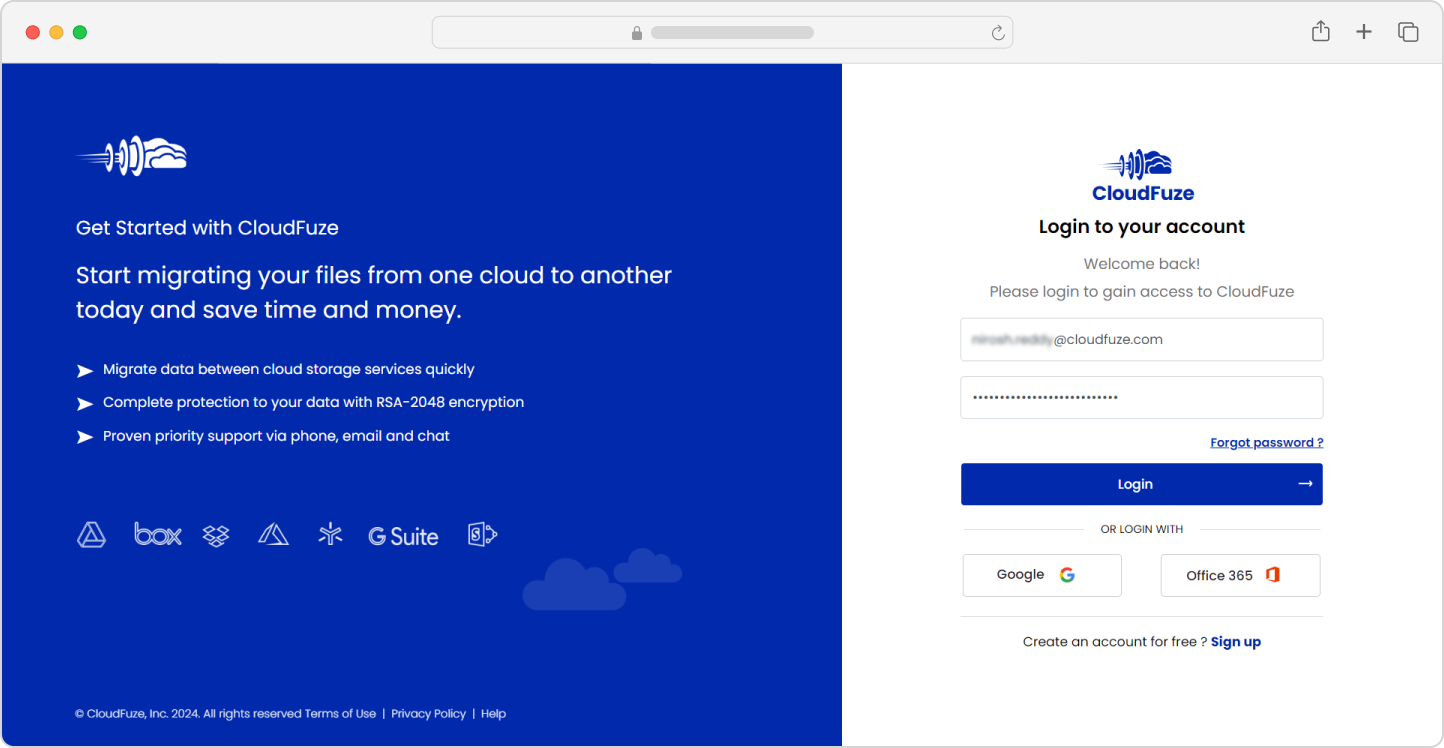
Step 1: Sign in to CloudFuze
The first step to transfer files from Dropbox to Google Drive is to create a CloudFuze account. You can contact us for an assisted trial or live demo.
Step 2: Add and Authorize Your Company’s Dropbox Account
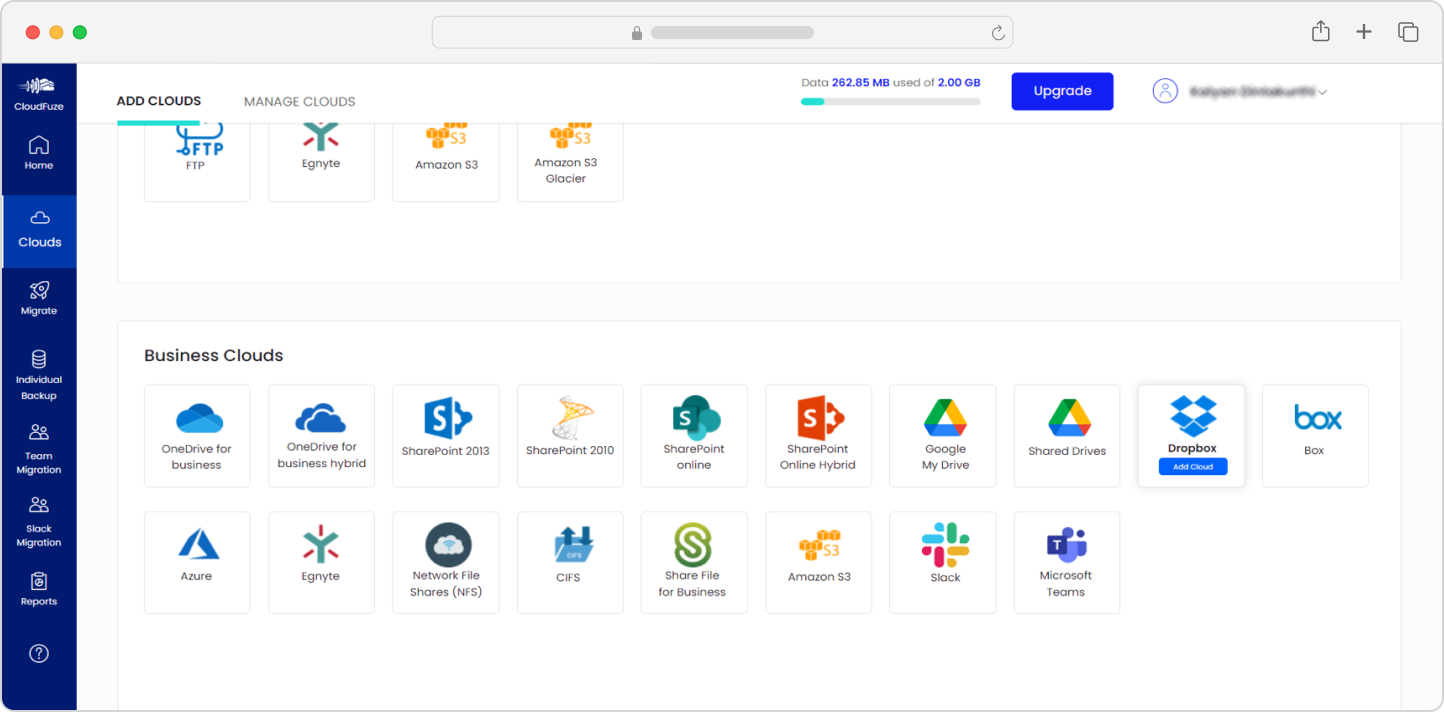
Now, locate the Dropbox logo in the list of business clouds and click on it. Since you are representing your organization to migrate from Dropbox to Google Drive, you must select the Dropbox option from the business clouds section.
Step 3: Enter Dropbox Admin Login Credentials
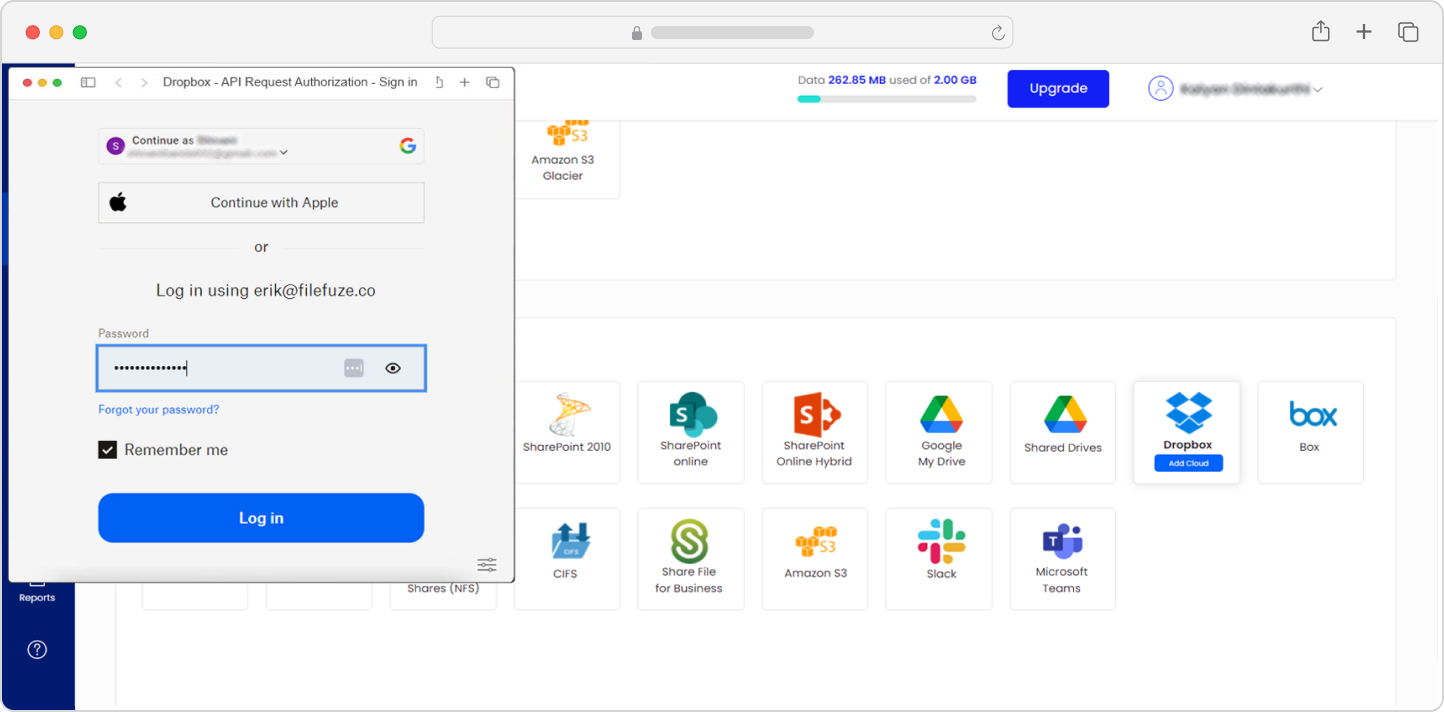
To add a Dropbox account,
- Click on the Dropbox icon under the Business Cloud list
- Enter the email ID associated with the Dropbox account
- Enter the password
- Now, a popup appears. Click on “Accept” and grant permission to CloudFuze
Your destination cloud will be added.
Step 4: Add Google Workspace Account
Another needle-mover step to transfer Dropbox to Google Drive is to configure your company’s Google Drive account in CloudFuze’s migration tool. Click on the Google Drive logo to add your company’s Google Workspace account.
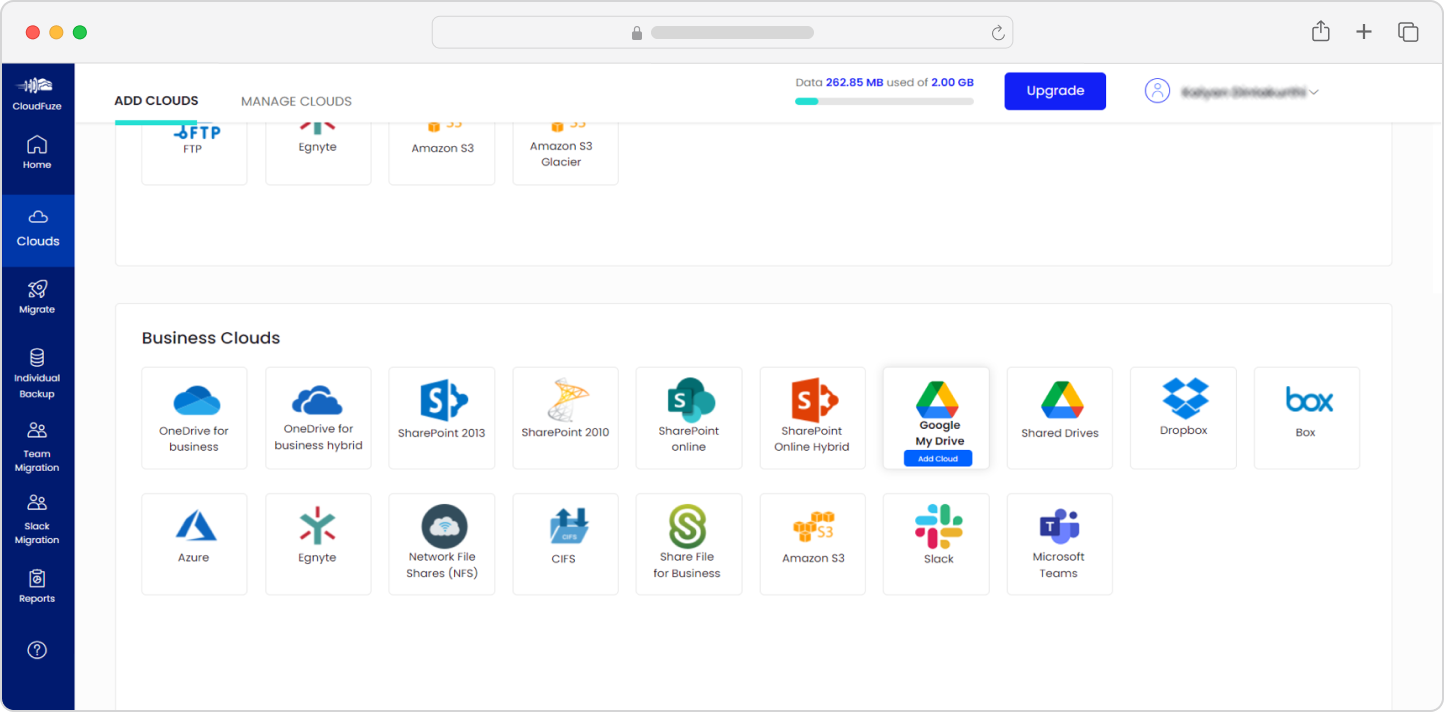
Step 5: Enter Your Company’s Google Workspace Admin Credentials
Enter the admin login credentials of your company’s Google Workspace account and click on the Next button.
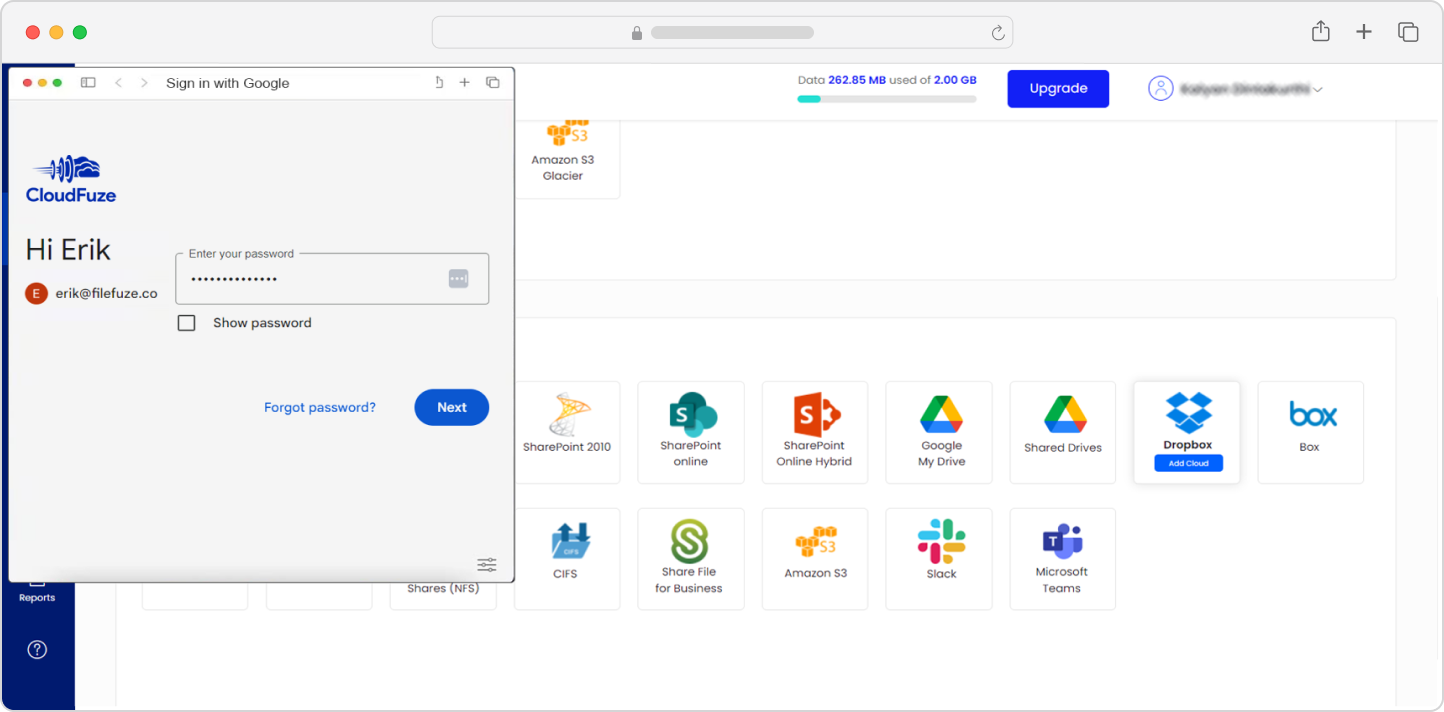
Step 6: Authorize Google Workspace Account
Click on the Allow button to complete the Authorization process.
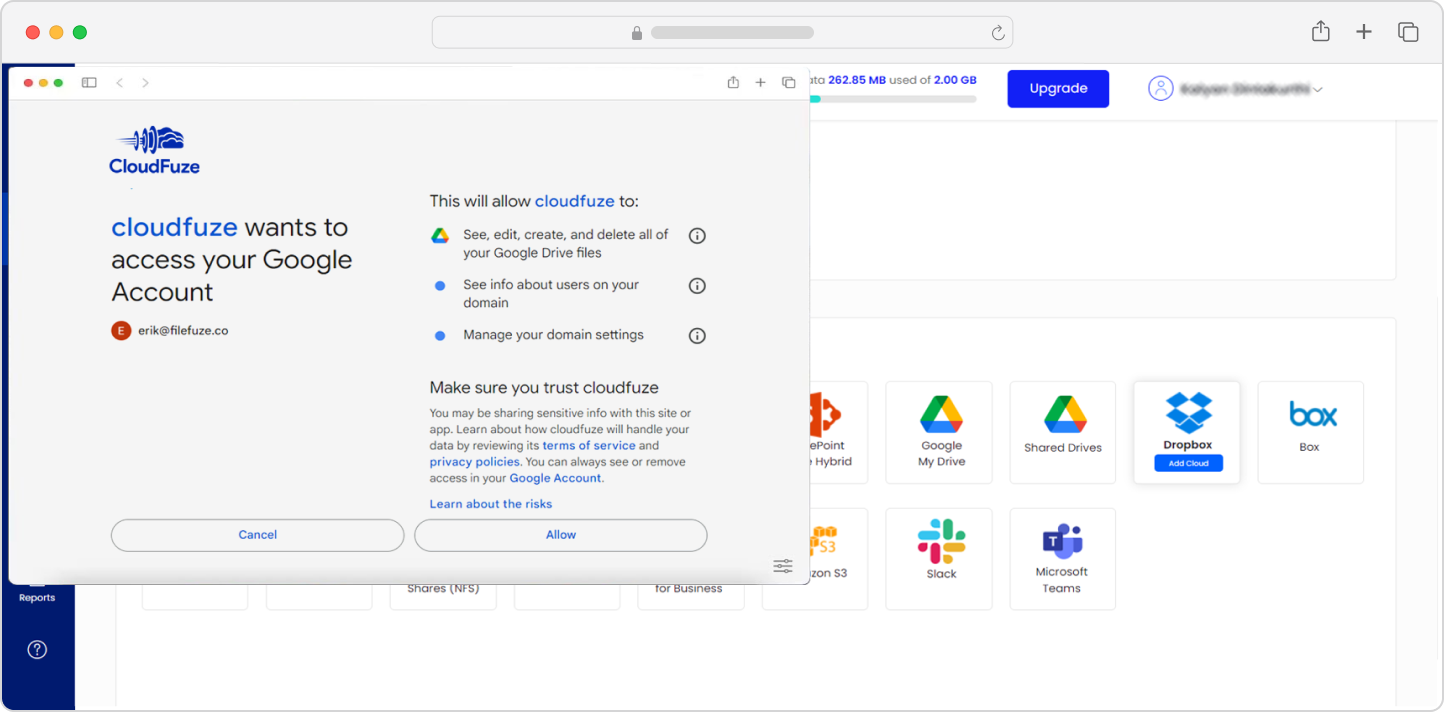
Step 7: Verify Whether Clouds Are Added Successfully
A crucial aspect of initiating the process to move Dropbox files to Google Drive is to ensure both clouds are added successfully. Click on the Clouds icon and check if the recently added Google Drive is listed there. Confirm that both Dropbox and Google Drive are listed under “Manage Clouds.”
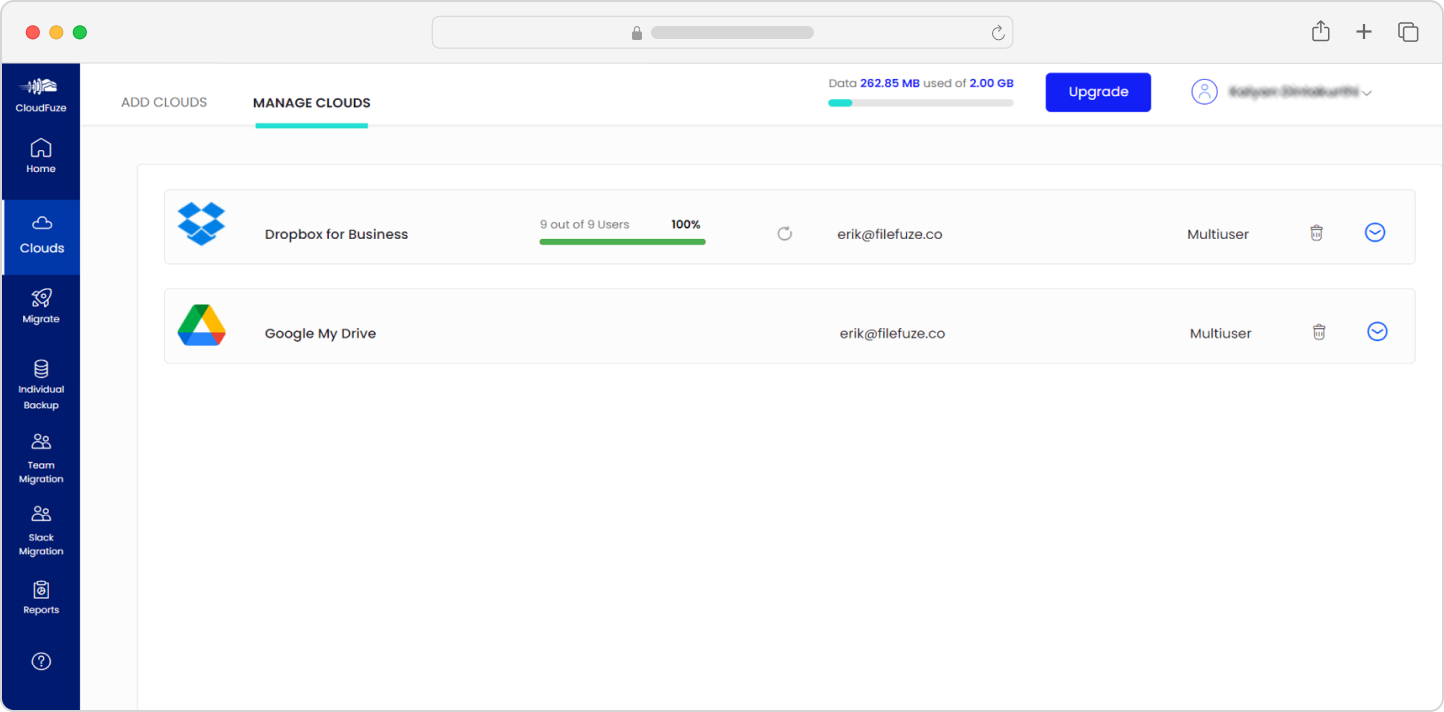
Step 8: Select the Source and Destination Clouds
Click on the “Team Migration” button on the left navigation menu and choose Dropbox as the source cloud and Google Drive as the destination account. Ensure that you select source and destination accounts accurately to migrate from Dropbox to Google Drive and not the other way around.
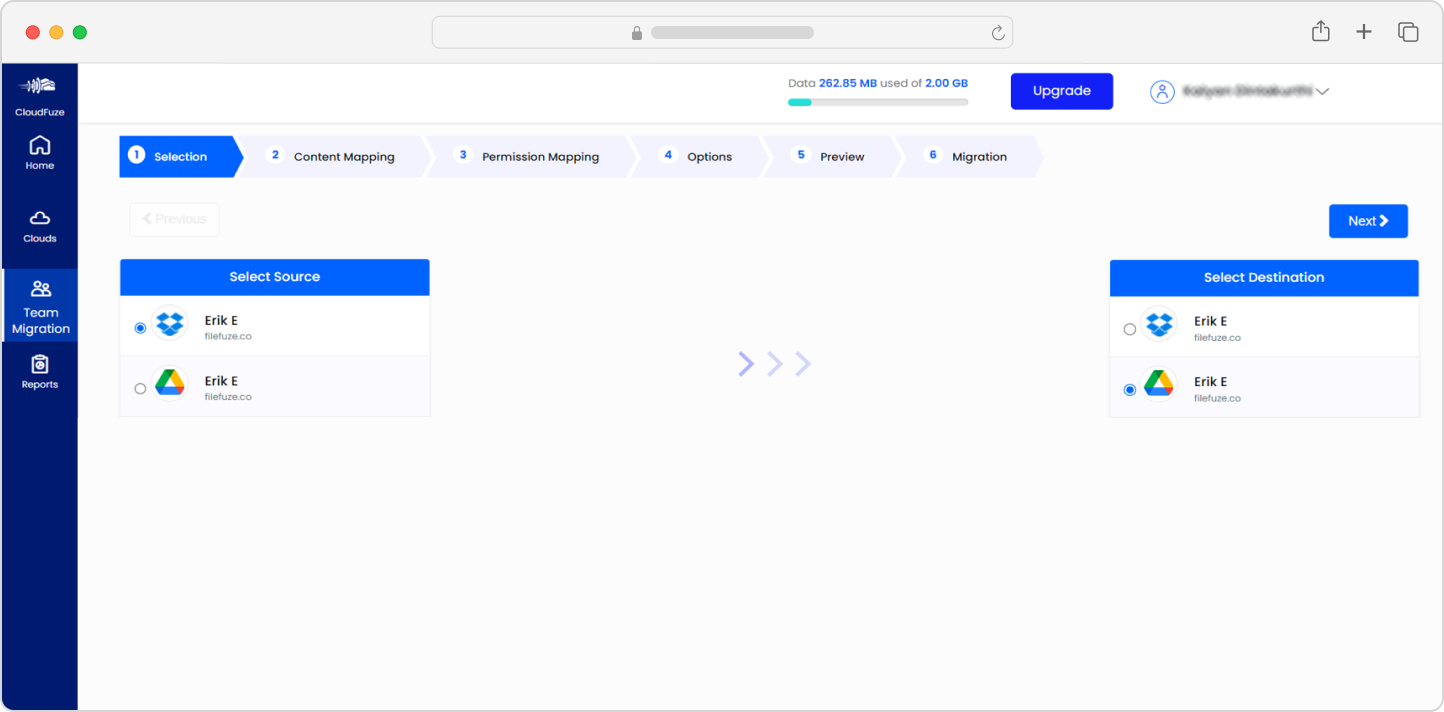
Step 9: Map Dropbox and Google Drive Users
Select Dropbox and Google Drive users to migrate the data. You can use the Automap function or the CSV method to map users in the source and destination cloud accounts.
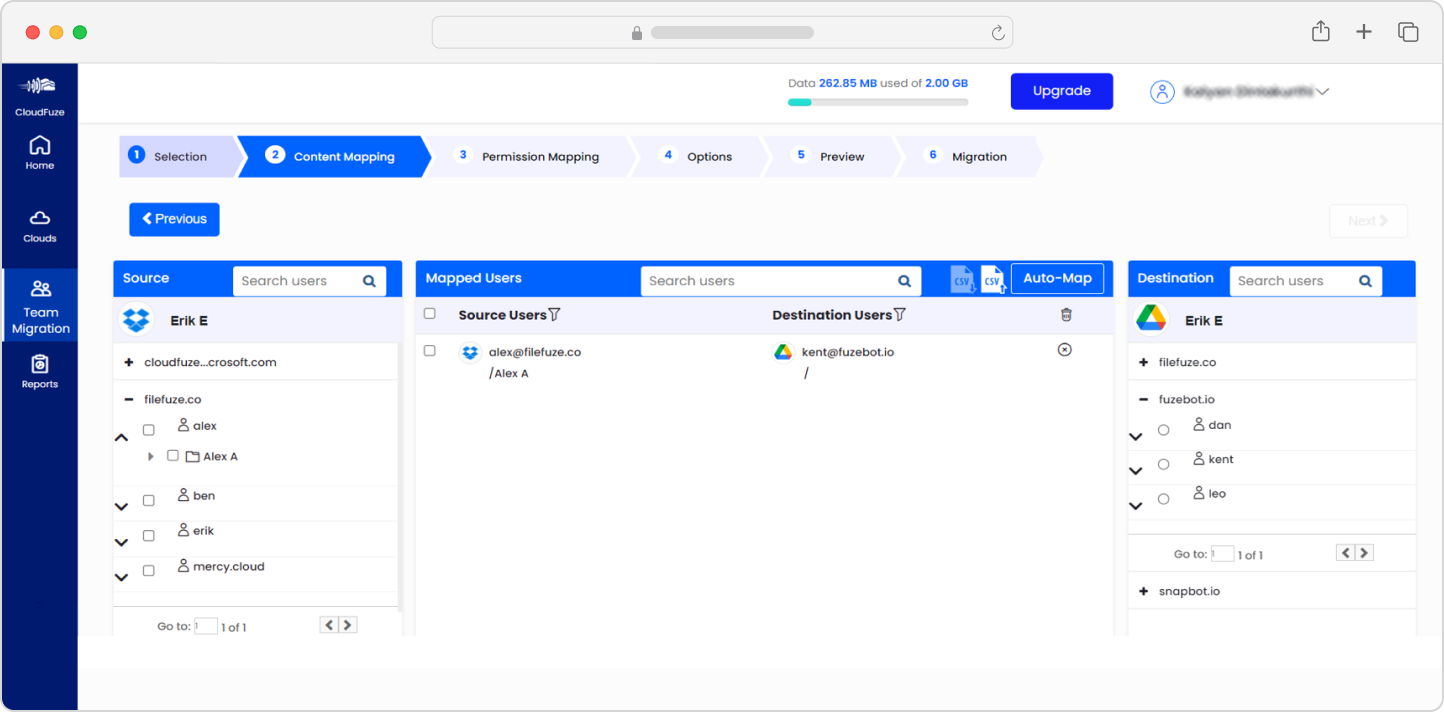
Step 10: Select the Automap Option
Automap is a great option to easily migrate data from Dropbox to Google Drive as it maps user accounts in Dropbox and Google Drive accounts based on their username/email aliases. To continue migration:
- Click on the Auto-map button to auto-map all the users in the source and destination clouds with the same alias. The auto-map feature will not pair two users unless their email alias matches.
- Select the mapped user pairs you want to delete under Mapped users and click on the delete icon.
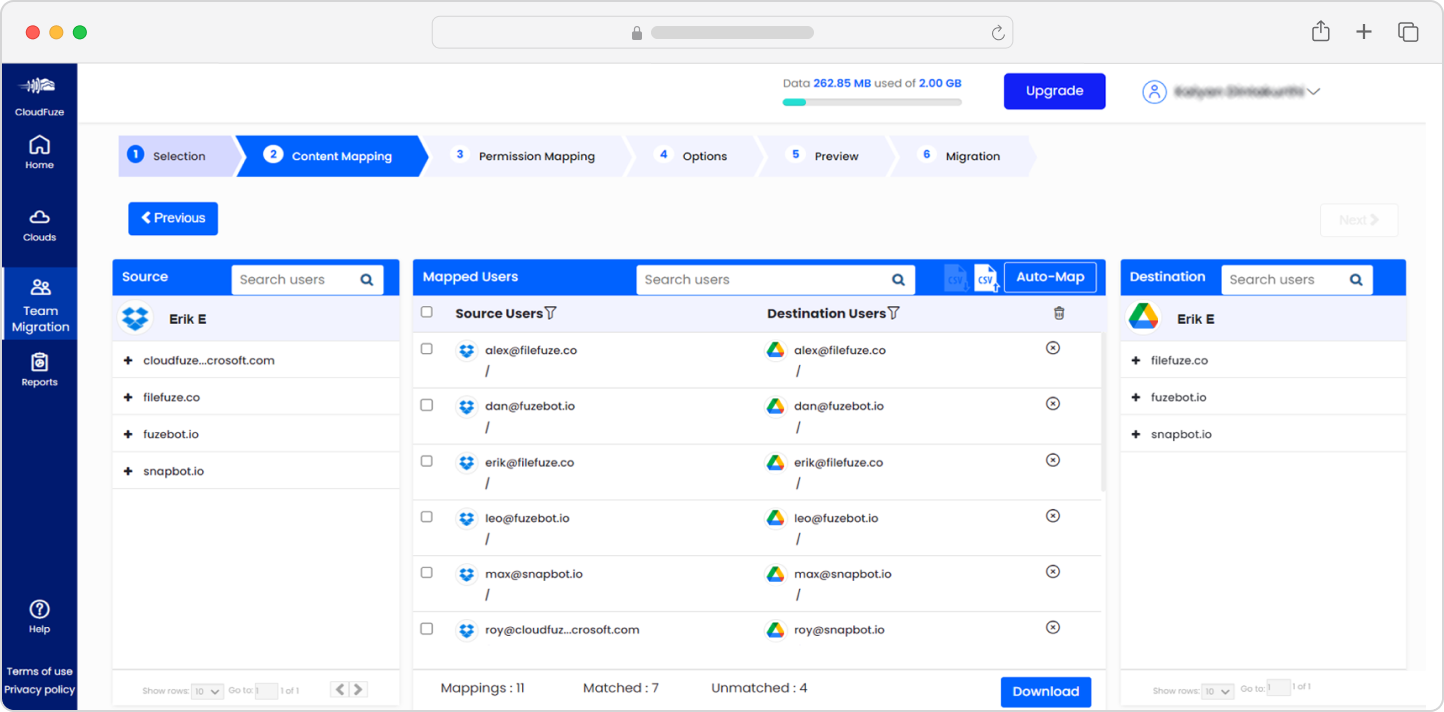
Step 11: CSV Mapping Method (Automap Alternative)
CloudFuze also provides a CSV option as an alternative to Automap that allows IT admins to create custom migration pairs and transfer data from Dropbox to Google Drive.
Step 12: Choose One-Time Migration First
In “Job Type,” select “One Time” to copy Dropbox to Google Drive entirely. After the One-time migration is complete, initiate delta migration to transfer all the incremental changes.
In other fields, add more emails in the Additional Notification section to receive migration updates to “multiple emails.” Select “hyphen” or underscore to replace special characters in Job Name.
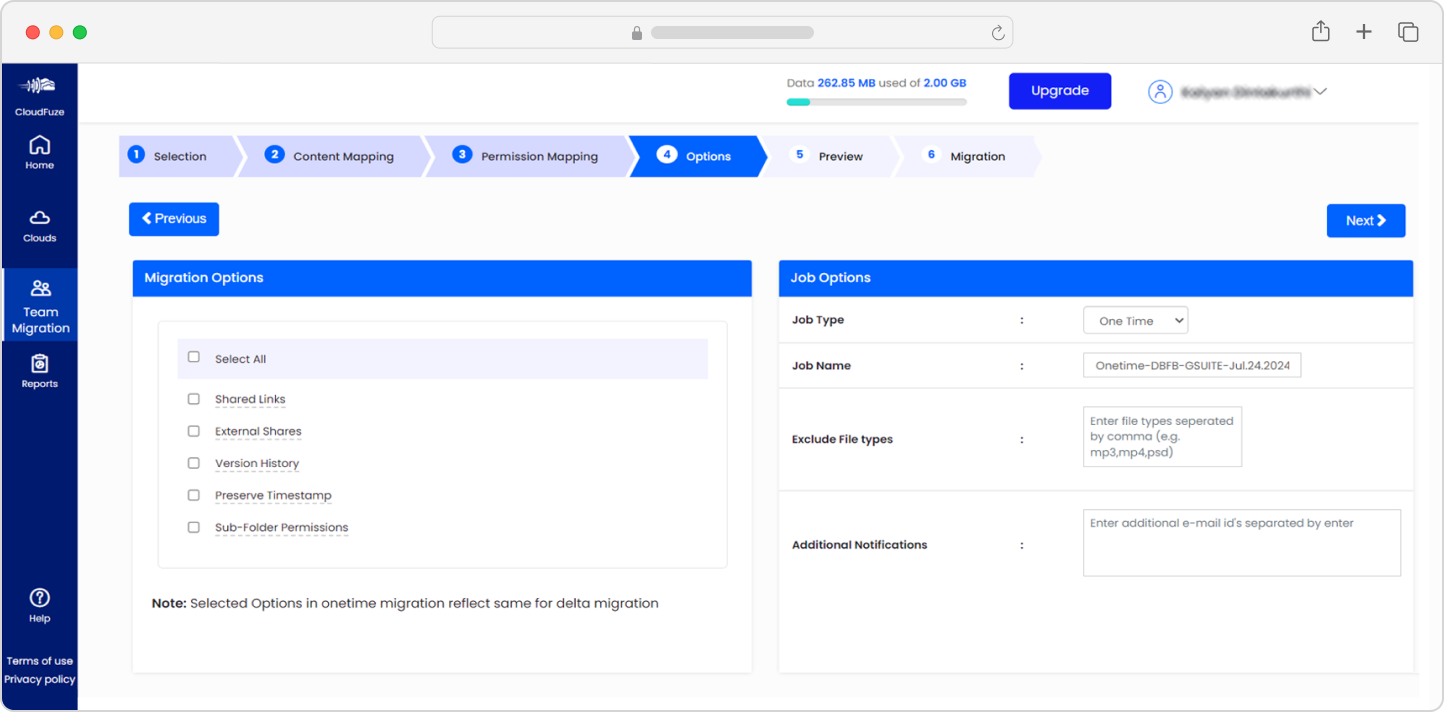
Step 13: Confirm Preview
Once everything is configured, preview the parameters before clicking on the Start Migration button to start the process of migrating Dropbox to Google Drive.
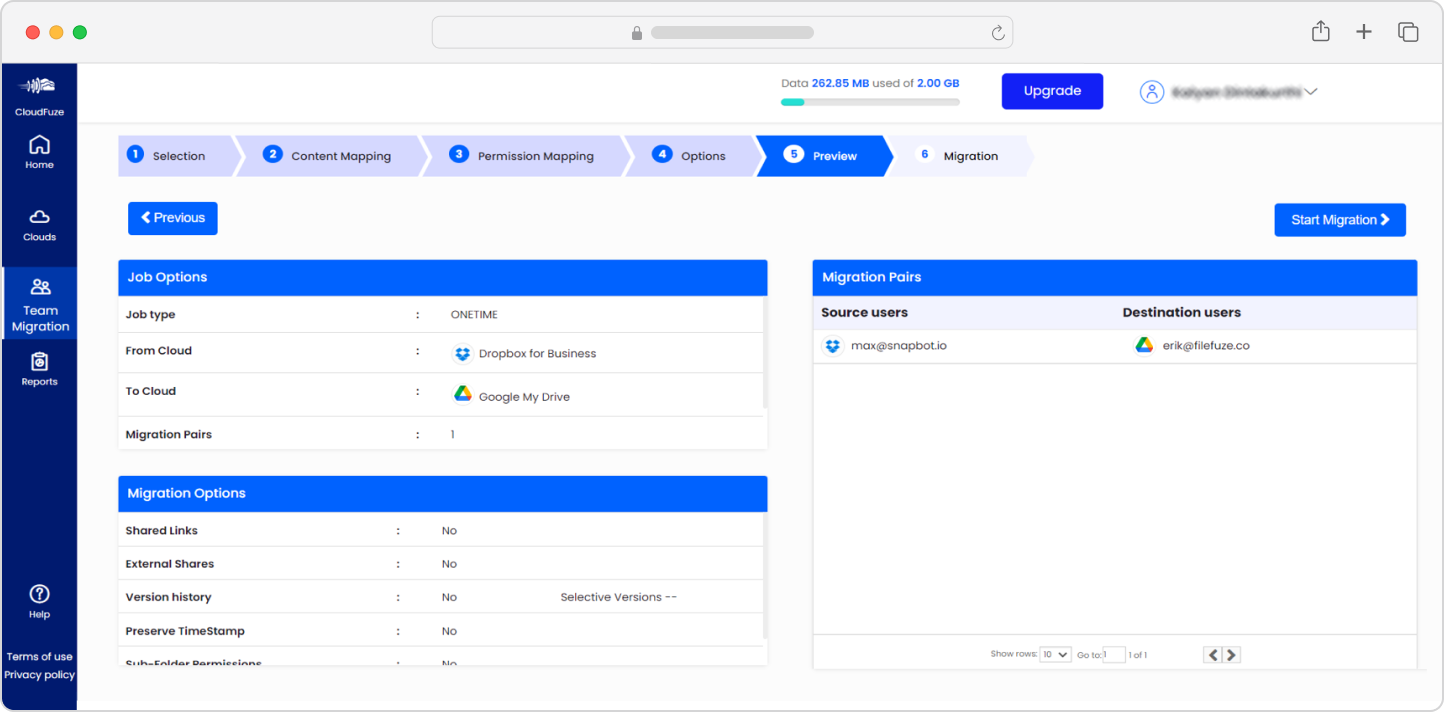
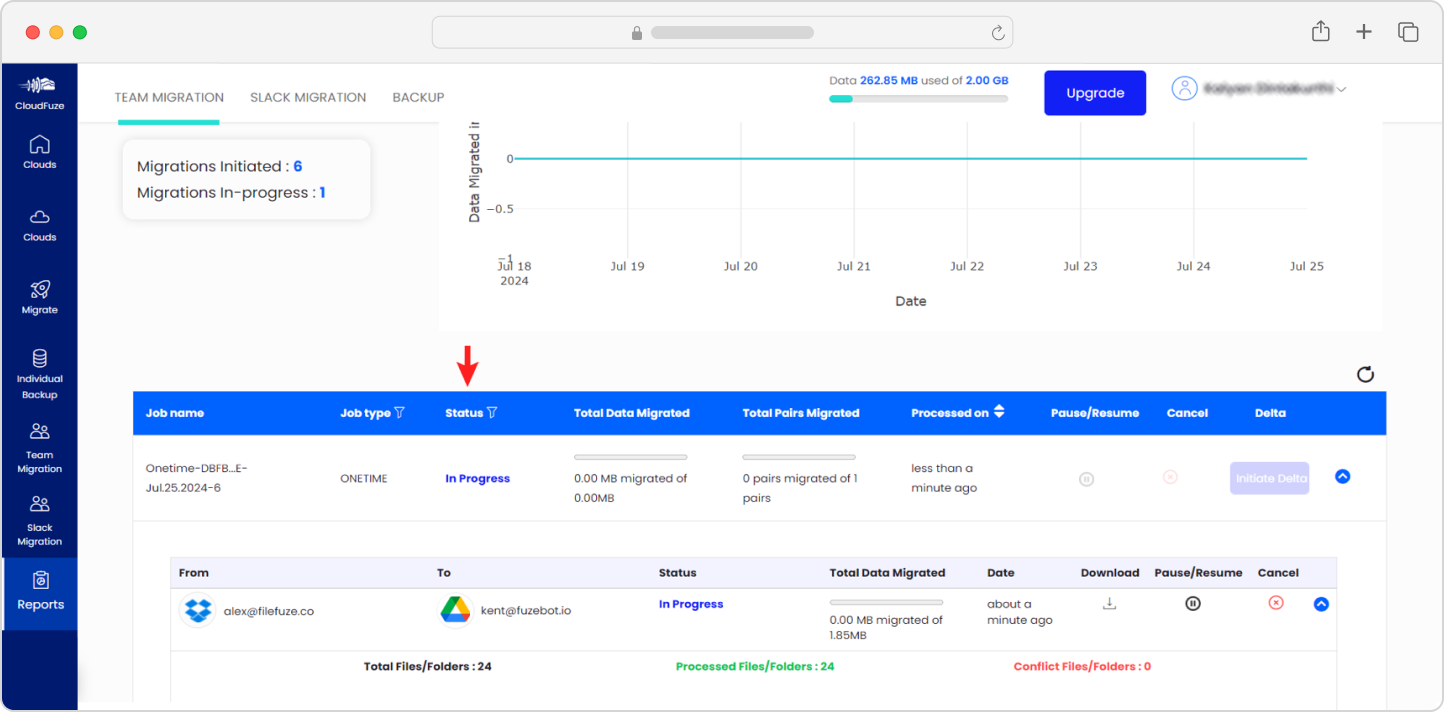
Step 14: Monitor the Dropbox to Google Drive Migration Status
After initiating the migration, you will be redirected to the Reports dashboard. The “In Progress” status indicates that the migration is currently under process.
The migration may take anywhere from a few minutes to a few hours, depending upon the size of the data.
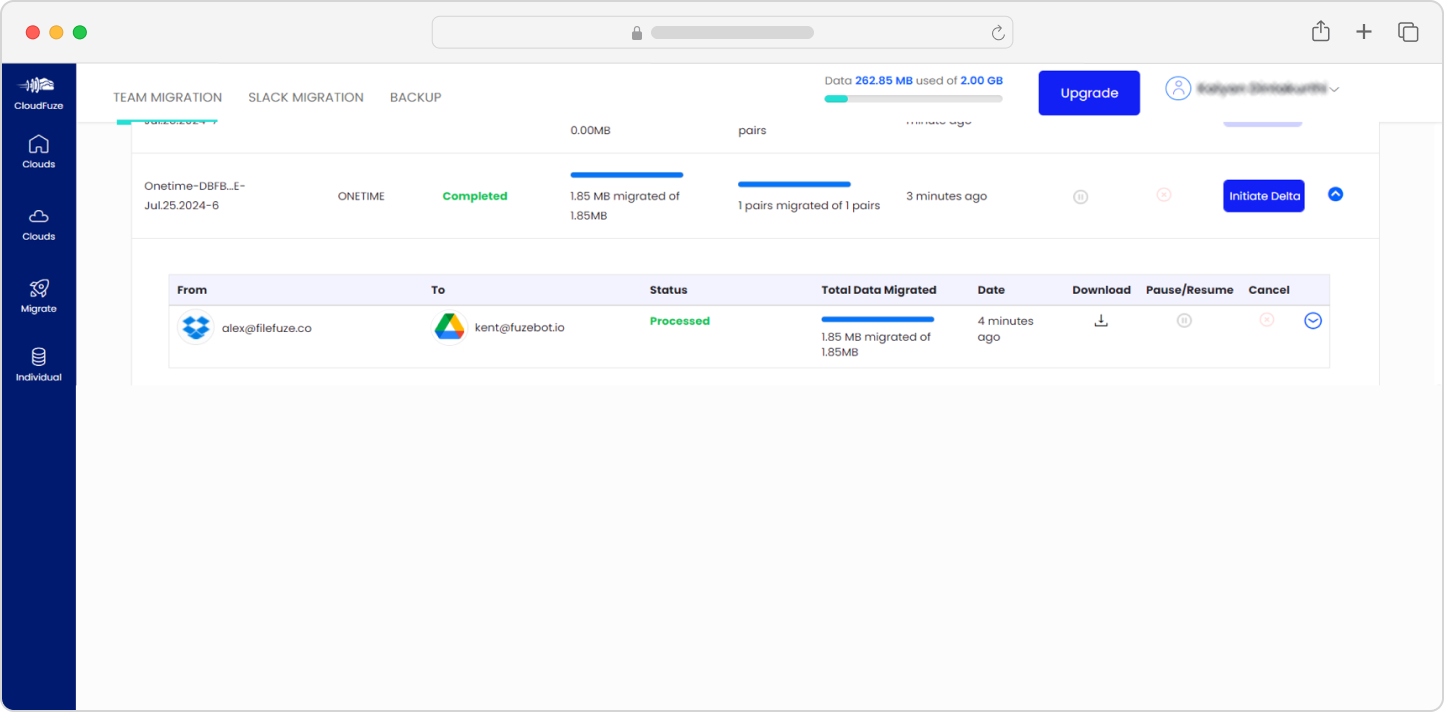
Step 15: Check for the Migration Completion Status
The status turns “Processed” once the migration is completed successfully. You will also be able to view each file and folder’s status and details, such as size and the current time, to the registered email.
Dropbox to Google Drive Migration Case Studies
CloudFuze has helped organizations across industries complete Dropbox to Google Drive migrations at enterprise scale.
Front (Software Tech Company):
Front needed to fully consolidate into Google Workspace, which required migrating a large volume of users and data from Dropbox, with the bulk of the content being Dropbox Paper files.
CloudFuze migrated all users and all Dropbox paper files and converted them into Google-supported formats while preserving permissions and metadata. Read the full Front case study.
The Washington Post (1,500+ Users, 240+ TB Data):
CloudFuze managed the Washington Post’s migration of over 1,500 users and more than 240 TBs of data from Dropbox to Google Workspace. The result was an on-time completion of the migration project with zero data loss. Read the Washington Post case study.
Browse all CloudFuze case studies for more migration examples across industries and data volumes.
Dropbox to Google Drive Migration Challenges
Data migration is a complex undertaking, and Dropbox to Google Drive migrations have a specific set of challenges that IT teams consistently run into.
A) Migrating large volumes of files without data loss
Migrating large numbers of user accounts and terabytes of data without missing out on any files or corrupting folder structures requires a tool with robust error detection and retry logic. Human error in a manual migration scales badly.
B) Nested folder structures
Deeply nested folder hierarchies in Dropbox need to map cleanly to Google Drive’s structure. Long folder paths (a common issue in Dropbox environments) can exceed character limits and cause migration failures if there is no proper handling setup in place.
C) File sharing permissions
Permissions in Dropbox do not directly translate to Google Drive without interpretation. Owner, Editor, and Viewer roles map across but nested folder permissions and external shares require careful configuration.
D) Rich metadata and context
Version history, timestamps, comments, and Dropbox Paper files are invisible to a simple upload. Preserving these requires a tool that reads and writes metadata and contextual properties explicitly.
E) Shared and embedded links
Documents with hyperlinks pointing to other Dropbox files will break if those links are not remapped during migration. This is one of the most overlooked migration failure points.
F) Security and compliance during transit
Sensitive data is in motion during migration. Businesses in regulated industries, such as healthcare, finance, legal, and government, need to ensure their migration processes meet the same compliance standards as their storage environment.
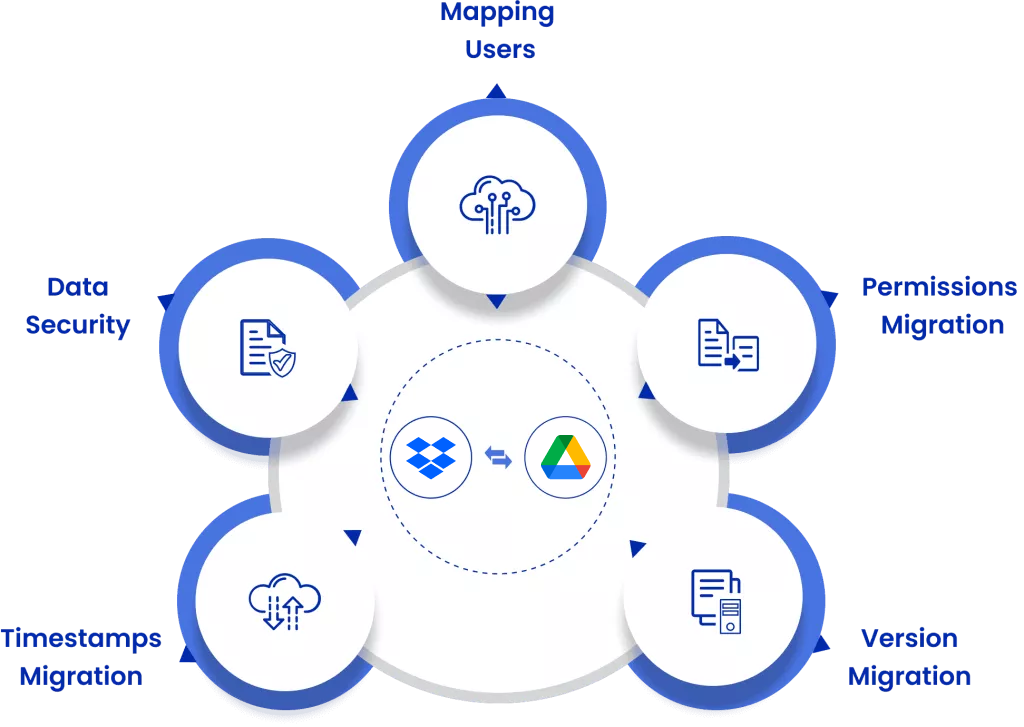
CloudFuze handles all of the above challenges in a managed migration model with zero data loss and no downtime for your users.
Dropbox vs. Google Drive: What Actually Changes
Before you migrate, it helps to understand what is genuinely different between the two platforms, because those differences shape what you need to preserve.
| Feature | Dropbox | Google Drive |
|---|---|---|
| File storage | Yes | Yes |
| Native document editing | No (relies on third-party apps) | Yes (Docs, Sheets, Slides) |
| Collaboration suite | Limited | Full Google Workspace suite |
| AI integration | Basic | Deep (Gemini, NotebookLM, Vertex AI) |
| Shared Drive support | Shared team folders | Shared Drives with granular permissions |
| Admin controls | Business-level controls | Extensive Workspace Admin Console |
| Storage pooling | Per-user | Pooled across org (Business plans) |
| Third-party integrations | Strong | Strong + native Workspace ecosystem |
When you move from Dropbox to Google Drive, Dropbox Paper files need to be converted to a Google-supported format (.docx). Shared links and embedded hyperlinks need to be remapped.
File permissions need to be translated from Dropbox’s Owner/Editor/Viewer model to Google Drive’s equivalent. A migration tool handles all of this automatically while a manual approach does not.
Explore the full Dropbox vs Google Drive comparison.
What Are the Different Methods to Migrate Dropbox to Google Drive?
There are three practical approaches to migrating from Dropbox to Google Drive. The right one depends on the size of your organization and what you need to preserve.
Method 1: Third-Party Migration Tool (Recommended for Businesses)
Using a dedicated tool like CloudFuze Migrate is the most comprehensive way to migrate Dropbox to Google Drive. It handles bulk user migrations, metadata preservation, permissions mapping, hyperlink migration, and Dropbox Paper conversion in a managed and auditable process.
A third-party tool is the right call when you have a sizeable number of users, need to preserve version history and timestamps, have shared and embedded links, or need to meet a compliance or governance standard. CloudFuze is a Google Cloud migration partner and supports one-time and delta migrations, and makes it possible to keep users working in Dropbox right up until cut over.
Method 2: Manual Migration (For Very Small Transfers)
Manual migration means downloading files from Dropbox and uploading them to Google Drive. This is only practical for individual users with a small number of files and no shared permissions to carry over.
Limitations to be aware of: no version history is preserved, file modification timestamps reset to the date of upload, shared permissions are not carried over, hyperlinks break, and Dropbox Paper files are not converted automatically.
Method 3: Google’s Native Transfer Options
Google provides some built-in pathways for data transfer that are worth knowing about, especially for organizations already in the Google ecosystem or for individual users looking for a no-cost option.
Google Takeout allows you to export data from Google services, but it works in the opposite direction (exporting from Google, not importing into it). For bringing Dropbox data into Google Drive, this is not the right tool.
Google Workspace Data Migration Service is built primarily for Gmail and Calendar migrations, not for Dropbox file content. It does not cover Dropbox-specific file types or permissions.
Third-party import via Google Drive’s “Upload” function is essentially the manual method described above, done through the Google Drive interface directly.
For most businesses migrating from Dropbox to Google Drive, there is no native Google tool that handles the full scope of what a third-party migration solution covers. Google’s own tools are optimized for migrations within the Google ecosystem, not cross-platform transfers from Dropbox.
How Does Our Dropbox to Google Drive Migration Tool Work?
CloudFuze Migrate reads content from your company’s Dropbox environment and writes it to the destination Google Workspace environment to replicate folder structures, sharing permissions, and file metadata.
Here is how Dropbox file sharing permissions map to Google Drive:
| Dropbox | Google Drive |
|---|---|
| Owner | Owner |
| Editor | Editor |
| Viewer | Viewer |
Table: Migrating file-sharing Permissions
The tool supports both one-time and delta migrations. A one-time migration moves the full data set while a delta migration captures incremental changes made in Dropbox during the one-time migration.
This two-phase approach lets users continue working in Dropbox during the migration and minimizes disruption at cutover.
CloudFuze also provides a Hyperlink Fixer tool that remaps embedded links during migration to prevent them from breaking in the destination cloud (Google Drive).
CloudFuze vs Competitor Migration Tools
| Migration Features | CloudFuze | Other Migration Tools |
|---|---|---|
| One-time migration | Yes | Yes |
| Delta Migration | Yes | Yes |
| Sharing permissions | Yes | Yes |
| Hyperlinks (embedded links) | Yes | No |
| Dropbox Paper migration | Yes | No |
| Full and selective versions migration | Yes | No |
| Timestamps | Yes | Yes |
| Versions | Yes | No |
| External shares | Yes | No |
| Long folder path resolution | Yes | No |
| Unsupported character resolution | Yes | No |
| Email notification suppression | Yes | No |
File Types and Size Limitations
Understanding what can and cannot be transferred before you start saves significant rework along the way.
A) Supported file types
CloudFuze supports all standard file types stored in Dropbox, including documents, spreadsheets, PDFs, images, videos, and more. Dropbox Paper files (.paper format) are converted to.docx format during migration and are transferred as Word documents to Google Drive. The users can then open them and edit in Google Docs.
B) Google Drive size limits
Google Drive enforces a 5 TB per file size limit. Files exceeding this size need to be split before migration. Google also limits uploads to 750 GB per user per day, which affects the overall migration timeline for very large datasets.
C) File name and path restriction
Google Drive does not allow certain special characters in file or folder names. CloudFuze’s special character replacement feature handles this automatically during migration and replaces unsupported characters with either a hyphen or an underscore rather than skipping those files or moving them into conflict status.
Security Considerations When Migrating from Dropbox to Google Drive
Security is a legitimate concern during cloud-to-cloud migration, including Dropbox to Google Drive migration. Here are some of the critical security focus areas and how CloudFuze streamlines them.
A) Data encryption
CloudFuze transfers data over encrypted connections (TLS). Data is not stored on CloudFuze servers beyond what is required for the migration process. You can also deploy CloudFuze’s migration tool in your organization’s own on-premise infrastructure if your compliance requirements prohibit data transiting third-party cloud infrastructure.
B) Admin credentials security
The migration requires Dropbox Business admin credentials and Google Workspace admin credentials (username and password). It is important to ensure secure handling of these credentials as part of ensuring proper security.
C) Data residency
If your organization has data residency requirements (for example, EU data staying within EU infrastructure), it is important to ensure that the migration deployment model meets those requirements before the project kicks off.
Migrate from Dropbox to Google Drive Successfully with CloudFuze
Now that you have explored all the planning and execution steps, we recommend seeing it in practice. We would be happy to offer you a free demo and consultation to get more insight and make informed decisions. Contact us today.
Frequently Asked Questions
1. Can I transfer files from Dropbox to Google Drive for free?
Yes, you can transfer files manually by downloading from Dropbox and uploading to Google Drive at no additional cost, but this does not preserve permissions and other context and metadata. For business migrations that need metadata intact, using a dedicated migration tool like CloudFuze is the right approach.
2. How do I migrate business data from Dropbox to Google Drive?
For business migrations, the recommended process is to audit your Dropbox environment, configure your source and destination accounts in CloudFuze, map your users, run a test migration with a subset of users, then execute the full migration, followed by a delta migration for syncing incremental changes. CloudFuze’s migration team provides managed support throughout the process.
3. How does transferring files from Dropbox to Google Drive compare with other cloud migrations?
Dropbox to Google Drive migrations involve some unique challenges compared to other common migrations. Dropbox Paper has no direct equivalent in other storage platforms, so it requires format conversion regardless of destination.
Dropbox’s shared link structures also differ from how OneDrive or Box handles links, which means link migration is a more complex task in Dropbox migrations than in other migration paths.
4. What are the best third-party tools for transferring files from Dropbox to Google Drive?
CloudFuze is a purpose-built enterprise migration tool and a Google Cloud Partner that is suitable for transferring a high volume of files from Dropbox to Google Drive. CloudFuze supports Dropbox Paper migration, hyperlink preservation, permission migration, version history preservation, external shares migration, and more.
5. How long does it take to migrate the data from Dropbox to Google Drive?
The time it takes to move Dropbox to Google Drive depends on the data size, the number of folders, and the number of files. The more the folder and files, the more time is required to transfer the data.
The limitation that only 750 GB of data can be uploaded to Google Drive per day per user also impacts migrating time. Besides that, CloudFuze has the bandwidth to migrate a high volume of data quickly without any performance compromises. as quickly as possible without slowing down.
6. Is CloudFuze safe?
We, as a company, know how important data is and follow the standards and best practices to ensure your data is safe and secure while migrating from one cloud (Dropbox) to another (Google Drive). Read more about our security.
7. Is it possible to migrate data from Dropbox to Google Drive locally?
Yes, you can deploy our migration tool in your organization’s on-prem infrastructure to perform the migration locally without using cloud-based/shared servers.
8. Can I back up/sync Dropbox Business data to Google Drive?
Yes, CloudFuze helps you to move your backup Dropbox business data to Google Drive or sync it regularly.
9. Can I transfer files from Dropbox to Google Drive manually?
Yes, you can transfer the files by downloading and uploading the data. But, as a business, your team works on the files collaboratively by sharing the files. Multiple people work on the same document, which holds valuable version history and adds comments in the documents and sheets. You will be missing all these features when you try to migrate the data manually.
10. Is it possible to move Dropbox files to Google Drive along with Dropbox Paper?
Yes. At CloudFuze, we make it simple and cost-effective for businesses of all sizes and industries to transfer Dropbox Paper files to Google Drive and Shared Drives in . .DOCX format while retaining permissions, metadata, and other features.
11. How does CloudFuze migrate features when copying files from Dropbox to Google Drive?
Our migration tool transfers all the features, including permissions, timestamps, versions, shared links, external links, and embedded links when you migrate files from Dropbox to Google Drive. All you need to do is choose the features you want to migrate to before initiating the migration.
Only a third-party tool like CloudFuze can help you securely migrate all your files and folders and all the other features.
About the Author: Pankaj Rai



