
How To Migrate Direct Messages From Slack To Microsoft Teams

Migrating direct messages from Slack to Microsoft Teams means moving one-on-one chats, along with their files, timestamps, emojis, and @mentions, from Slack into the Teams chat section.
It matters because direct messages hold decisions, file exchanges, and institutional knowledge that your team has built over the years.
Leaving that history behind when you switch platforms means users lose context, workflows break, and productivity takes a hit in Teams post-migration.
This guide covers why DM migration is critical, how Slack and Teams differ in their direct messaging models, what tools can handle it (including why Microsoft's own native tool falls short), and exactly how CloudFuze moves Slack DMs to Teams.
You can also quickly learn about the process in this migration video:
Why is it Important to Migrate Direct Messages from Slack to Teams?
Most organizations focus on channels when planning a Slack to Teams migration, but direct messages carry a significant portion of day-to-day work. One-on-one conversations often contain quick decisions, shared files, approval threads, project notes, and information that never made it to a public channel.
When you move to teams without migrating DMs, a few things happen immediately:
- Users switch platforms but lose access to their conversation history.
- They cannot find files that were shared in private chats.
- They cannot reference decisions made outside of channels.
For compliance-heavy industries like finance, healthcare, and legal, archived direct messages may also be subject to retention requirements, which makes losing them more than just an inconvenience.
Migrating Slack Direct Messages to Teams is not just about preserving chat history. It is also about maintaining operational continuity and protecting internal data during a platform transition.
How Slack and Microsoft Teams Differ in Direct Messaging?
Before you plan a DM migration, it is worth understanding how differently Slack and Teams handle direct message conversations. The two platforms use fundamentally different architectures, and that gap is exactly why migrating DMs is harder than migrating channels.
| Feature | Slack | Microsoft Teams |
|---|---|---|
| Direct message type | One-on-one DMs and group DMs | Personal chats (1:1) and group chats |
| Message storage | Workspace-level storage | Exchange Online mailboxes (hidden) |
| File attachments in DMs | Stored in Slack’s file system | Stored in OneDrive/SharePoint |
| File attachments in DMs | Stored in Slack’s file system | Stored in OneDrive/SharePoint |
| Message threading | Threaded replies in DMs | Threaded replies in chat |
| Emojis reactions | Full custom emoji support | Standard and some custom emojis |
| @mentions in DMs | Fully supported | Fully supported |
| Timestamps | Native to all messages | Native to all messages |
| Export capability | Admin export (Enterprise Grid required for DMs) | Not natively exportable in the same format |
NOTE: The information presented here is based on June 2026 data. They may change as and when Slack and Microsoft update their products.
The key structural difference is where messages live. In Slack, direct messages are workspace-level objects. In Microsoft Teams, chats are tied to individual Microsoft 365 user accounts and stored in Exchange Online.
This architectural gap means you cannot simply import a Slack DM export file into Teams. The data model does not translate directly, which is why most migration tools, including Microsoft’s own native tool, do not support DM migration out of the box.
Is Direct Messages Migration Possible From Slack to Teams?
Importing direct messages is not supported by Teams. So, you must choose a third-party Slack to Teams migration tool that supports direct message migration.
When evaluating any tools for migrating direct messages, verifying these four things before committing:
- Does it migrate one-on-one direct messages?
- Does it preserve attachments, timestamps, mentions, and emoji reactions within DMs?
- Does it support user mapping when email addresses differ between Slack and Microsoft 365?
- Can it migrate direct messages and channel messages without users having to pause their work in Slack?
CloudFuze’s Slack to Teams migration tool is specifically built for migrating direct messages and private and public channel messages while retaining full collaboration context.
How CloudFuze Migrates Direct Messages from Slack to Teams
The process CloudFuze uses for Slack DM migration to Teams is a three-step flow: authenticate users on both sides, select and map compositions, and run the migration. Here is how it works in practice.
Step 1: Authenticate Source and Destination Clouds
All users need to be authenticated in both Slack (source cloud) and Microsoft Teams (destination cloud) before migration starts. By default, the admin account will be authenticated.
To send an authentication request to users, check the box before the email ID and click on the "Authenticate" button present on the top right.
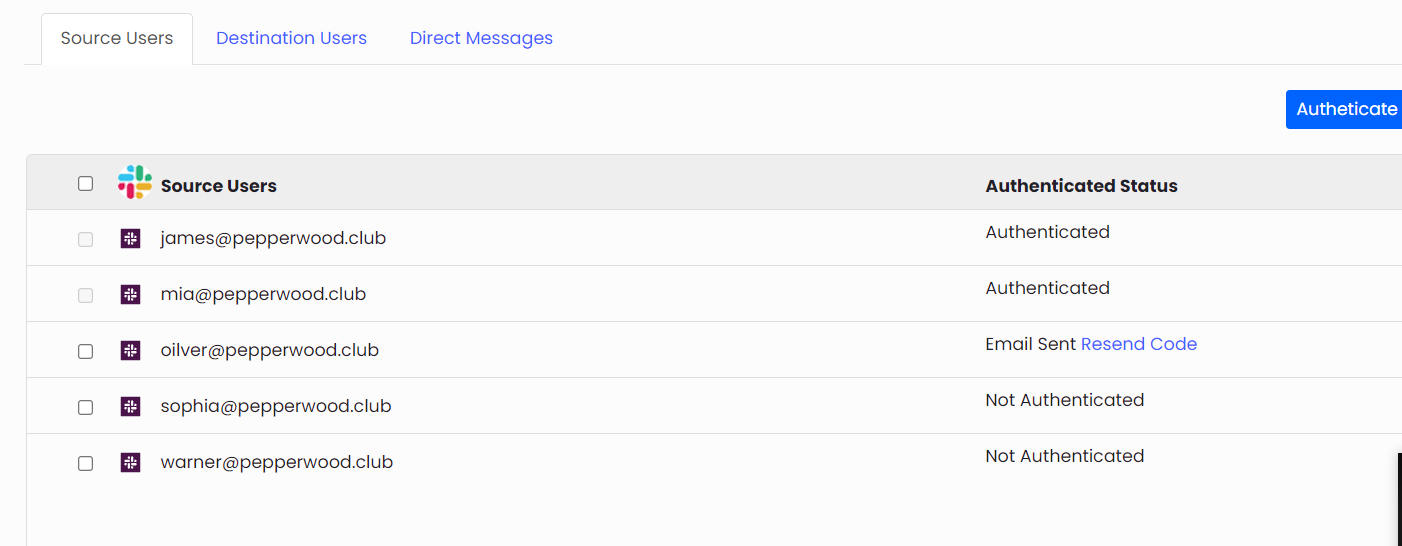
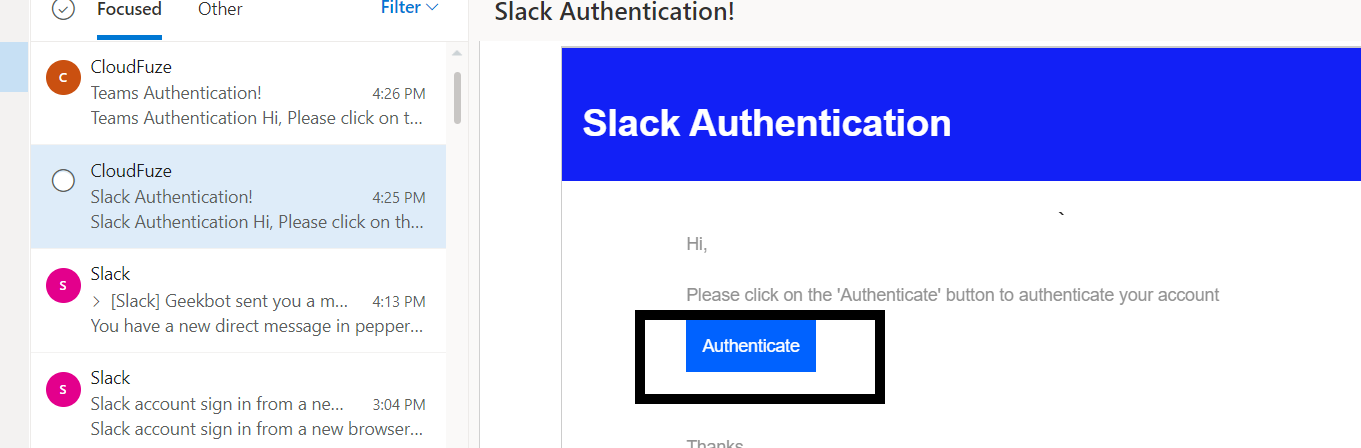
Now, users will receive an email to authenticate their Slack account, as shown in the image below. Clicking on the "Authenticate" button in the email received will change the status on the CloudFuze tool to "Authenticated".
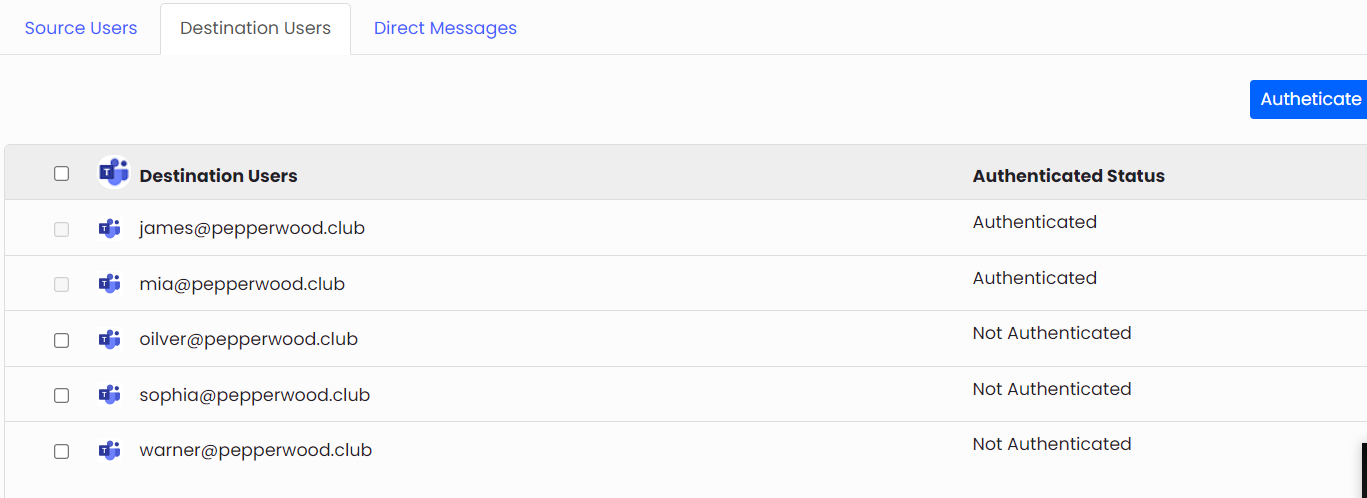
Follow the same process for users in the "Destination Users" tab to ensure proper authentication.
Teams authentication email will be sent to the user (as shown below), and the destination users will be authenticated once they authenticate themselves from the email.
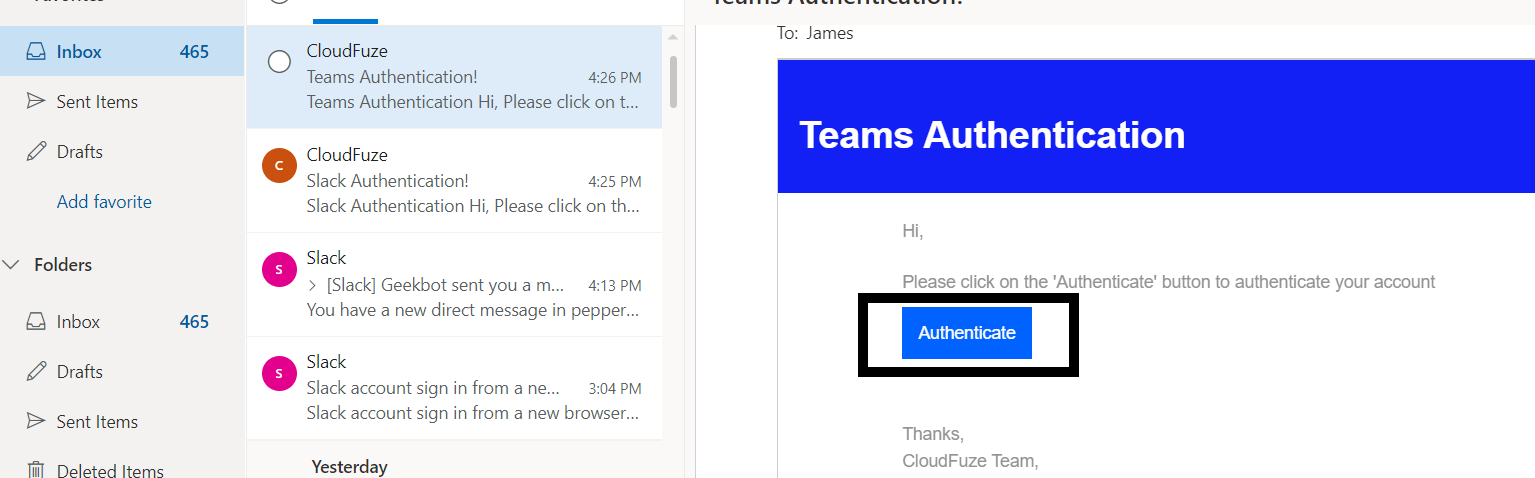
Note: If any user is not authenticated either in the source or the destination, the data of a specific user will not be migrated to the destination, which means the user won't be able to view their one-to-one chat in Teams.
Step 2: Map Users
Once all users are authenticated, you select the users whose direct messages you want to migrate under the Direct Messages section. CloudFuze automatically maps source and destination users by matching email addresses.
You have the option to select specific users by checking the box before each Id or all at once by selecting the box before the "Source Chat Name".
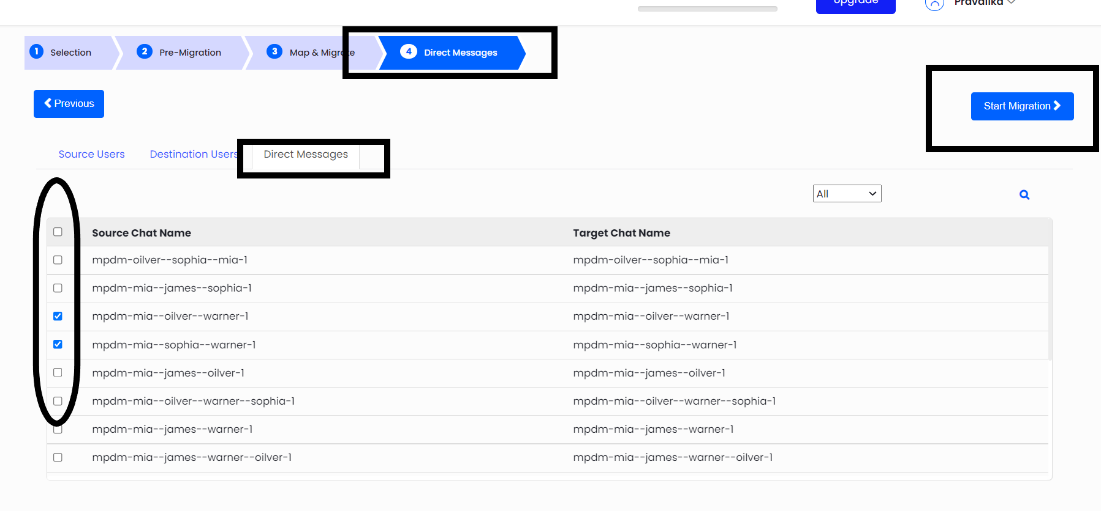
If email addresses differ between Slack and Microsoft 365 (which is common in M&A scenarios or domain changes), CloudFuze supports manual mapping via the CSV method.

Step 3: Select Conversations and Start the Migration
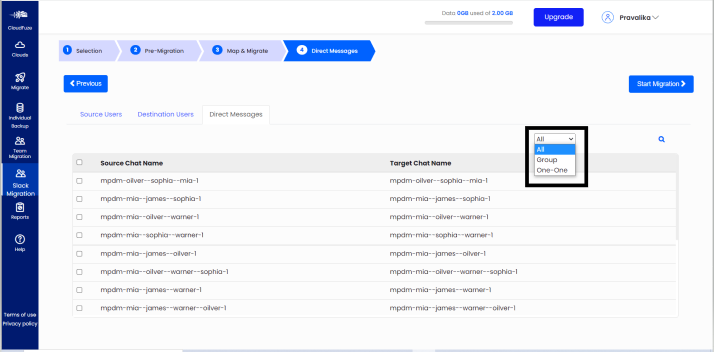
From the dropdown highlighted in the screenshot below, you can choose to migrate all the conversations or only one-to-one conversations or group conversations as per your requirements. Now, click on the "Start Migration" button to begin the migration process.
Step 4: Monitor the Migration Progress
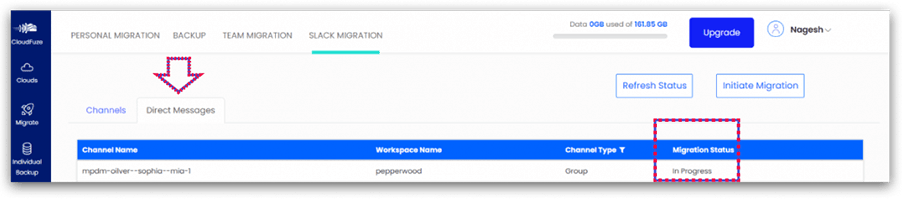
When the migration process starts, the status will be displayed as "In Progress", as shown below.
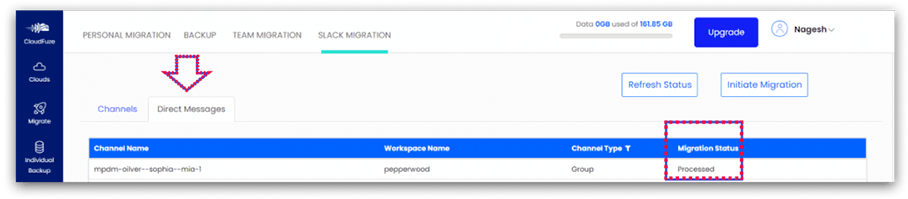
As shown below, the migration status will change to "Processed" once Slack direct messages have been migrated to Teams.
Now, users can see all their direct messages, including chat, files, emojis, timestamps, and @mentions in the chat section by logging into Microsoft Teams.
Before and After Migration
Let us look at the examples for each feature migrated, with the screenshots taken before the migration from Slack and after the migration from Teams.
Files migrated from Slack direct messages to Teams
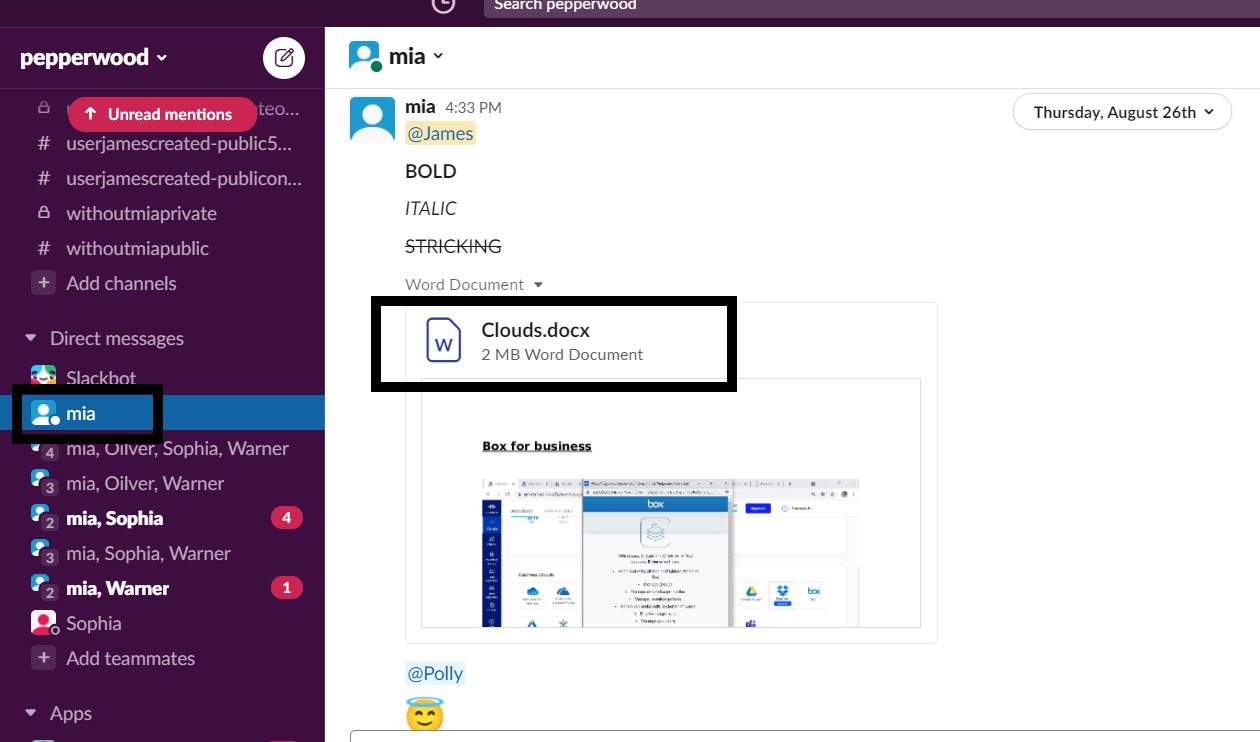
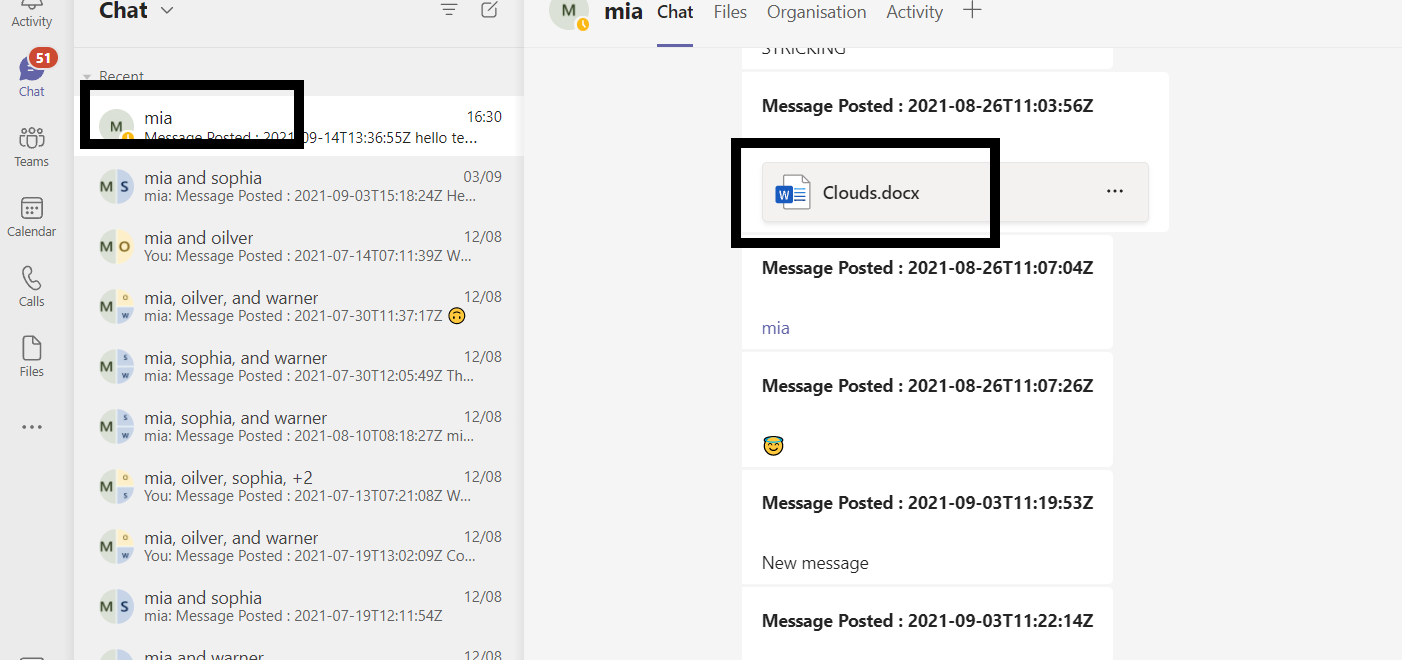
A file Mia shared with James in a Slack one-to-one chat is migrated to Teams along with the timestamp. Continue to read on about the file’s migration from Slack to Teams with zero data loss.
Slack Workspace:
Microsoft Teams
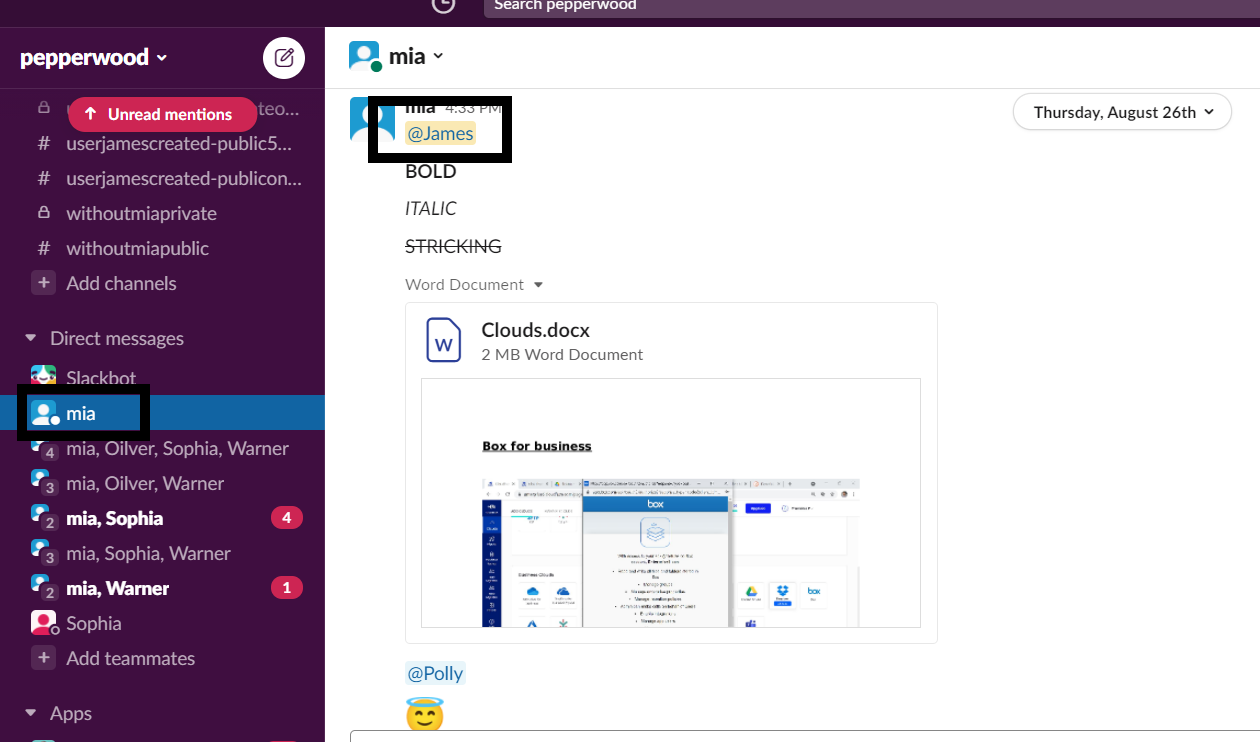
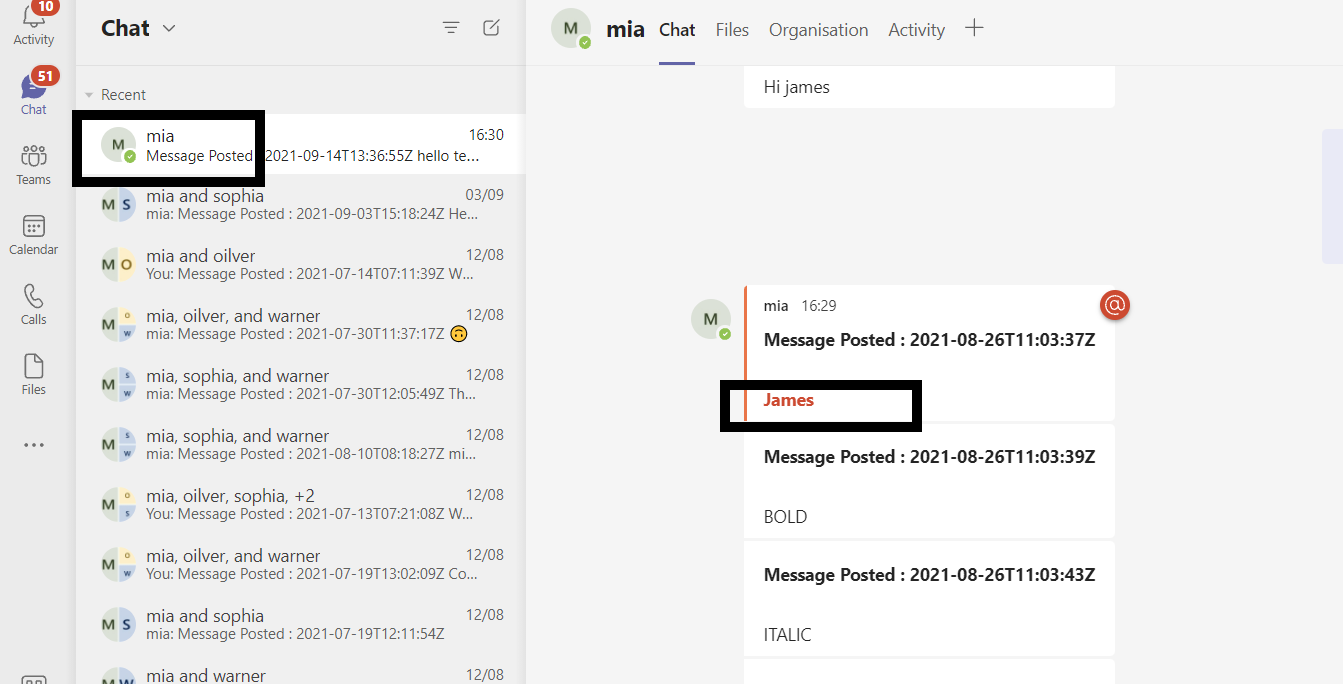
@mentions migrated from Slack direct messages to Teams
In Slack, Mia-James’s one-to-one chat, Mia mentioned that James has been migrated to Teams along with the timestamp.
Microsoft Teams
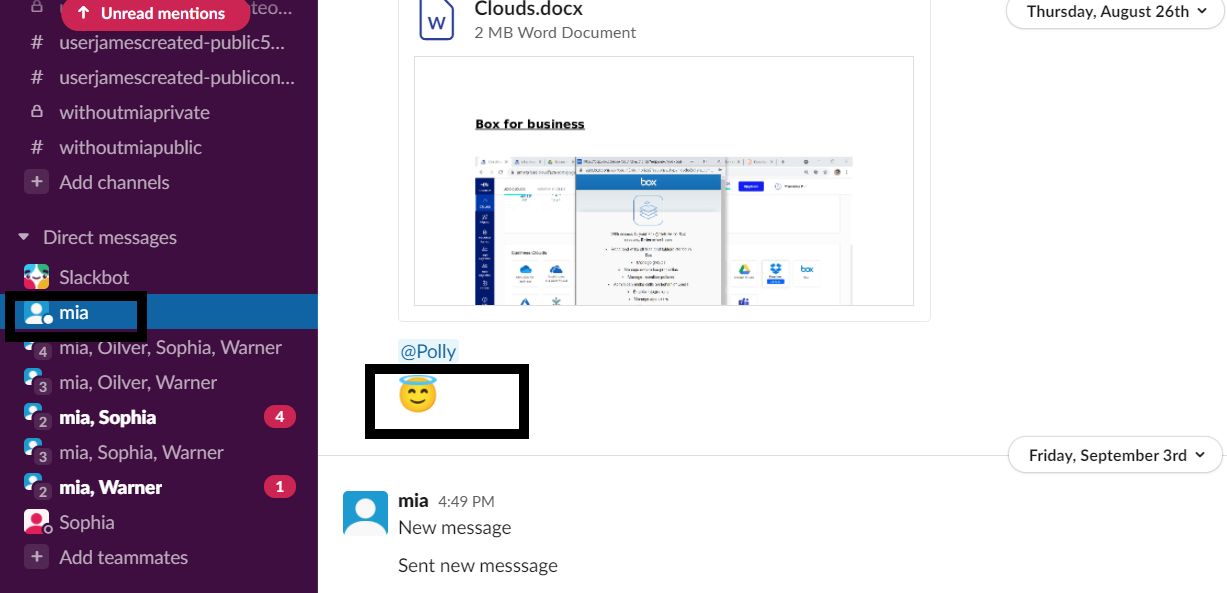
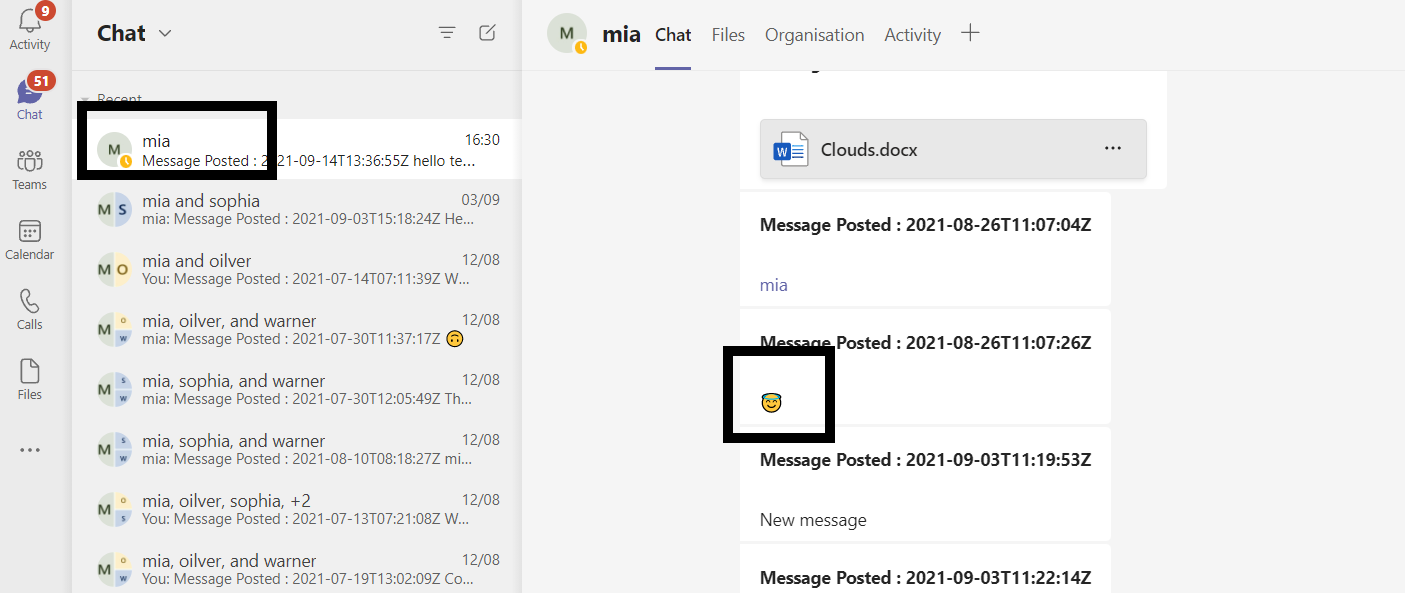
Emojis migrated from Slack direct messages to Teams
An emoji in Slack Mia-James chat is migrated to Teams along with the timestamp.
Slack Workspace:
Microsoft Teams
Data Integrity and Security During Direct Message Migration
A common concern for IT teams is what happens to data during the direct message migration process. Here is how CloudFuze handles data integrity and security for Slack DM migrations:
A) No data deletion from source
Migration is read-only on the Slack side. None of your Slack DMs are deleted or modified during the process.
B) Managed migration
For enterprise migrations, CloudFuze provides a dedicated migration manager who monitors the process end-to-end and provides status updates via email and scheduled calls.
C) Test migration support
Before running the live migration, you can perform a pilot migration to test the migration configurations and ensure it works properly before proceeding to the actual migration.
Frequently Asked Questions
1. Can Microsoft’s Slack to Teams migration tool migrate direct messages?
No. Microsoft’s built-in migration tool, which became available in early 2026, only supports Slack channel migration. Direct messages are not included in the current release. Microsoft has listed DMs migration as a future roadmap item, but it is not available yet. A third-party tool like CloudFuze Migrate is required to transfer Slack DMs to Teams today.
2. Are Slack direct messages deleted from Slack after migration?
No. CloudFuze’s migration process is non-destructive. All source data in Slack remains intact. Migration only writes data into teams. You retain full access to your Slack workspace during and after migration.
3. How long does the Slack direct message migration take?
Migration time depends on the number of users and direct messages. Other factors that determine the time it takes to migrate direct messages include, the migration tool used, the instances used, and the delta migration window.
4. Can I migrate only certain users’ DMs instead of the entire workspace?
Yes. CloudFuze lets you migrate DMs of specific users if you do not wish to migrate DMs of entire active users. You can also filter by conversation type, choosing between all DMs, one-on-one only, or group DMs only.
5. How to migrate Slack direct messages to Teams securely?
The key to migrating direct messages securely is to use a migration tool that ensures enterprise-grade security throughout the process. OAuth authentication, data encryption, and SOC 2 Type 2 compliance are some of the security boxes to check when choosing a migration tool.
About the Author: Pankaj Rai



