

With CloudFuze and Cisco Spark Integration users can easily retrieve files from different cloud services to Cisco Spark Meeting Room with out the need of uploading it from the local computer.
Here is the step by step guide on how to retrieve your files from cloud storage services like Dropbox, Box, Google Drive and OneDrive.
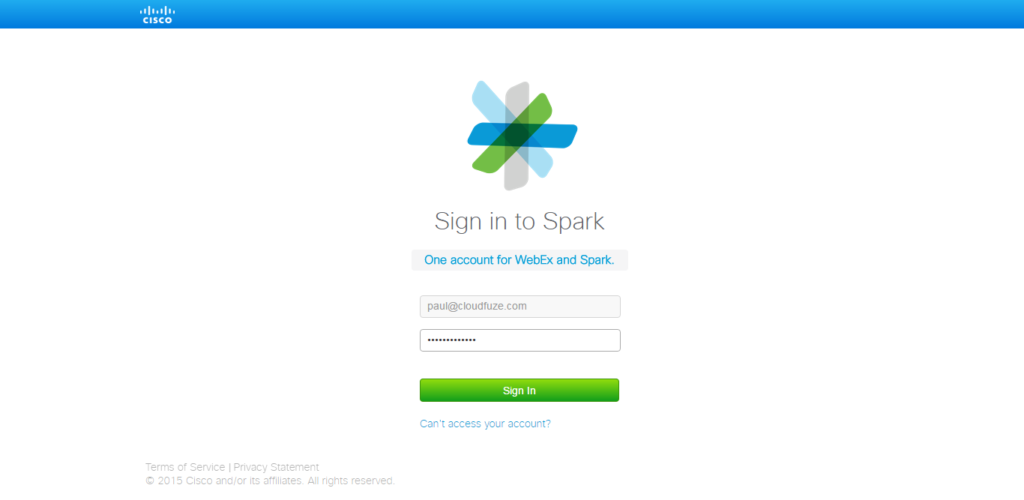
Step 1: Login to Cisco Spark .

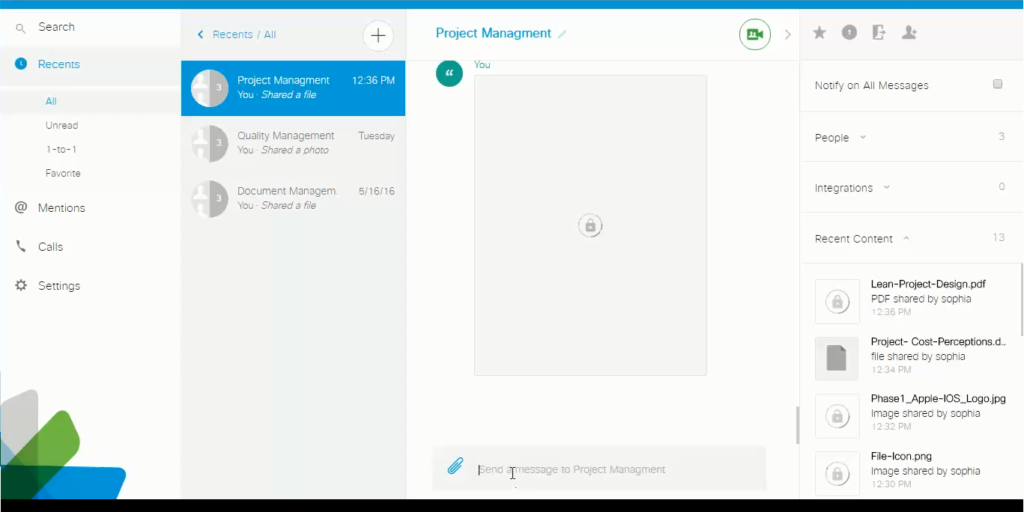
Step 2: Enter into a conference room .
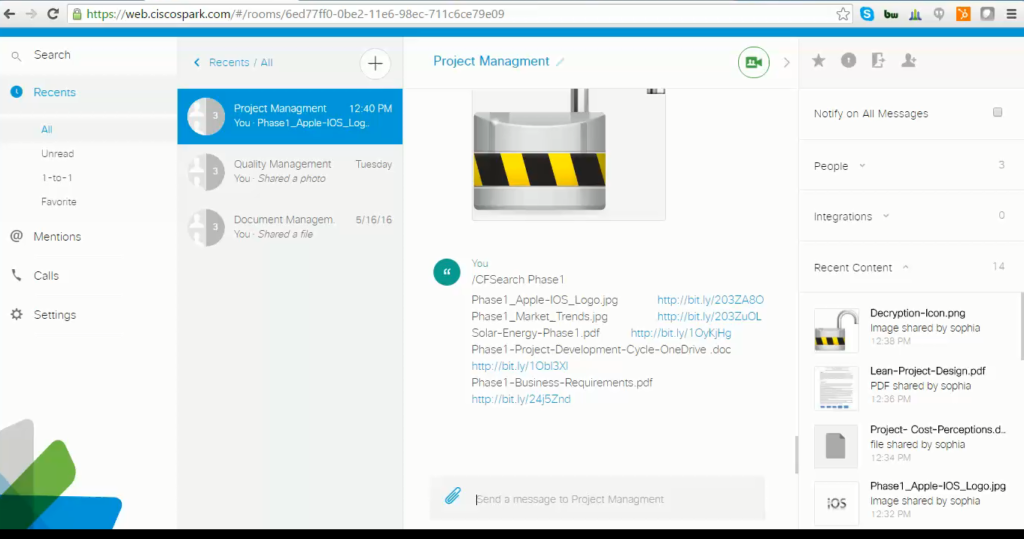
Step 3: Enter the file name after /CFSearch “File Name” that you would like to Share in the meeting room .
You will see list of files with related names retrieved from all your Cloud Storage services Integrated with CloudFuze.
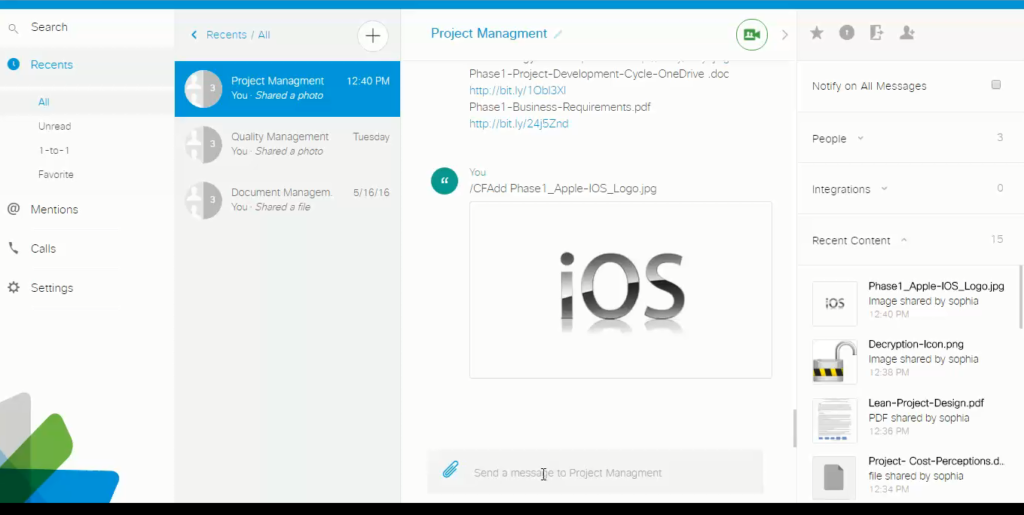
Step 4: Finally to Add/Share file in the meeting room enter /CFAdd “File name” and your file will been shared over the conference room.
About the Author: Shiva Remala

Shiva Remala is a Content Writer at CloudFuze, creating research-driven content on cloud migration and enterprise collaboration. He turns complex technical topics into clear, actionable insights that help IT professionals and business leaders make informed technology decisions.



